Project Description:
Many electrical appliances retain their status lights even after being turned off, which can disrupt sleep at night. Routers are a special case. People often use their phones in bed before sleep, needing to get up to turn off the power before falling asleep, only to find themselves unable to sleep afterward. Not to mention needing to use Wi-Fi in the middle of the night when they can't sleep. Controlling the power of electrical appliances via a mobile app would largely solve this problem.
Open Source License
GPL3:
Project Features:
1. Uses the LCSC ESP32 development board to control whether the sockets on a power strip are powered.
2. When the router is on, it connects to a cloud server via the ESP32's Wi-Fi to receive control commands;
when the router is off or the cloud server is unavailable, it connects directly to the phone via the ESP32's Bluetooth to receive control commands.
3. When the phone is not readily available, a universal remote control can be used.
4. For easy mobile app use, a simple lighting app can be used; for medium difficulty, uniapp can be used, or an Alibaba Cloud SDK template can be used directly.
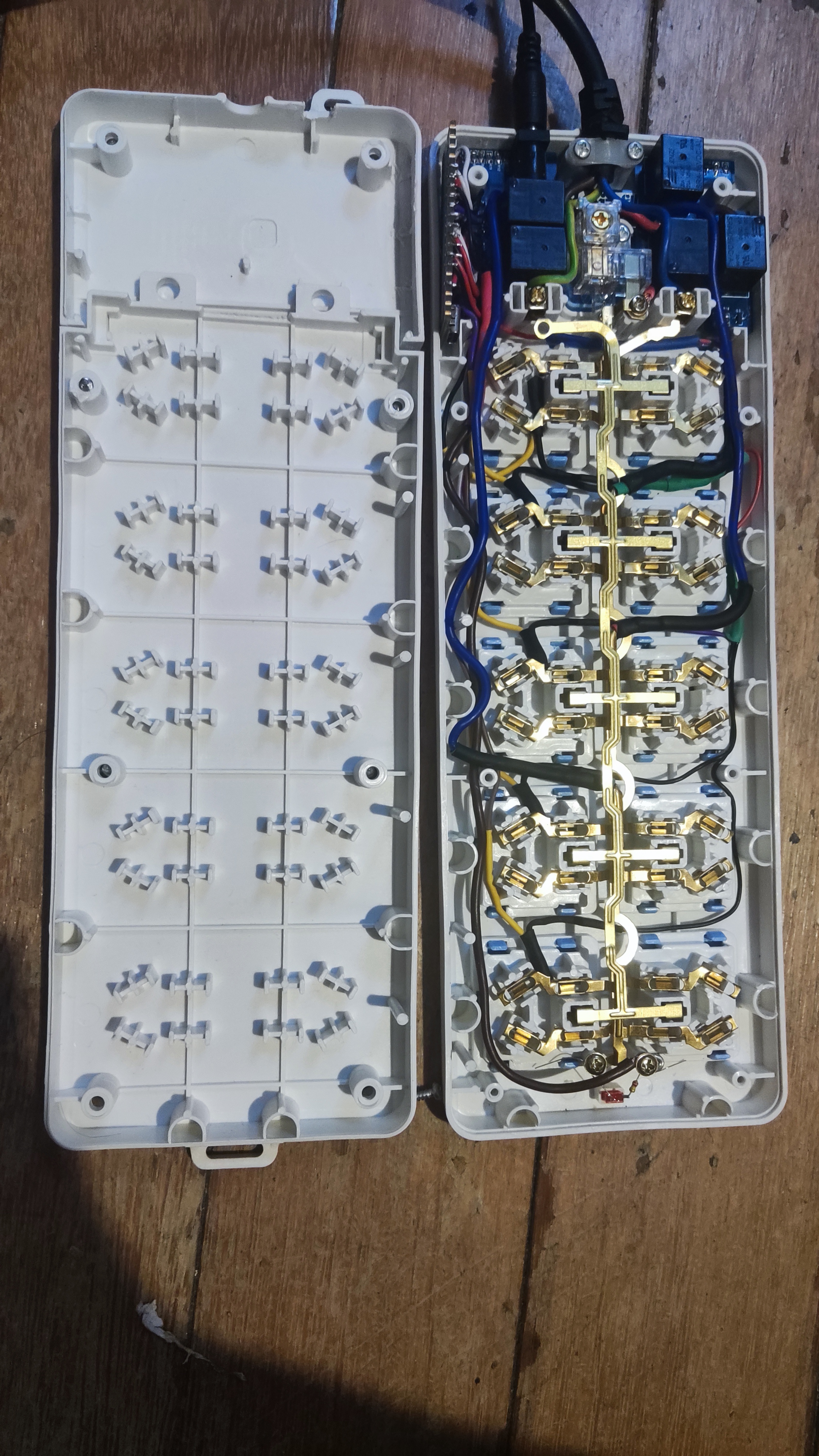
5. A commercially available power strip can be modified to ensure safety.
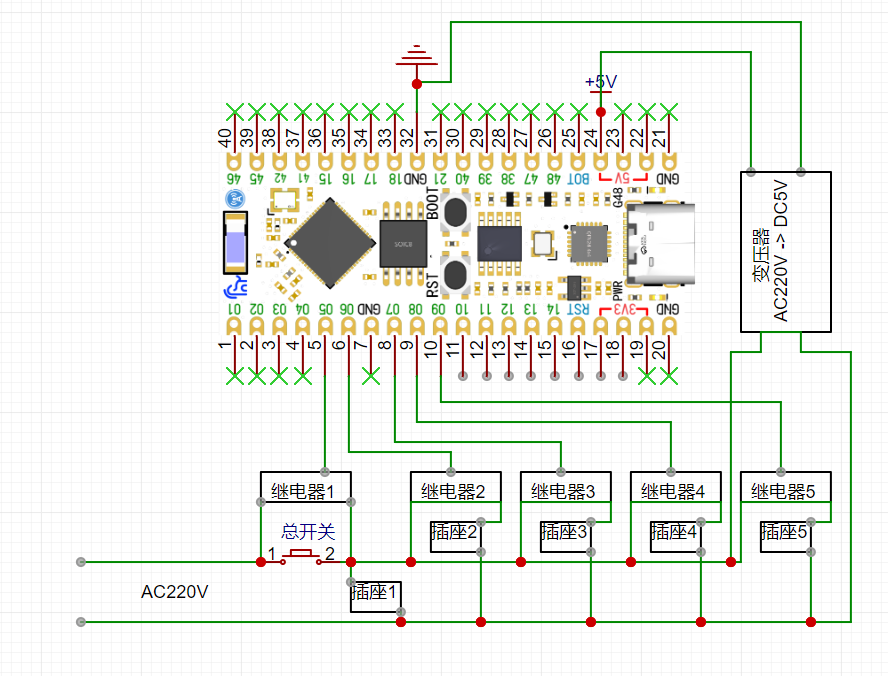
6. The 5V power supply for the ESP32 development board is provided by a transformer module. The 220V connection point of the transformer module is after the main switch of the power strip. Relay 1 is connected in parallel with the main switch. After the ESP32 development board is powered on, relay 1 immediately closes, and the normally open non-locking main switch opens. If a risk is detected or the APP commands relay 1 to open, the entire system will be de-energized, ensuring safety.
7. NTC is installed next to all live wire sockets to ensure safety.
Project Attributes
This project is being publicly disclosed for the first time and is my original work. This project has not won any awards in other competitions.
Project Progress
Design
Principles
Software Description
The code below is from Electric Light Technology. If using Alibaba Cloud or other IoT platforms, you can modify the uniapp_Demo in the attachment.
#include
#define LED_BUILTIN 48
#define S_A 10
#define S_2 11
#define S_3 12
#define S_4 13
#define S_5 14
#define Temp_A 6
#define Temp_2 8
#define Temp_3 5
#define Temp_4 9
#define Temp_5 7
BlinkerButton Button1("btn-abc");
BlinkerButton Button2("btn-123");
BlinkerNumber Number1("num-100");
BlinkerButton Button3("btn-abd"); BlinkerButton Button4
("btn-124
");
Button5("btn-abe");
BlinkerButton Button6("btn-125");
BlinkerNumber Number3("num-102");
BlinkerButton Button7("btn-abf");
BlinkerButton Button8("btn-126");
BlinkerNumber Number4("num-103");
BlinkerButton Button9("btn-abg");
BlinkerButton Button10("btn-127");
BlinkerNumber Number5("num-104");
//NTC temperature reading function
float readTemp(int pinNo)
{
int sensorValue = analogRead(pinNo);
float voltage = (sensorValue/4095.00) * 3.3;
float res = 10000*voltage/(3.3-voltage);
float temp = 1/((log(res/10000)/3980)+1/298.15)-273.15;
return temp;
}
void button_update(BlinkerButton btn,int pin_num)
{
// digitalWrite(pin_num, !digitalRead(pin_num));
if(digitalRead(pin_num))
{
btn.color("#0000FF");
btn.print();
}else{
btn.color("#FFFFFF");
btn.print();
}
}
void button9_callback(const String & state)
{
BLINKER_LOG("get button state: ", state);
digitalWrite(S_5, !digitalRead(S_5));
button_update(Button10,S_5);
}
void button7_callback(const String & state)
{
BLINKER_LOG("get button state: ", state);
digitalWrite(S_4, !digitalRead(S_4));
button_update(Button8,S_4);
}
void button5_callback(const String & state)
{
BLINKER_LOG("get button state: ", state);
digitalWrite(S_3, !digitalRead(S_3));
button_update(Button6,S_3);
}
void button3_callback(const String & state)
{
BLINKER_LOG("get button state: ", state);
digitalWrite(S_2, !digitalRead(S_2));
button_update(Button4,S_2);
}
void button1_callback(const String & state)
{
BLINKER_LOG("get button state: ", state);
digitalWrite(S_A, !digitalRead(S_A));
button_update(Button2,S_A);
}
// void number1_callback(const String & state)
// {
// BLINKER_LOG("get button state: ", state);
// float t1 = readTemp(Temp_A);
// Number1.print(t1);
// }
void heartbeat()
{
// button_update(Button4,S_2);
// button_update(Button2,S_A);
// Number1.print(readTemp(Temp_A));
// Number2.print(readTemp(Temp_2));
// Number3.print(readTemp(Temp_3));
// Number4.print(readTemp(Temp_4));
// Number5.print(readTemp(Temp_5));
}
void dataRead(const String & data)
{
BLINKER_LOG("Blinker readString: ", data);
Number1.print(readTemp(Temp_A));
Number2.print(readTemp(Temp_2));
Number3.print(readTemp(Temp_3));
Number4.print(readTemp(Temp_4));
Number5.print(readTemp(Temp_5));
BLINKER_LOG("Read temperature is: ", readTemp(Temp_A));
BLINKER_LOG("Read temperature is: ", readTemp(Temp_2));
BLINKER_LOG("Read temperature is: ", readTemp(Temp_3));
BLINKER_LOG("Read temperature is: ", readTemp(Temp_4));
BLINKER_LOG("Read temperature is: ", readTemp(Temp_5));
// Serial.println("Read temperature is: %2f ",temp1)
}
void setup()
{
Serial.begin(115200);
BLINKER_DEBUG.stream(Serial);
pinMode(S_A, OUTPUT);
pinMode(S_2, OUTPUT);
pinMode(S_3, OUTPUT);
pinMode(S_4, OUTPUT);
pinMode(S_5, OUTPUT);
pinMode(Temp_A, INPUT);
pinMode(Temp_2, INPUT);
pinMode(Temp_3, INPUT);
pinMode(Temp_4, INPUT);
pinMode(Temp_5, INPUT);
Blinker.begin();
Blinker.attachData(dataRead);
Button1.attach(button1_callback);
Button3.attach(button3_callback);
Button5.attach(button5_callback);
Button7.attach(button7_callback);
Button9.attach(button9_callback);
Blinker.attachHeartbeat(heartbeat);
}
void loop()
{
Blinker.run();
} Other considerations for
physical display design








 京公网安备 11010802033920号


 1546970-4



