Project Description:
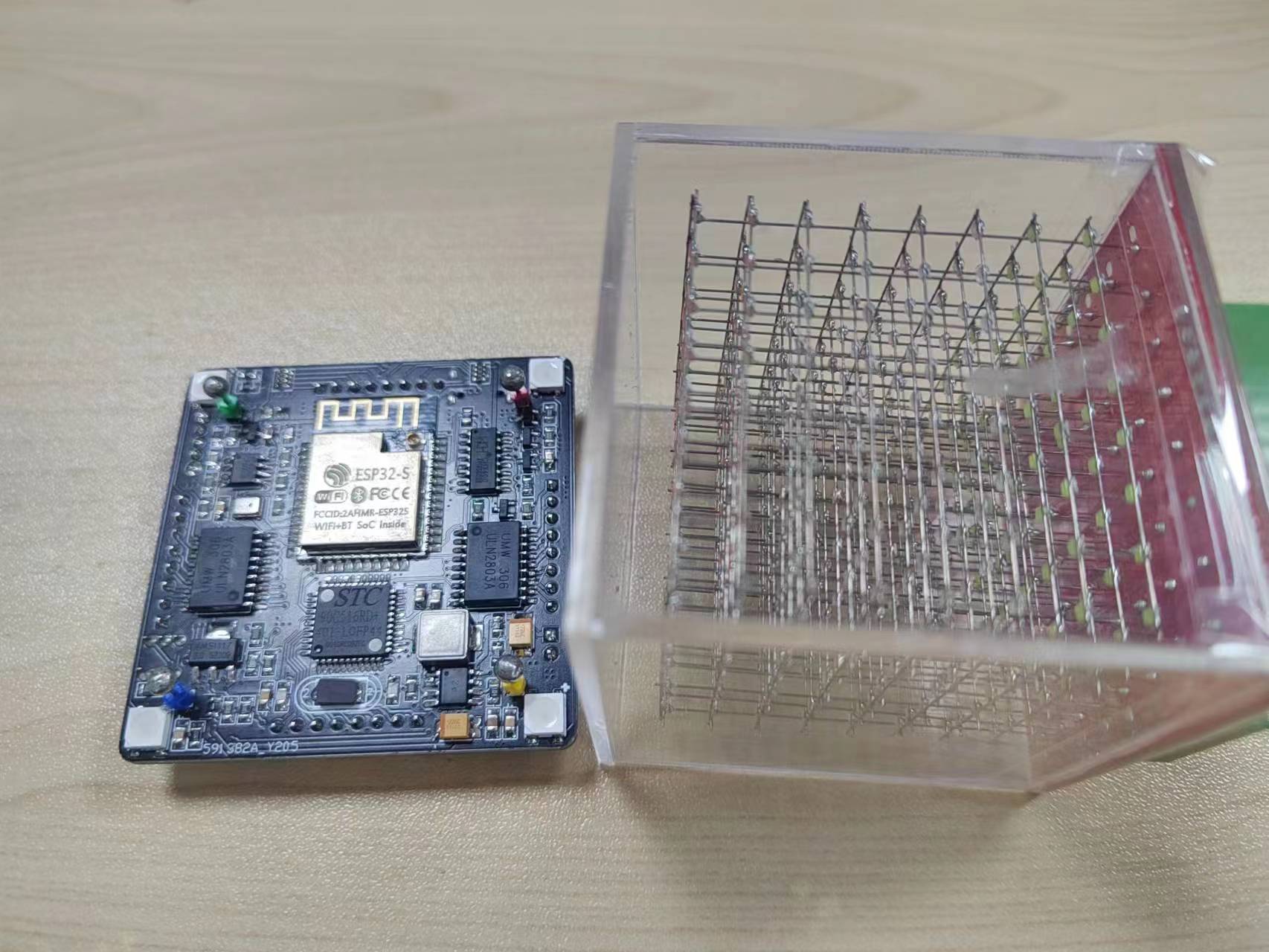
1. A light cube made using ESP32 and STC51 chips.
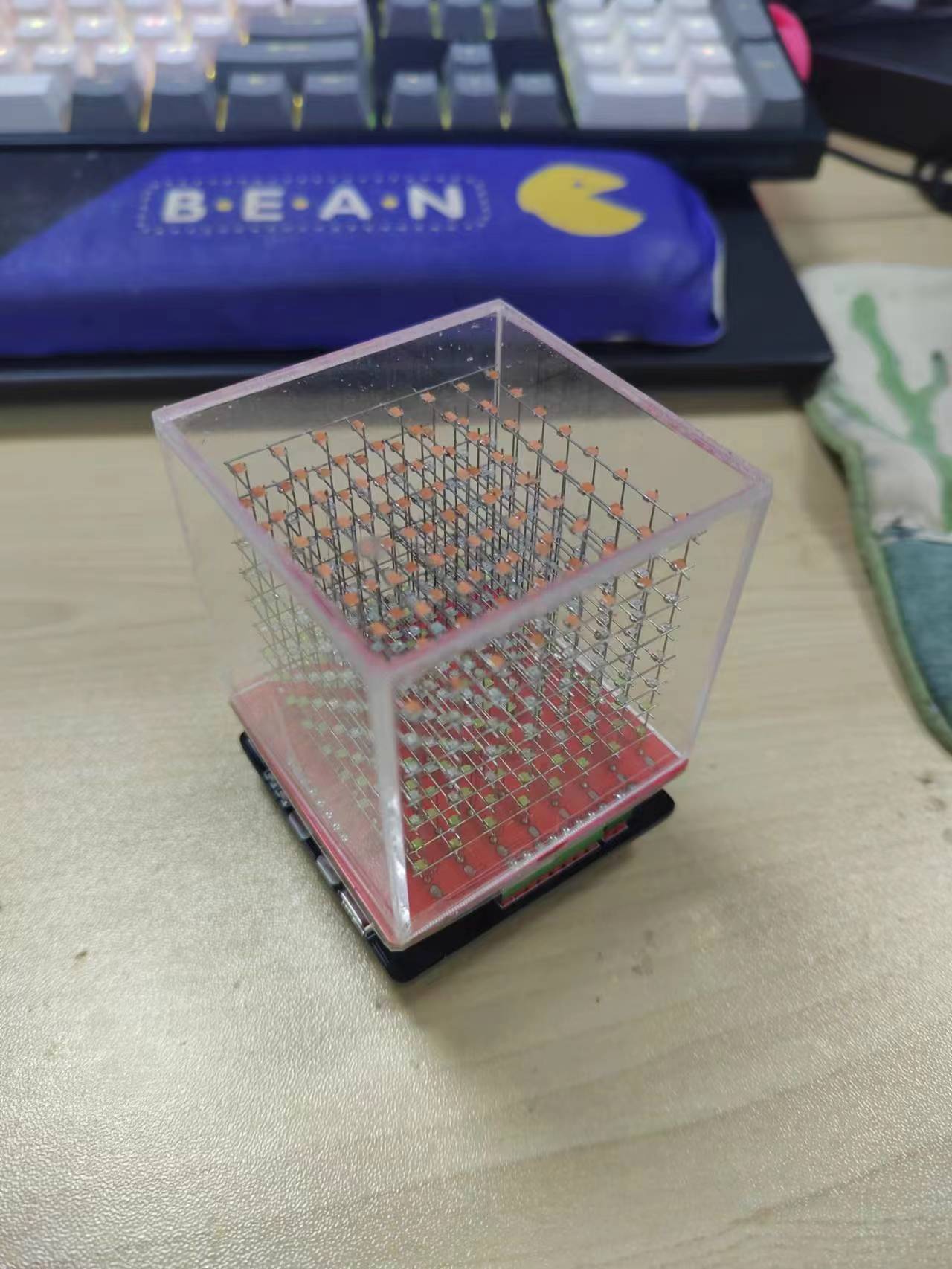
2. A light cube hand-soldered using 0805 SMD LEDs.
3. Finished product dimensions: 56*56*78mm.
4. Hardware circuitry and source code are open source; the host computer is also open source (light cube only).
5. Can be controlled via Wi-Fi and serial port.
6. Can be used independently or connected to a host computer.
7. The host computer is developed using Unity3D, offering strong expandability. It supports Windows PCs and Android phones.
8. Supports SDKs for developing the light cube: Arduino ESP32, Unity3D Packet, Python, Android Studio, C# WinForms, and Do-It-Yourself.
9. It's so good you won't break up with your girlfriend.
Project Attributes:
The small light cube and related materials are all original works, free and open source.
Project Progress:
Hardware completed. More software features can be developed.
Design Materials:
Link: https://pan.baidu.com/s/1S9MsWZ7Lz66SiAS-eFISFQ?pwd=2twt Extraction Code: 2twt
All materials are approximately 6GB and are stored on the cloud drive. We are still collecting developer test issues, and the materials will be updated periodically.
Function Introduction:
This section only introduces the functions already implemented by the Little Light Cube. For circuit soldering, code uploading, Light Cube usage, host computer usage, etc., please find the relevant documents in the design materials.
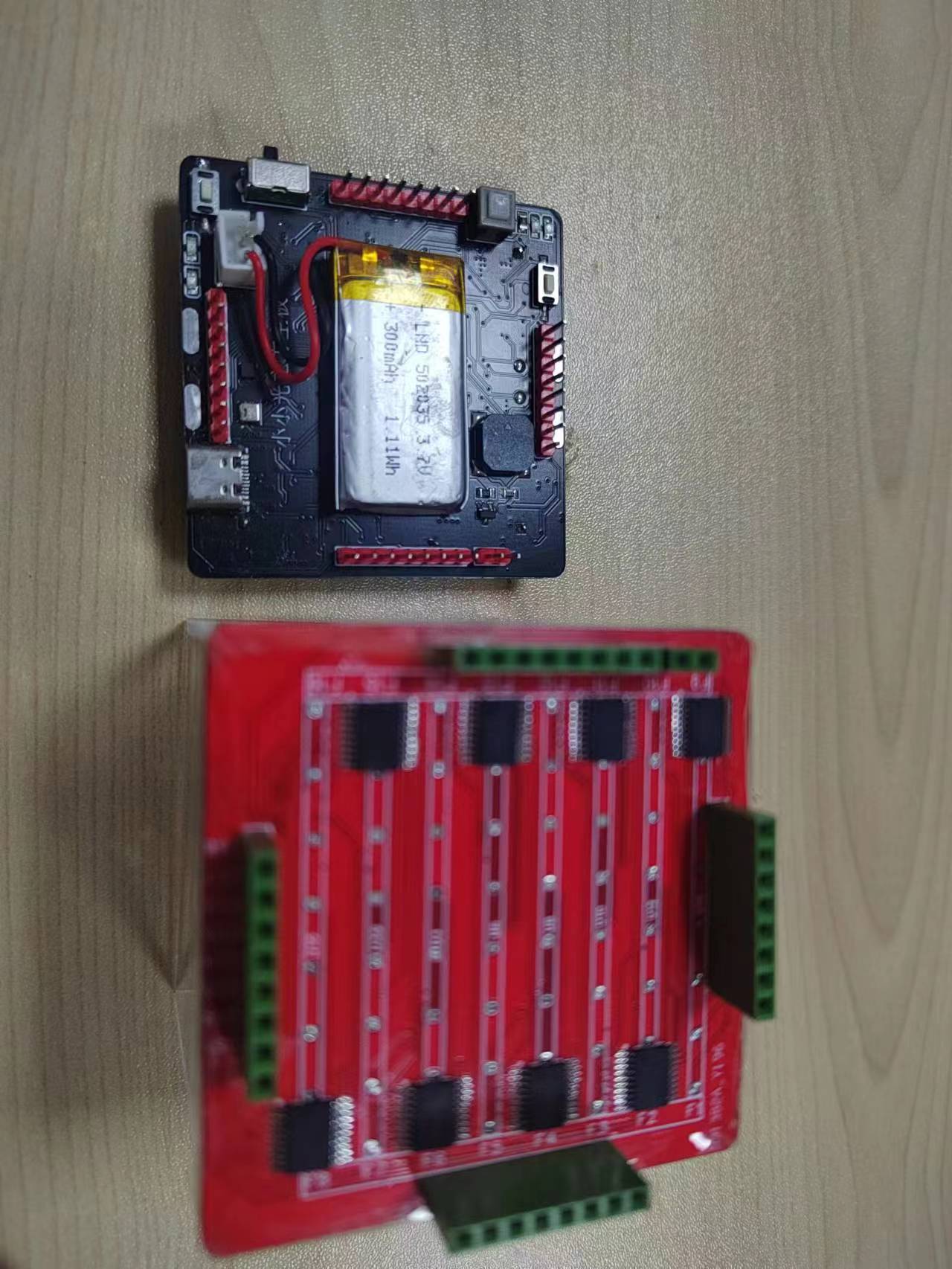
1. The tool kit for soldering the Light Cube is relatively simple, requiring basically no complex processes; you only need to purchase the equipment. The Light Cube uses a single USB port to upload code to ESP32 and 51 microcontrollers, using a self-locking switch to switch the upload mode, eliminating cumbersome operations. The Light Cube is small in size, and the carbon steel wire used to connect the LEDs is not easily damaged. The Light Cube has a built-in battery and can be used independently of other devices.
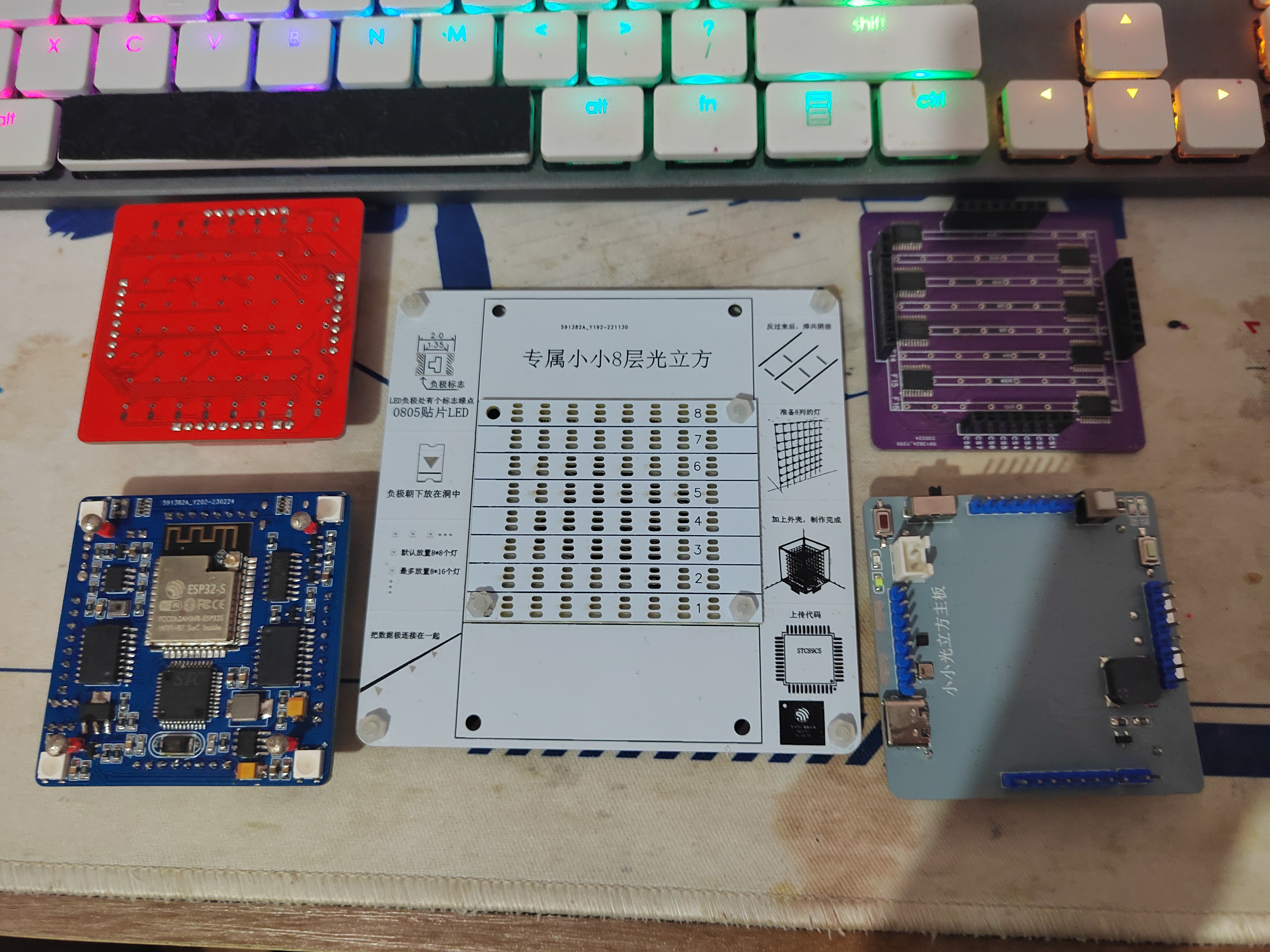
2. First, upload the default demo code to ensure the Light Cube can run. Next, we will introduce the operation of the Light Cube.
# The Light Cube chip board has four touch buttons: Power On, Mode, Effect, and Custom.
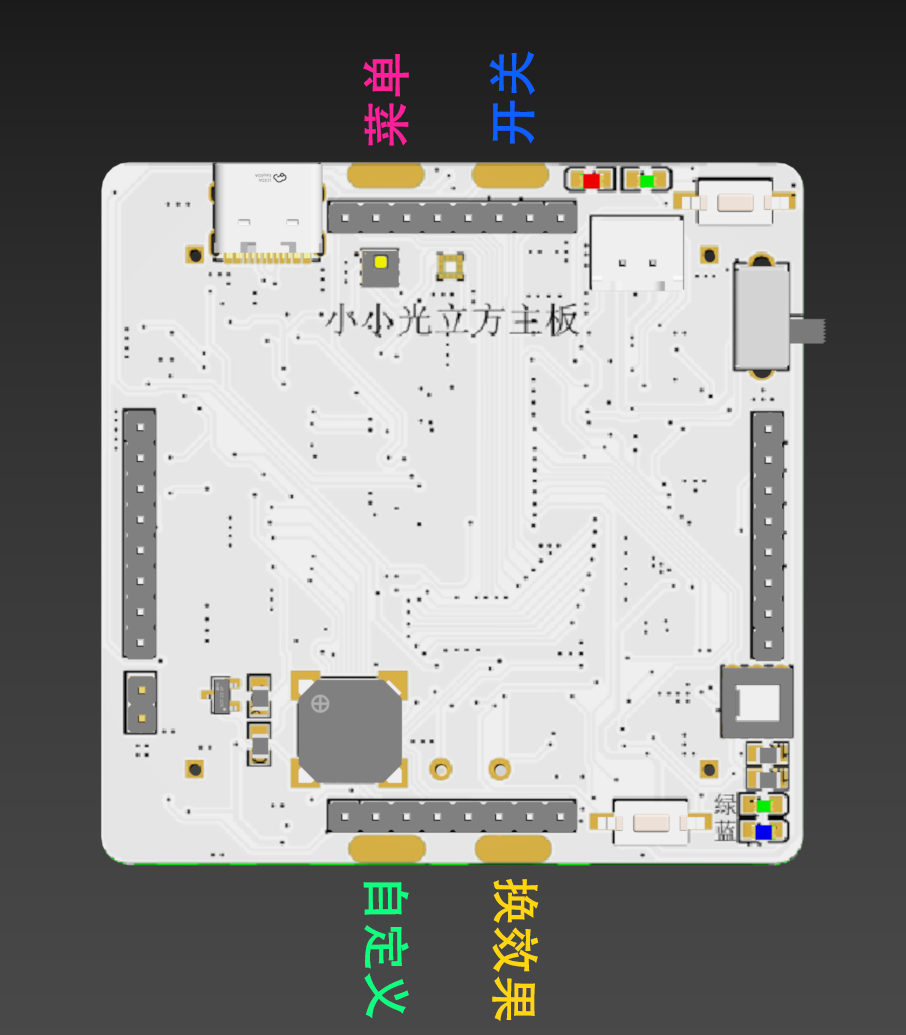
## The Power On button turns ESP32 control on and off. When on, ESP32 controls the Light Cube's operation; when off, ESP32 will not send information to the 51 chip.
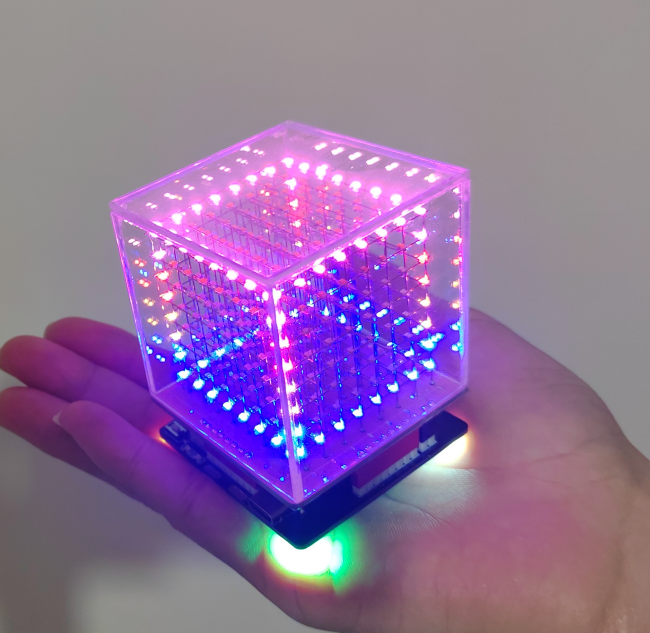
## The Mode button switches between several modes: audio, animation, buzzer, temperature and humidity, and three-axis.
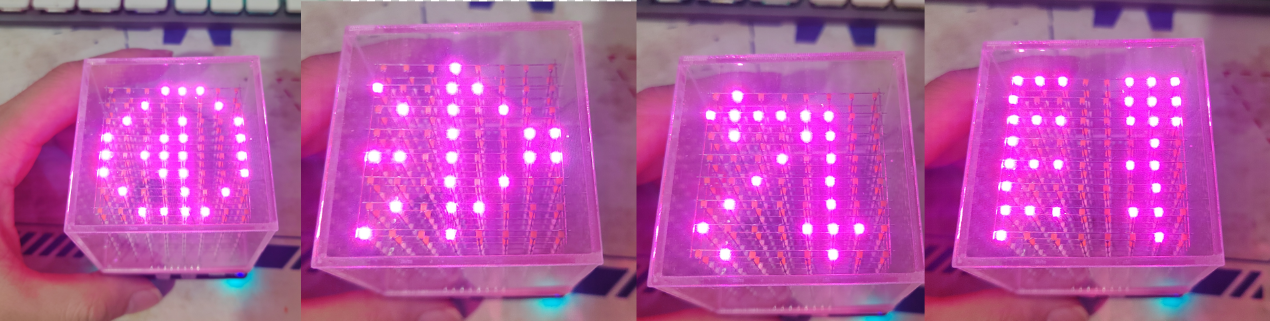
## The Effect button switches the effect under the current mode.
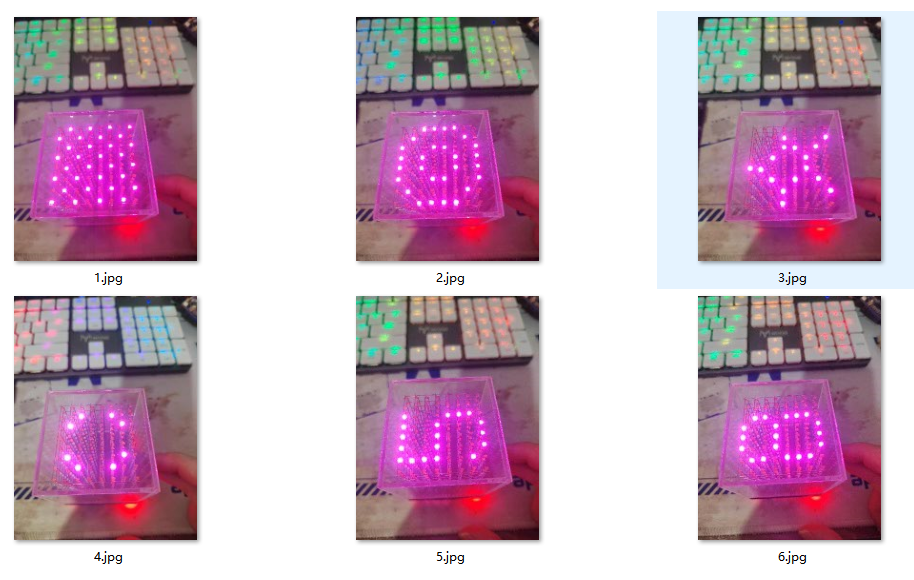
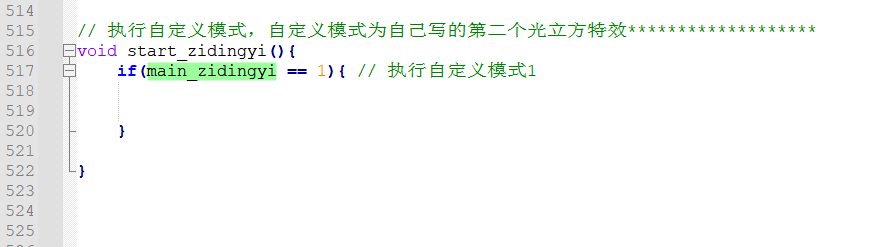
## Custom settings are configured in the code. Custom code is generally composed of pre-written Light Cube functions, pieced together to create the desired effect.
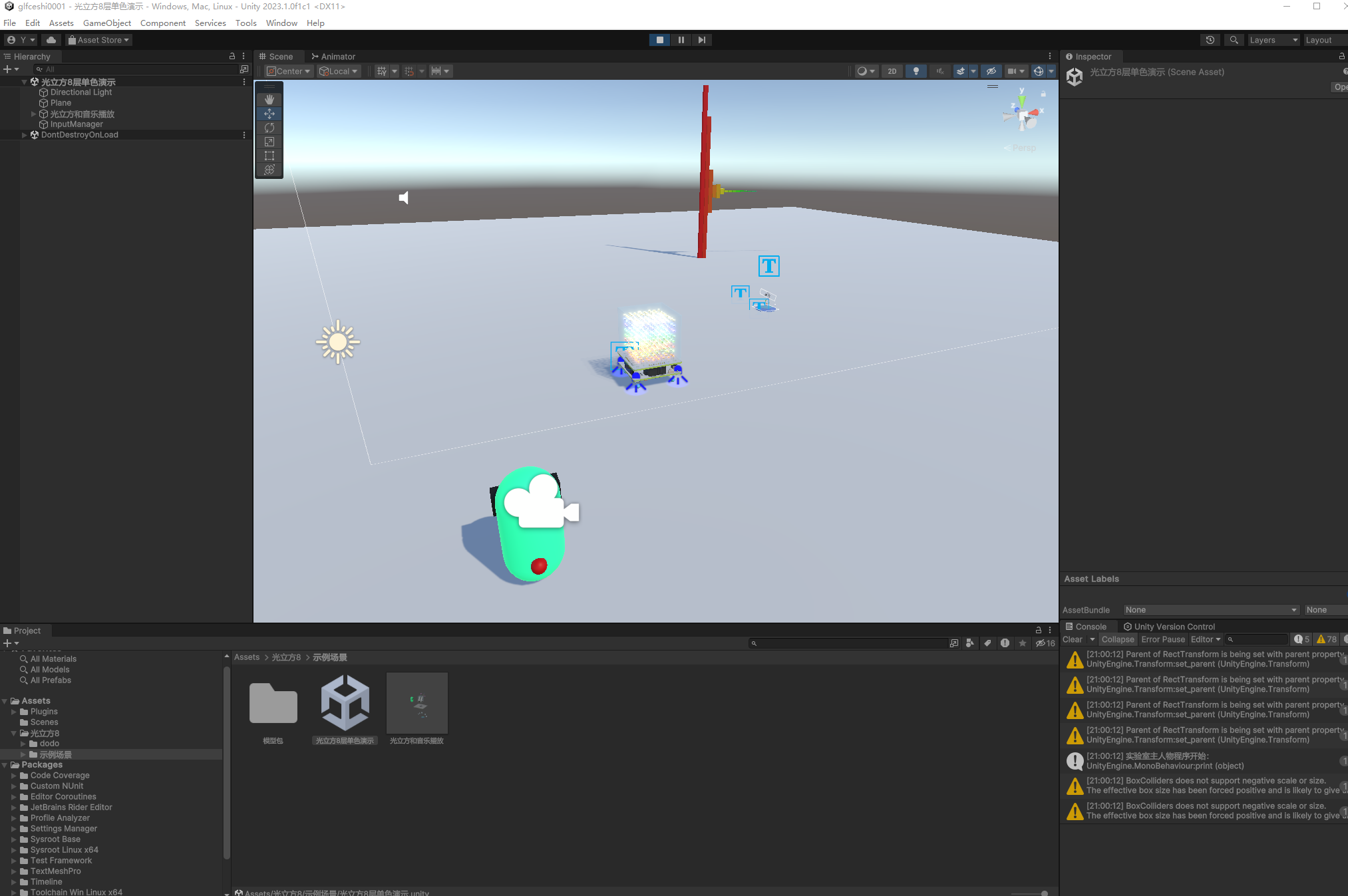
3. The Light Cube can be controlled using a host computer. The host computer uses WiFi control software developed with Unity3D, supporting Windows computers and Android phones.
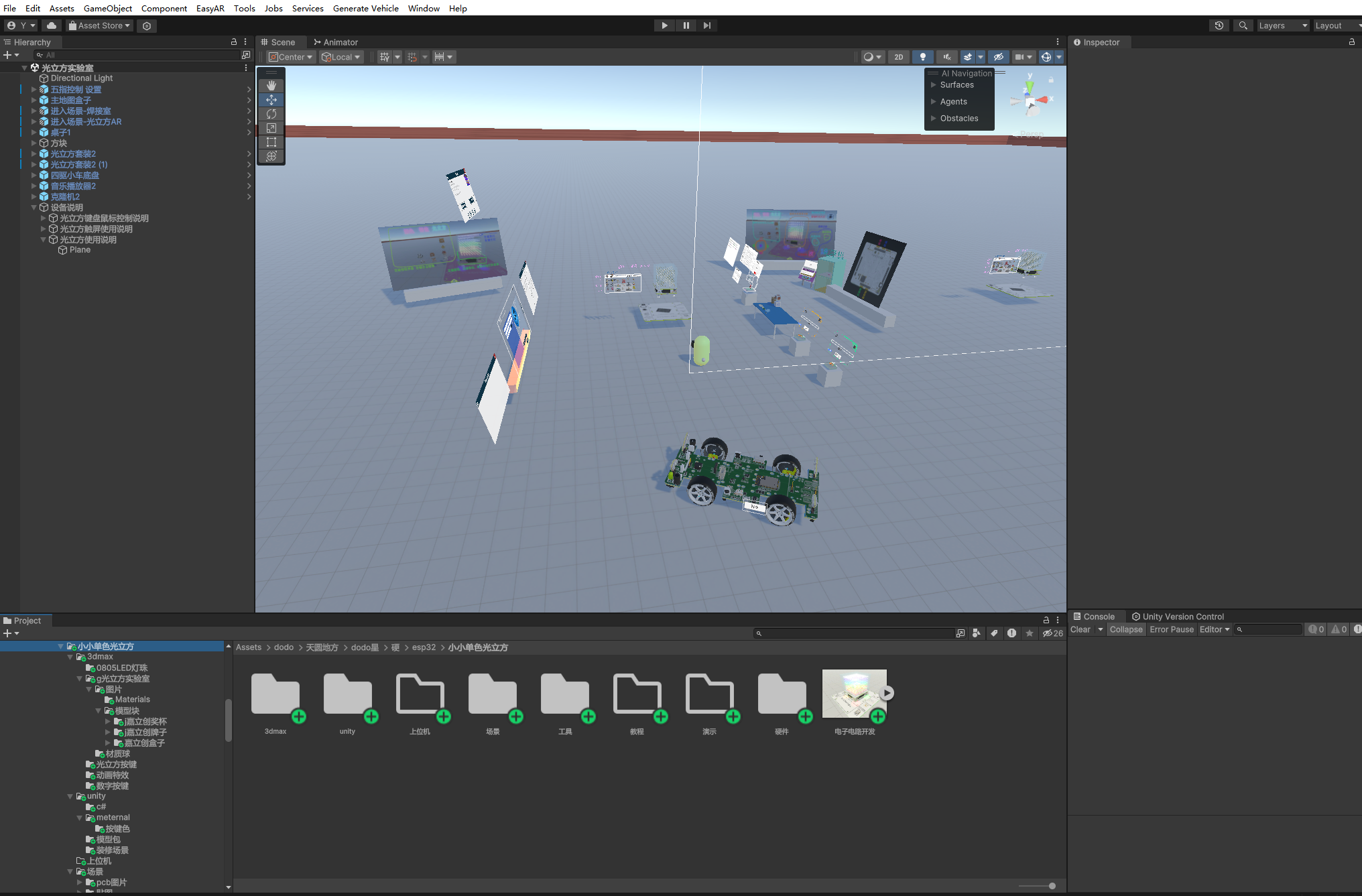
First, open the software and find the Light Cube (tutorials are available in the host computer software), eventually entering the Light Cube Lab. Use WASD to move the character; you can explore the lab, where you'll find Light Cube operation tutorials.
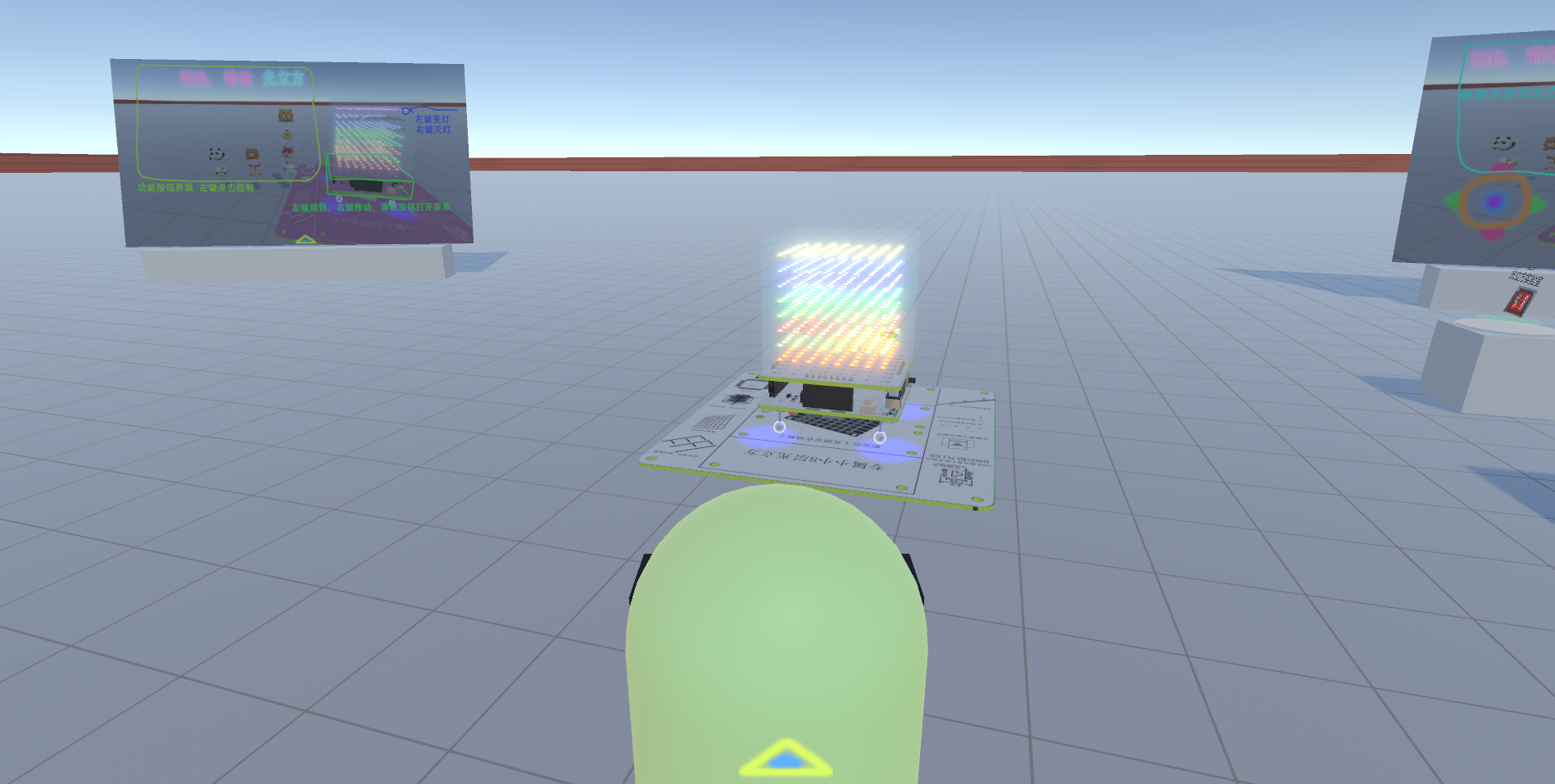
# Light Cube Control: This allows you to control the body of the light cube object. Clicking the small head allows you to zoom in and out of the light cube, switch the arrangement of the lights, and hide/reveal the circuit board, acrylic, wire, etc.
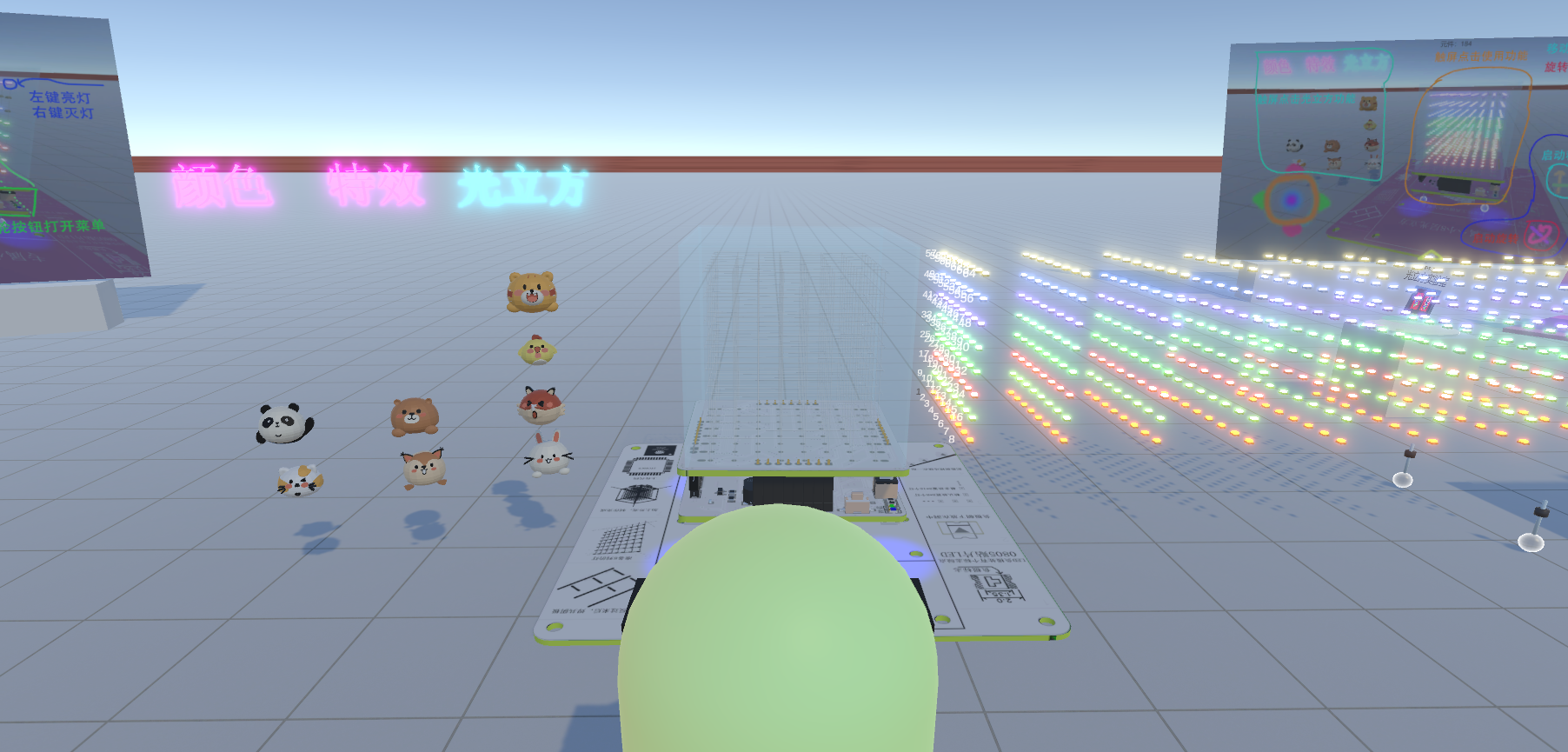
# Special Effects Control: This mainly controls the lighting effects of the light cube. Clicking on an effect will take you to the control interface. Effects controls include: Animation, Music, Wi-Fi, and Custom.
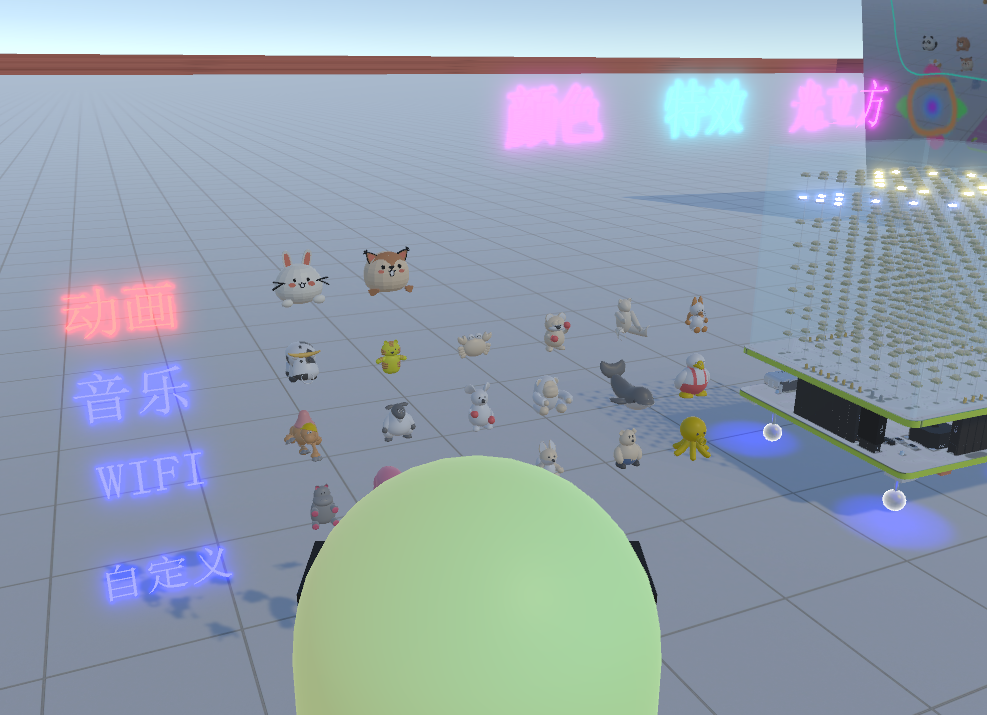
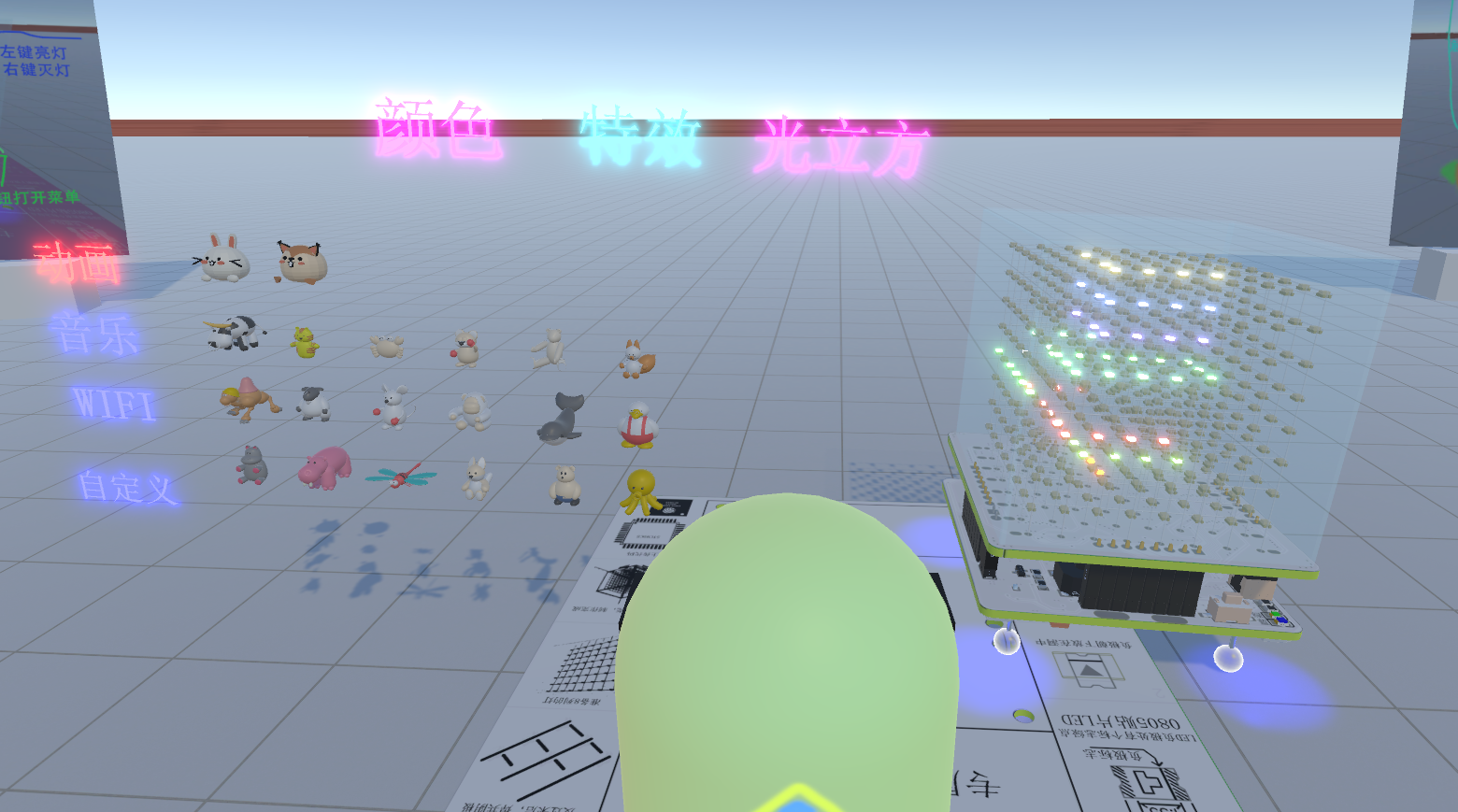
## Animation: Several animation buttons are provided for demonstration. Clicking on the corresponding animal will display the animation on the light cube. Each animation can be played infinitely.
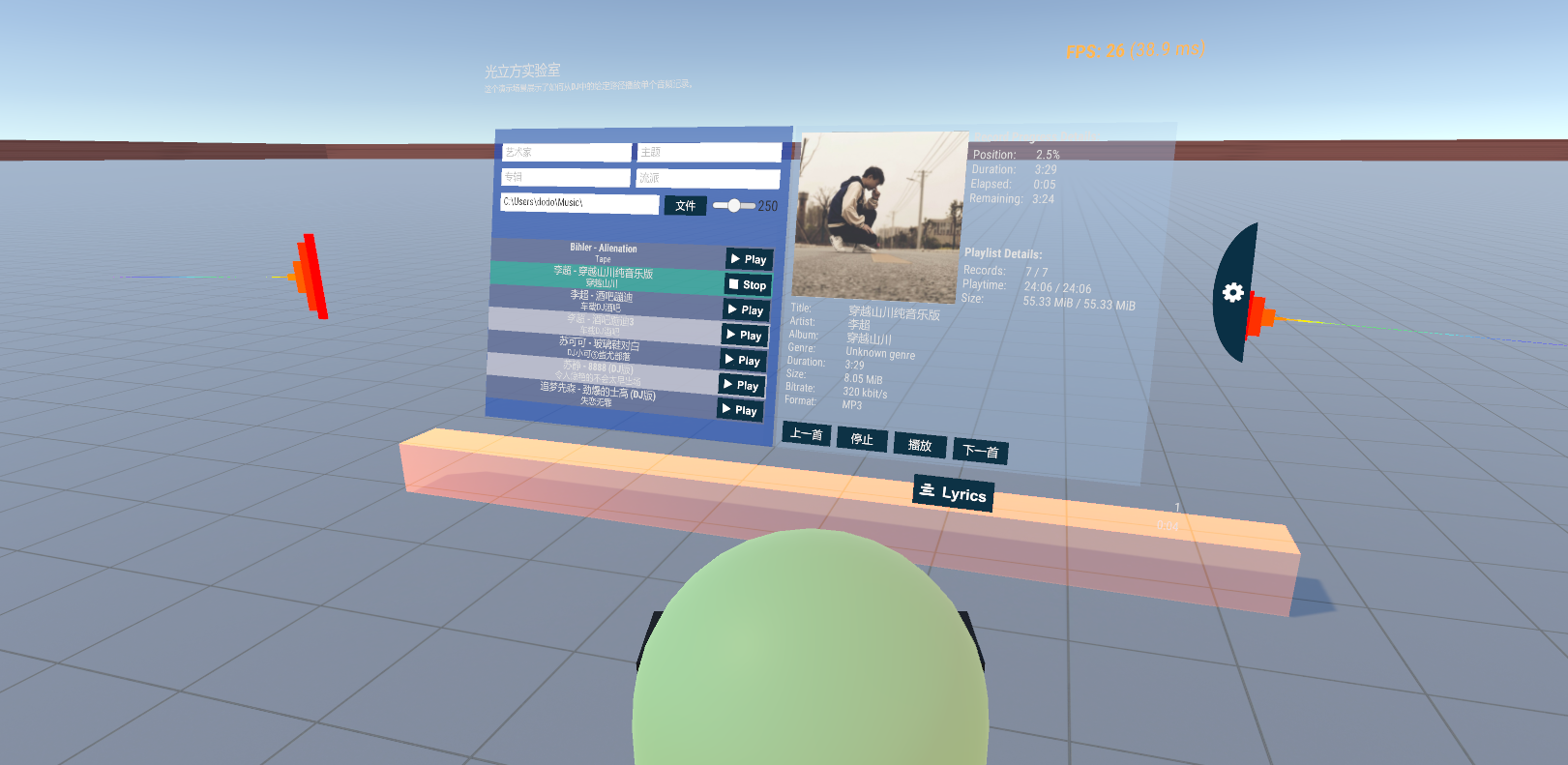
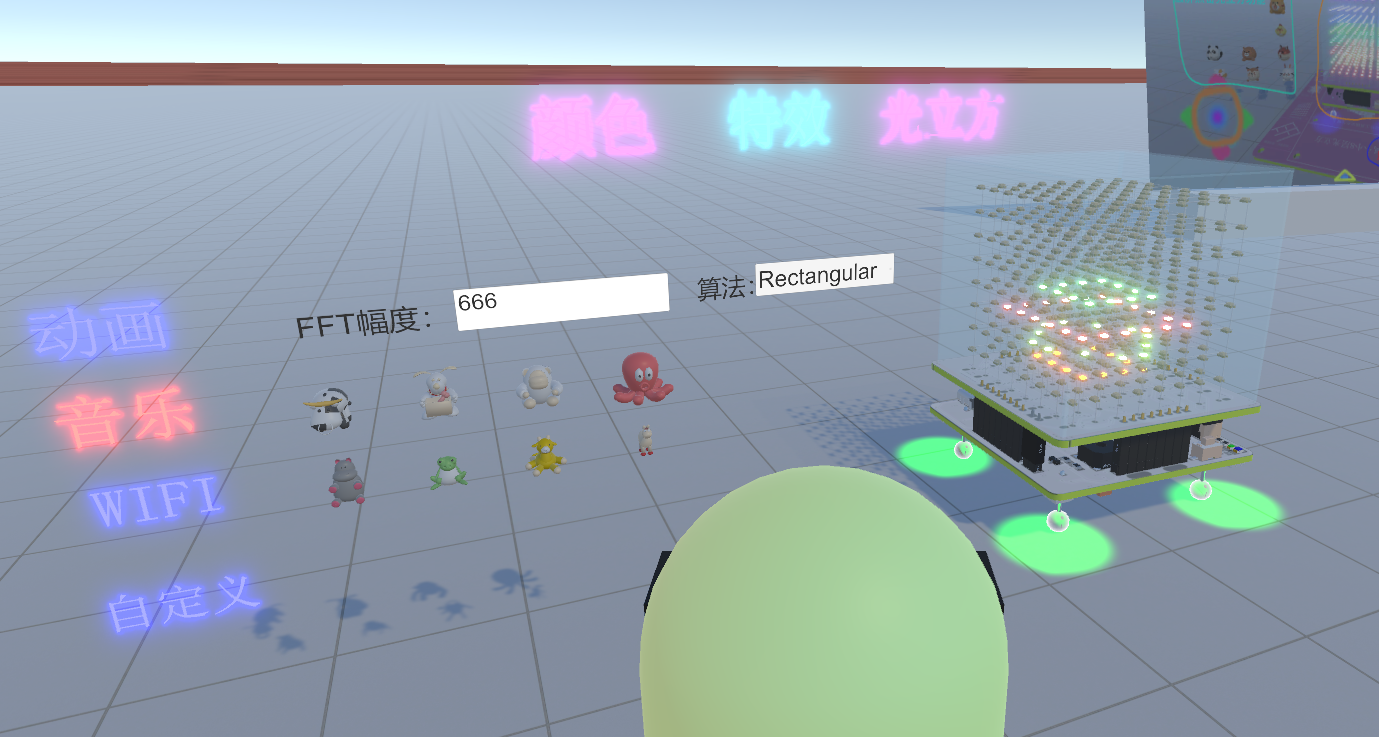
## Music: First, find the music player (on the left), select your song to play, and then click the music button. Here you can see the FFT effect of the music. A cute animal and a music effect are displayed. Clicking on the animal will cause the effect to jump out on the light cube.
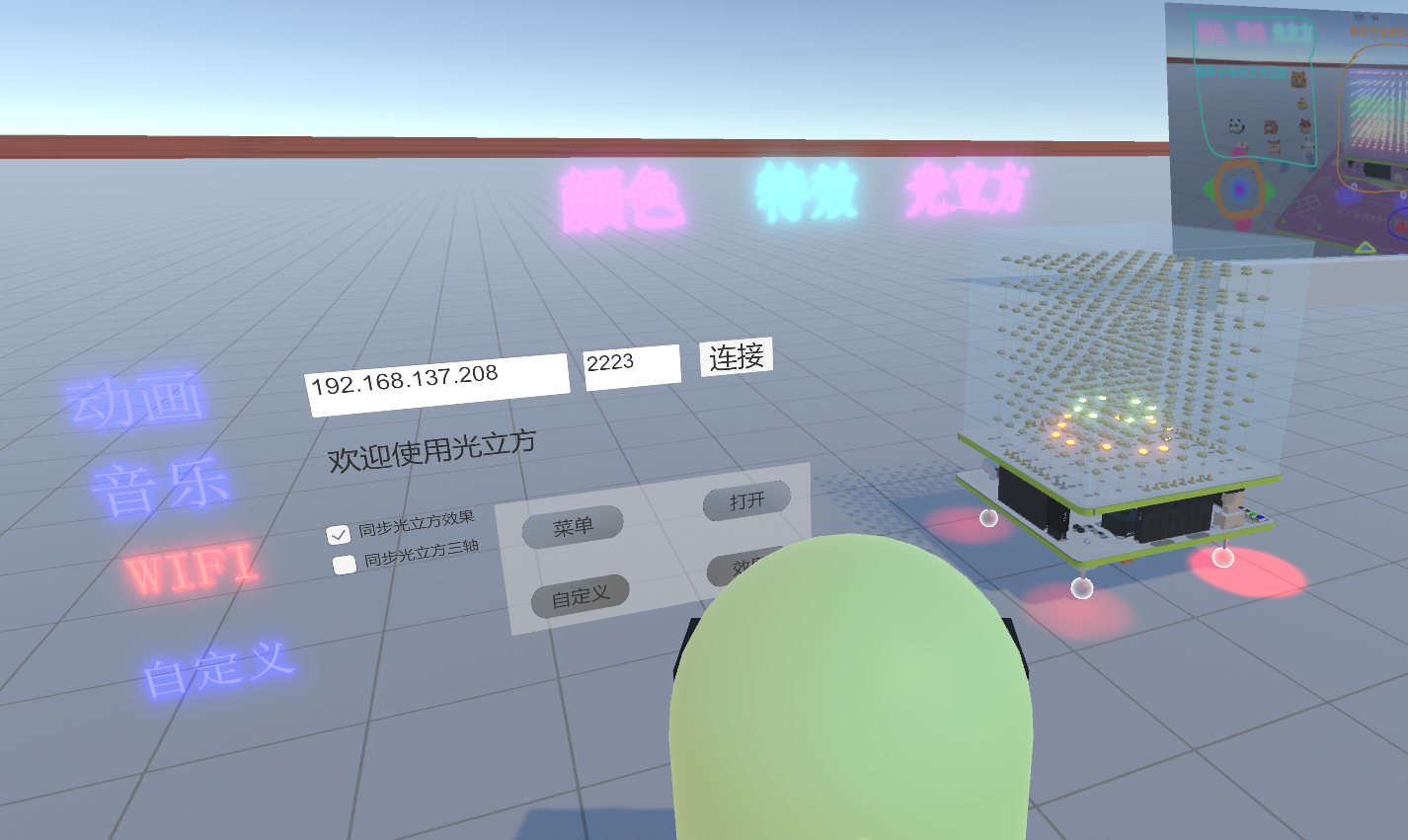
## Wi-Fi: This connects to the physical light cube. You only need to change the IP address of the light cube; the rest are default. (The light cube's Wi-Fi settings are modified in the light cube code.) After clicking connect, the computer and the light cube can communicate. If the Light Cube is playing an animation, the physical Light Cube will synchronize with the animation.
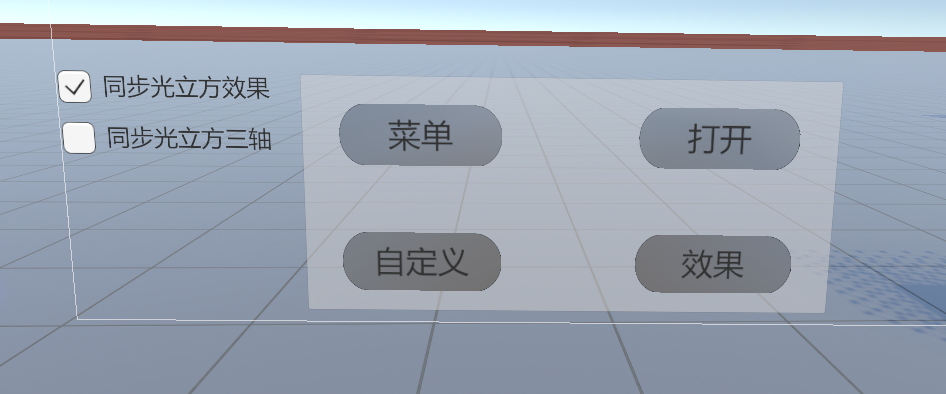
### There are four buttons here for Wi-Fi; these are equivalent to the four touch buttons on the Light Cube, and button controls can be synchronized to the Light Cube. Don't press the synchronized three-axis button, or the Light Cube will jump around.
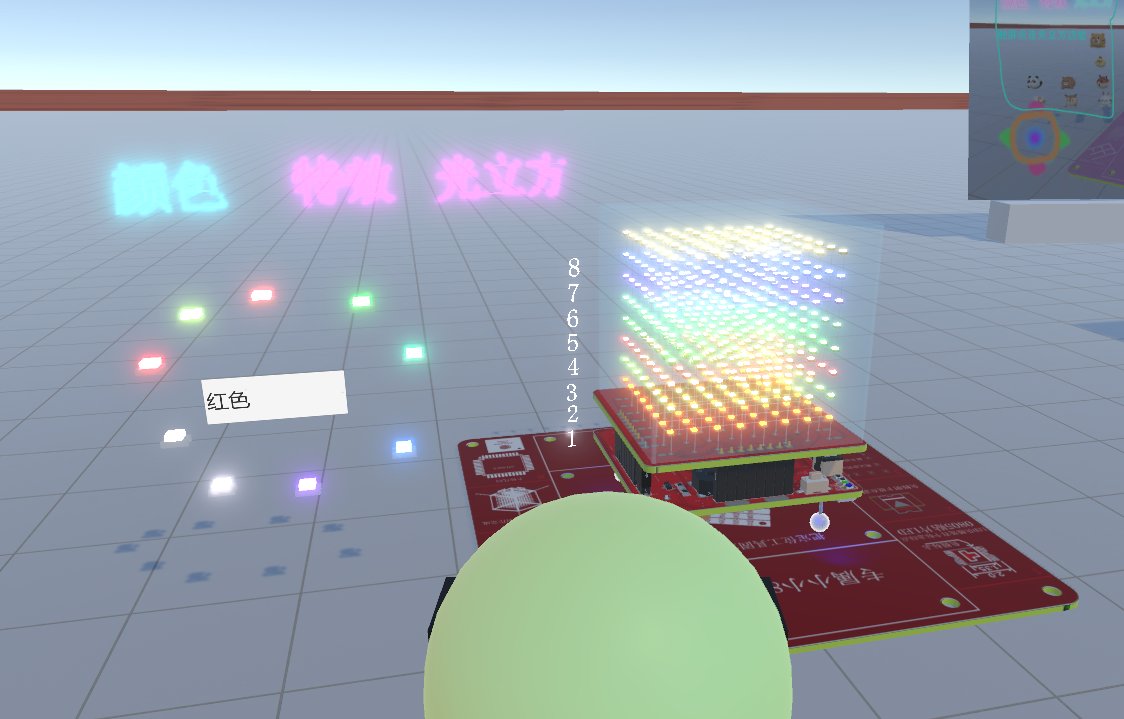
## Customize the light Cube's light status with the mouse. Left-clicking and sliding the mouse on a light turns it on, right-clicking and turning it off. #
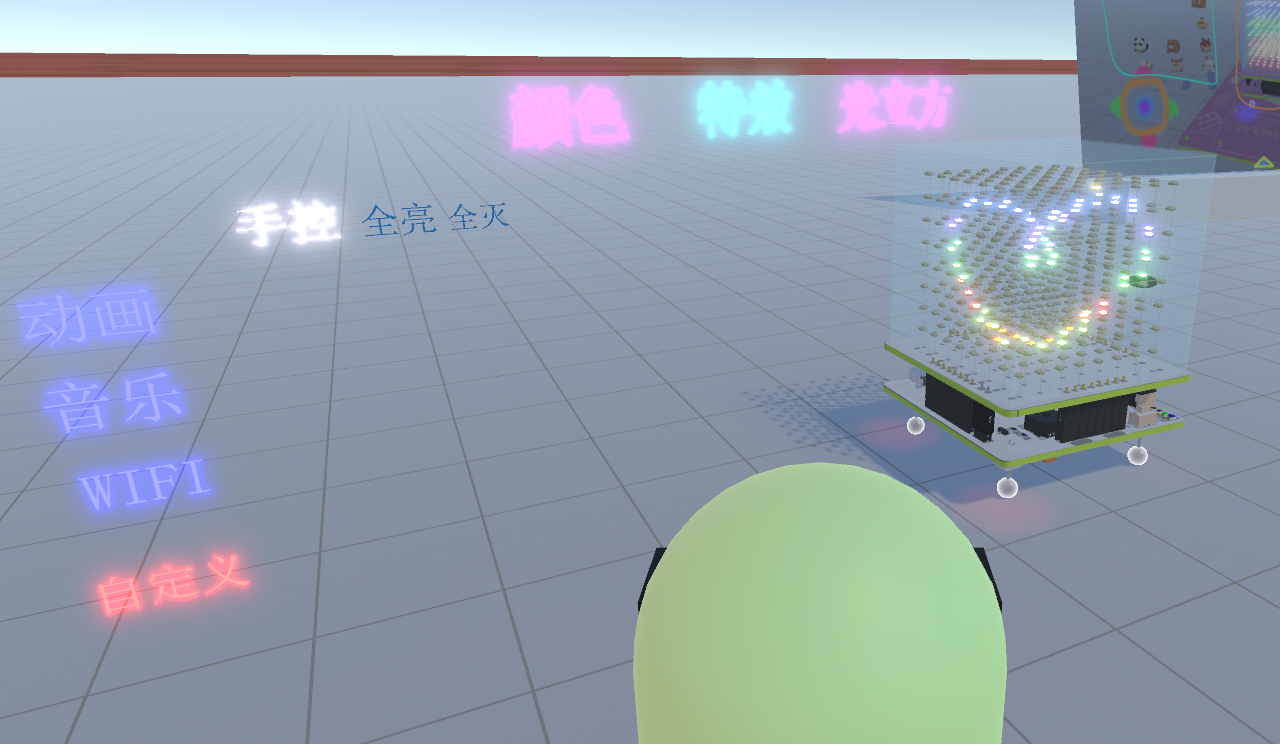
Here you can set the color of the Light Cube's mainboard and the color of each layer of LEDs.
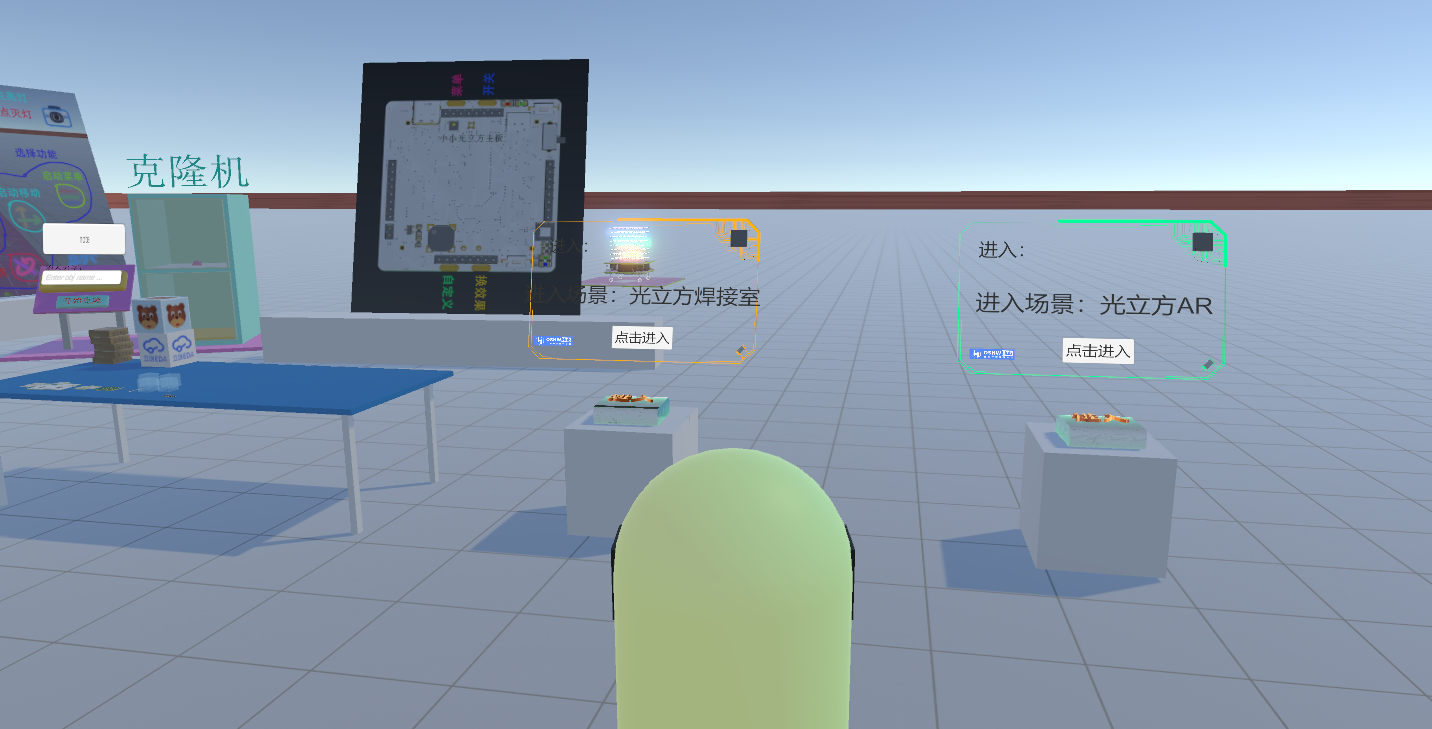
# In the Light Cube Lab, you can also see the Light Cube Welding Room and the Light Cube AR Room.
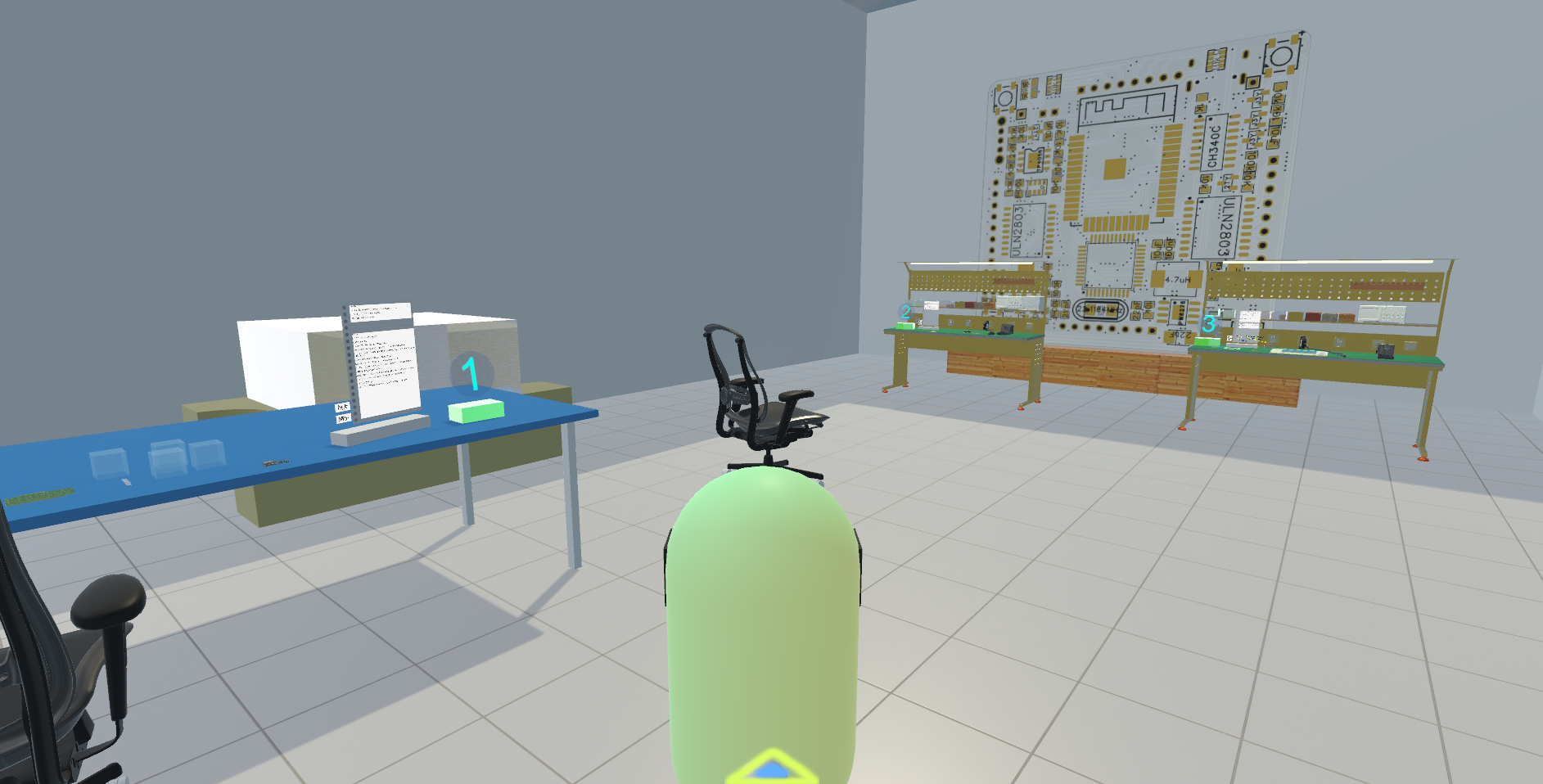
## The Light Cube Welding Room mainly demonstrates how the Light Cube is welded. Here you can also learn how to weld a Light Cube; the numbers on the table indicate the welding steps. The Light Cube Welding Room is quite large and a bit choppy.
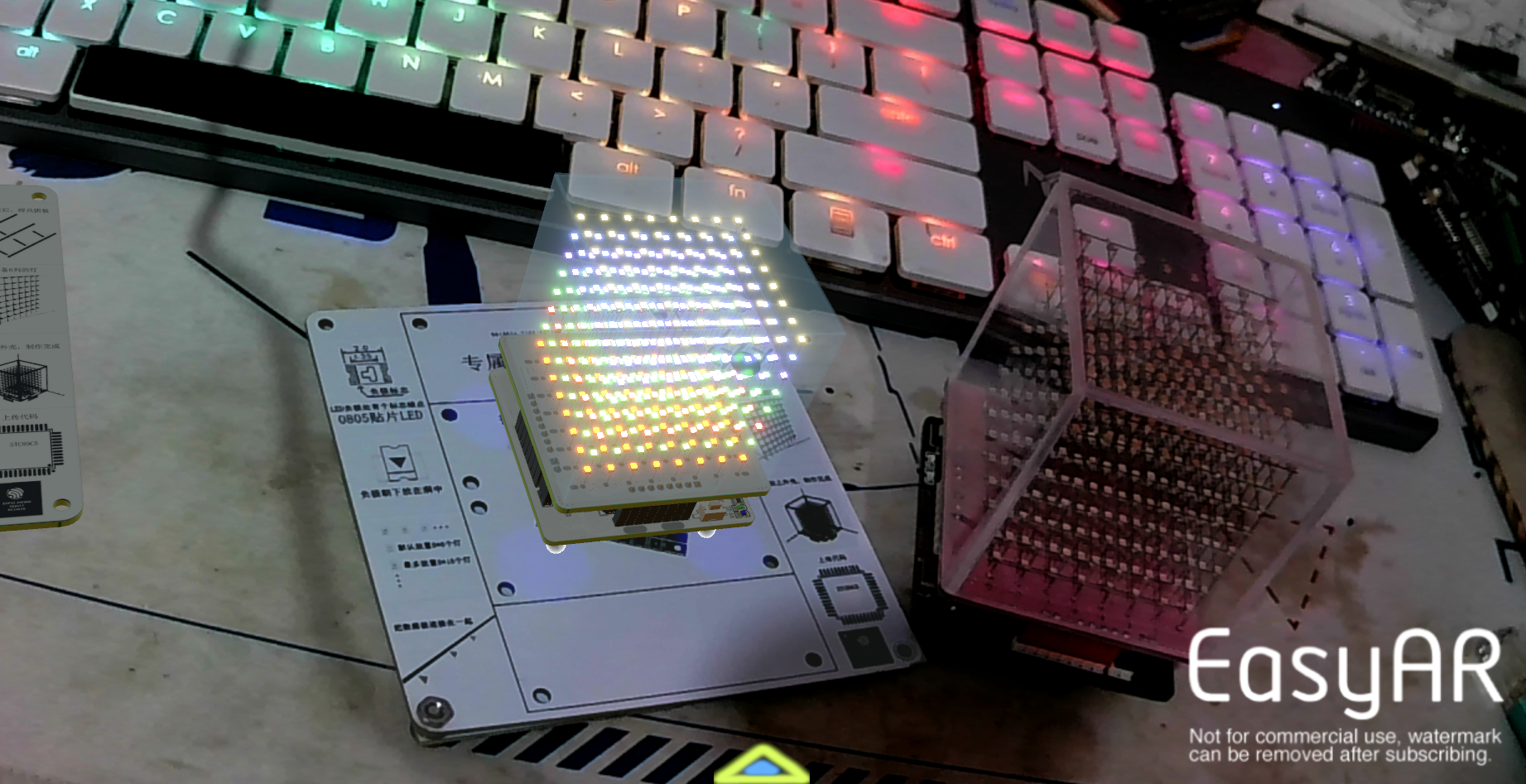
## The Light Cube AR Room uses the Light Cube's floor for AR recognition, allowing you to see a virtual Light Cube appear in your computer. The virtual light cube works the same as the host computer.
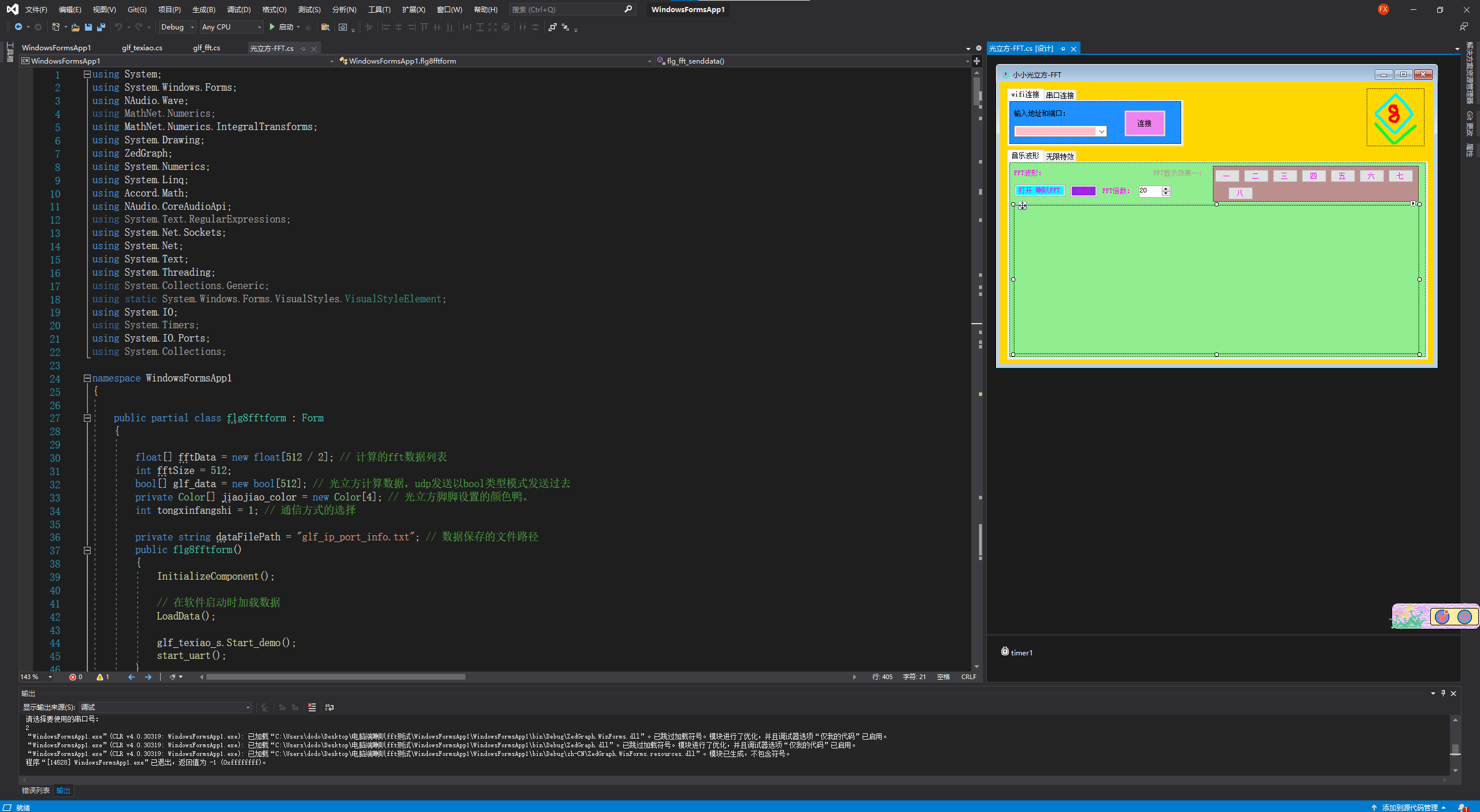
4. Control the light cube using the computer's speaker FFT test and music player. These two programs are mainly used to display FFT effects. If you don't have high requirements for the software interface, you can use this software. The software is small, faster, and more stable.
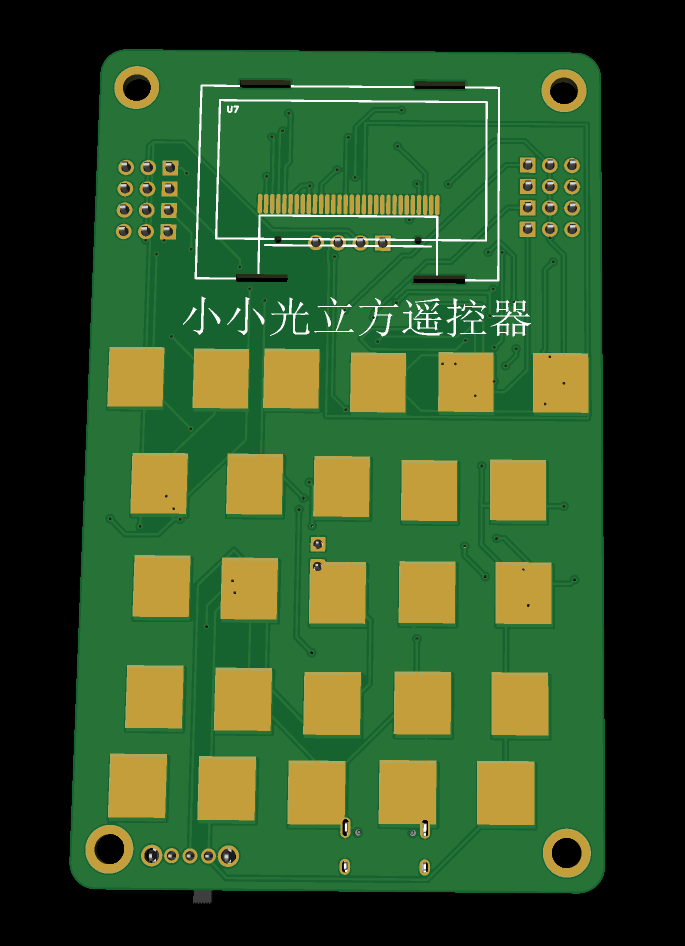
5. Control the light cube with an ESP32 remote control. The light cube can be controlled via UDP after connecting to Wi-Fi. To control specific devices, you can also use an ESP32 remote control, which can be used as a remote control for the light cube, extending the light cube's wireless buttons. Open source address: https://oshwhub.com/txdodo/xiao-xiao-guang-li-fang-de-yao-kong-qi
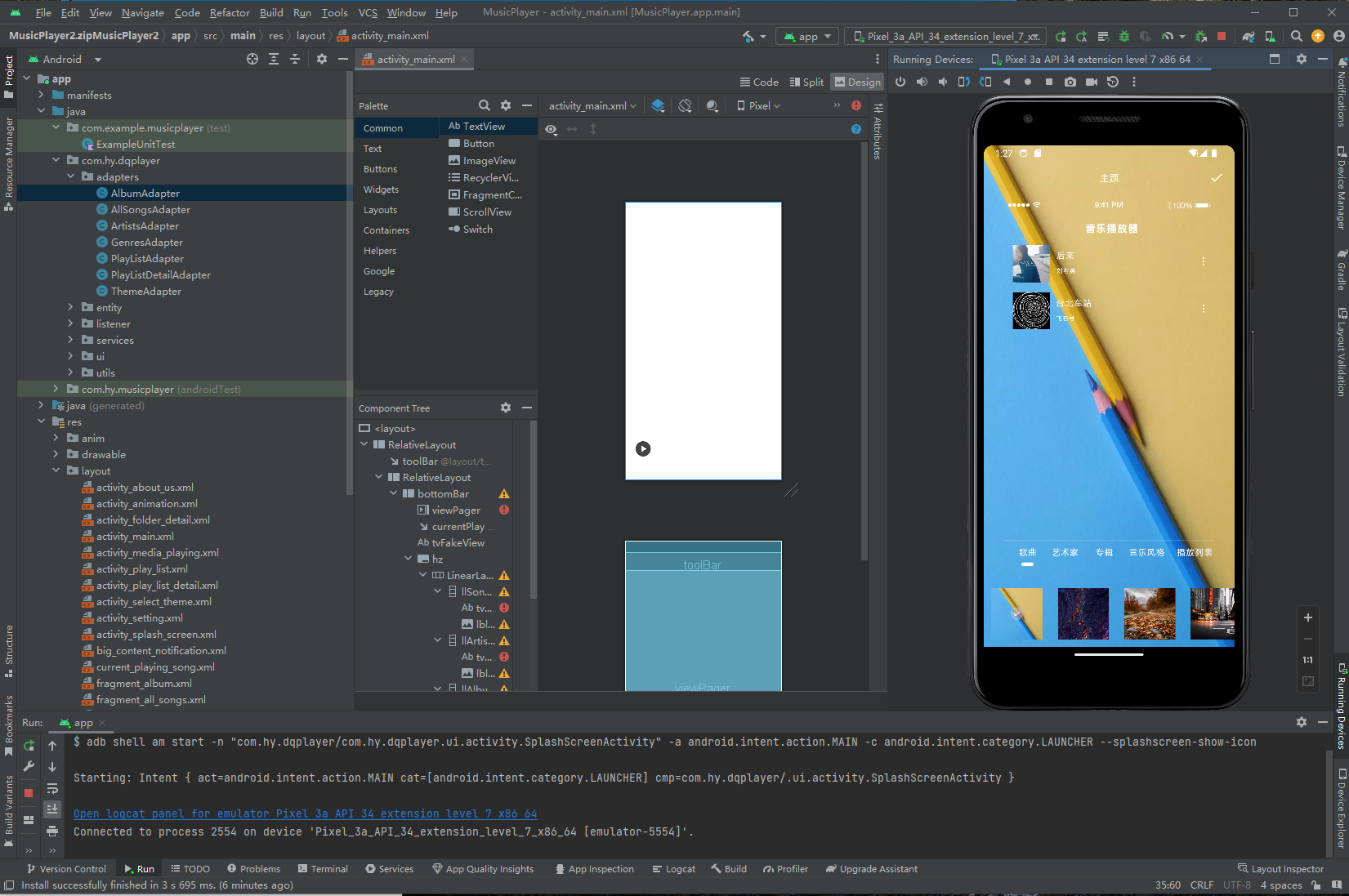
6. Control the light cube with an Android Studio music player. Only the software's own music FFT data can be used on the mobile phone. This software can be installed on Android phones to play music from your phone. Connect to the light cube via Wi-Fi or serial port for audio-related control.
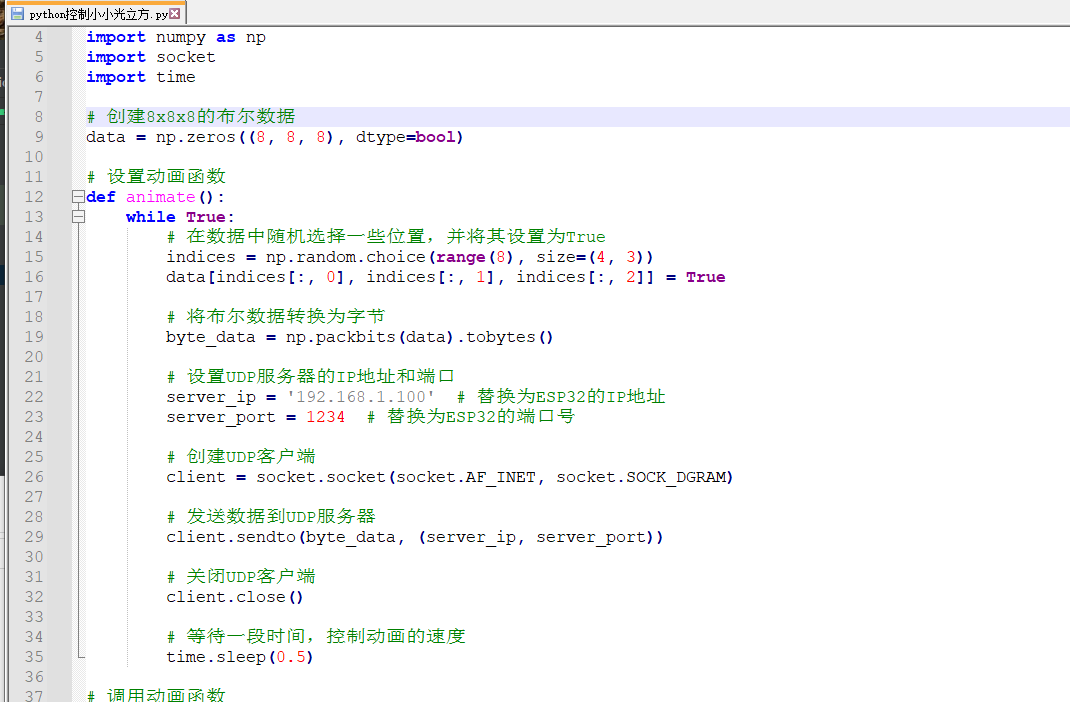
7. Control the small light cube with Python. The Little Light Cube is essentially a low-resolution 3D screen. To achieve more intelligent functions, the easiest way is to use Python. Using Python to control the Light Cube makes writing code easier and more concise.
8. The host computer code is also open source; you can find the Light Cube host computer package in the Unity marketplace. Using the plugin requires a Unity account. Send it to this link to add the plugin to your Assets, and you can import and use it in your Unity application. https://assetstore.unity.com/packages/slug/271303
The package includes an example scene and instructions for secondary development of the source code.
Replicating is welcome.
Physical demonstration:
All demo videos can be viewed here.
[Open Source] Mini Light Cube - Bilibili https://b23.tv/Ka1G9oD








 京公网安备 11010802033920号


 FB5159A50200A00



