Project Description:
This project is an improved design based on e-ink display price tags, fulfilling the requirements outlined in the project introduction. It is released under
the open-source license
CC BY-NC-SA 4.0.
Project Functionality: The name
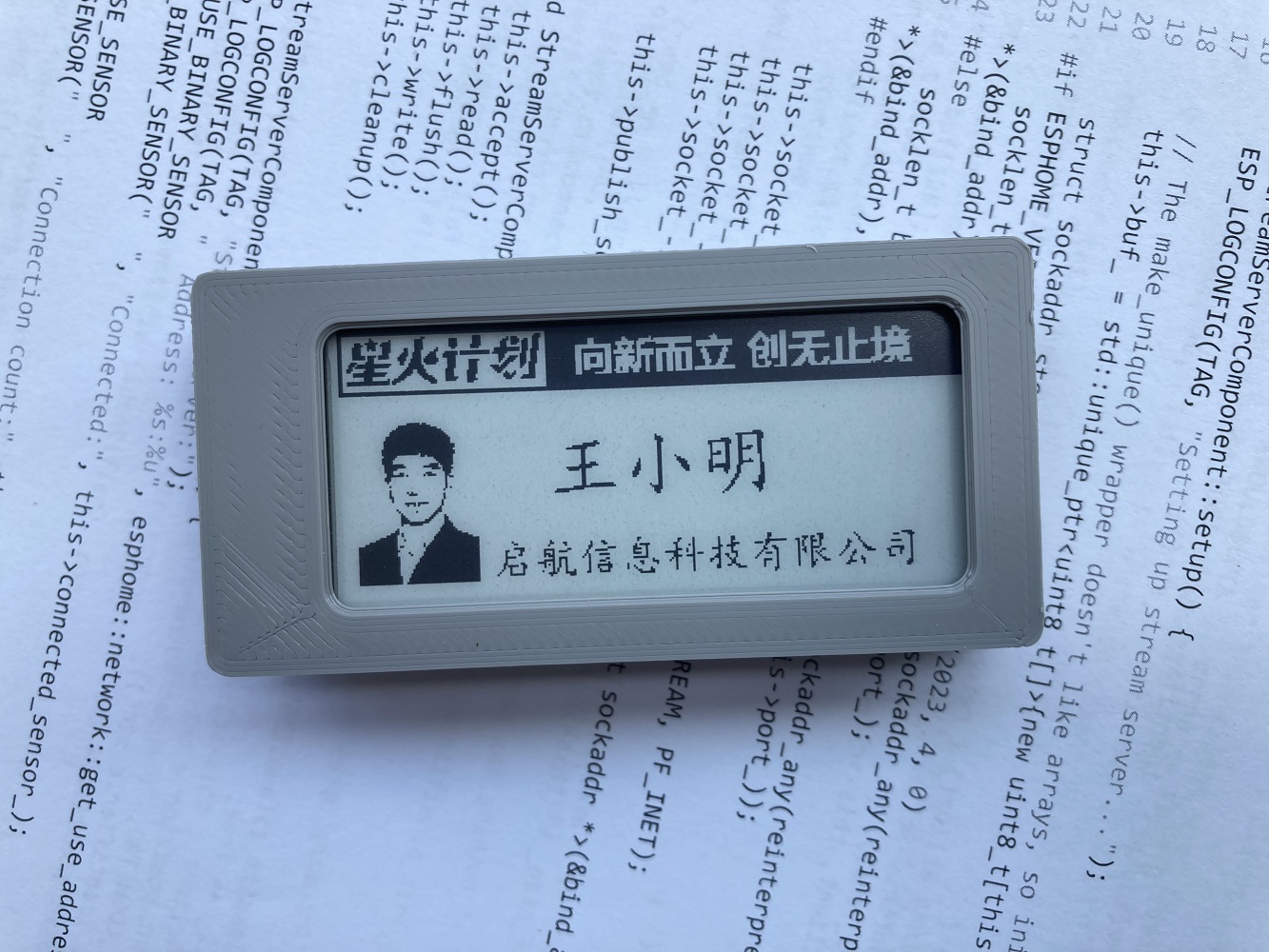
tag uses an e-ink display, showing the meeting name and personal information on the
front. Each name tag has a button; pressing it displays a QR code, which can be scanned to input relevant information (name, organization, photo, etc.). Releasing the button restores the displayed meeting name tag content .
Staff can pre-enter attendee information, scan the name tag directly, or allow users to enter information themselves.
Due to the uniqueness of the displayed QR code, future development can include functions such as meeting accounting.
The back of the name tag has a magnetic clip for attaching to clothing. Project Attributes:
This is the first public release of this project, and it is my original work. This project has not won any awards in other competitions.
Project Progress:
1. Circuit design completed;
software debugging completed;
circuit soldering testing completed;
3D printed shell design
completed; shell printed
; all completed. Design Principles:
The system consists of two parts: a wearable name tag and a data collection and publishing backend.
The name tag uses an ESP32 module to process data and displays it on an e-ink screen; it is normally in sleep mode, updating passively at regular intervals or actively by pressing a button.
The backend uses a Django application server with SQLite3 for data storage. Software Description:
I. Name Tag Section:
Developed using ESP-IDF. The system starts after a short button press, connects to the network, retrieves data for display, and then goes into sleep mode. The main logic is as follows:
Upon startup, a button scan is performed: if the button is pressed during startup, the button count counter is incremented by 1; if it has been released, the counter is reset to zero. If the counter is not zero, a QR code for editing data is displayed. If the count is greater than or equal to 3, the Wi-Fi information is cleared.
Wi-Fi is then activated. If a connection was not established before (on first boot) or has been forcibly cleared (see previous section), esptouch is activated to connect to the network. Users can use the esptouch (v1) client on their mobile phones to enter the Wi-Fi password, etc. This step allows multiple devices to be powered on simultaneously, as esptouch supports uploading passwords to multiple devices at the same time.
After connecting to the network, the system requests the content to be displayed from the server. If the name tag information is empty, a QR code is displayed before going into sleep mode. After scanning this QR code, an information entry interface appears. The entered information is then stored in the database on the server. A short press triggers a refresh and displays the information.
Pressing the button on the badge refreshes the badge once (re-reading information from the server) and then puts it to sleep.
Pressing and holding the button on the badge (more than 1 second but less than 5 seconds (release after seeing the screen refresh)) displays the QR code for information entry (see point 3) and then puts it to sleep. A short press is required to trigger a refresh after entry.
Pressing and holding the button on the badge for an even longer period (more than 30 seconds, until the screen refreshes a third time and displays the esptouch prompt, then release) resets the Wi-Fi, requiring reconfiguration using esptouch (to change the Wi-Fi SSID and password).
If the Wi-Fi connection fails or the server cannot be found, after approximately 1 minute (it will continuously attempt to connect), the screen will display "Unable to connect to Wi-Fi or server," and then the badge will go to sleep.
If scanning the QR code with WeChat, please select "Open in browser." Alternatively, you can use the system's built-in scanning tool.
The badge supports USB charging.
The main code is as follows:
void app_main(void)
{
...
if (gpio_get_level(key_pin) == 0) {
// key pressed
++restart_counter;
} else
restart_counter = 0;
// If the key is pressed repeatedly, reconfigure the network
if (restart_counter >= 3) {
printf("wifi cleared
");
esp_wifi_restore();
err = nvs_commit(my_handle);
ESP_LOGI("WIFI", "clearing wifi password & ssid
");
ESP_ERROR_CHECK(nvs_flash_erase());
nvs_flash_init();
restart_counter = 0;
}
// Get wifi configuration information. If not, display the esptouch interface
. // wifi is not initialized, so data cannot be retrieved. Therefore, it is placed in initialise_wifi, see below
/*esp_wifi_get_config(WIFI_IF_STA, &myconfig);
if (strlen((char*)myconfig.sta.ssid) == 0) {
printf("Current wifi ssid is %s, length = %d
", myconfig.sta.ssid, strlen((char*)myconfig.sta.ssid));
epd.display(esptouch);
}
*/
// Start network configuration, or directly connect to the network
initialise_wifi(epd, esptouch);
// Wait for successful network configuration
// If connected, connect to the network; otherwise, sleep.
uxBits = xEventGroupWaitBits(s_wifi_event_group, CONNECTED_BIT , false, true, pdMS_TO_TICKS(100000));
if ((uxBits & CONNECTED_BIT) ){
get_mac_address();
if (restart_counter > 0)
sprintf(url, "%s%s%s", URL_BASE, "qr/", mac_str);
else
sprintf(url, "%s%s%s", URL_BASE, "name/", mac_str);
epd_task_url(epd, url);
printf("Restart Counter = %ld
", restart_counter);
// Write
printf("Updating restart counter in NVS ... ");
err = nvs_set_i32(my_handle, "restart_counter", restart_counter);
// Commit written value.
// After setting any values, nvs_commit() must be called to ensure changes are written
// to flash storage. Implementations may write to storage at other times,
// but this is not guaranteed.
printf("Committing updates in NVS ...
");
err = `nvs_commit(my_handle);
// Close
nvs_close(my_handle);
//} else {
// Displays no network connection, so hibernating, please restart?
// ;
}...
}`
II. Server-side:
Implemented using Django, data storage uses sqlite3, supporting import and export of Excel and other formats.
Name tag image files can be pre-made and stored in the corresponding location on the server.
If attendees enter the data themselves, no processing is needed; simply distribute the name tags.
If data is pre-entered, the MAC address of each name tag is required. An Excel spreadsheet needs to be created, imported into the server, and displayed when the name tag button is pressed.
An Excel file can be exported containing all information entered by attendees, including their MAC addresses.
The main backend code for the display screen is as follows:
`def name(request, mac):
try:
person = Meetings.objects.get(mac = mac)
except Meetings.DoesNotExist:
return qr(request, mac)
font36 = ImageFont.truetype(SIMKAI, 36
) font24 = ImageFont.truetype(SIMKAI, 20)
font12 = ImageFont.truetype(SIMKAI, 12)
# 296 * 128
im = Image.open(OSHWHUB) # 296 * 128
im = im.convert('L')
draw_table = ImageDraw.Draw(im=im)
draw_table.text(xy=(96, 50), text=person.name, fill=0x0, font= font36, spacing=12, align='left') # Text position, content, font
draw_table.text(xy=(70, 100),` text=person.company, fill=0x0, font= font24, spacing=12, align='left') # Text position, content, font
if person.img and hasattr(person.img, 'url'):
img = Image.open(person.img.path)
img = img.transpose(Image.ROTATE_270)
img.thumbnail((60, 80))
im.paste(img, (8,40))
im.save('/tmp/' + mac + '.bmp', 'BMP') # Save in the current path as PNG
im.close()
response = FileResponse(open('/tmp/' + mac + '.bmp', 'rb'))
response['Content-Type'] = 'application/octet-stream'
f.close()
return response
Physical Display
System Installation Process
: I. Establish a local area network with an access point (AP). Here, we assume the network address is 192.168.5.x
II. Install the web server (assuming the server address is 192.168.5.1):
0. Create a new folder, such as /opt/web:
`mkdir /opt/web` 1.
Create a venv environment: `cd /opt/web`
2.
Install Django: `pip install django` 3.
Install necessary plugins: `pip install django-import-export pillow qrcode` 4.
Generate a website: `django-admin startproject mysite` 5.
Unzip the attached mysite.tgz file and overwrite the file from the previous step. 6.
Start Django: `python manager.py runserver 192.168.5.1
:8080` 7. Access the management interface (create, delete, modify data, import, export): `http://192.168.1.5.1:8080/admin/
` III. Recompile the firmware
Download and install vscode
Unzip the attached idfepd.zip file;
Modify line 57 of main.cpp as needed, this configures the server address: `const char * URL_BASE`
Compile and upload the following to the name tag : "http://192.168.5.1:8080/epdiy/" .
When using esptouch, pay special attention to the 2.4G network. Other
attachments
include: 1. Demo video, device source code (idfedp.zip), device firmware (epd2in9.bin), server-side source code (mysite.tgz), and shell model (stl.zip, which can be printed directly by 3Dmonkey).
2. The name tag information template file is oshwhub.bmp in the mysite folder on the server side; please save it according to the current size and color.
3. The design references several price tag screen modules from oshwhub.








 京公网安备 11010802033920号


 1008G680K-TP



