I. Project Introduction
This product is an electronic musical instrument. The main control chip is ESP32. Its appearance mimics the shape of the ancient Chinese instrument "Xun," featuring six buttons that simulate the six finger holes, allowing it to play 13 notes. It connects to the "Zileban" app on your phone via Bluetooth MIDI protocol, producing sound on your device.
Bilibili video demonstration: https://www.bilibili.com/video/BV1RT411u7S9
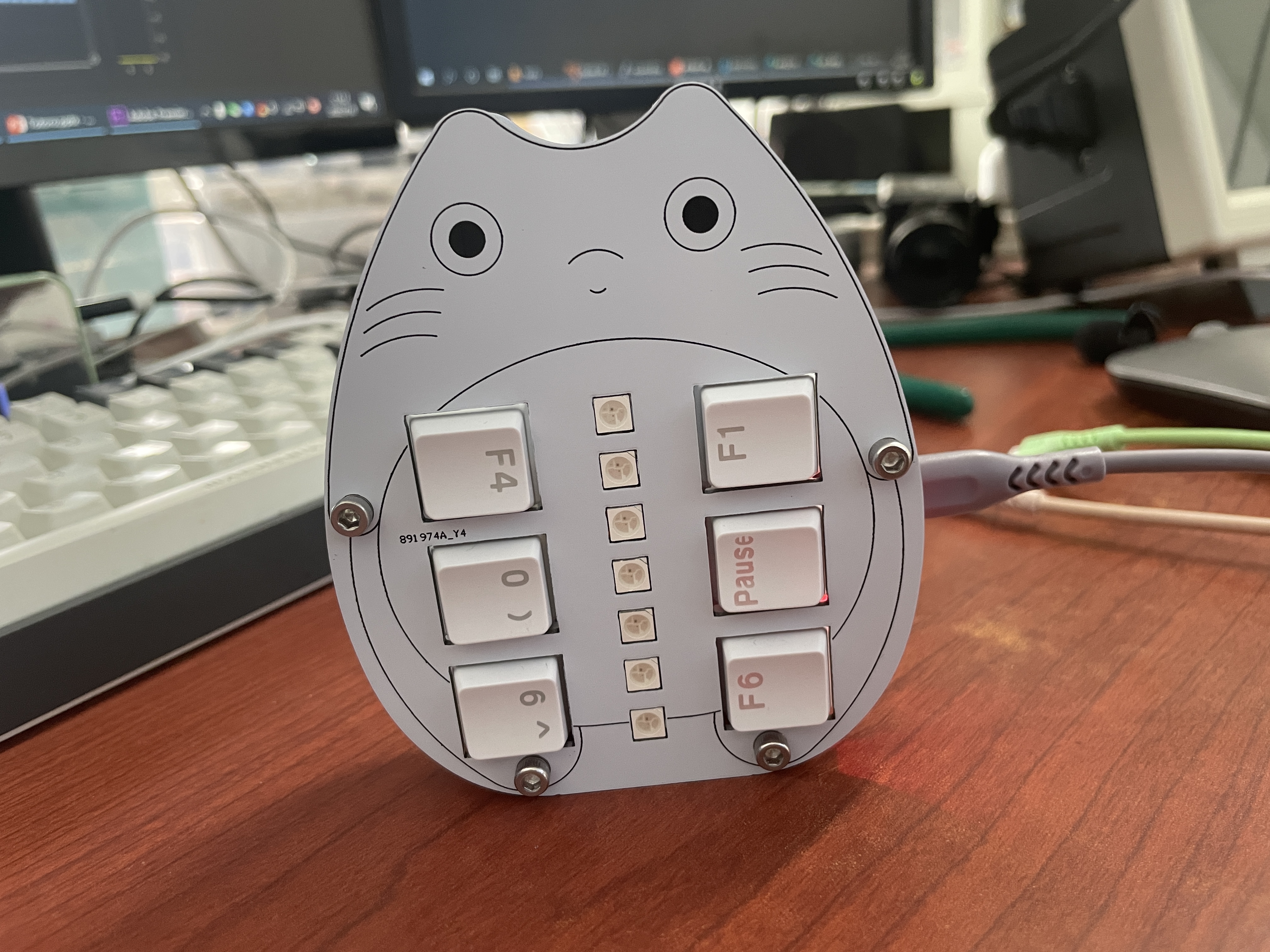
Figure 1-1: The completed Totoro prototype.
II. Working Principle
To create an electronic wind instrument, you first need a device to detect the airflow and control the volume. Then, you need a sound-producing unit to output the notes played. Since wind instruments are usually played with the hands and mouth, a fingering detection device is also necessary. Finally, as an electronic instrument, to highlight its electronic characteristics, it must have lighting effects. Therefore, the entire product can be divided into four modules, as shown in the following figures:
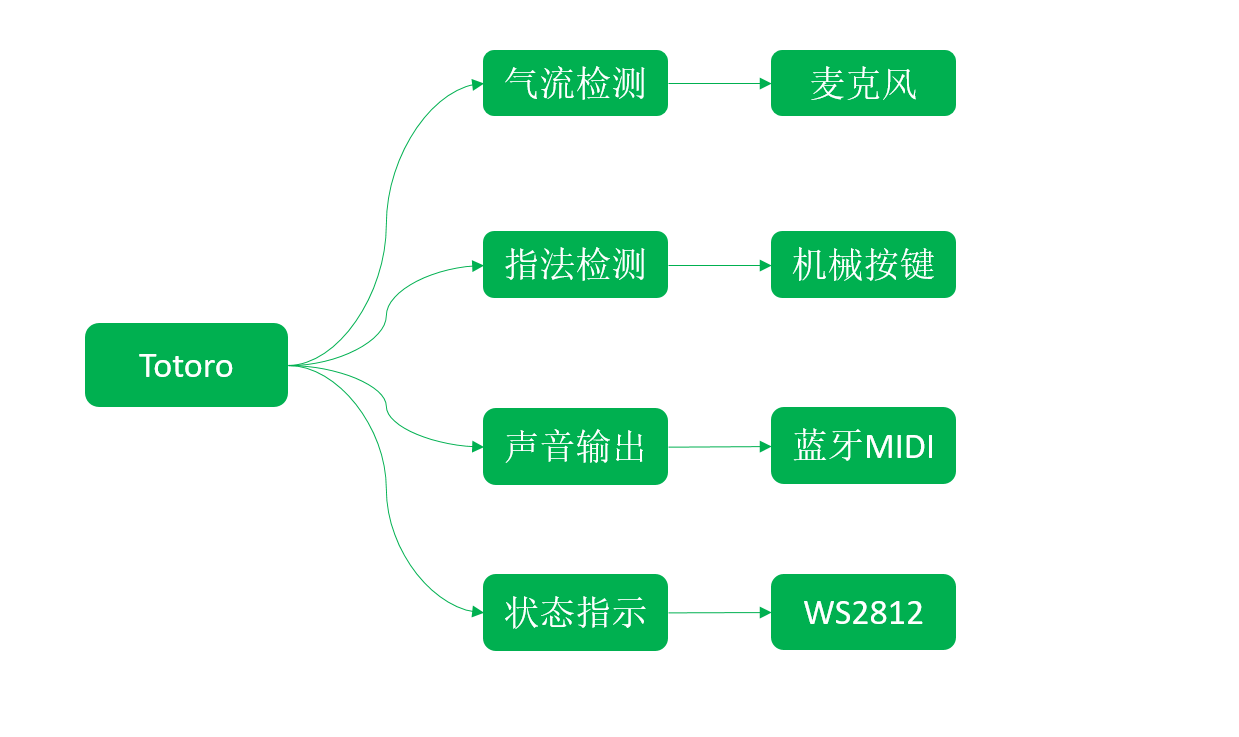
Figure 2-1 Totoro Instrument Four Modules Diagram.
The core component used in the airflow detection section is a microphone. When playing, blowing air into the microphone generates a voltage across its terminals. This voltage signal is then amplified by an operational amplifier and acquired by the microcontroller's ADC, allowing the detection of the airflow intensity during performance.
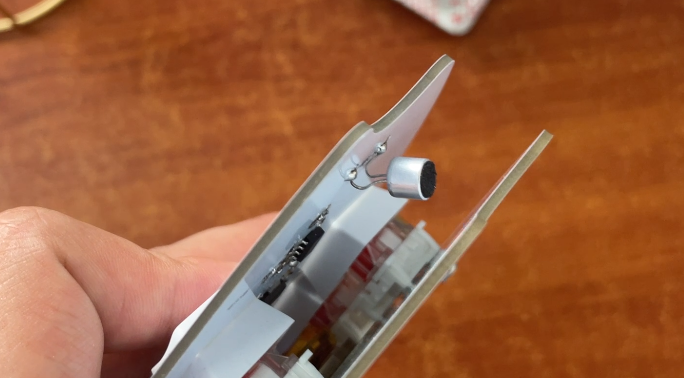
Figure 2-2 Microphone Position Diagram
. The fingering detection section uses six mechanical keyboard keys, each connected to one of the microcontroller's six GPIOs. Different key combinations represent different notes. The current design can play 13 notes. The specific fingering is shown in the following figure:
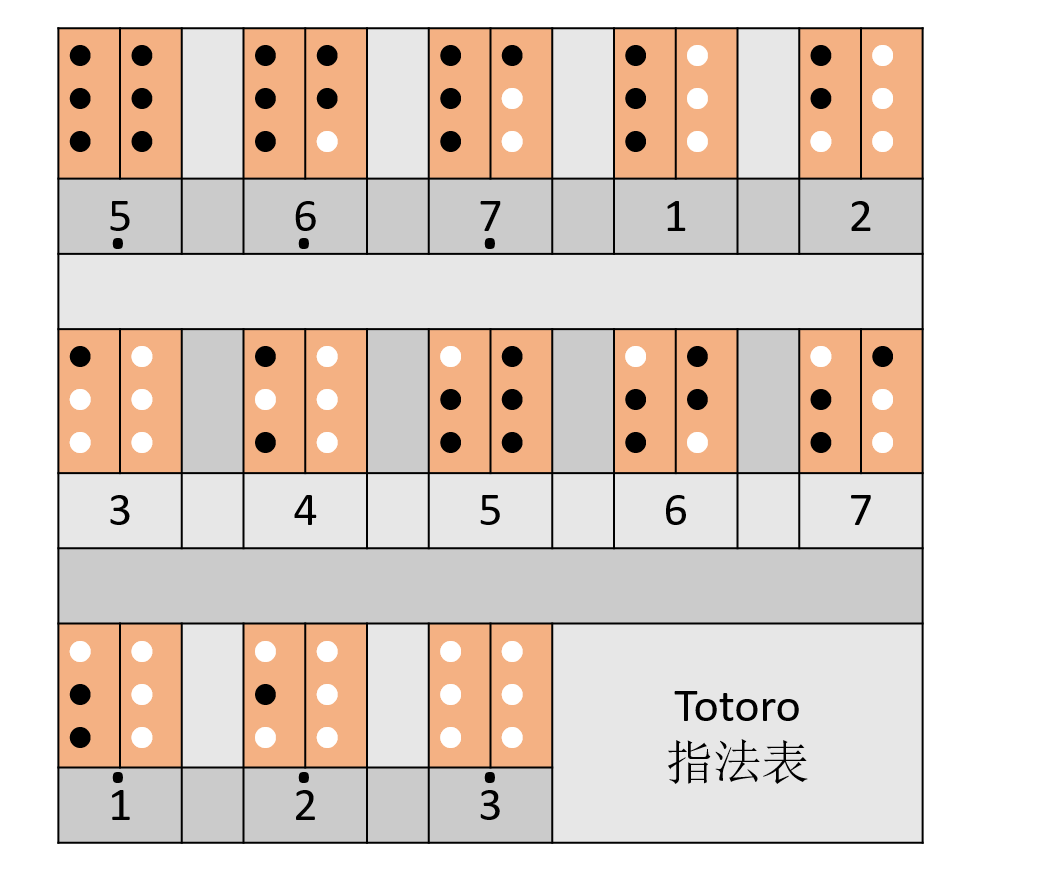
Figure 2-3 Totoro Instrument Fingering Chart.
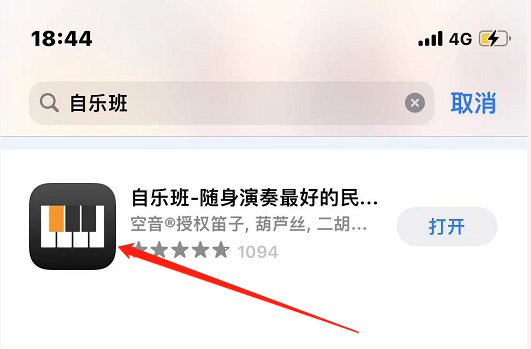
The sound output section uses Bluetooth MIDI to connect to a mobile phone. It works with the "Zileban" app on the phone to output sound. It is compatible with both Android and iOS systems; simply search for "Zileban" in the app store to install it.
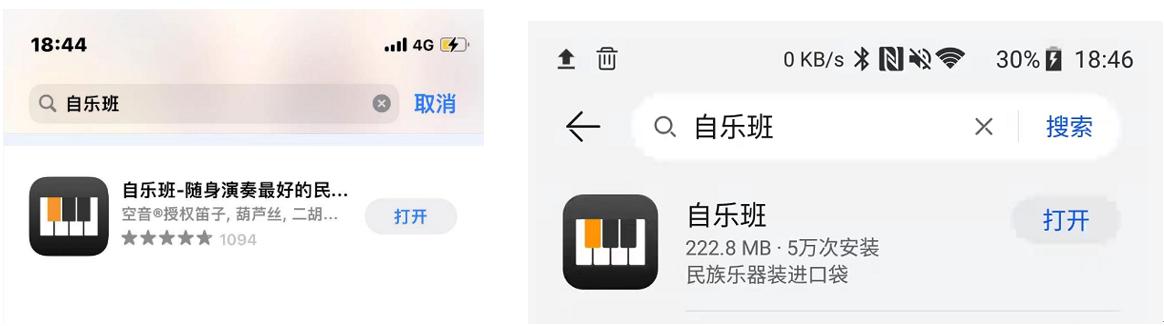
Figure 2-4 Zileban Download Guide
. Regarding lighting effects, the instrument's front panel has seven WS2812 LEDs embedded, enabling functions such as Bluetooth connection status indication, airflow intensity indication, and even musical ambience.
The structure of the entire system is shown in the following figure:
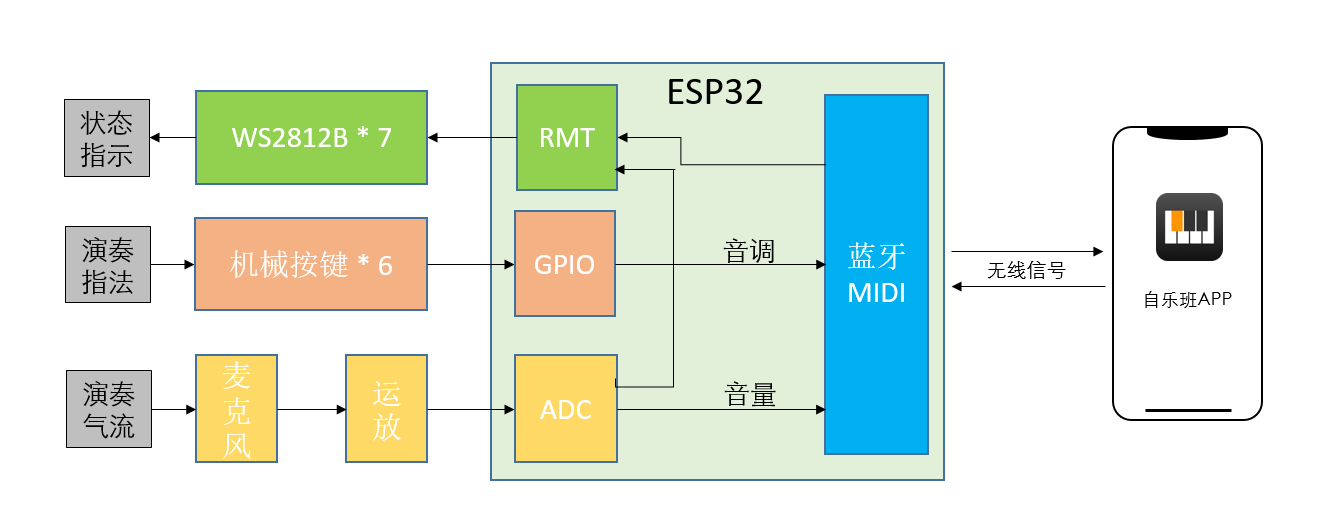
Figure 2-5 Totoro musical instrument system framework diagram.
The hardware structure adopts a two-layer form, connected by four M3 copper pillars in the middle. The copper pillars also have four electrodes, used to communicate between the upper and lower boards.
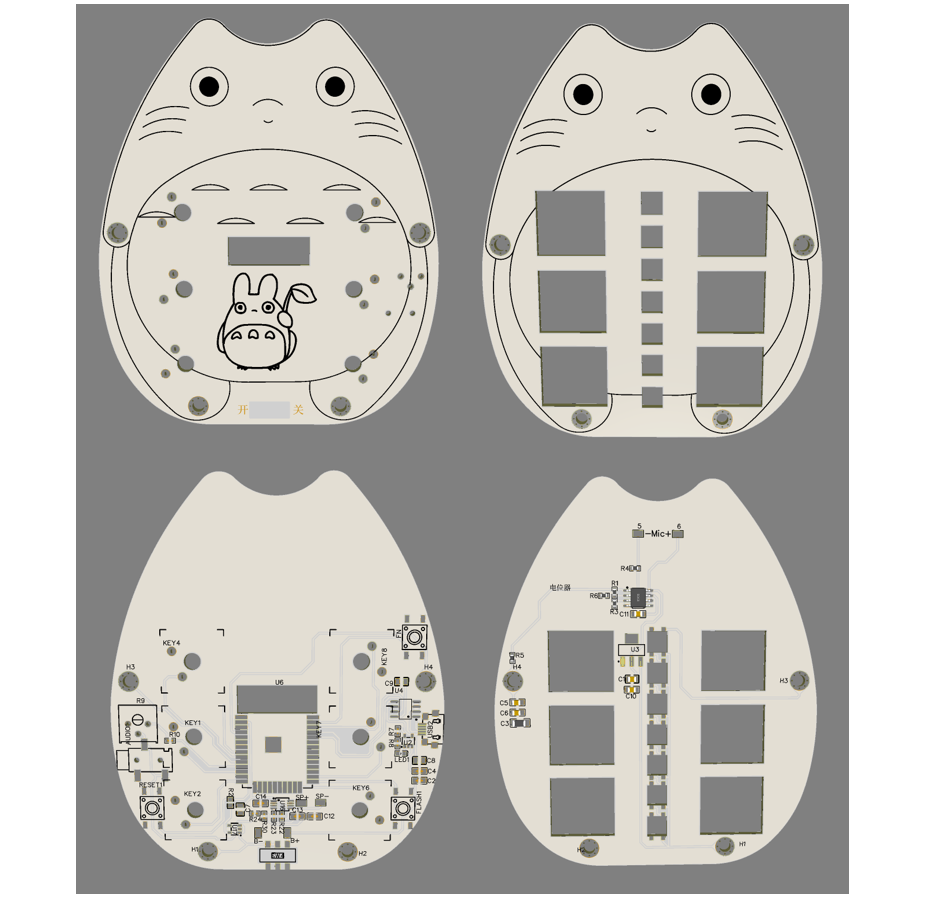
Figure 2-6 Totoro PCB rendering
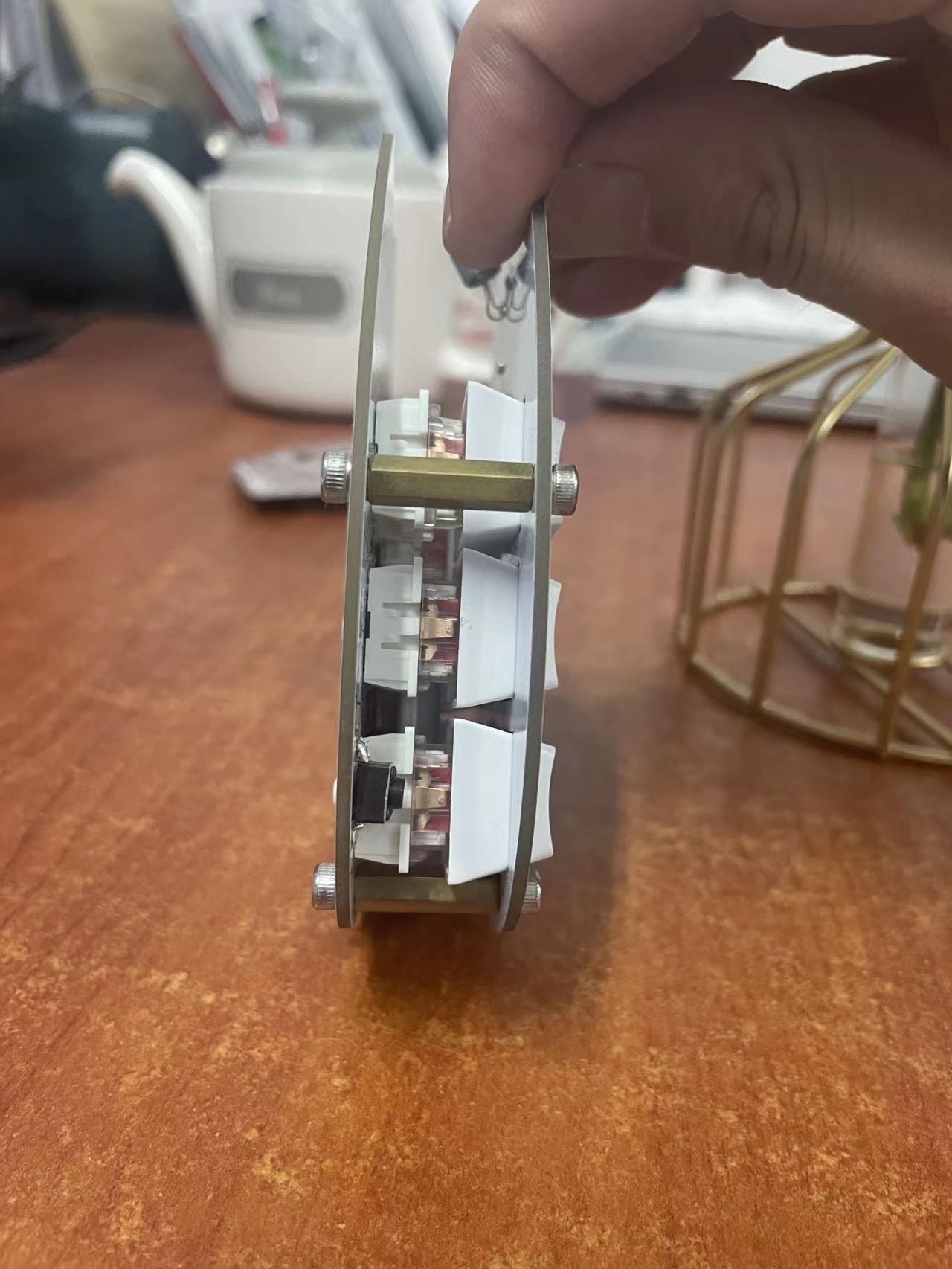
Figure 2-7 Display of soldered equipment
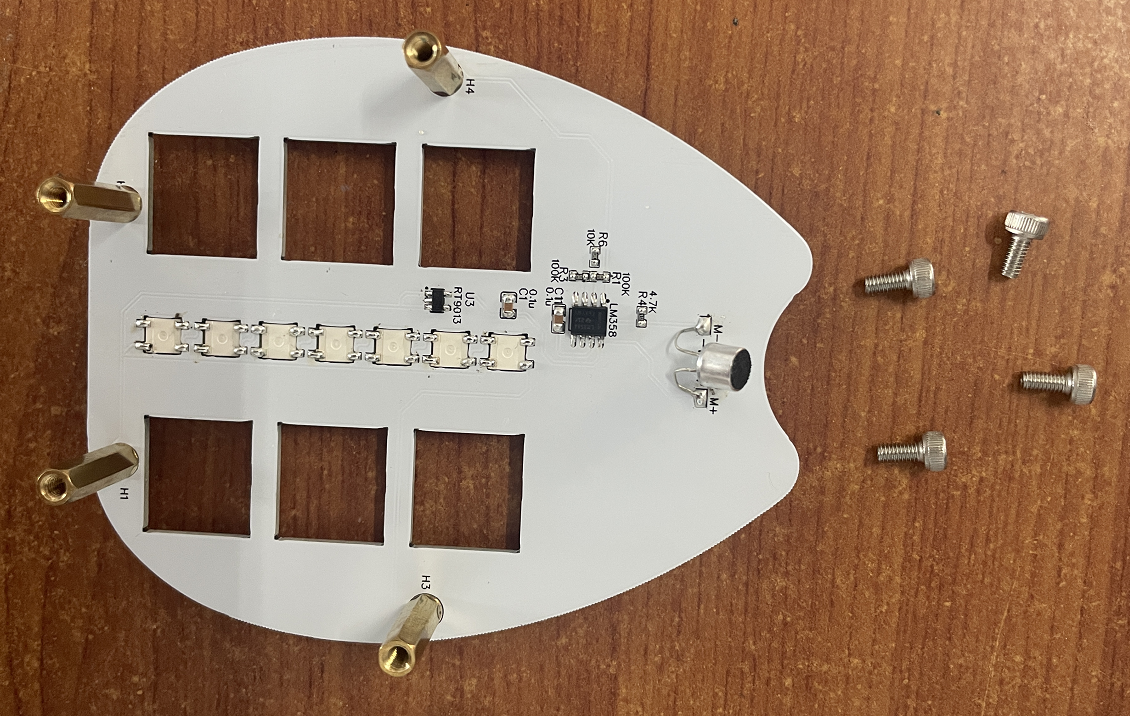
Figure 2-8 Physical PCB and copper pillars of the upper bottom plate
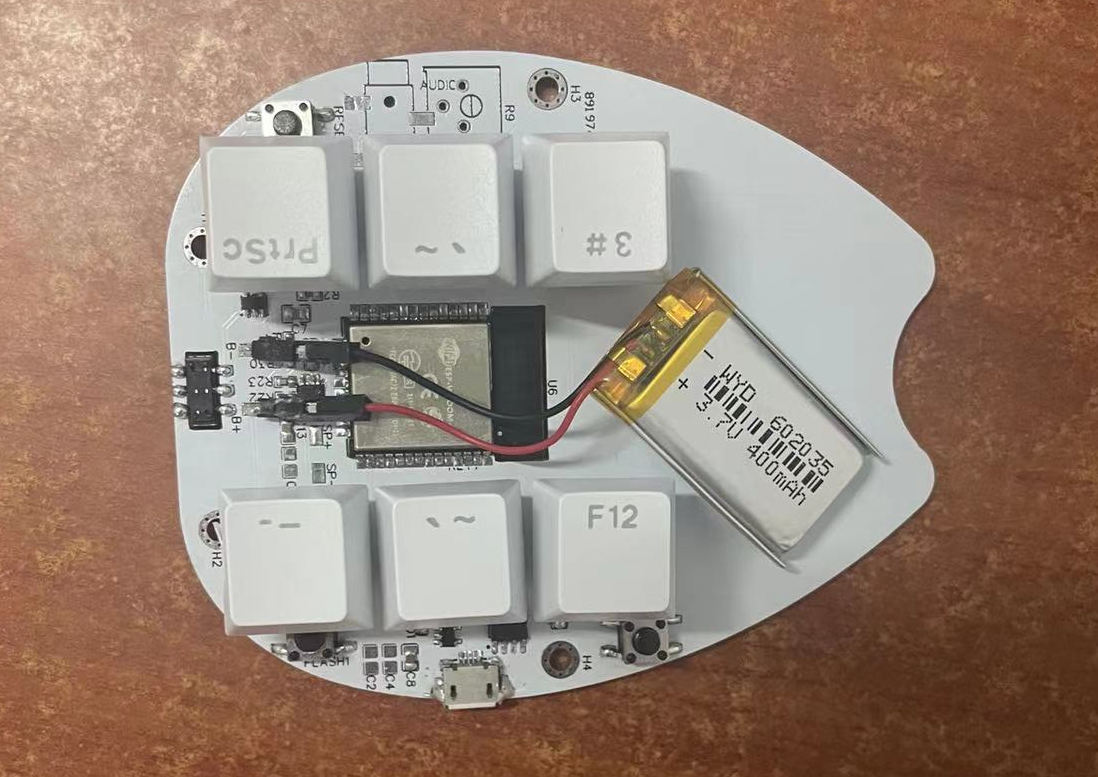
Figure 2-9 Physical PCB of the lower bottom plate of the equipment
The size of the board is controlled within 10*10, and you can get a free sample from JLCPCB~~~
III. Introduction to key circuits
3.1 Airflow detection

circuit Figure 3-1 Schematic diagram of airflow detection
The schematic diagram of the airflow detection part is shown in Figure 3-1. The core components used are a condenser microphone and an LM358 operational amplifier. First, the microphone converts the airflow signal into a weak voltage signal. The first operational amplifier is used as a voltage follower to change the output impedance of the circuit. After capacitive coupling, the signal is transmitted to the input of the second operational amplifier. The second operational amplifier amplifies the signal by 10 times and then transmits it to the ADC of the microcontroller.
3.2 Lithium Battery Charging
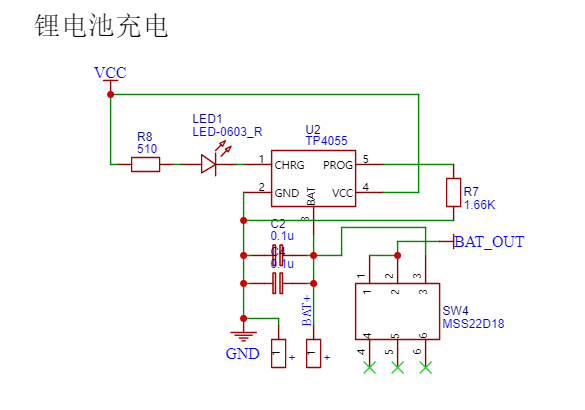
Circuit
Figure 3-2 shows the lithium battery charging circuit. The charging chip used is the TP4055, a very small chip. A red indicator light illuminates during charging and turns off when fully charged. The grounding resistor on the PROG pin controls the charging current; a smaller resistor results in a larger charging current, but it must not be less than 1.66KΩ. A 2KΩ grounding resistor is recommended, at which point the charging current is approximately 100mA.
3.3 USB to Serial Port
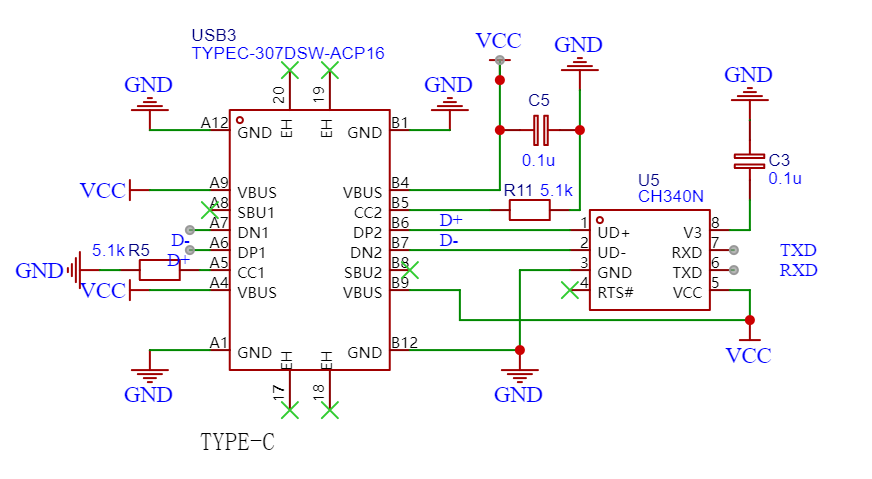
Circuit Figure 2-3
shows the modified USB to serial port circuit. The circuit uses a Type-C interface USB and a CH340N serial port chip. A 5.1KΩ pull-down resistor must be added to the CC1 and CC2 pins of the Type-C interface; otherwise, the Type-C USB host will not provide power. The CH340N chip can be powered by 5V or 3.3V. Using 3.3V causes voltage fluctuations that affect the stability of the USB operation, so 5V is recommended. When using 5V, remember to add a 0.1uF capacitor to ground on the V3 pin.
IV. Soldering Instructions
During the manufacturing process, some solder pads that were ultimately not used were reserved for continuous debugging and optimization of the equipment. Additionally, the audio output function is not yet implemented, so this part does not require soldering. The parts requiring soldering are shown in the following figures:
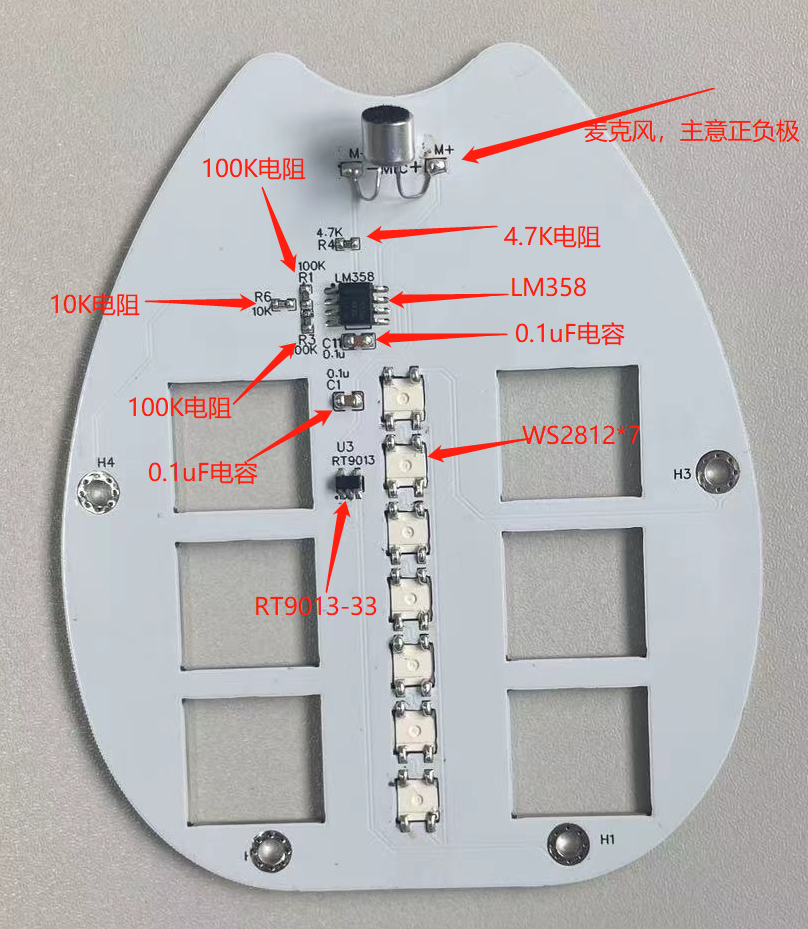
Figure 4-1 Components and parameters to be soldered on the bottom plate of the device
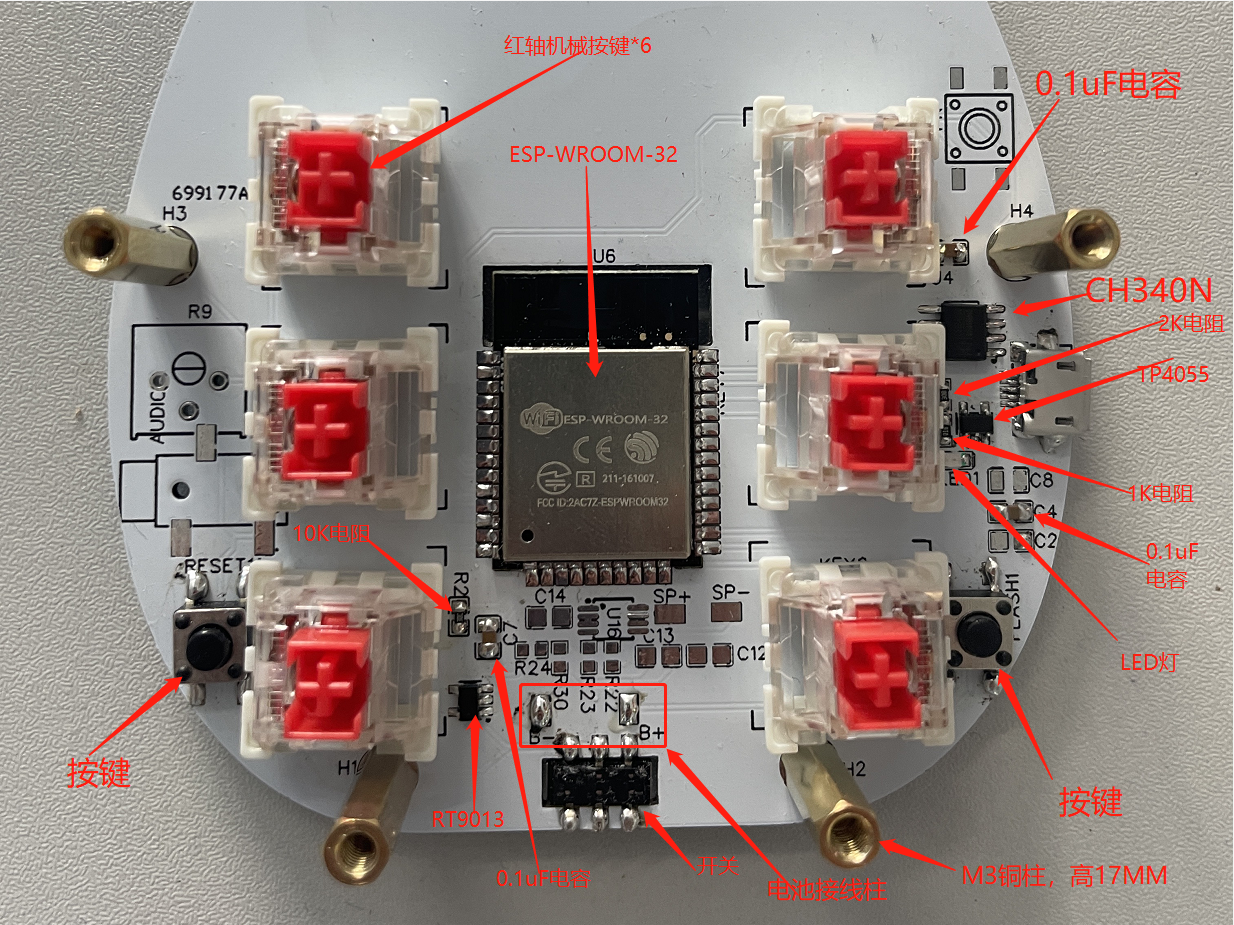
Figure 4-2 Components and parameters to be soldered on the bottom plate of the device V.
Software Source Code
The software is written in C language and needs to be compiled using Espressif's ESP-IDF. Open source address: https://github.com/ospanic/Totoro
If you do not have relevant programming knowledge, it's okay. The compiled firmware is provided in the attachment. Follow the steps shown below and use flash_download_tools to burn it into the device:
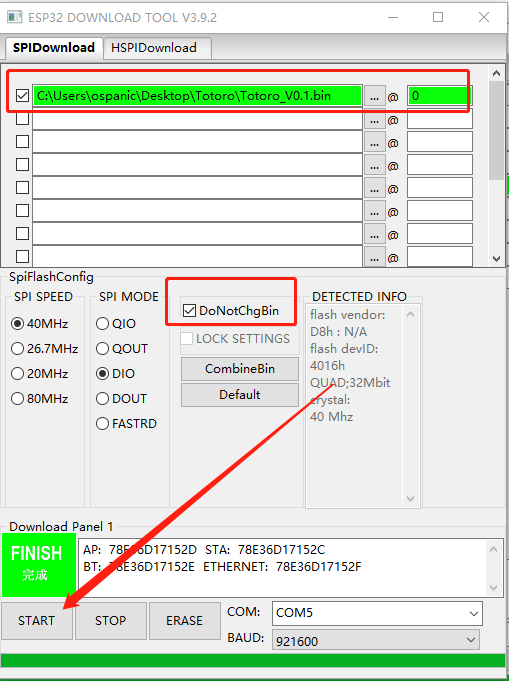
Figure 5-1 Firmware burning configuration page
VI. How to Use
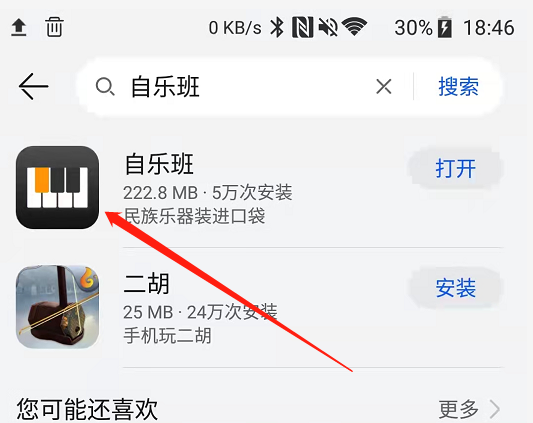
Step 1: Install the "Zileban" APP on your mobile phone
Search for "Zileban" in the app store and download and install it.
Step 2: Set the device mode
The pronunciation methods of the Android and iOS versions of the software are different, so you need to adjust the device mode according to your phone type.
Turn the device to "On" to power it on. Lights 1357 will flash once upon startup, followed by a blue flash from light 7, indicating a normal startup.
The device defaults to iOS mode. If your phone is iOS, no adjustment is needed; skip to step 3.
If your phone is Android, follow these steps:
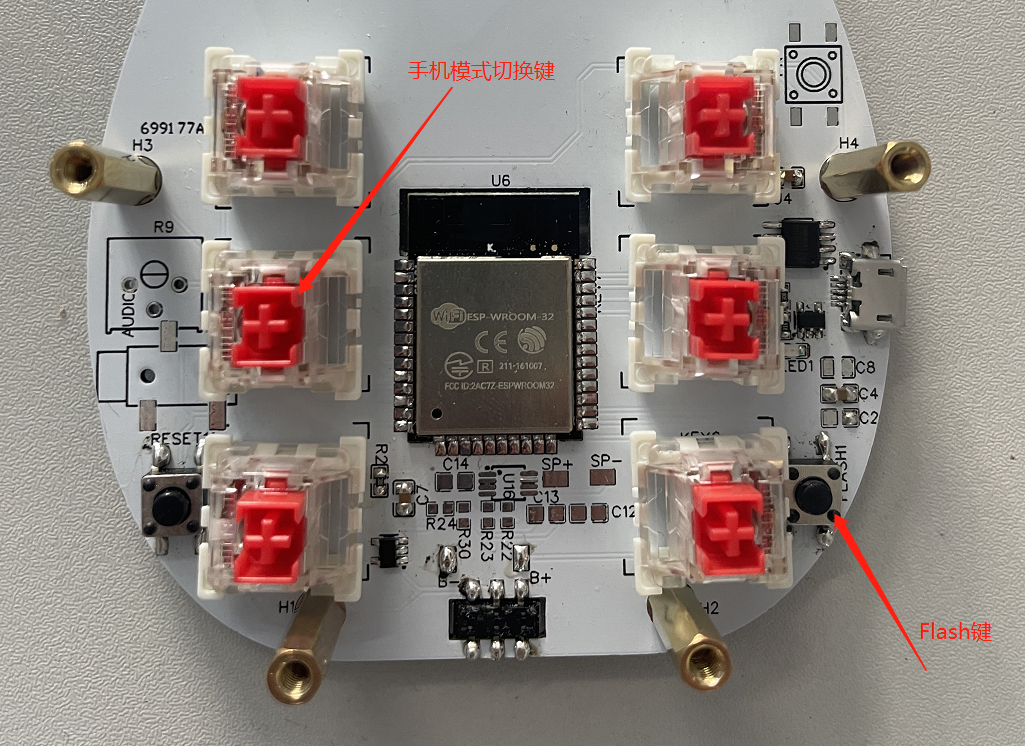
After startup, press and hold the "Flash" button, then press the "Phone Mode Switch" button. The device will switch modes. If light 3 is blue, it's in Android mode; if light 3 is green, it's in iOS mode.
The device mode settings are saved, so you don't need to repeat them next time. When powered on, light 1357 being green indicates iOS mode, and blue indicates Android mode.
Step 3: Connecting the Phone.
After powering on, light 7 will flash blue, indicating it's in connection waiting mode.
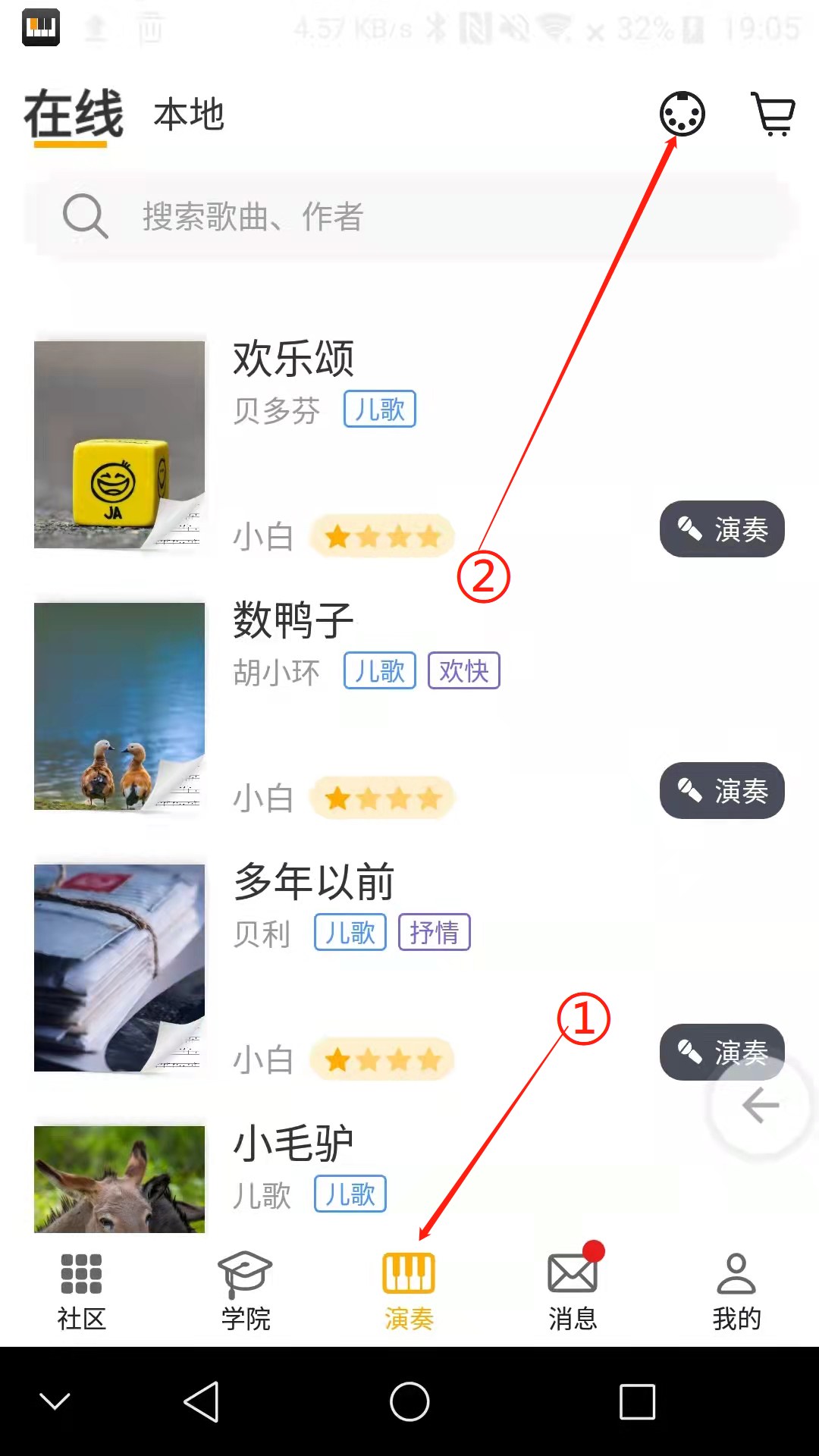
Open the "Zileban" app on your phone, tap "Perform," and then tap the connection icon in the upper right corner.
Note: 1. Device connection is completed within the "Zileban" app, not in the phone's settings.
2. Bluetooth and location permissions must be granted to the "Zileban" app for it to search for devices correctly.
On the next page, you'll see the currently connectable devices. Click the link to connect.
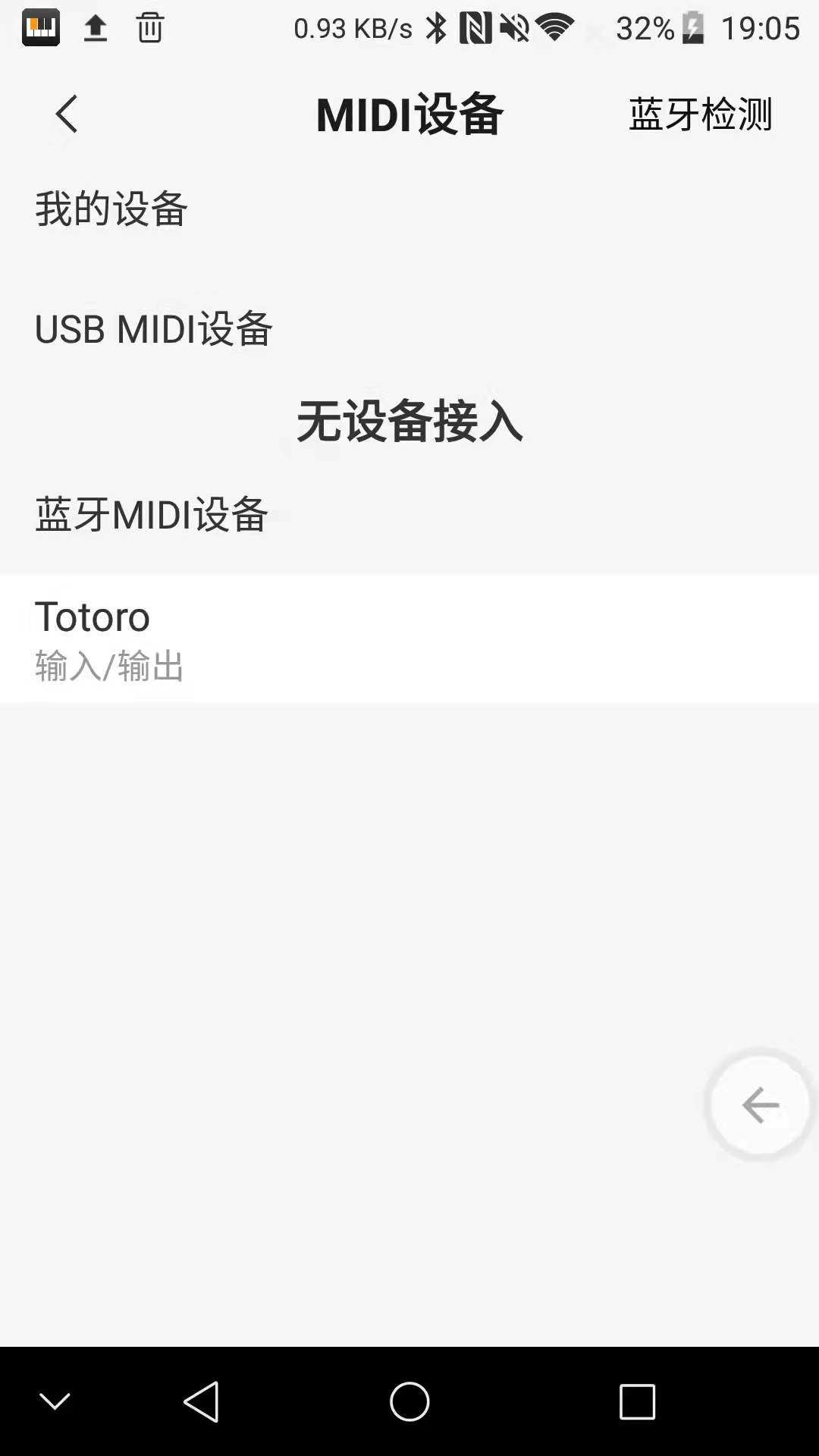
Note: iOS phones need to first click "Bluetooth MIDI Devices" on the above page to see the list of connectable devices.
Fourth step: Select a tone and play.
Turn up the phone volume, select "Local" on the performance page, create a track, click to enter, and then add a tone according to the prompts. Select the tone to play.
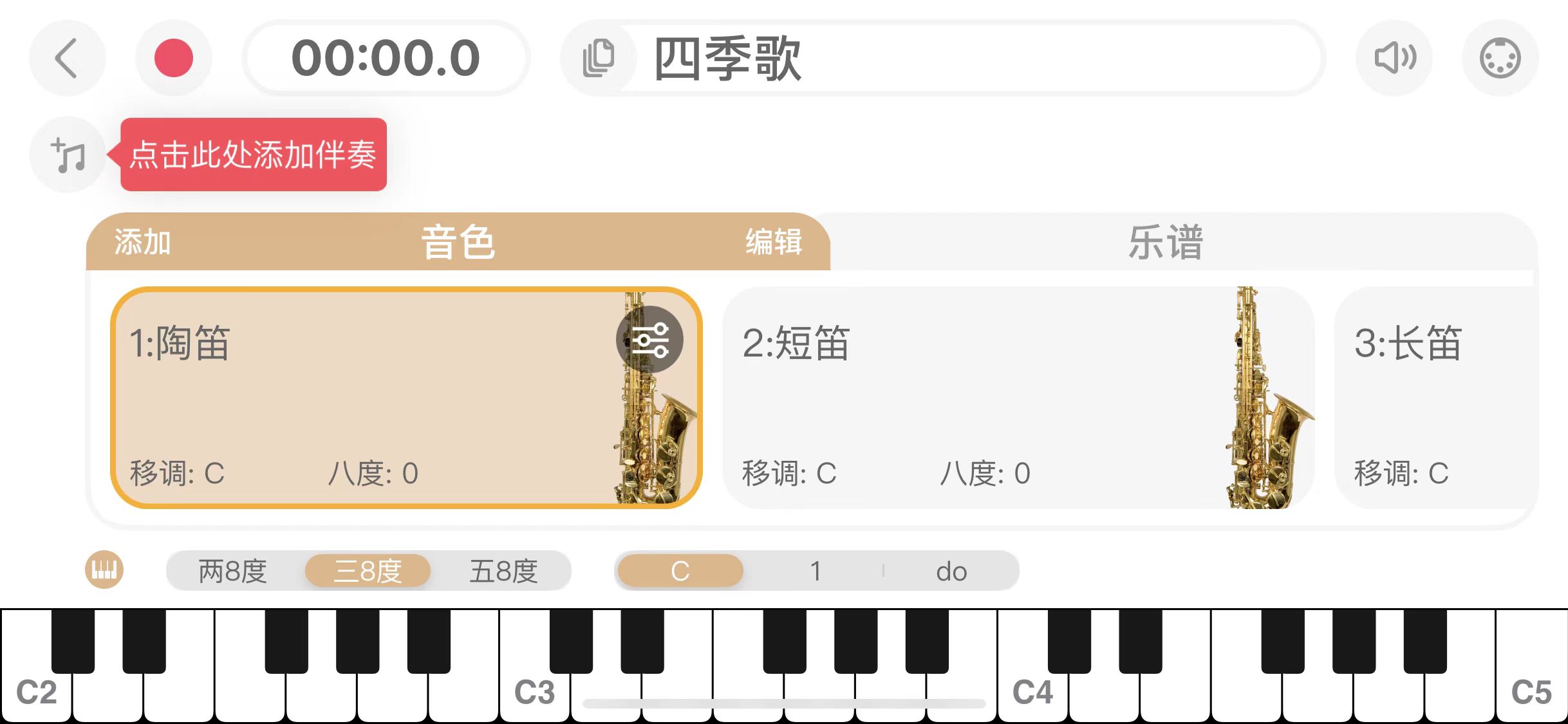
Currently, the device offers a variety of tones to choose from; readers can explore them on their own.
Pitch adjustment:
The device defaults to C major. Pitch adjustments can be achieved as follows:
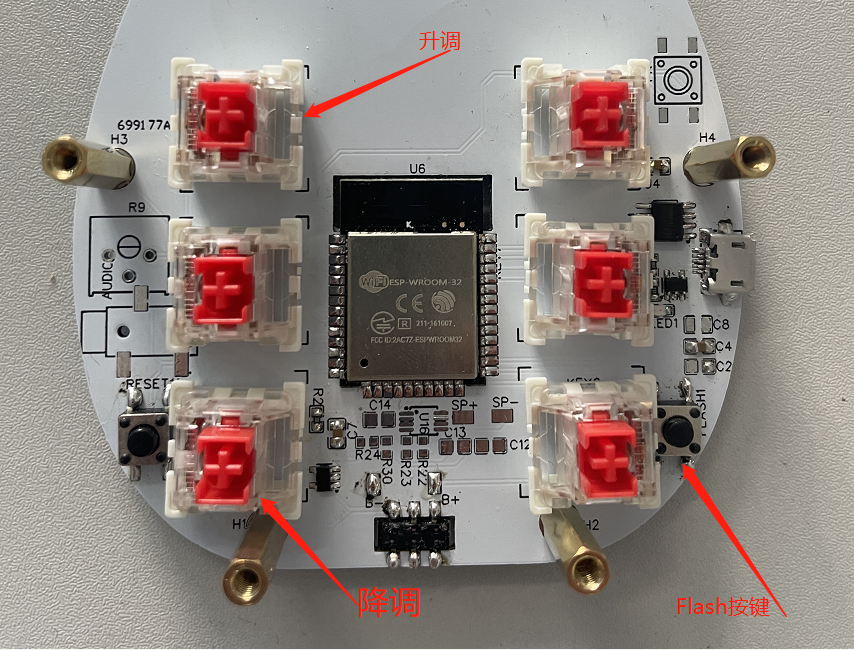
After the device starts normally, press and hold the Flash button, then lightly touch the pitch up button. The device will rise a semitone, and the 6th LED will light up red.
Press and hold the Flash button, then lightly touch the pitch down button. The device will fall a semitone, and the 1st LED will light up red.
All settings can be saved by powering off!
VII. References
[1] Bluetooth Low Energy [4] Bluetooth MIDI Protocol - I am Teacher Peng's Blog - CSDN Blog - MIDI Protocol
[2] The Most Complete MIDI Commonly Used Table - Docin.com
[3] MIDI over BLE - v2.13 - Bluetooth API Documentation Silicon Labs (silabs.com)








 京公网安备 11010802033920号


 MI-L2V-MU



