I. Project Description
This project, based on the LCSC ESP32-S3 development board, created a simple controller for a heating plate, allowing it to operate in two phases: low temperature for melting solder paste and high temperature for soldering. A WS2812 microcontroller is used to monitor the heating plate temperature in real time.
II. Schematic Design Description
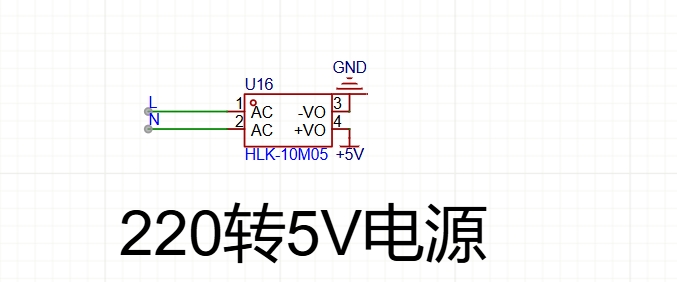
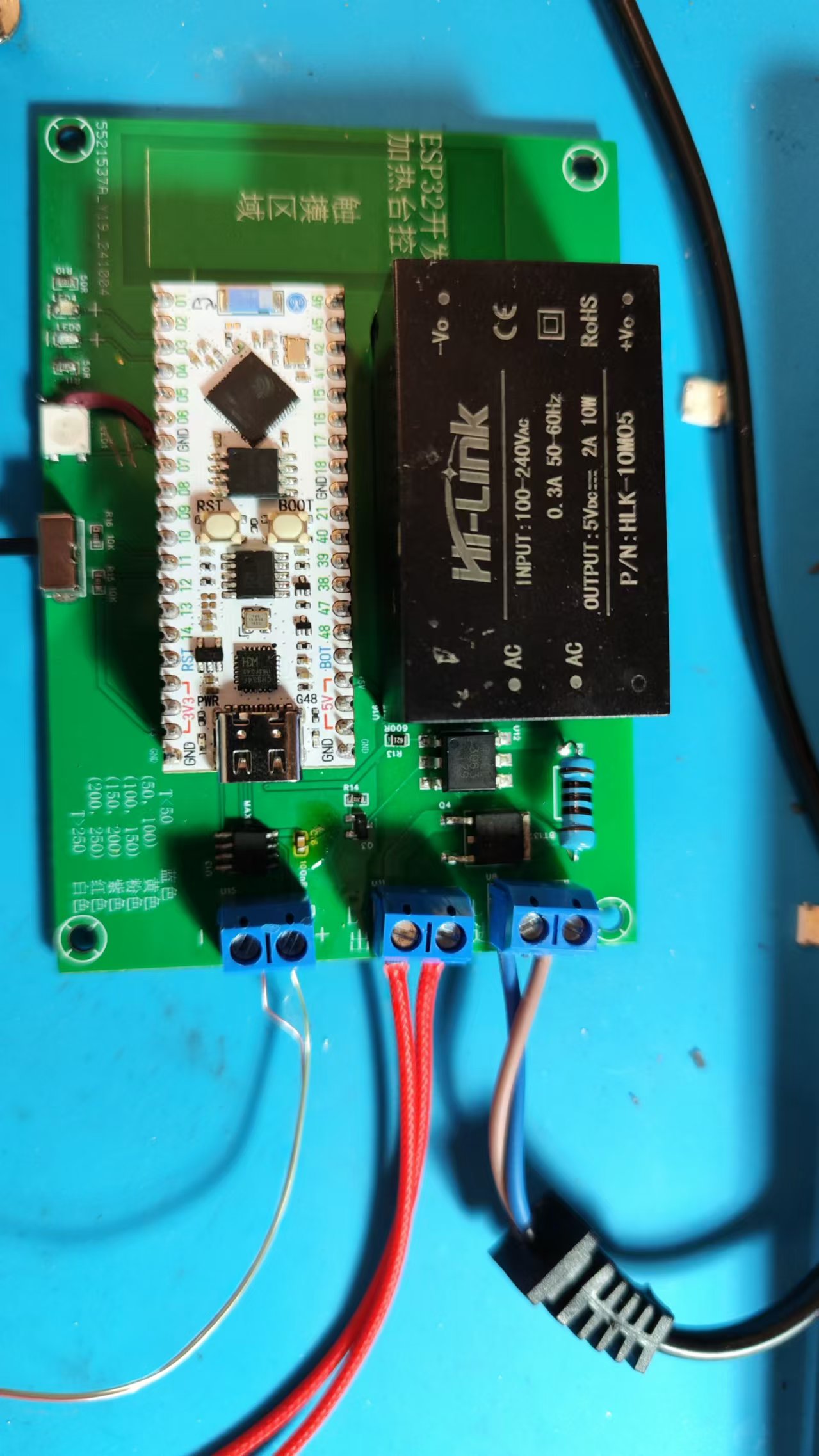
The power supply section
uses an HLK 220V to 5V module.
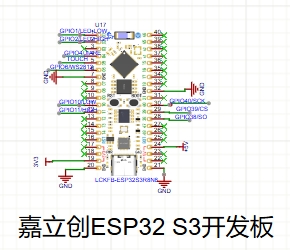
The main control section uses
the ESP32-S3 development board.
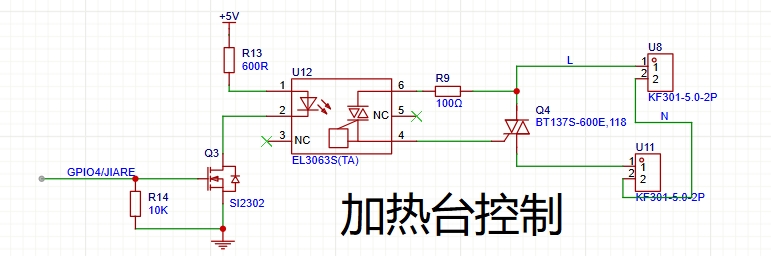
The heating plate control section uses
the ESP32-S3 development board's I/O ports connected to NMOS transistors to control optocouplers and SCRs, thus controlling the heating plate's power supply. The
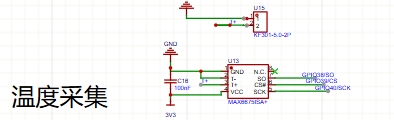
temperature acquisition section
uses a MAX6675 microcontroller with a K-type thermocouple to acquire temperature data . The
switching section
uses a single switch to select between high and low temperature modes.
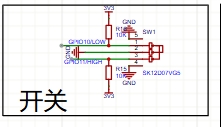
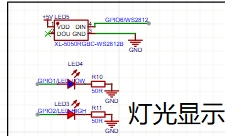
The lighting display
uses two LEDs to indicate the current operating mode: a green LED indicates low temperature mode, and a red LED indicates high temperature mode. A Ws2812b LED displays the current heating plate temperature range: T < 50 (Blue
, 50, 100), Yellow
, 100, 150
, Pink, 150
, 200, Purple, 200, 250);
T > 250 (White )
. The software
uses Arduino programming, and the code is as follows:
#include
#include
#include
#include
#include
#include
#define LED_PIN 6
#define LED_COUNT 1 #define GREEN_LED_PIN
1 #define
RED_LED_PIN
2
#define OUTPUT_PIN 4
#define SWITCH_LOW_PIN 10
#define SWITCH_HIGH_PIN 11 #define SCK_PIN 40 #define
CS_PIN 39
#define SO_PIN 38
Adafruit_NeoPixel strip = Adafruit_NeoPixel(LED_COUNT, LED_PIN, NEO_GRB + NEO_KHZ800);
Thermocouple* thermocouple;
double targetTemperature = 60; // Default target temperature is 60 degrees Celsius
WebServer server(80);
const char* ssid = "XXXXXXXXXXXX";
const char* password = "xxxxxxxxxxxxxx";
// PID parameters
double Kp = 1.5;
double Ki = 0.5;
double Kd = 0.2;
// PID object
double Setpoint, Input, Output;
PID pid(&Input, &Output, &Setpoint, Kp, Ki, Kd, DIRECT);
String temperatureHTML;
void handleRoot() {
double celsius = thermocouple->readCelsius();
temperatureHTML = "";
temperatureHTML += "
Temperature: " + String(celsius) + " C
";
temperatureHTML += "
Target Temperature: " + String(targetTemperature) + " C
";
temperatureHTML += "";
server.send(200, "text/html", temperatureHTML);
}
void handleSetTargetTemperature() {
if (server.hasArg("targetTemp")) {
targetTemperature = server.arg("targetTemp").toDouble();
Setpoint = targetTemperature;
server.send(200, "text/plain", "Target temperature set successfully.");
} else {
server.send(400, "text/plain", "Invalid request.");
}
}
void setup() {
strip.begin();
strip.show();
pinMode(GREEN_LED_PIN, OUTPUT);
pinMode(RED_LED_PIN, OUTPUT);
pinMode(OUTPUT_PIN,OUTPUT);
pinMode(SWITCH_LOW_PIN, INPUT_PULLUP);
pinMode(SWITCH_HIGH_PIN, INPUT_PULLUP);
Serial.begin(9600);
thermocouple = new MAX6675_Thermocouple(SCK_PIN, CS_PIN, SO_PIN);
WiFi.begin(ssid, password);
while (WiFi.status()!= WL_CONNECTED) {
delay(1000);
Serial.println("Connecting to WiFi...");
}
Serial.println("Connected to WiFi.");
server.on("/", handleRoot);
server.on("/setTargetTemperature", handleSetTargetTemperature);
server.begin();
// Set PID parameter
Setpoint = targetTemperature;
pid.SetMode(AUTOMATIC);
}
void loop() {
server.handleClient();
// Check switch status, update target temperature and control logic
if (digitalRead(SWITCH_LOW_PIN) == LOW) {
targetTemperature = 60;
Setpoint = targetTemperature;
// Read thermocouple temperature
Input = thermocouple->readCelsius();
// Run the PID algorithm
pid.Compute();
digitalWrite(OUTPUT_PIN, Output > 0? HIGH : LOW);
} else {
digitalWrite(OUTPUT_PIN, HIGH);
}
// Set the WS2812 color according to the temperature
if (Input < 30) {
strip.setPixelColor(0, strip.Color(0, 0, 255));//blue
} else if (Input >= 30 && Input < 50) {
strip.setPixelColor(0, strip.Color(0, 255, 0));//green
} else if (Input >= 50 && Input < 80) {
strip.setPixelColor(0, strip.Color(255, 255, 0));//yellow
} else if (Input >= 80 && Input < 100) {
strip.setPixelColor(0, strip.Color(255,165,0));//Orange
} else if (Input >= 100 && Input < 170) {
strip.setPixelColor(0, strip.Color(128, 0, 128));//Purple
} else if (Input >= 170 && Input < 220) {
strip.setPixelColor(0, strip.Color(255, 0, 0));//Red
} else if (Input >= 220) {
strip.setPixelColor(0, strip.Color(255, 255, 255));//White
}
strip.show();
// Control the green LED
if (digitalRead(SWITCH_LOW_PIN) == LOW) {
digitalWrite(GREEN_LED_PIN, HIGH);
} else {
digitalWrite(GREEN_LED_PIN, LOW);
}
// Control the red LED
if (digitalRead(SWITCH_HIGH_PIN) == LOW) {
digitalWrite(RED_LED_PIN, HIGH);
} else {
digitalWrite(RED_LED_PIN, LOW);
}
// Update the temperature display on the webpage
handleRoot();
// Output temperature information
Serial.print("Temperature: ");
Serial.print(Input);
Serial.println(" C, Target Temperature: ");
Serial.print(targetTemperature);
Serial.println(" C");
delay(500);
}
IV. Physical Demonstration Instructions
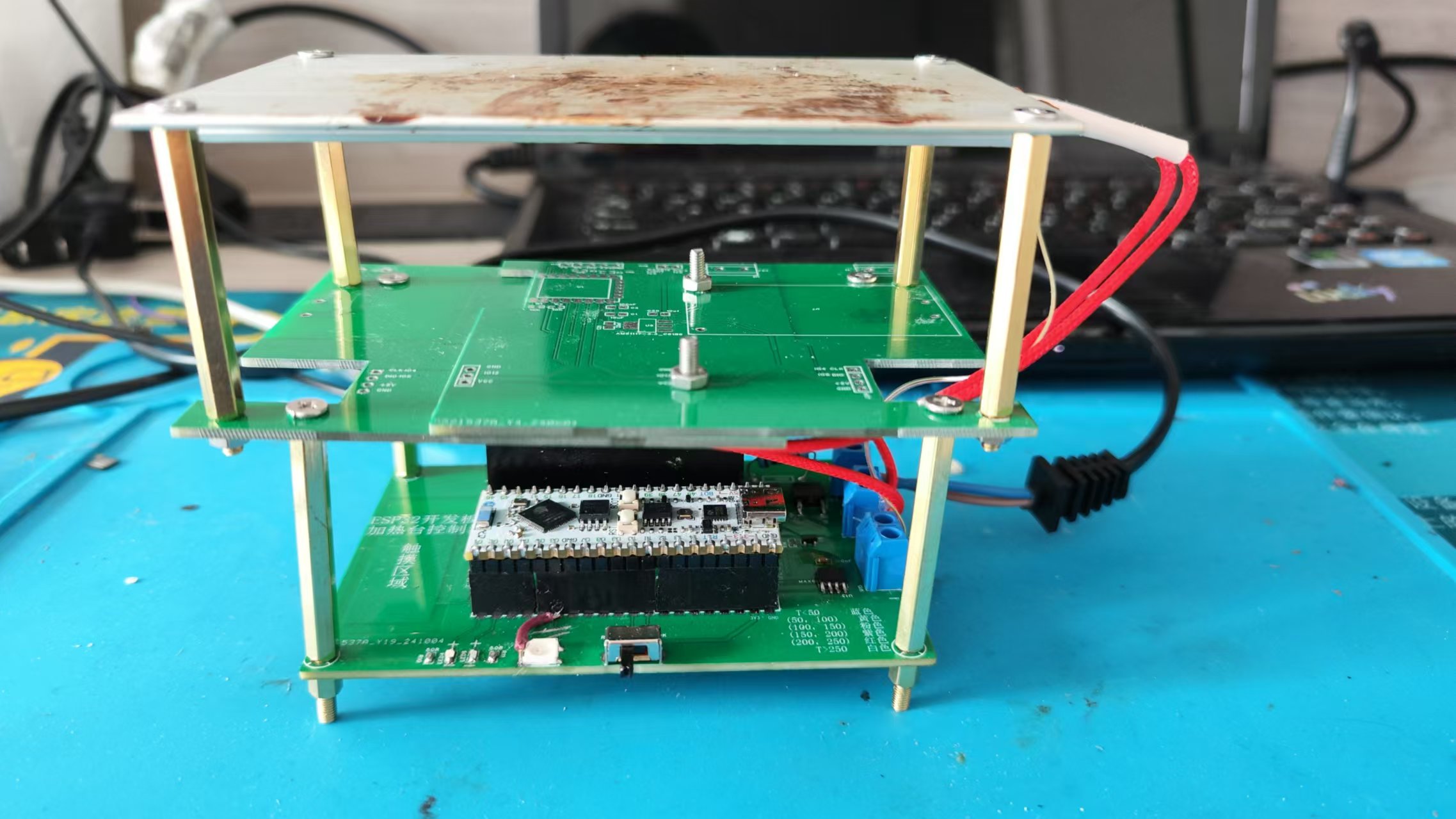
and Precautions
: This project involves high-voltage electricity, please handle with caution!








 京公网安备 11010802033920号


 ZL40802



