1. Project Function Introduction:
This competition required the creation of a temperature and humidity (SHT40 sensor) detector. The official version uses a digital tube display. I thought I could add an e-ink screen to create a low-power detector. Since I was using an e-ink screen, I decided to replace the MCU with an ESP32 and add an SGP30 air quality sensor. This was the main idea behind the project.
2. Hardware:
There are many versions of the ESP32. Initially, I considered the ESP32-PICO-V3. The main reason was that it's a SIP (System-in-Package), requiring minimal external circuitry. Compared to the ESP32 or ESP32-S series chips, the ESP32-PICO-V3 integrates a crystal oscillator, power supply, and other basic peripheral circuitry. Although the official reference circuit for the ESP32-PICO-V3 includes a power supply filter capacitor, I felt that this chip could be used simply by powering it on and adding an antenna. Ultimately, I didn't choose it for the final product; the reason was simply its high price.
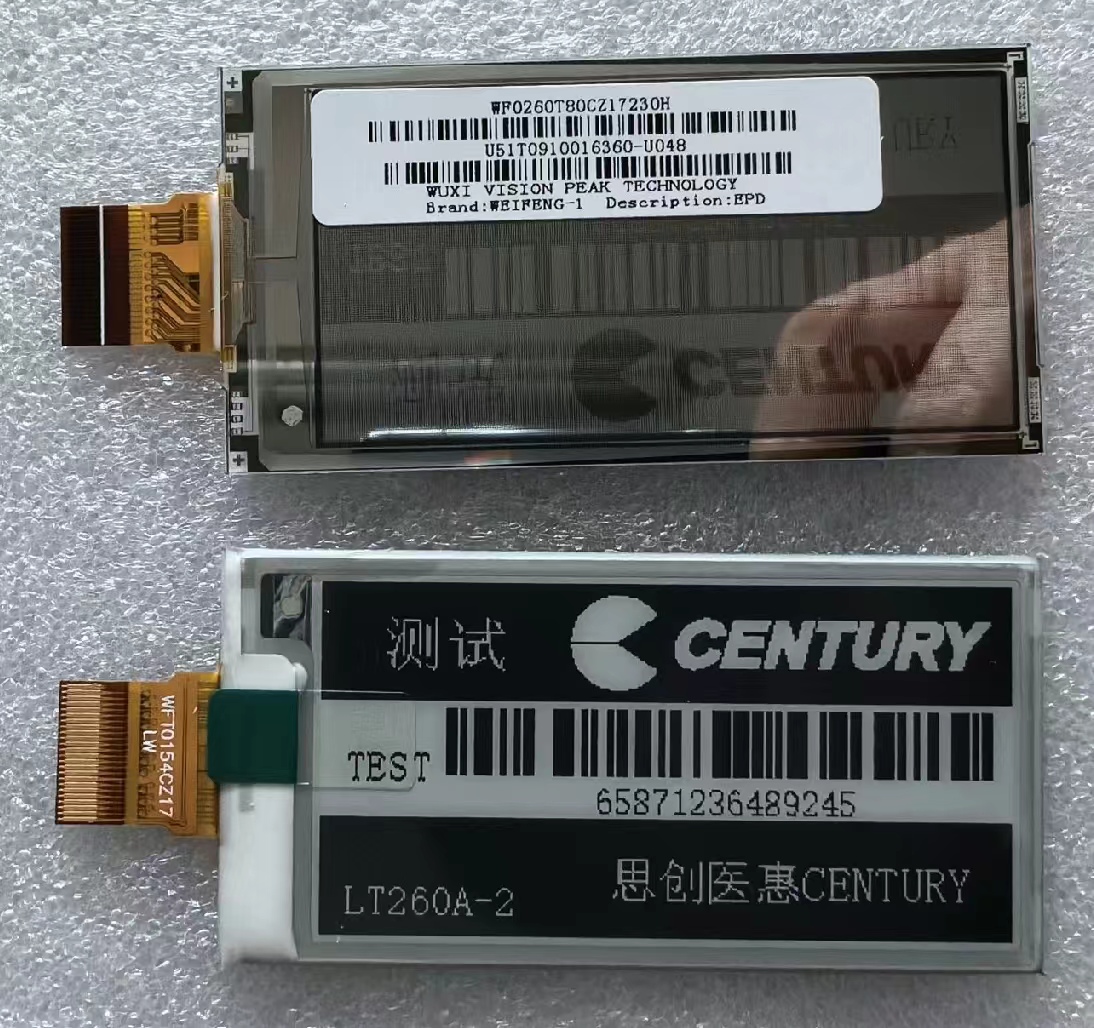
I purchased a 2.66-inch black and white e-ink screen on Xianyu (a second-hand marketplace). The seller said it was compatible with the GDEW026T0D from Jiaxian, so driver issues shouldn't be a problem.
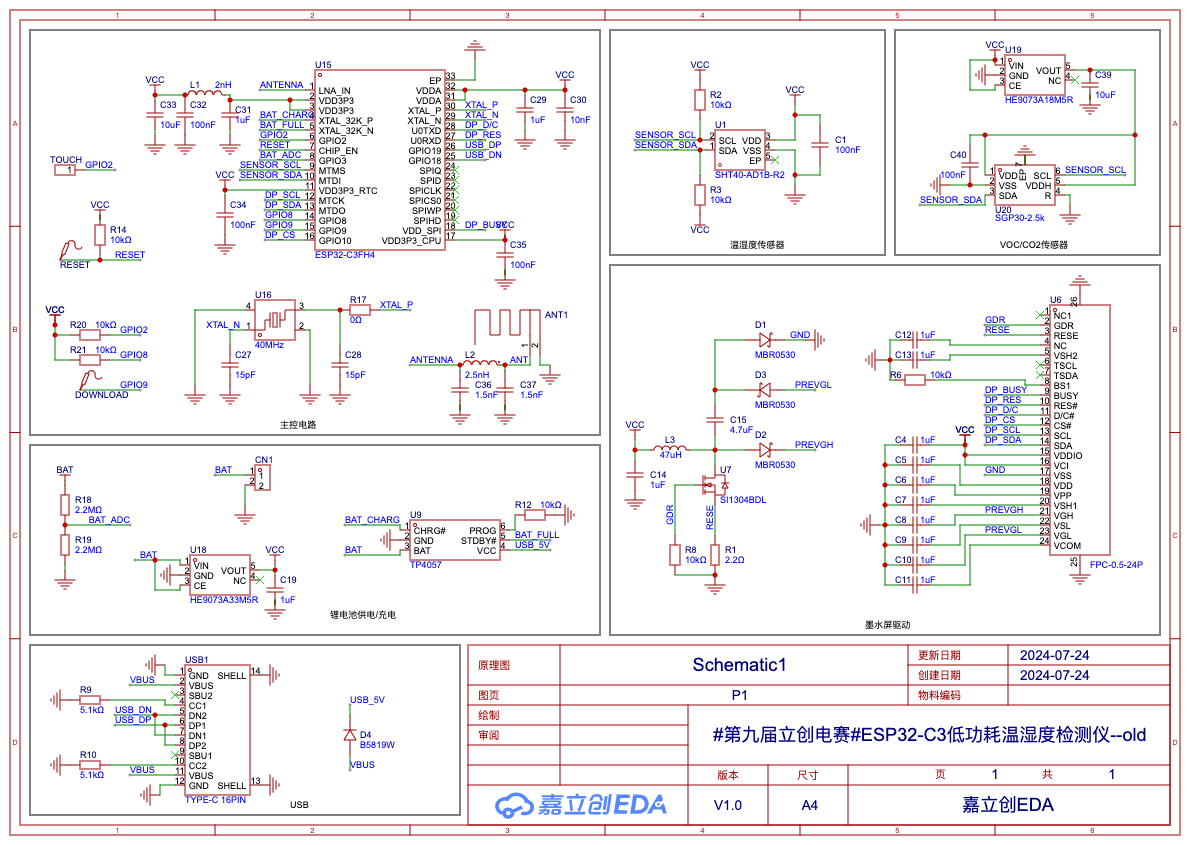
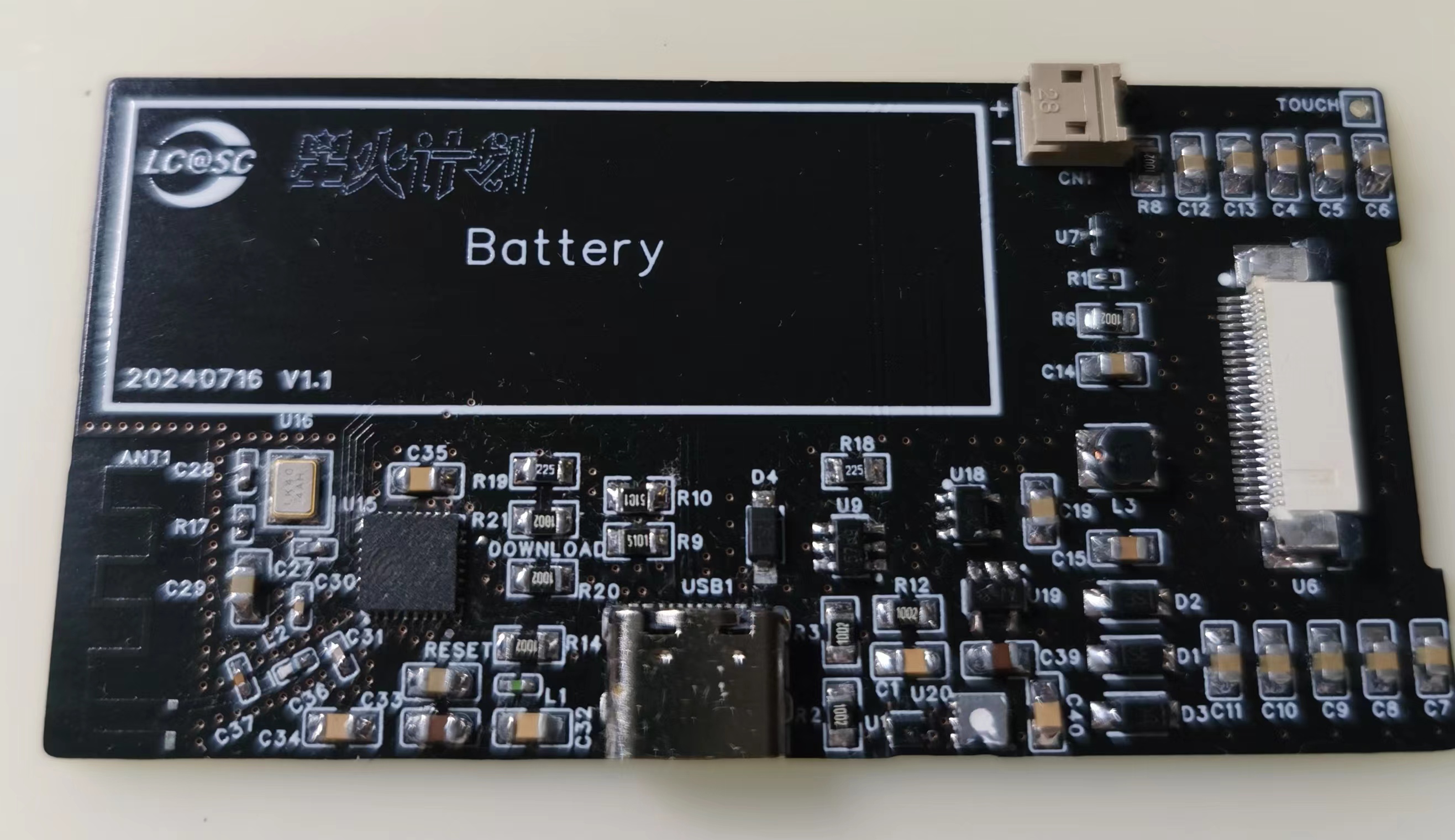
The first version used the ESP32-C3; although it has more peripheral circuitry, the chip is cheap enough. Below is the circuit diagram and PCB of the first version.
After soldering, the board couldn't recognize the chip. A careful check ruled out poor soldering and a faulty USB signal line. Due to a lack of tools, I couldn't check if the crystal oscillator and chip were working properly, so I had to abandon this solution.
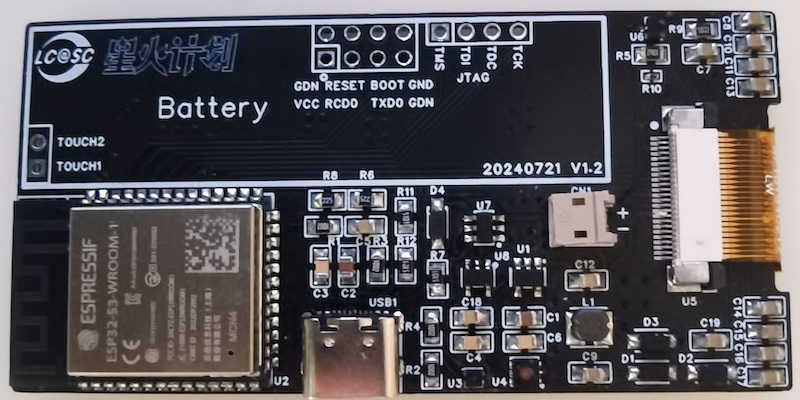
The second version is the final product. This version directly replaced the ESP32-C3 chip with an ESP32-S3 module to improve the success rate. After soldering the board, the chip was easily recognized, and the sensor could be read. OK, next is writing the program.
A special note about soldering:
because the Shengshirui sensor is very small, especially the SHT40 which is a 1.5mm x 1.5mm DFN, solder flux got into the sensor's small holes during the first soldering. Although I cleaned it with alcohol, later when reading temperature and humidity, these values were consistently around 40, which is obviously incorrect. I replaced the SHT40 with a new one, and used a hot air gun to heat it during soldering, applying only a tiny amount of solder flux to avoid getting it into the holes. However, I noticed the temperature was still 4-5 degrees Celsius higher than normal, and I don't know why. Also, the SGP30 air sensor has a white protective film (not removed in the picture above), which allows for easy soldering and cleaning; just remember to remove it afterwards, otherwise the TVOC will remain at 400, meaning it won't detect any volatile organic compounds in the environment.
3. Software
Development: There are several ways to develop with the ESP32. The first way is to use the official ESP-IDF package directly. This involves installing an SDK and using your preferred editor to write code, or you can use PlatformIO in VS Code. The second way is with Arduino. Install the official espressif package on the Arduino and select an ESP32-S3 board with the same Flash memory as your module. Other methods include MicroPython, ESPHome, etc. I used ESPHome for software development because writing code is simply writing configuration files; once the sensor, screen, buttons, and other peripherals are configured, it's very simple.
Installing ESPHome is very simple; a single command on a Mac is all it takes:
`pip install esphome python-magic-bin`.
Of course, being extremely lazy, I didn't even want to write the ESPHome configuration file from scratch, so I had LLM write one for me. Below is the first version of the program written by GPT-4o (the complete program is in the attachment "temp-detector-gpt4o.yaml"):
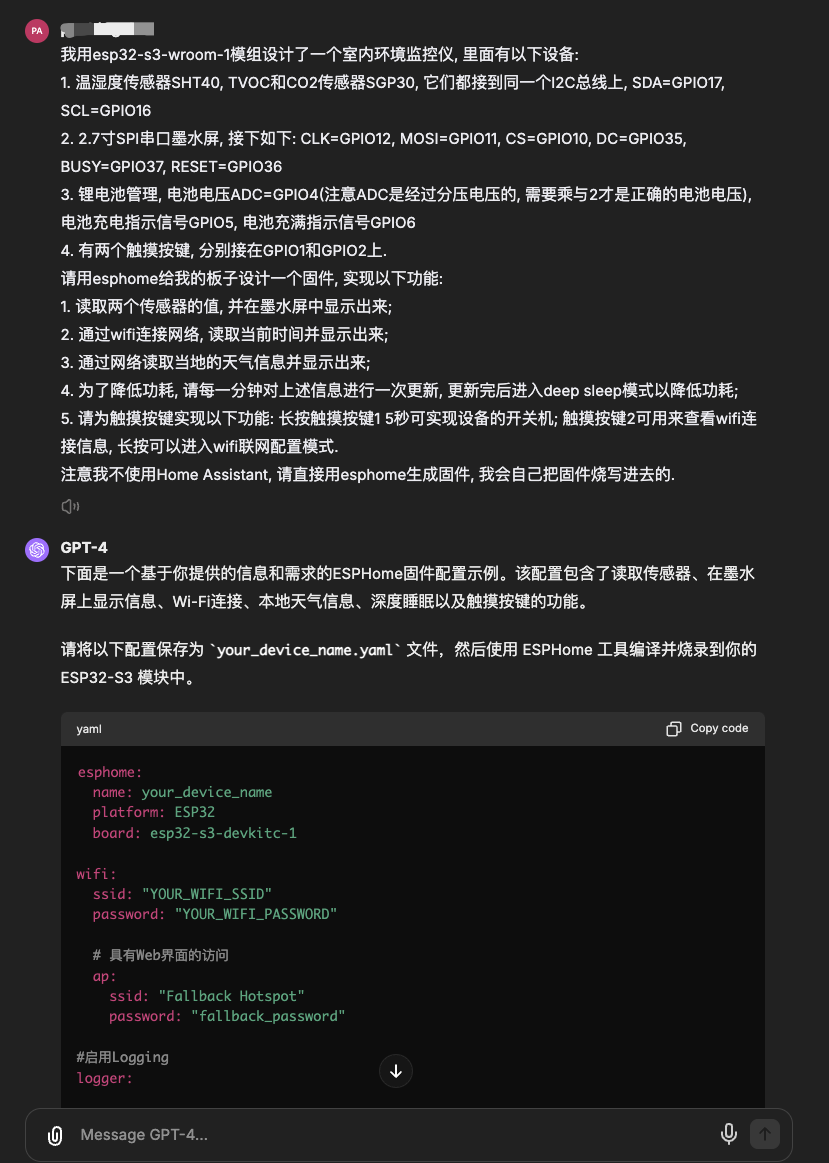
GPT-4o's program basically implements the functions I described, except it can't provide the e-ink screen driver, which is understandable since I didn't provide it with more detailed information about the e-ink screen. Aside from not needing an e-ink screen, there are no other major problems, but there are quite a few minor ones, such as the `board` configuration causing compilation errors.
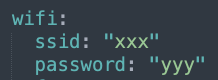
These minor problems are easy to fix; I modified the version based on GPT-4o. The final program is in the attachment "temp-detector.yaml," and "temp-detector.bin" is the compiled firmware. Note that you need to modify the Wi-Fi configuration to the corresponding Wi-Fi name and password.
3.1
Initially, I wanted to use the Waveshare driver included in ESPHome, but none of the drivers for different screen sizes worked for my e-ink screen. After a day of troubleshooting, I finally got it working using the official GDEW026T0D driver from GAC Display.
Of course, the official GAC Display driver can't be directly used in ESPHome; it's not optimally compatible. Therefore, a porting process is necessary. There are two approaches: one is to directly modify the Waveshare driver within ESPHome, which is highly intrusive and not recommended; the other is to create a component of ESPHome from the GAC Display driver.
To quickly implement the functionality, I modified the Waveshare driver first and then created a component later. The specific repair method is as follows:
Use the command `pip show esphome` to find the ESPHome installation path. My installation path is /opt/miniconda3/lib/python3.12/site-packages.
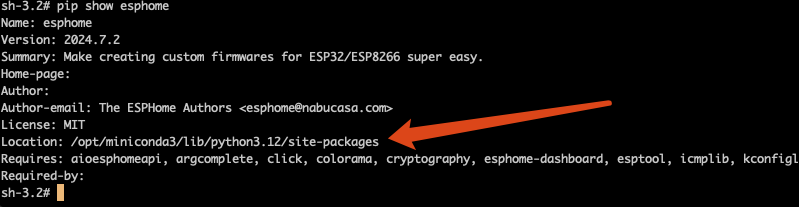
Then, open the file /opt/miniconda3/lib/python3.12/site-packages/esphome/components/waveshare_epaper/waveshare_epaper.cpp in this path and modify it. I'm modifying the 2.70inv2 driver, which corresponds to the class WaveshareEPaper2P7InV2. Four functions need to be modified: first, modify get_width_internal and get_height_internal to the screen resolution; then modify the initialize function; and finally, modify the display function.
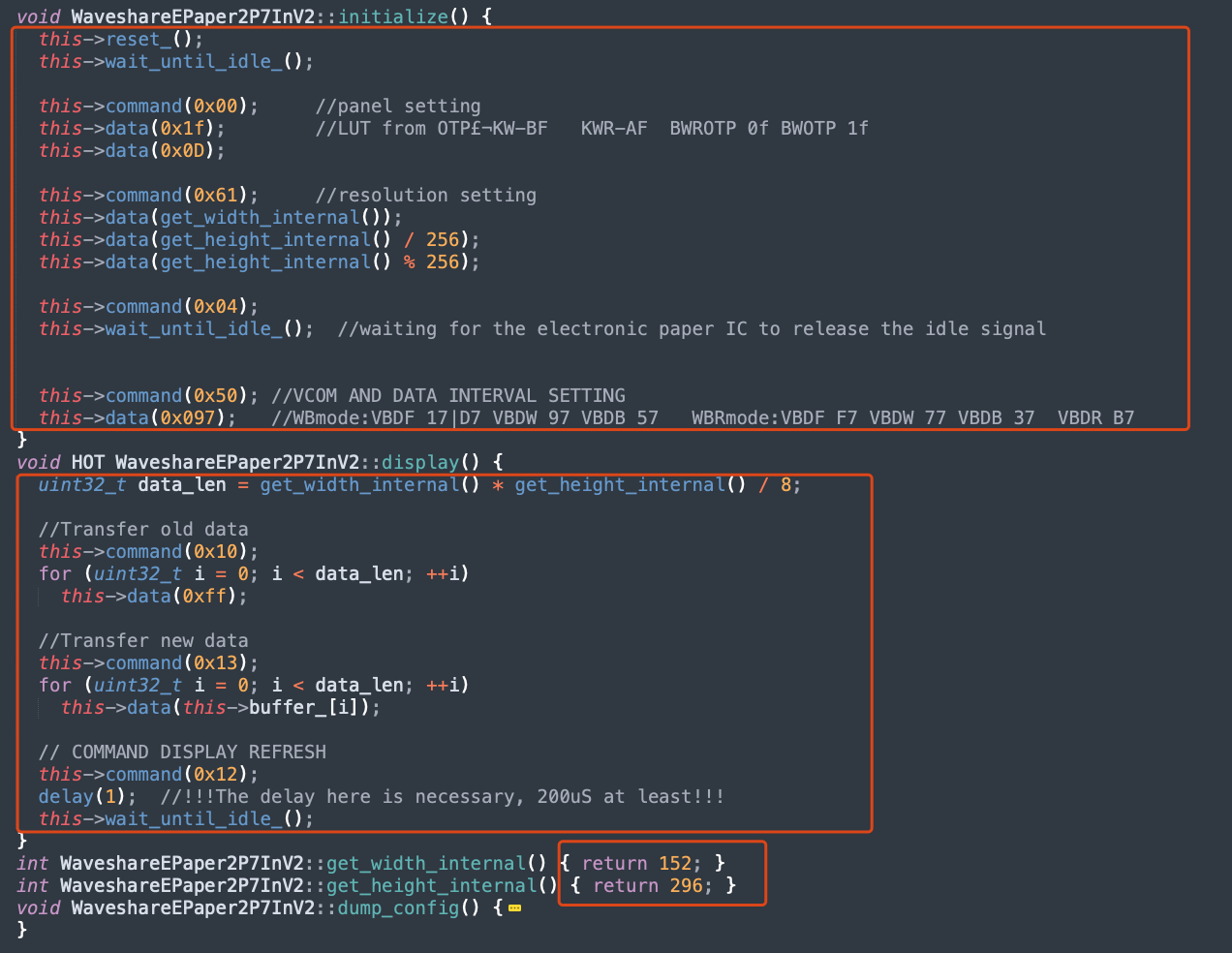
The modified waveshare_epaper.cpp file is attached.
3.2 Interface Design
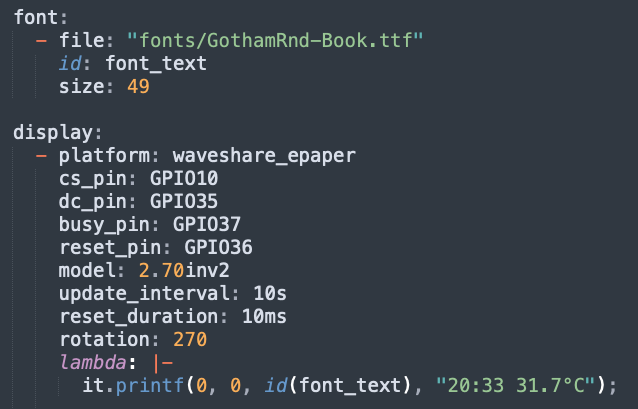
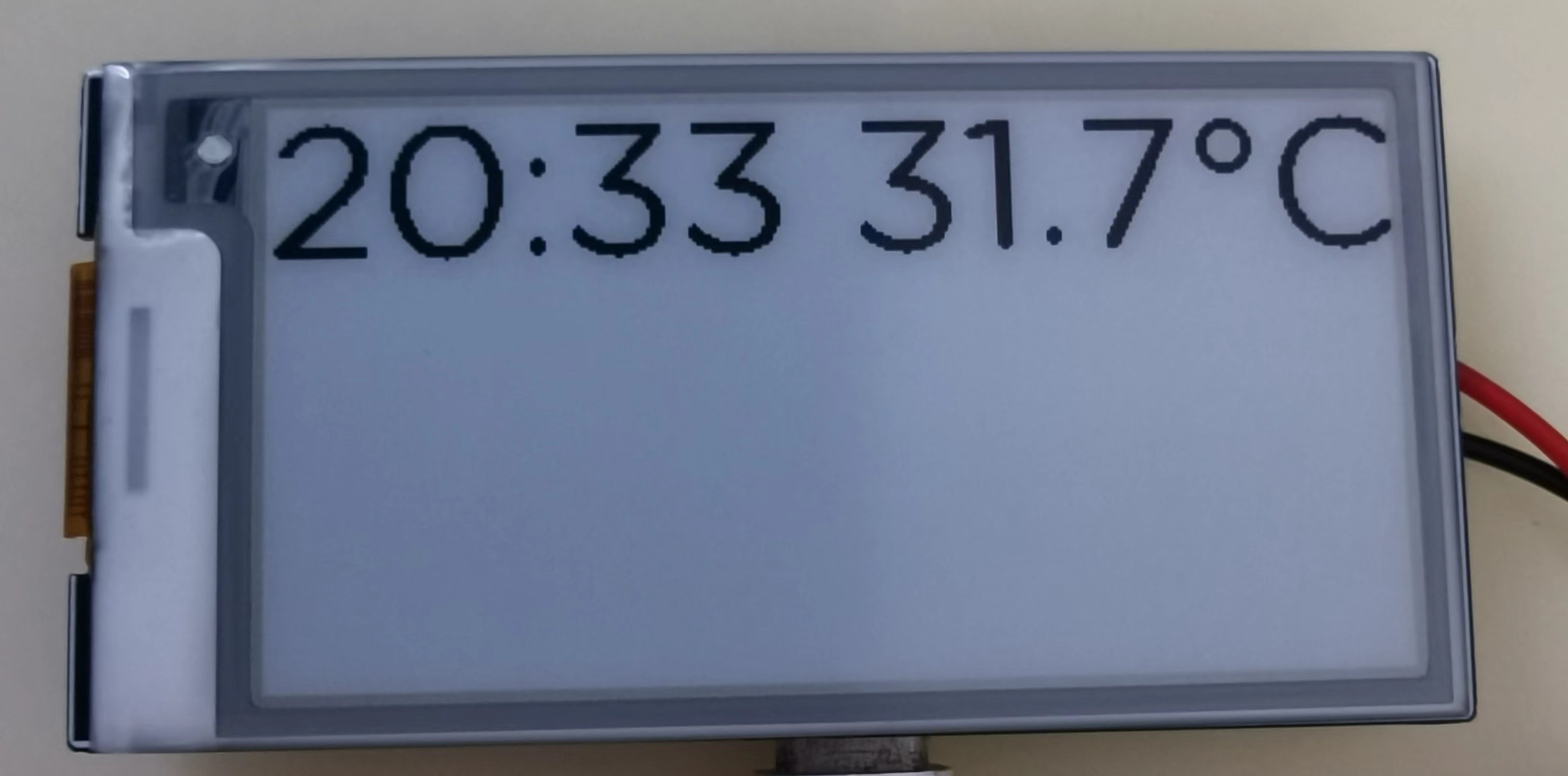
For the interface design of the e-ink screen, the first step is to find a suitable font. The following code uses the GothamRnd-Book.ttf font to display the text "20:33 31.7°C" at coordinates (0,0). The display effect is unsatisfactory; the text edges are not smooth, and the graininess is quite strong. The main reason is the low grayscale, and it is also related to the low DPI of the e-ink screen.
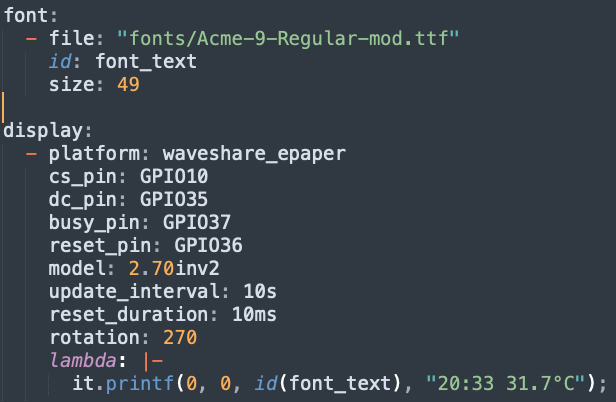
So what kind of font is suitable for display on an e-ink screen? Obviously, fonts without bevels and with straight lines should display very well. So I spent a morning looking at about 1,000 pixel-style fonts, and after testing about ten fonts, I chose the Acme-9-Regular font. The display effect is as follows:
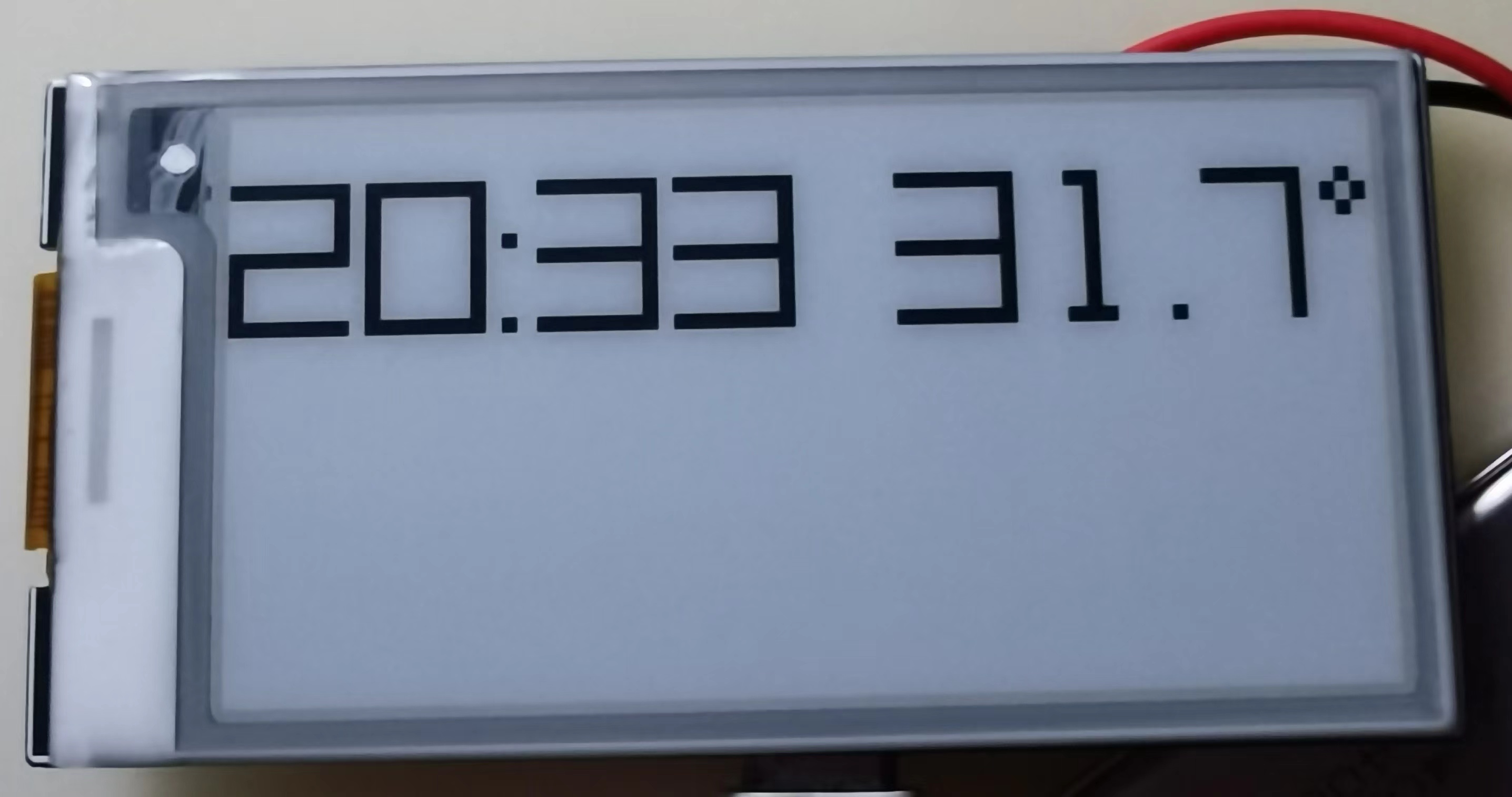
The text display effect is much smoother and cleaner.
Note: I made an adjustment to the original Acme-9-Regular font, please see the appendix for details.
After selecting the font, the interface design became easier. I divided the screen into three areas: the upper left corner for weather information (this part is currently hardcoded and will be integrated with the weather interface later), the upper right corner for the time, and the bottom for the temperature, humidity, TVOC, and CO2 values. The code and effect are as follows:
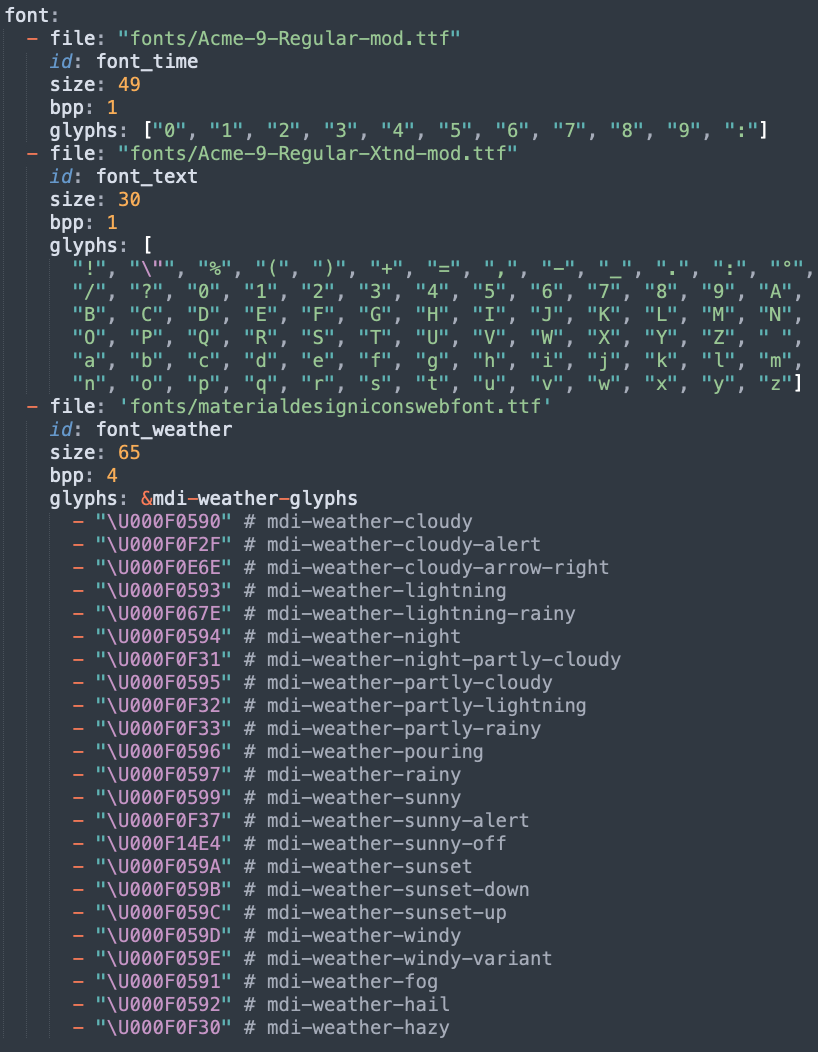
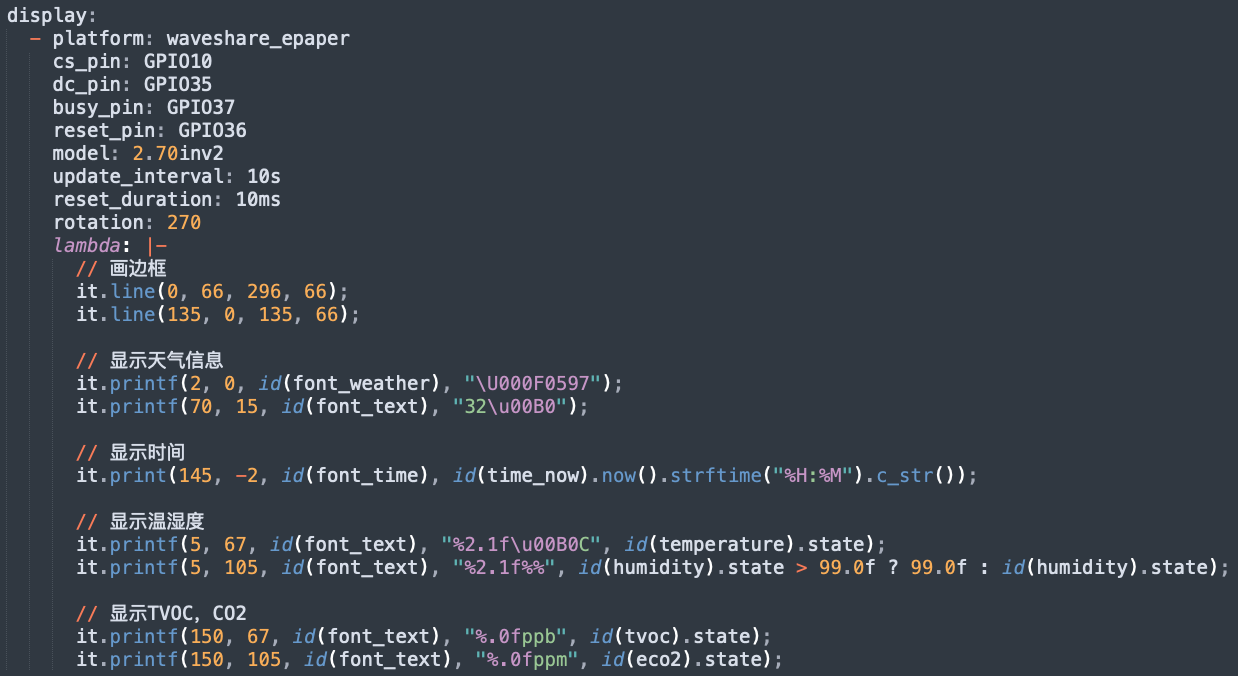
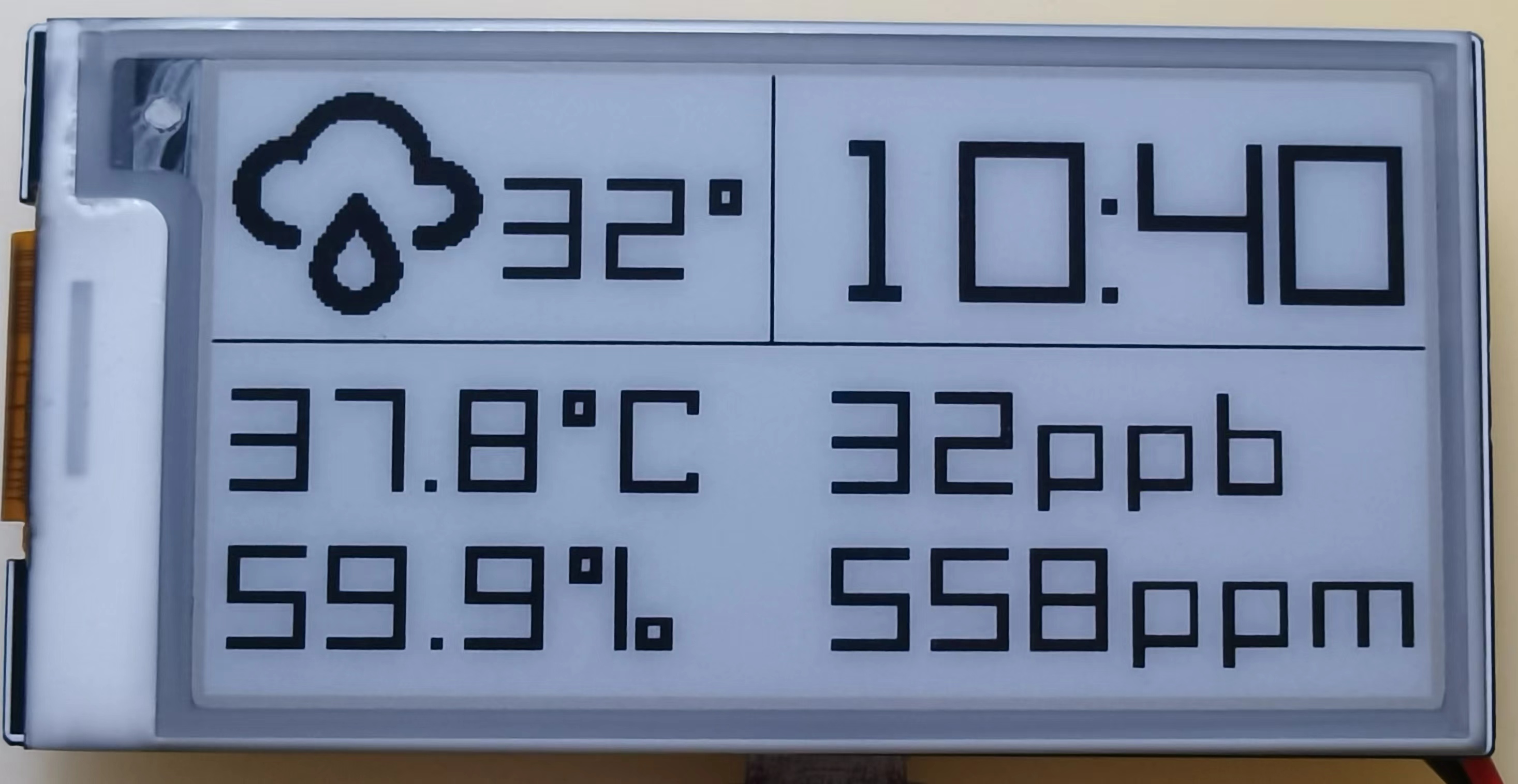
The glyphs in the font configuration specifies the characters to be used, which can reduce the firmware size. The font files used are attached.
4. Low power consumption
The ESP32-S3 has a deep sleep mode current of approximately 10uA; the SHT40 temperature and humidity sensor's sleep current of 20nA is negligible, and the SGP30 air quality sensor's sleep current is 2uA. Furthermore, the 3.3V LDO uses the ultra-low quiescent current HE9073, with a quiescent current of 0.3uA; since the SGP30's voltage is 1.8V, a 1.8V LDO, also using the HE9073, is needed. Finally, voltage acquisition uses two 2.2MΩ voltage divider resistors, consuming no more than 3.3V / (2*2.2*10^6) = 0.75uA. The e-ink screen's sleep current is 5uA. Therefore, the entire system's sleep current can theoretically be controlled within 16.55uA.
Without WiFi (only WiFi is turned on once per hour to obtain weather information), the ESP32+ sensor current is approximately 80mA; with WiFi on, the current reaches 150mA. To update the time and sensor values on the e-ink display, sensor data needs to be collected and the e-ink updated every minute; this update operation can be completed within 1 second. Therefore, the ESP32 runs for 1 second per minute, sleeps for 59 seconds, and also turns on WiFi once per hour (a fixed IP address can be configured to speed up WiFi connection, the whole process takes about 2 seconds).
The average current of the entire system per hour is (((80 * 1 + 0.01655 * 59) / 60) * 58 + 150 * 2) / 60 = 6.305mA; therefore, using a 400mAh lithium battery, the theoretical battery life is 400 / (6.305 * 24) = 2.64 days. If the e-ink screen does not display the time, the refresh interval can be extended to 1 hour. In this case, the average current per hour is (150 * 2 + 0.01655 * 3598) / 3600 = 0.100mA, and the battery life can reach 400 / (0.100 * 24) = 166.7 days (5.5 months).
Power consumption can be further optimized, mainly by reducing CPU runtime. Firstly, the CPU frequency can be reduced to 40MHz. Actual testing shows that the e-ink screen refresh operation takes approximately 400ms. Subsequent refresh operations are handled by the screen driver chip, and the ESP32 entering sleep mode does not affect the e-ink screen refresh. Sensor data reading can be completed within 50ms. Therefore, we can send a sensor data reading command after each deep sleep wake-up of the CPU, obtain the latest data after 50ms, and then start refreshing the screen. After 400ms, it can enter Deep Sleep mode. Secondly, using partial refresh on the e-ink screen might further reduce the refresh time.
Note: The current code does not implement ESP32 deep sleep; this needs to be added later.
5. Shell Design:
The shell design is incomplete and needs to be completed.
6. Competition Logo Verification
7. Project Attributes:
This project is original and being released for the first time. It has not won any other competition awards.
8. Open Source License:
This project follows the MIT open source license.
9. Appendix
9.1 Font Modification:
The Acme-9-Regular font contains two versions: one is a small-spaced font without "Xtnd" ("Acme 9 Regular.ttf" and "Acme 9 Regular Bold.ttf"), and the other is a large-spaced font with "Xtnd" ("Acme 9 Regular Xtnd.ttf" and "Acme 9 Regular Bold Xtnd.ttf").
I used the small-spaced font "Acme 9 Regular.ttf" as a dedicated font for time information to reduce the space occupied by the time area, and "Acme 9 Regular Xtnd.ttf" as a font for other information.
1) Modification of Acme 9 Regular.ttf :
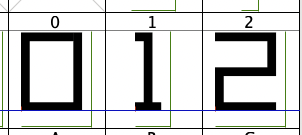
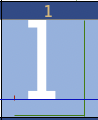
This font only needs one modification, which is to change the number 1 to a fixed width. The left side of the image below shows the data 1 before modification. Its width is smaller than the other numbers. This causes the displayed time information to shrink to the left when it includes the number 1, because the number 1 is smaller than the others. If the width of the number 1 is the same as the other numbers, this problem doesn't exist. The right side of the image below shows the number 1 after modification.
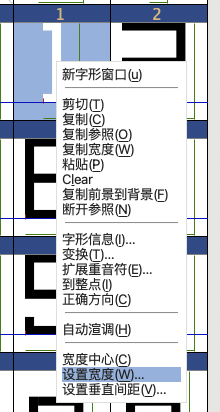
The modification method is to right-click the number 1 and select "Set Width":
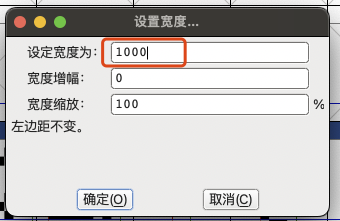
In the pop-up window, enter 1000 and click OK:
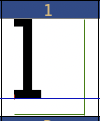
After setting the width, the number 1 is too far to the left, so you need to adjust the left margin.
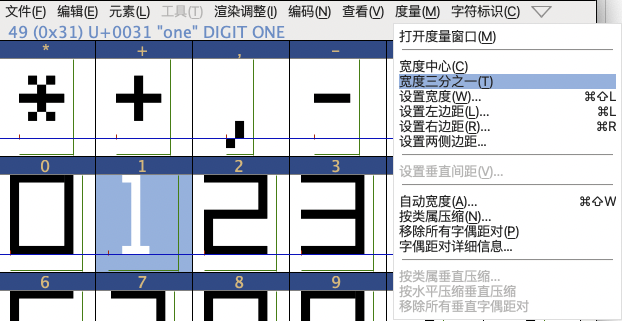
Select the number 1, then select the menu "Measure" and then "Width One-Third":
Set the number 1 as follows:
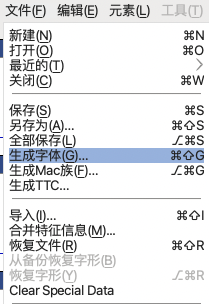
Export the font settings. Click the "File" menu, select "Generate Font":
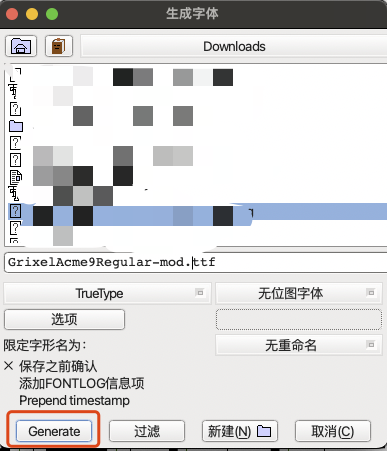
Enter the file name, click "Generate," ignore the warning window that pops up, and click as shown in the screenshot below to successfully export the font file.
2) Modification of Acme 9 Regular Xtnd.ttf:
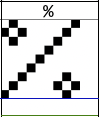
This font mainly modifies the percentage sign "%" and the degree symbol "°" because I didn't think the original looked very good. This modification simply involves drawing the characters yourself; there aren't many techniques involved. Below are the before and after effects.
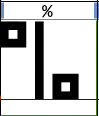
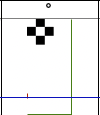
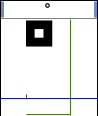
The method for exporting fonts is the same as above.








 京公网安备 11010802033920号


 2SK3572-Z



