Project Description:
Uses a TYPE-C interface, built-in lithium battery power, built-in SD card slot, screen, WIFI, and Bluetooth modules.
It can scan, recognize, and read Chinese and English text, supporting simultaneous translation with an accuracy rate of at least 90%.
It must support voice interaction, displaying and reading aloud the scanned and translated content in real time.
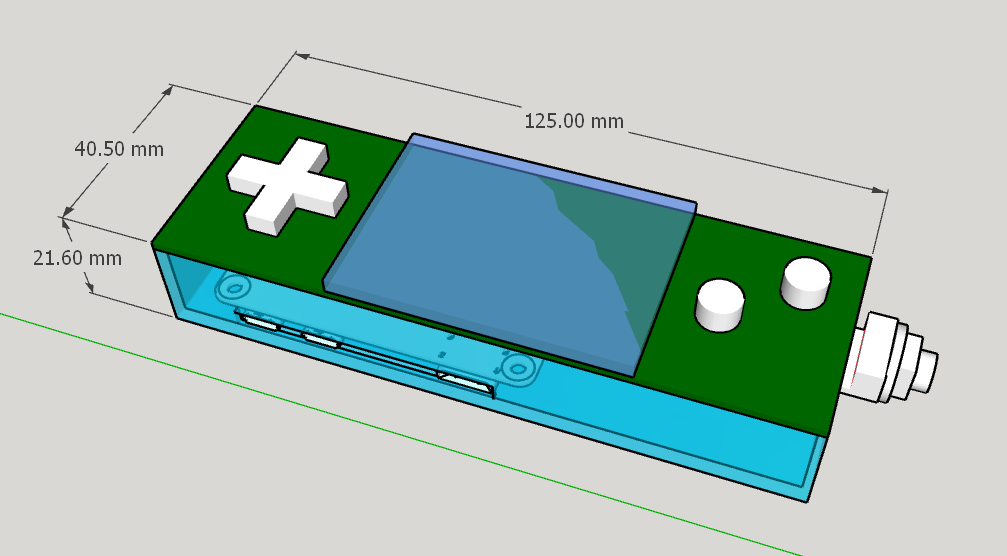
The dimensions should not exceed 150mm x 40mm x 30mm, and a suitable 3D shell should be designed; materials are not limited.
Open source license. Project Attributes:
This is the first public release of this project, and it is my original work. It is only open-sourced on OSHWHUB.COM, and the project has not won any awards in other competitions.
Project Progress
: I won the bid for this project at the end of July 2023. This was the initial idea; I wanted to include a Raspberry Pi game console, then design and submit the board.
The board arrived in mid-August via SMT, and I started debugging the hardware and soldering additional components—it was quite fast.
I'm getting increasingly comfortable using JLCPCB EDA and SMT; I've designed several boards for the company, and I'm even too lazy to install AD on my new computer.
In early September, my Raspberry Pi ZERO was running Python OpenCV, which was consuming all memory and CPU due to the audio card. My ZERO 20,000 RMB subscription, paid for a year ago by eLong, had been delayed again.
I had to buy a new one on Taobao, but Raspberry prices hadn't dropped yet. The learning curve was steep.
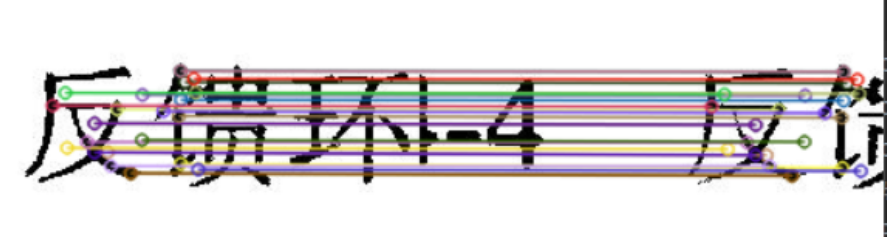
On November 1st at midnight, I started using OpenCV feature matching for image stitching. The strategy was to use my own algorithm to stitch images when feature matching failed. This combination improved stitching quality and recognition accuracy.
On December 11th, the feature matching was still incredibly slow due to insufficient skill; even on a PC, it was slower than using a sloth.
Finally, there was progress. The recognition rate was consistently low, with over half of the image stitching failing.
A new solution was implemented: abandoning the encoding wheel and interval image capture, I switched to 128-frame video recording.
The video was sent to the PC, and images were extracted, stitched together, and
submitted to the Baidu API for image OCR. Finally, the text and translation results were returned to the scanning pen.
I continued to optimize and test.
I spent the Spring Festival holiday working on the scanning pen. Over the past six months, this hardware engineer has become much more proficient in Python; I've even gotten into image recognition.
I continued integrating and organizing code and started editing documentation during the Lantern Festival. I'm also grateful to A-Chuang for granting me an extension.
At midnight on February 29th, after reviewing and revising it again and again, I finally finished editing the documentation. This night owl and smoker humbly asks for your understanding and support. Please give me a thumbs up!
Design Principles
0 System Block Diagram
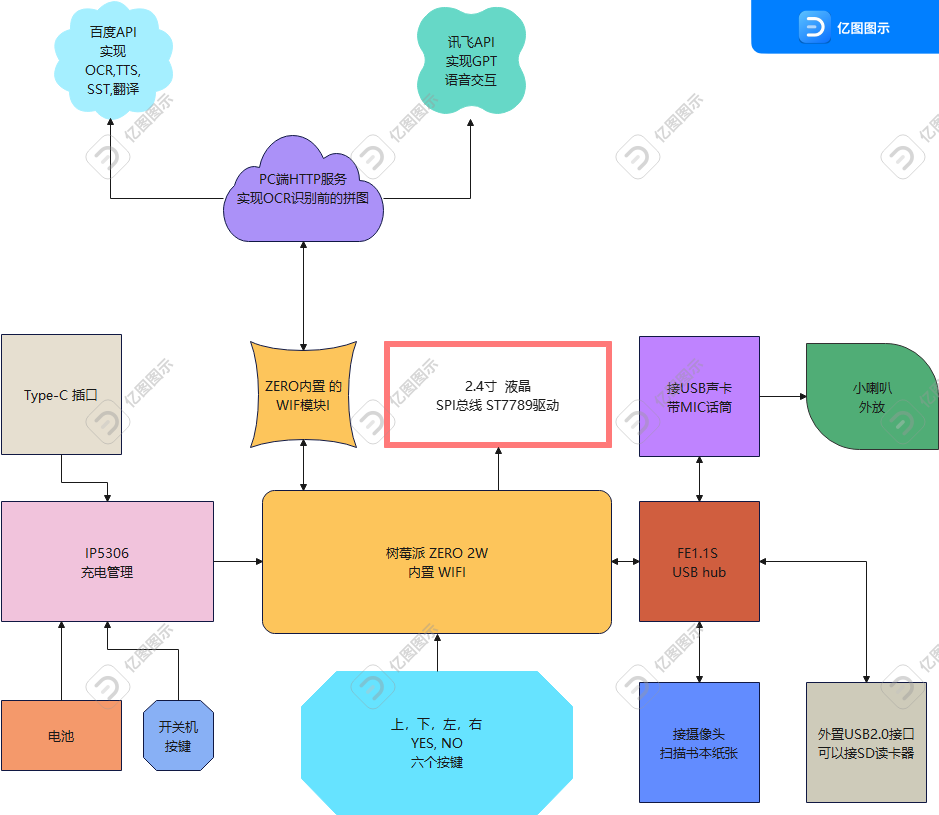
1. Hardware Part
1.1 Power Supply USB Type-C interface input, IP5306 for battery charging, boosting to 5V to supply the whole machine
1.2 Raspberry Pi Zero 2W external
1.2.1 USB 2.0 Hub control chip FE1.1s, expanding three USB interfaces,
connecting a USB sound card for recording, external speaker,
connecting a camera to record and save as AVI files during OCR scanning
External USB port (can connect USB flash drive, SD card reader, keyboard, mouse, etc.)
1.2.2 I2C bus connected to MT6701 magnetic encoder sensor for detecting sliding distance (this has been removed)
1.2.3 SPI bus connected to the ST7789 driven LCD
1.2.4 GPIO connected to 6 buttons for LCD backlight control
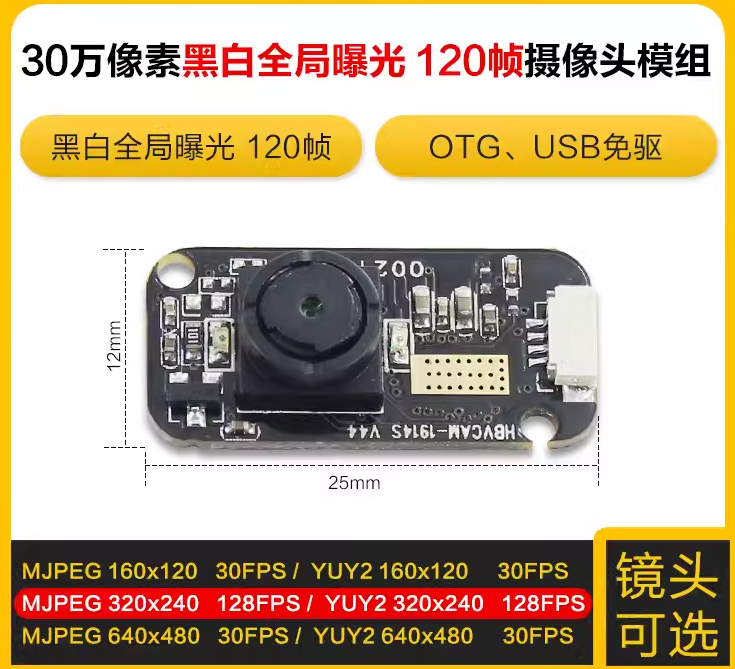
1.2.5 Some key hardware, except for the following items which were purchased from Taobao, the rest of the parts are JLC mounters or GC0380 30W camera
purchased from LCSC Mall.
Black and white 128fps lens with 80-degree
2.4-inch LCD screen 240x320 HD IPS screen ST7789
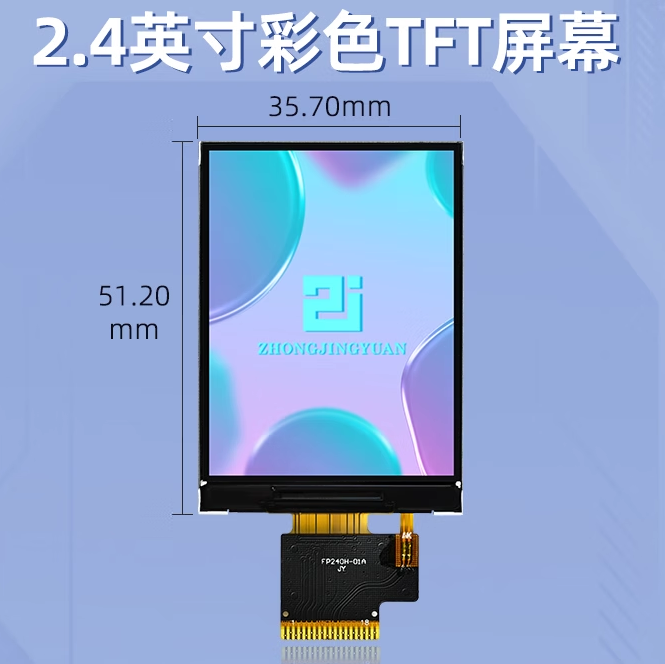
3.7V lithium battery, 603450-1200mAh [with board and terminals]
ZERO 2W motherboard
2. Software part
2.1 Raspberry Pi reads and updates WIFI configuration file through SD card reader
First, add a new wifi.conf file on the SD card and write (characters without quotes)
SSID=yourWIFI SSDIPassword=your password
Insert SD card reader
into the scanner USB2.0 external interface
if keyVal[0] == 1: # After the Raspberry Pi starts the program, if the left button is pressed, call
def checkMedia()
to read the wifi.conf file in the SD card reader to update /etc/wpa_supplicant/wpa_supplicant.conf # Note the permission issue
2.2 VNC settings and login
Raspberry Pi VNC Viewer remote desktop configuration tutorial | Raspberry Pi Lab (nxez.com)
https://shumeipai.nxez.com/2018/08/31/raspberry-pi-vnc-viewer-configuration-tutorial.html
2.3 Shell Login to Raspberry Pi Desktop
using VNC,
FinalShell
Windows X64 version, download address: http://www.hostbuf.com/downloads/finalshell_windows_x64.exe
Usage instructions:
https://blog.csdn.net/muriyue6/article/details/117520456 # Detailed usage instructions refer to
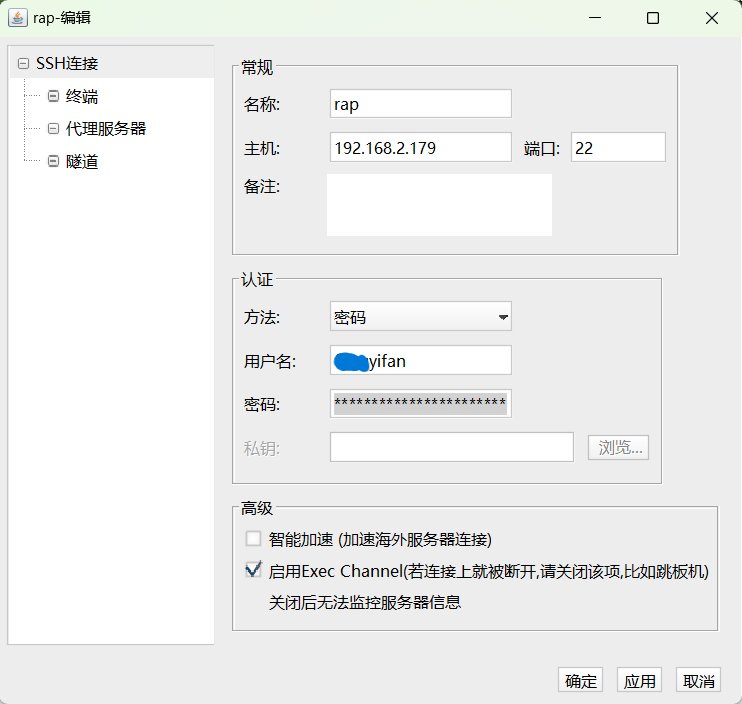
the following: Name: Custom Host: Enter your Raspberry Pi's IP address. You can check the port in your router settings: Default 22 is fine, no need to modify. Note: Custom Method: Password Username: Default account pi and default password raspberry Password: Enter the server login password
2.4 ZEROTIER intranet penetration works
because OCR scanning and video-to-text conversion are performed on a self-hosted server on my PC. Zerotier is used for intranet penetration (though I can do without an external IP server).
I added Zerotier to both my Raspberry Pi and my PC.
To install the software
on the Raspberry Pi, open a command window and run the following command:
`curl -s https://install.zerotier.com | sudo bash`. After
adding the network
download and installation, connect to the server using the following method, replacing "#" with the Network ID:
sudo zerotier-cli join #################
sudo zerotier-cli join 1c33c1ced########5
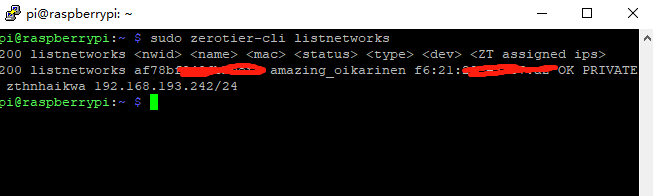
You can check the network connections using the following command:
sudo zerotier-cli listnetworks
Configure auto-start
sudo systemctl start zerotier-one
# Start
sudo systemctl stop zerotier-one
# Stop
systemctl enable zerotier-one
# Enable auto-start
systemctl disable zerotier-one
# Disable auto-start
https://blog.csdn.net/Bing_Lee/article/details/107171675 # This explains it in more detail
2.5 Upgrade the library. Changing the source can speed up the download
https://zhuanlan.zhihu.com/p/488143997 # Method for changing the source, I also learned from this, it explains it in more detail
sudo apt-get update
Raspberry Pi Install various libraries
pip install smbus2 # The IIC library is not needed in the latest program.
`pip install spidev` # SPI bus driver LCD `pip install numpy` # Functionality moved to PC `
pip install requests` # Used in Baidu API
`pip install json` # Used in Baidu API `pip install socket` #
`pip install logging` # Logging `pip3 install python-vlc` # Play WAV audio `pip install alsaaudio` # Play WAV audio `pip install wave` # Play WAV audio `pip install pyaudio` # Play WAV audio
`pip install pygame` # Play WAV audio Installing the cv2 library was quite troublesome, but now that image splitting, image recognition, and puzzle-solving are done on the PC, the PC installation is relatively easier. On the PC, simply use `pip install opencv-python -i https://pypi.tuna.tsinghua.edu.cn/simple` in CMD . Successfully
installing OpenCV on Raspberry Pi
: After switching the Raspberry Pi to the Tsinghua University mirror site, installing OpenCV became very simple.
To install OpenCV onto your Raspberry Pi from the Tsinghua University mirror site, simply enter the following command in the command line window:
`sudo apt-get install python3-opencv`.
First, download the .whl files:
`opencv_python-4.5.5.62-cp39-cp39-linux_armv7l.whl`,
`numpy-1.22.3-cp39-cp39-linux_armv7l.whl`, and then install the dependencies:
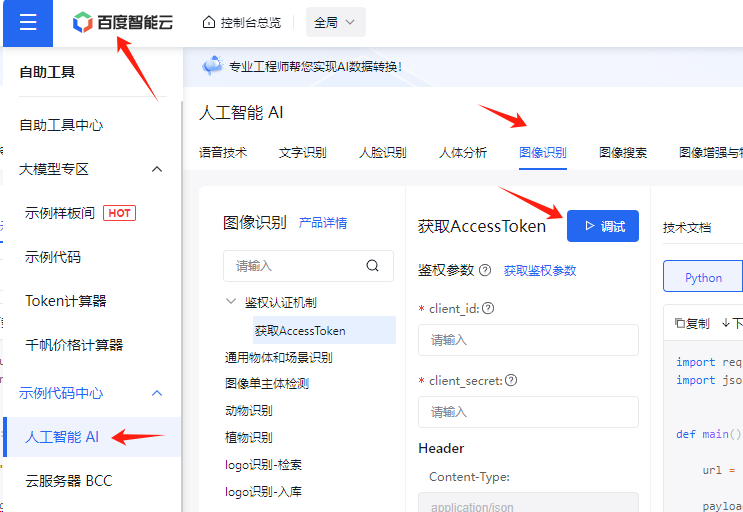
`pip3 install XXX.whl`. Next, install the dependencies: `sudo apt-get update`, ` sudo apt-get install libhdf5-dev`, ` sudo apt-get install libatlas-base-dev`, ` sudo apt-get install libjasper-dev`, `sudo apt-get install libqt4-test`, and `sudo apt-get install libqtgui4` . Finally, there are two APIs from Baidu and iFlytek : 2.6.1. For Baidu API implementation of speech synthesis, refer to https://cloud.baidu.com/?from=console. https://blog.csdn.net/qq_38113006/article/details/105742296 To obtain the Access Token, I directly used the 【API Online Debugging】 tool to 【Debug】 and copied the returned token, storing it in the constant TOKEN = '24.d2ebdc4ac09d*****************92000.1704816738.282335-36477719' # Stored in the constant.py The main functions in baiduAPI.py are explained below -------------------------------------------------------------------------------------- def ocr(path): """ Submits an image to Baidu and returns text: param path: Image: return: Text recognized by OCR """-------------------------------------------------------------------------------------- def tts(text): """ TTS conversion, Baidu API conversion effect is very good, the sound is pleasant and the pronunciation is accurate: param text: Text: return: wav(mono, 16000 sampling rate) """-------------------------------------------------------------------------------------- def vop(path): """ SST conversion, upload WAV file and convert speech to text: param path: wav file path, mono, 16000 sampling rate: return:Word"""--------------------------------------------------------------------------------------
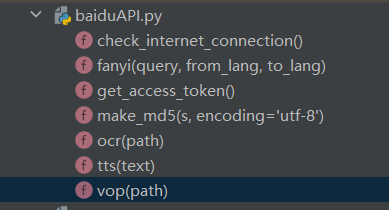
def fanyi(query, from_lang, to_lang): """ Translation: param query: Original text: param from_lang: 'en' : param to_lang: 'zh' : return: Translation result """--------------------------------------------------------------------------------------
2.6.2 Xunfei Xinghuo GPT
Xinghuo Cognitive Big Model Web API Documentation
https://www.xfyun.cn/
https://www.xfyun.cn/doc/spark/Web.html#_1-%E6%8E%A5%E5%8F%A3%E8%AF%B4%E6%98%8E
--------------------------------------------------------------------------------------
Define global variable global text # Used to receive the response returned by GPT
def getGpt(_input): # Submit the question to Xunfei Xinghuo GPT
""" Write the question to _input, Xunfei Xinghuo GPT returns the response: param _input: Asked question : return: Returned response """
`SparkApi.main(id,key,,,_input)` # In `SparkApi.py`,
`getText()` # Updates the response to global text.
2.7 Setting up automatic startup for Python program files
: The configuration
method is to modify the `.bashrc` file.
`sudo nano /home/fengyifan/
.bashrc` Add the startup command text to the end of the `/home/pi/.bashrc` file.
`echo Running at boot`
`sudo python /home/pi/sample.py` # Replace this with your own `.py` file path.
The `echo` command above is used to show that the script in the `.bashrc` file has started running.
2.8 A self-built HTTP server on PC provides image splitting, recognition, and stitching, OCR conversion.
Python Flask Web:
Flask is a lightweight Python-based web framework.
`sudo pip3 install Flask` --------------------------------------------------------------------------------------
@app.route('/api/get') def api_get():
"""Implements GET response in HPPT. Entering http://192.168.192.168:5555/api/get?data={"user":"admin","pwd":"123456","id":"A7890"} in the browser will return an OCR stitching image, showing the recognition status. http://192.168.192.168:5555/api/get?data={"user":"admin","pwd":"123456","type":"GPT","id":"A7890"}:return: jsonify(reply) # Returns JSON data {"mes":"Requested data, conversion status"}
"""
if g_ocr_sta == 5: # 5 represents conversion and recognition completed reply['sta'] = "ok" reply['mes'] = g_ocr_txt else: reply['sta'] = str(g_ocr_sta) # "ok" reply['mes'] = "Conversion in progress, please wait"
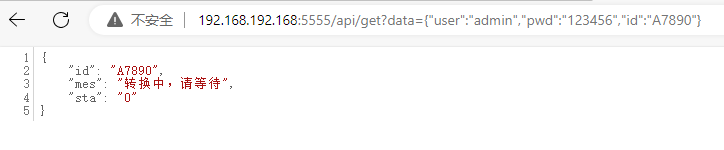
@app.route('/receive-jpg', methods=['POST'])def receive_file(): """ Implements POST in HPPT, accepting uploaded AVI video files and obtaining the file name and extension: return: """
video_to_frames(avi_path + '/' + 'output.avi') # Decomposes the video frame by frame into JPG images and sets a flag g_ocr_t = 1 # Then t1 = threading.Thread(target=myMain) The thread queries the flag and starts stitching the JPG images together.....
--------------------------------------------------------------------------------------t1 The loop technique in threads: while True:
if g_ocr_t == 1:
myF.rotateJPG(img_src, img_rot) # Rotate the image
myF.cutImg(img_rot, img_cut) # Crop the image (crop along the characters hanging on the central axis, the outermost frame of the text)
lis = myF.imgsToList(img_cut) # Convert the image set to a concatenated list, the list stores the pixel displacement between frames, see the next paragraph for displacement calculation
myF.collage_img(lis, img_cut) # Save the concatenated image to img
txt = baidu.ocr(img) # Submit the image to Baidu OCR for recognition
baidu.fanyi(txt, from_lang, to_lang) # Baidu Translate
g_ocr_sta = 5 # Complete marking
--------------------------------------------------------------------------------------
def myF.imgsToList(img_cut):
"""
The core is contour recognition, comparing the pixel displacements of two consecutive frames, and then stitching them together.
Below, we'll explain how to recognize images and calculate the pixel displacements of two consecutive frames.
"""
gray = cv2.cvtColor(img, cv2.COLOR_BGR2GRAY) # Convert to grayscale
binary = cv2.threshold(gray, 0, 255, cv2.THRESH_BINARY_INV | cv2.THRESH_OTSU) # Binarization, select here cv2.THRESH_OTSU=automatic thresholding contours, h = cv2.findContours(binary, cv2.RETR_EXTERNAL, cv2.CHAIN_APPROX_SIMPLE) # Detect contours RETR_EXTERNAL=detect only the outermost contour for contour in contours: # Traverse the outline
to remove small areas of the outline.
Determine if the character/text is on the center axis. Only care about the text that falls on the center axis.
Draw the outline of the character and its center point.
——————————————————————————————————————
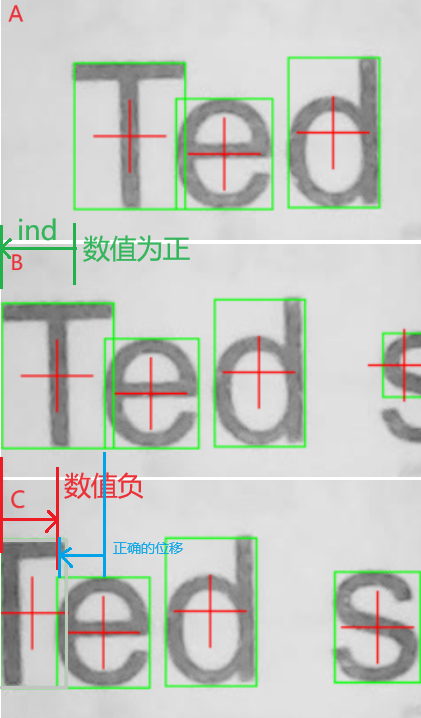
After the above processing, we have valid character coordinates. See the image below. The 0 point of X is on the left. The image displacement _ind = the first box X0 (letter T) in image A minus the first box X0 (letter T) in image B. In image C, the green box touches the 0 edge. Filter out the first box on the left (letter T in image C). Then the letter e in image C becomes the first box. Applying the above formula, _ind = letter T in image B minus letter e in image C. A negative displacement will occur. If a negative value occurs, use the second box in image B (letter e in image B) minus the letter e in image C.
_ind = the first box X0 (letter T) in image A minus the first box X0 (letter T) in image B. if _ind # Change to use the second box in image B (letter e in image B) minus the letter e in image C. _ind = Image B
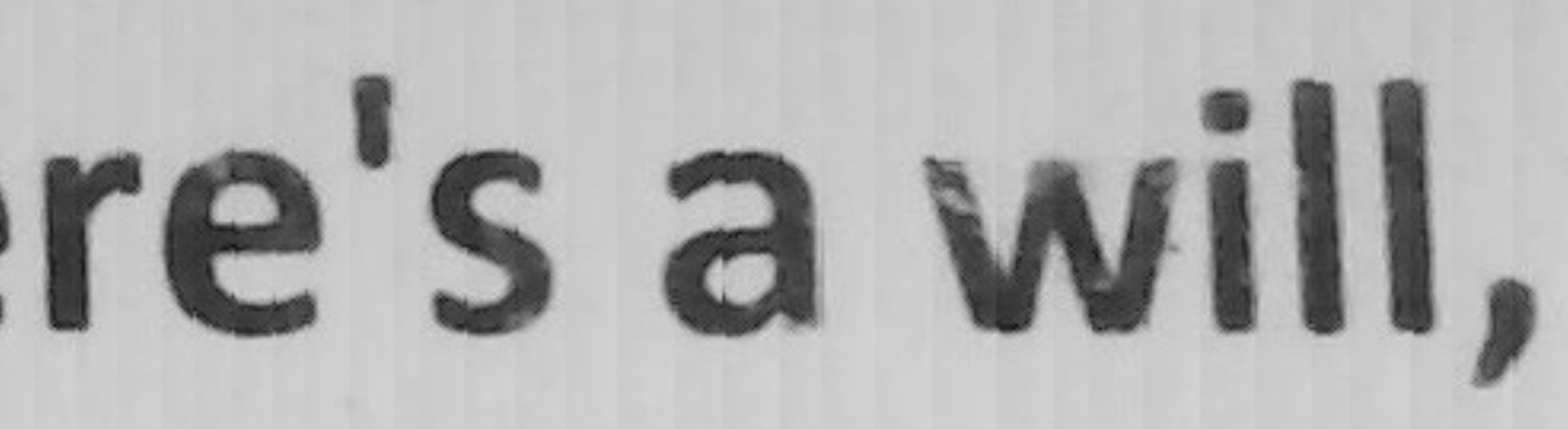
shows the effect of stitching the letter 'e' from Image C. Zooming in reveals vertical stripes, which are traces of pixel displacement stitching between frames.

Downgrading the matplotlib library can resolve errors.
Errors like "AttributeError: 'xxxx' object has no attribute 'yyyy'" often indicate a version mismatch between the library and the code being used. This is usually caused by an outdated version.
During debugging, programs sometimes cannot find cameras. The command
`ls -l /dev/video*`
lists all device files starting with `/dev/video` and their related information, with each line corresponding to one camera. Typically, `video0` is the first camera, `video1` is the second, and so on. Historical device remnants: Even if previously connected camera devices are now disconnected, their device nodes may still remain in the `/dev` directory. To determine which cameras are actually usable, try testing each device node individually, or use `v4l2-ctl --list-devices` or `udevadm info`. Use commands to view device details and associated physical device information.
You can also try restarting the Raspberry Pi, as restarting usually cleans up unused device nodes.
--------------------------------------------------------------------------------------
3. Shell design, shell files
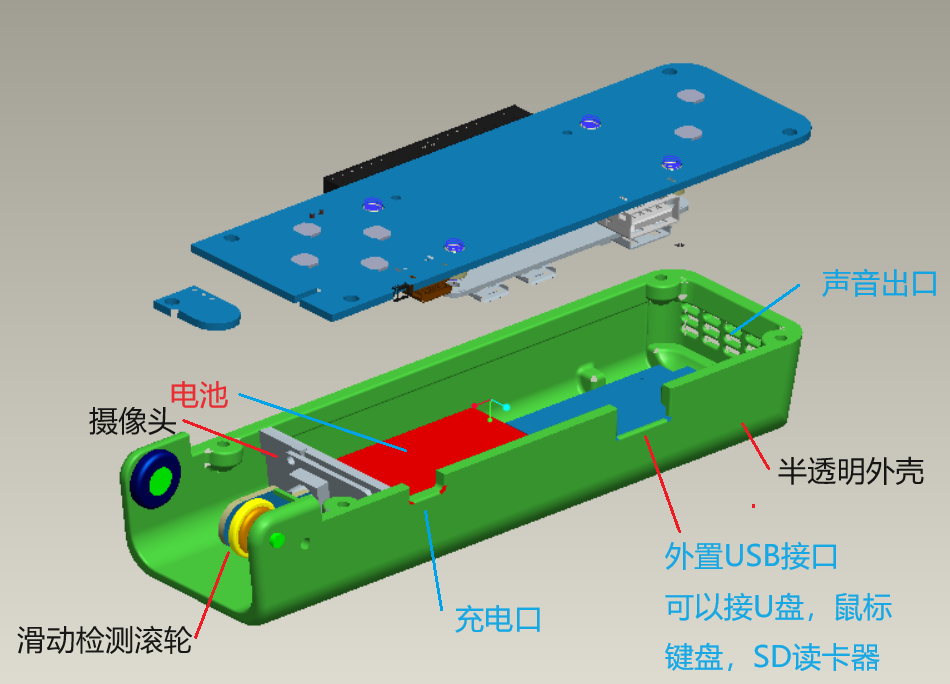
4. Panel design
In the LCSC panel, select acrylic
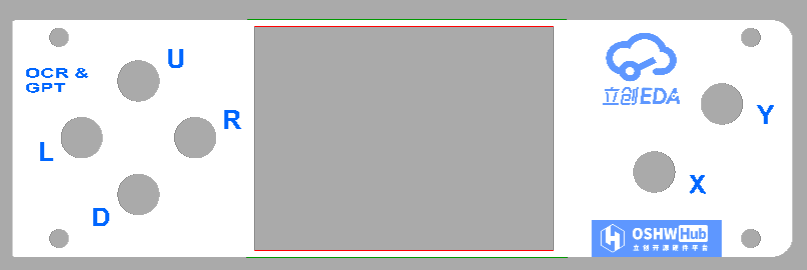
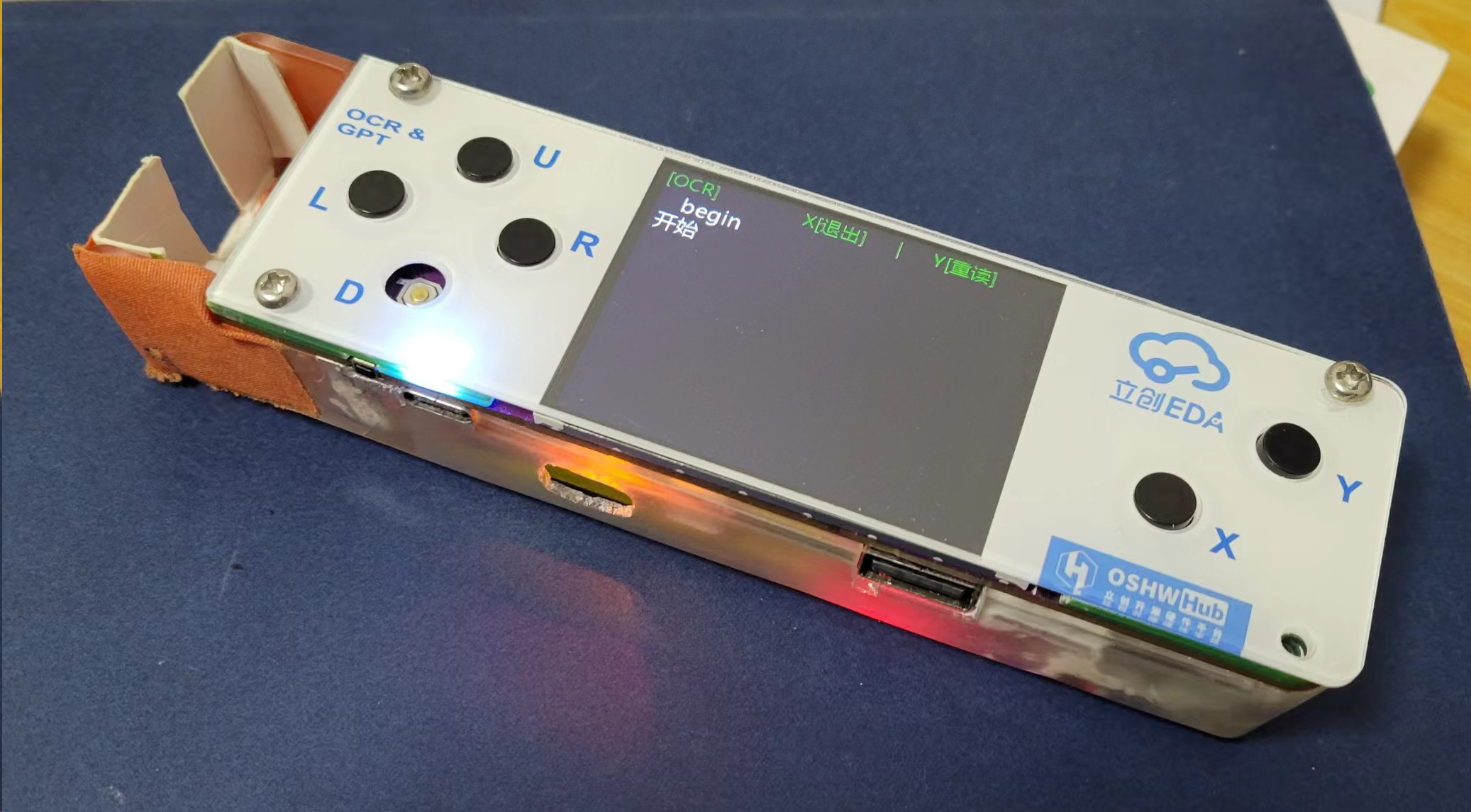
for physical demonstration
1. Physical photos: Initial work, not very refined. I hope that in the second version, I can make it more beautiful and complete, and also realize the Raspberry Pi game console.
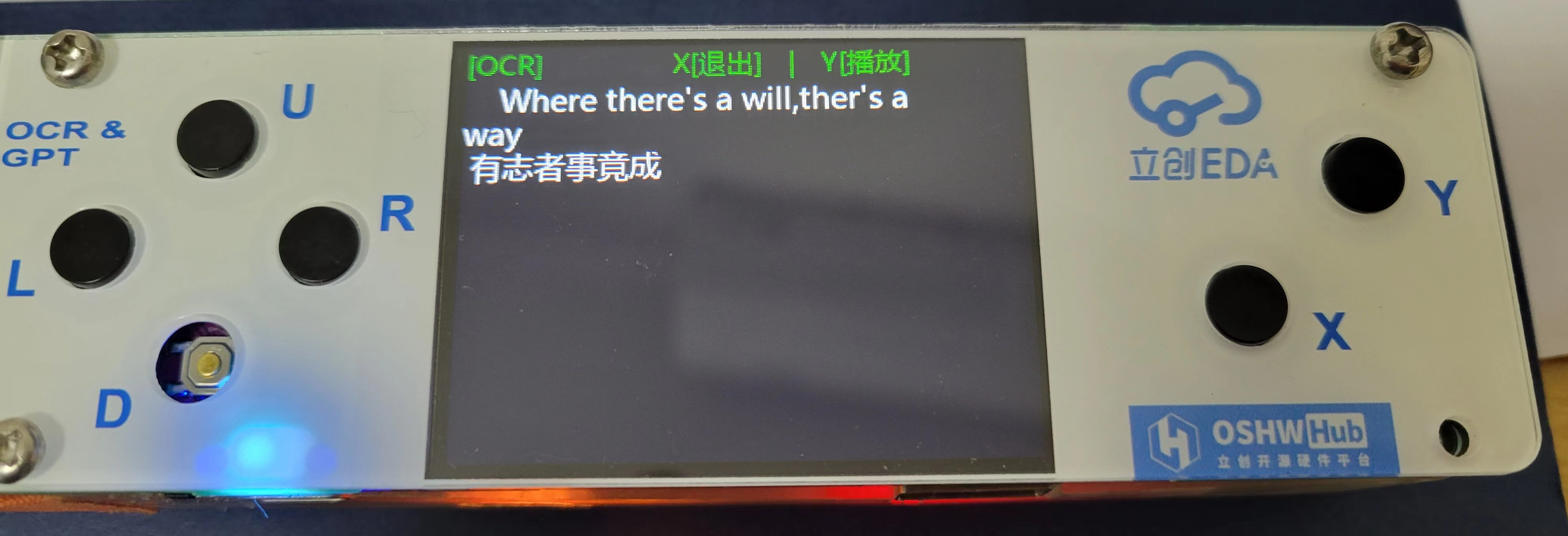
2. Word OCR scanning and recognition demonstration video is in the attachment # WeChat_20240228225520.mp4
(A true one-shot, unedited video. The conversion process is indeed much slower than commercial ones, please forgive me, and please don't criticize, or suggest optimization ideas so I can improve)
3. The following image is also part of the physical demonstration. This image is under relatively ideal conditions, scanning at a constant speed, waiting for the long conversion result.

4. Chinese scanning demonstration video is in the attachment # WeChat_20240229001727.mp4
5. Voice interaction (GPT accesses iFlytek Spark) demonstration video is in the attachment # WeChat_20240228234526.mp4.
Design and Replication Notes
:
0> When scanning, please use a thick ruler as a support to help the scanning pen move straighter. Also, after pressing the R key, please wait half a second before moving the scanning pen. Thank you. 1
> The correct button model is: C318884. Add a 7*3.5mm button cap.
2> Remove the encoder board.
3> The top pins between the Raspberry Pi USB D+ and D- and the baseboard are misaligned.
Areas for improvement:
4> Add a single-button power on/off circuit, which is more thorough than the IP5603, resulting in longer standby time after power failure. Also, add battery detection. 5
> Choose a louder speaker and a larger casing. The current sound quality is unsatisfactory.
Attachment file description:
PC-side PY project.part1.rar is disassembled into three compressed files: part1, part2, and part3. The password is: oshwhub.com The password is: oshwhub.com.
It's really not that I wanted to add a password; I've tried changing the filename and the compression method, and it failed to upload countless times. I guess it triggered sensitive words. Only with a password could the upload succeed.
The Raspberry Pi project New0911, after extraction, please place it in the path /home/pi/Desktop/New0911.








 京公网安备 11010802033920号


 RC0805FR-13665RL



