【Fangling Magic Mirror】70mm Large Prism Spectrum Version
Features
【Hardware Open Source】Various Version Function Introduction_Bilibili_bilibili
This general firmware includes the following functions, supporting button/WeChat mini-program/web control
【Firmware Author: up Sanalan's Twilight】
Animated Weather Clock
AIDA64 Secondary Screen
Audio Spectrum Beat Meter (limited to devices with microphones)
MJPEG Playback
PIC Playback
【Hardware Author: up Mysterious Treasure Room】
Hardware References: up: Little Trash 86 Box Project, up Sanalan's Twilight iCRT Project, and other excellent open source projects.
This project uses a 480*480 resolution high-definition RGB screen, which is currently the best performing small TV-related project.
However, because the prism is much larger and more expensive, this is a pain point.
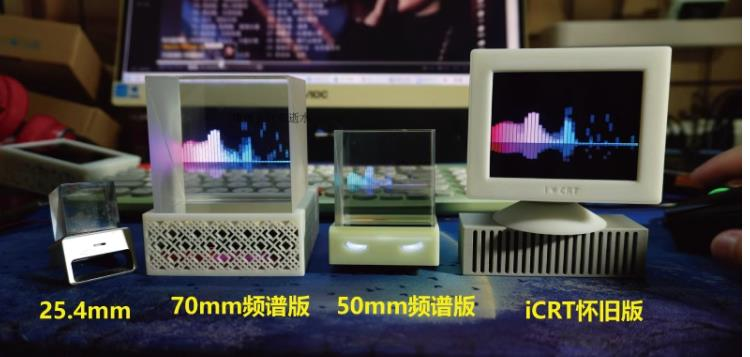
But it does not affect its amazing effect at all .
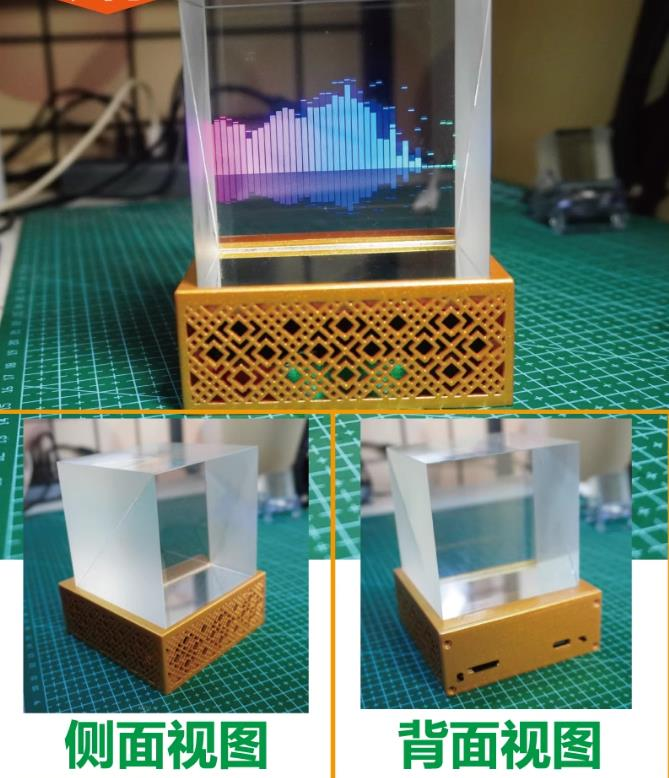
For help with
usage or DIY problems, you can join the following group for assistance. The group share will also be updated with the latest firmware/shell files, etc.
50mm and 70mm Prism TV Q&A Group Number: 927298543
Main Accessories Reference Purchase Links:
4-inch RGB Screen: https://item.taobao.com/item.htm?id=654496994484&skuId=4892129482025
70mm Prism: https://item.taobao.com/item.htm?id=729954532458&skuId=5264762577681
Network Pairing
1. How to Pair the Device with the Network [50mm/70mm Small TV/iCRT Firmware Demo] _bilibili_
AIDA64 secondary screen and weather clock require network pairing.
After powering on, the device will automatically open an AP, named Crt-Ap, Mirror-Ap, Box-Ap, etc., with the password 12345678. Connect your phone to this AP. After a short wait, a network configuration page will pop up, automatically searching for hotspots in the current environment. Select your hotspot and enter the password to complete the network configuration.
Note 1: Some phones will automatically disconnect from the hotspot if they find it cannot connect to the internet. In this case, you need to reconnect to the AP using other mobile networks or connecting to other routers. If the network configuration page does not pop up after connecting to the AP, you can also open it by entering 192.168.4.1 in your mobile browser.
Note 2: The connected SSID network needs to be 2.4G, not 5G!!!!
SD Card File
2. Copy SD Card Test Files [50mm/70mm Small TV/iCRT Firmware Demo] _Bilibili_bilibili
The maximum supported TF card is 32G. Do not use a card exceeding this capacity. The FAT32 format
SD card test files can be downloaded from cloud drives or group shares.
Different devices will have different test files due to different screen resolutions.
You need to insert the card to experience the clock dynamic video effect. There are also video and image playback functions.
Be sure to copy the test files to the root directory before inserting the card, otherwise the experience will be reduced by 90%.
Control
3. Webpage/Mini Program/Button/Gyroscope Operation Demonstration [50mm/70mm Mini TV/iCRT Firmware Demonstration] _Bilibili_bilibili
Devices with buttons (iCRT, Fangling Magic Mirror [70mm Prism]) can be controlled via the buttons on the back and via the webpage. Button control: Long press to bring up the menu or confirm. Short press to go to the next item.
Devices without buttons (50mm Prism) can be controlled using the gyroscope. After powering on, place the device flat and do not move for about 10 seconds; it needs to obtain a calibration posture to start. After calibration, it can be operated. Tilting forward or backward brings up the menu, tilting left or right switches options, and tilting forward or backward enters the corresponding option.
Web control: On a computer or mobile browser on the same network segment, enter the IP address seen in the settings interface and directly click the corresponding button to control.
In the web control, you can set the API KEY for Gaode Maps (mine is used by default), set the city code (the city code is the first 6 digits of your ID card for your region), and set the AIDA64 host address (your computer's IP address).
For WeChat mini-program control: search for "Sanalan's Twilight Control Console," enter the WIFI icon, scan the device, and connect to control it.
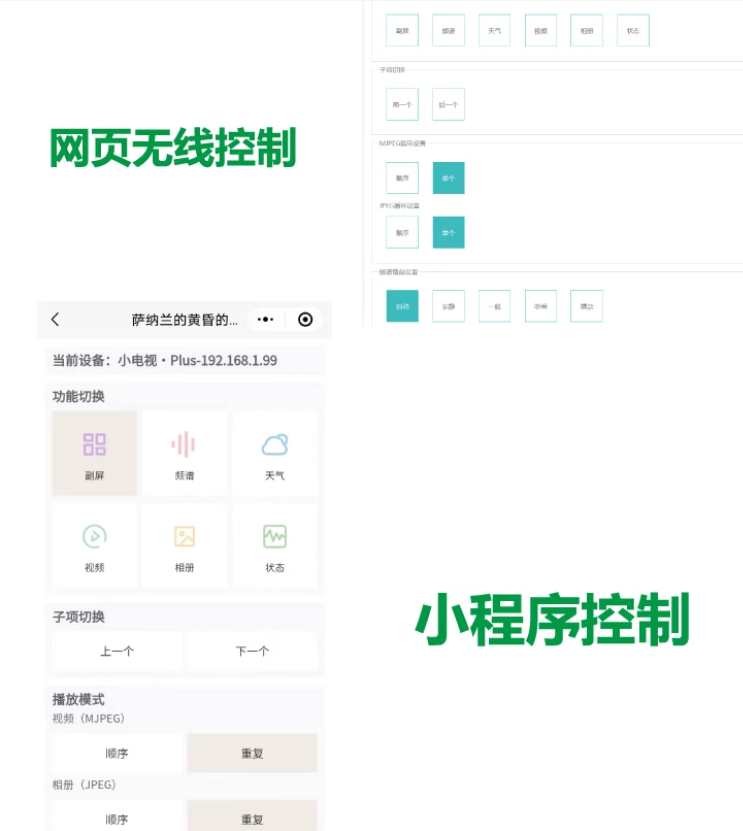
AIDA64 Secondary Screen
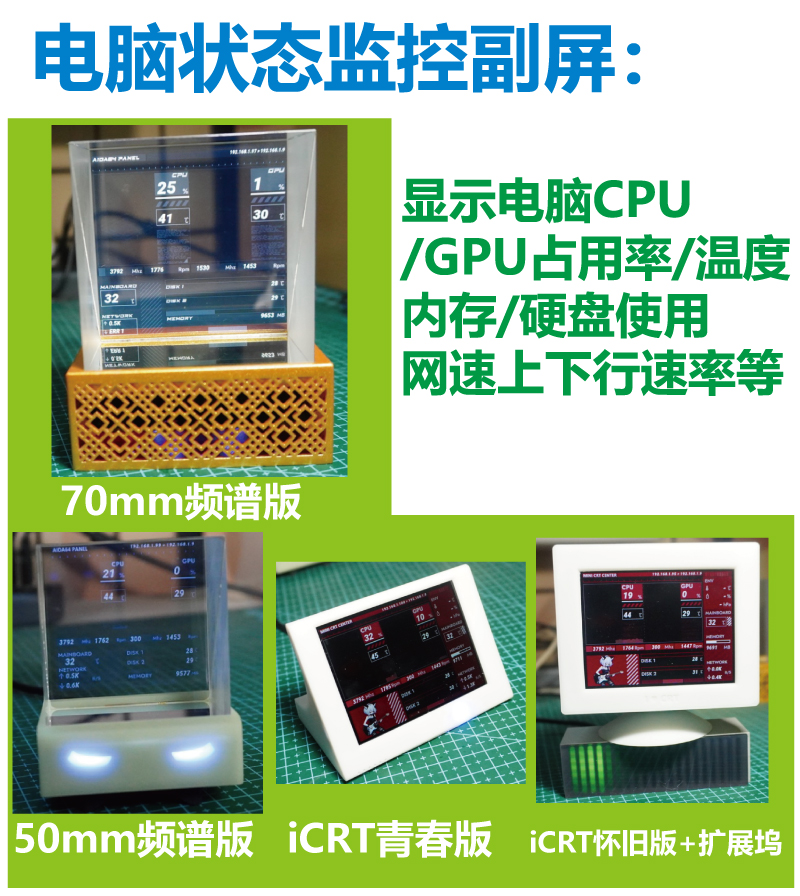
4. Computer Status Monitoring Secondary Screen AIDA64 Usage Demonstration [50mm/70mm Small TV/iCRT Firmware Demonstration]_Bilibili_bilibili
1. Find an activated AIDA64 client (available in the cloud drive or downloaded from the group share).
2. Menu [File] [Settings] [LCD], select Remote Sensor.
3. Port 80, resolution any 1280×800, check [Enable RemoteSensor LCD Support].
4. Click [LCD Project], click [Import] in the upper right corner, and then select the my_aida64_setting.rslcd file from my cloud drive.
5. After importing, some settings are required. Since everyone's CPU, GPU, motherboard, hard drive, network card, etc., are different, please configure them one by one, especially the network card, which has many settings.
6. Note: Absolutely do not modify the text in "Show Label". "Show unit" must be entered as "^" (without quotation marks), otherwise the device will not be detected.
7. After all modifications are complete, click OK, then minimize AIDA64. You can set it to start automatically at boot in the settings. (Settings, General, Run AIDA64 at Windows Startup)
8. Access the iCRT's IP address via a web browser. In the "Secondary Screen Host Address" field at the bottom, set your computer's IP address (the IP address of the computer running AIDA64), and then save.
If local port 80 is already in use, you need to add a colon after it to indicate the custom port.
For example,
192.168.0.100 uses the host address 192.168.0.100 and the default port 80.
192.168.0.100:9223 uses the host address 192.168.0.100 and the port 9223.
Note the colon is an English colon…
9. Allow AIDA64 to access the network via the firewall, or manually open TCP port 80 (or a port you define). Important!
After setting, switch the device to the AIDA64 function window to display the computer status information.
Music Spectrum
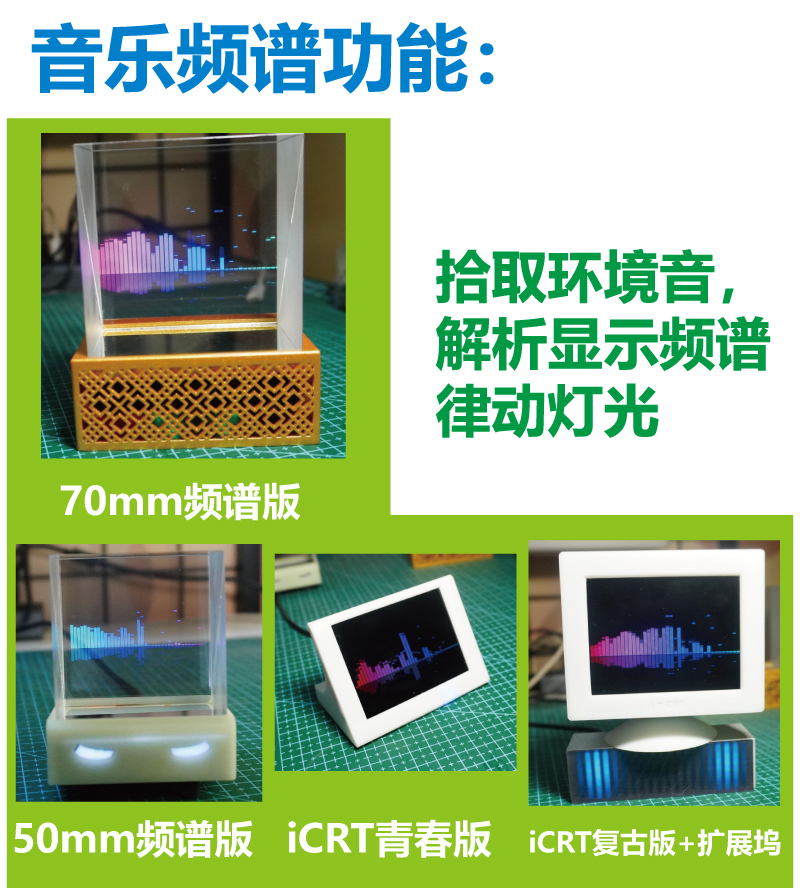
5. Music Spectrum Beat Capture Function Demonstration [50mm/70mm Mini TV/iCRT Firmware Demonstration] _bilibili_ This is
limited to iCRT and Mini TV spectrum versions because only these two devices have a microphone.
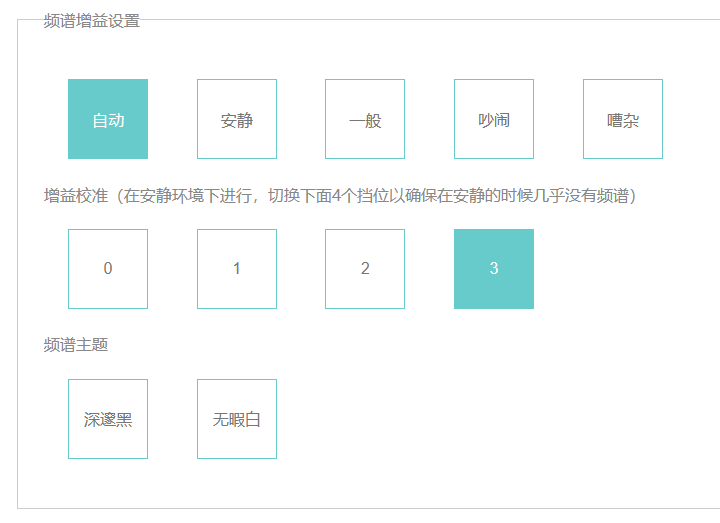
Automatic gain control is enabled by default, meaning the device dynamically adjusts the gain based on volume to display a better spectrum.
You can disable dynamic gain in the web page and fix it to a specific gain.
It looks great next to music, trust me.
Note that due to batch and soldering issues with microphones, some microphones may have a large waveform even at level 0. Gain calibration has been added (version 2.7.3).
Weather
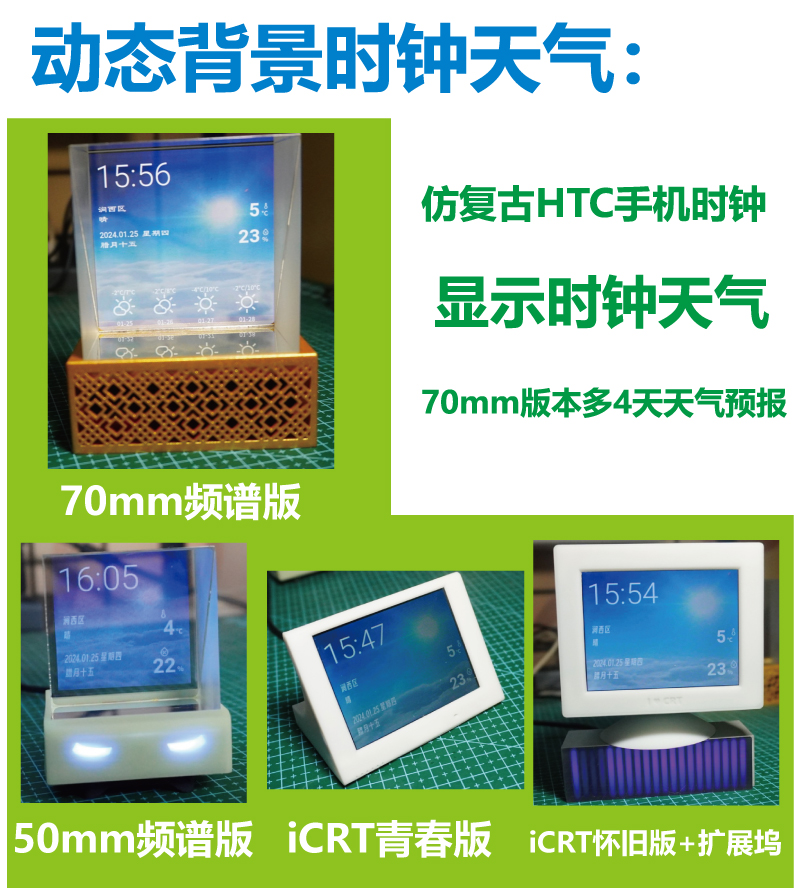
6. Dynamic Background Clock Demo [50mm/70mm Small TV/iCRT Firmware Demo] _Bilibili_bilibili
Configure the city code in the web page to use it. If possible, you can also register your own Gaode API KEY and enter it.
Temperature and humidity are displayed as two numbers, representing the temperature and humidity from the device's sensors and the Gaode weather data, respectively.
The device temperature may exceed the current ambient temperature by a few degrees (this is unavoidable, as it generates heat). Devices without additional sensors will not display ambient temperature and humidity.
(A large moon on a clear night is the best view).
Do not copy the weather animation file with the wrong resolution. The resolution of the Mini TV PLUS is 240×240, iCRT and LCOS projectors are 320×240, and Fangling Magic Mirror and Xiaozha's 86-channel box are 480×480.
The city code for weather is the first six digits of the ID card of people born in that city. If you don't know the code, you can download a city code table to look it up.
https://a.amap.com/lbs/static/code_resource/AMap_adcode_citycode.xlsx.zip
MJPEG playback
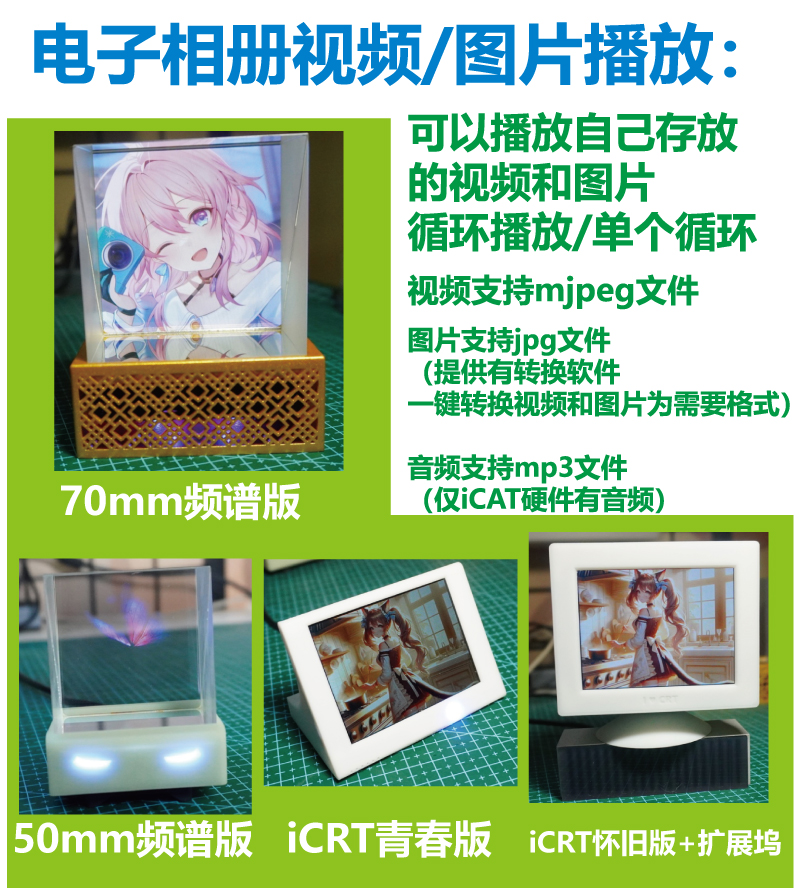
7. Play the videos and pictures you want [50mm/70mm Mini TV/iCRT Firmware Demo]_Bilibili_bilibili
After processing the video using the following FFMPEG command, rename it to my0.mjpeg, my1.mjpeg, etc., and copy it to the custom directory of the TF card. To play audio synchronously, the audio file name should be the same as the mjpeg file name (my0.mp3, my1.mp3, etc.).
`./ffmpeg -i your_video_file_name.mp4 -vf "fps=25,scale=-1:240:flags=lanczos,crop=320:240:(in_w-320)/2:0" -ss 00:00:13 -t 00:02:18 -q:v 7 my0.mjpeg`
`./ffmpeg -i your_video_file_name.mp4 -ss 00:00:13 -t 00:02:18 -b:a 128k my0.mp3`
Note that the `-ss` part is for editing; remove it if you don't need to edit.
Update: A user-friendly conversion tool, written by Mysterious Treasure Room, is provided in the cloud drive. Choose the option appropriate for your screen type.
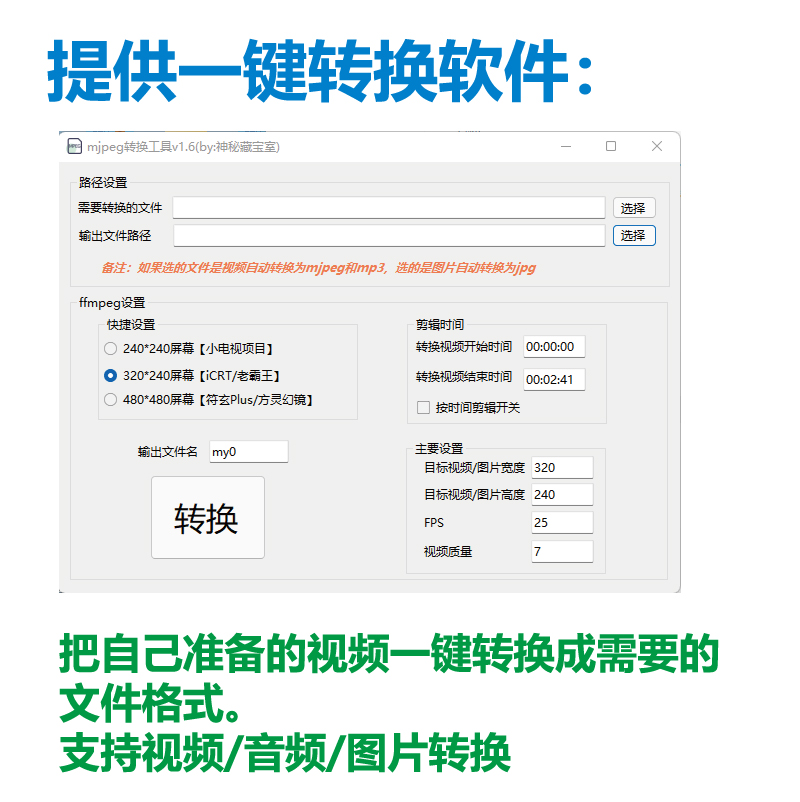
The image shows
how to rename JPEG files that match your device's resolution to p0.jpg, p1.jpg, p2.jpg, etc., and place them in the pic directory of your TF card.
If you don't know how to use Photoshop, you can also use the mjpeg conversion tool mentioned above, which supports image conversion.
Firmware download address:
If you purchased a pre-made product, you can ignore this unless you want to update the firmware
. All related files and firmware are located here; please find them in the corresponding directory. Alternatively, join the QQ group to share the download.
https://pan.baidu.com/s/19-CHRh_MAejMqFVaL9os6Q?pwd=e8y5
Firmware Burning
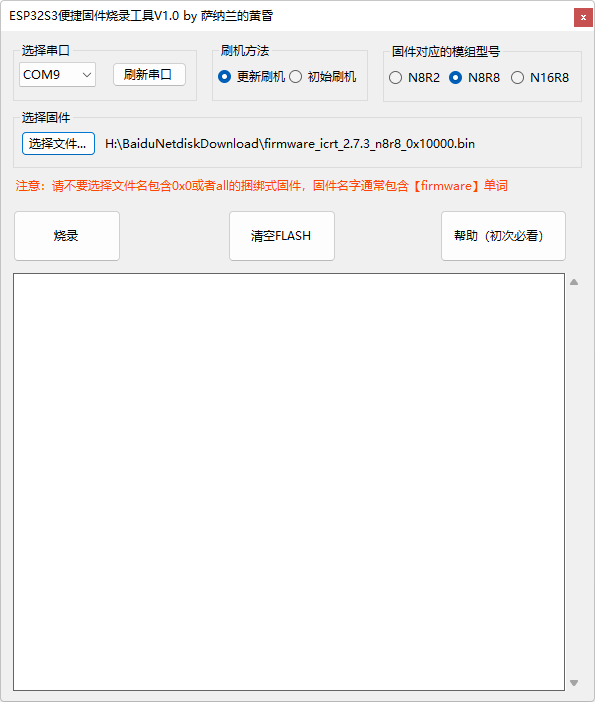
9. Updating Firmware and Activation [50mm/70mm Small TV/iCRT Firmware Demo]_Bilibili_bilibili
has created a convenient burning tool. Please read the help before using it. Use caution when clearing FLASH, as it will erase configuration and activation information.
Activation code acquisition:
If you are DIYing, you need to purchase an activation code to activate the firmware. Of course, you can use all functions without activation.
After experiencing it, if you feel the firmware is worthwhile, then contact the firmware author up: Sanalan's Twilight to purchase it.
Search for "Twilight of Sanaran" on Bilibili Workshop or Xianyu to find the 9.9 activation code.
After purchasing, please provide me with the device code (or SN) displayed on the device's "About" page (the page corresponding to the symbol 'i').
I will send you the activation code. Alternatively, you can also find the device code at the bottom of the web control page, and you can copy it.
Activation is done in the web control. After network configuration, enter the device's IP address in your browser, enter the obtained activation code, and activation will be complete.
One activation code corresponds to only one module .
Other
update flashing methods will not clear the activation code, but flashing single-file versions will. It is recommended to keep it safe. If you lose it, you can contact the uploader to retrieve it.
All firmware updates will be released in the cloud drive/group share, and new features will be updated irregularly.
Finally, thank you for your support of the development. Your small support provides the motivation for continuous updates.








 京公网安备 11010802033920号


 RP10-2746-FB101Q



