This is a smart desktop air purifier with RGB lighting and Xiao Ai voice assistant control, built using ESP Wroom 32e.
I highly recommend watching this video, which includes the project's initial purpose, principles, functions, effect demonstrations, and
a basic introduction to the air purifier (click to jump to Bilibili).
Overview:
1. Instructions & Precautions;
2. Schematic Diagram and PCB Display ;
3. Code Display;
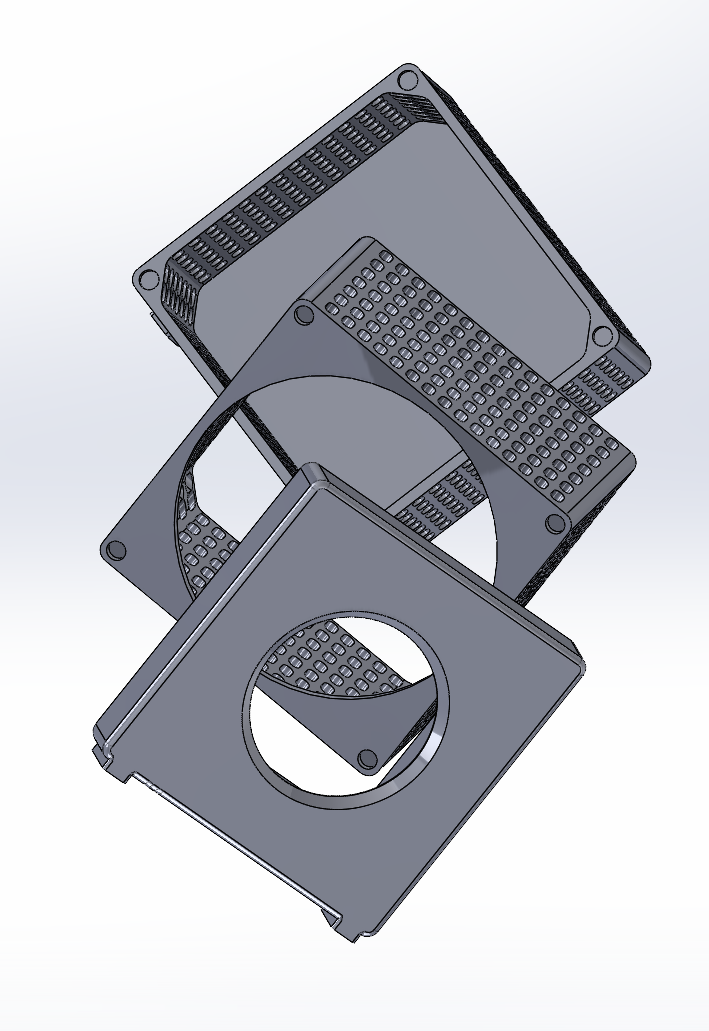
4. Shell Display;
5. JLCPCB Project Files;
6. Attachment
Instructions & Precautions:
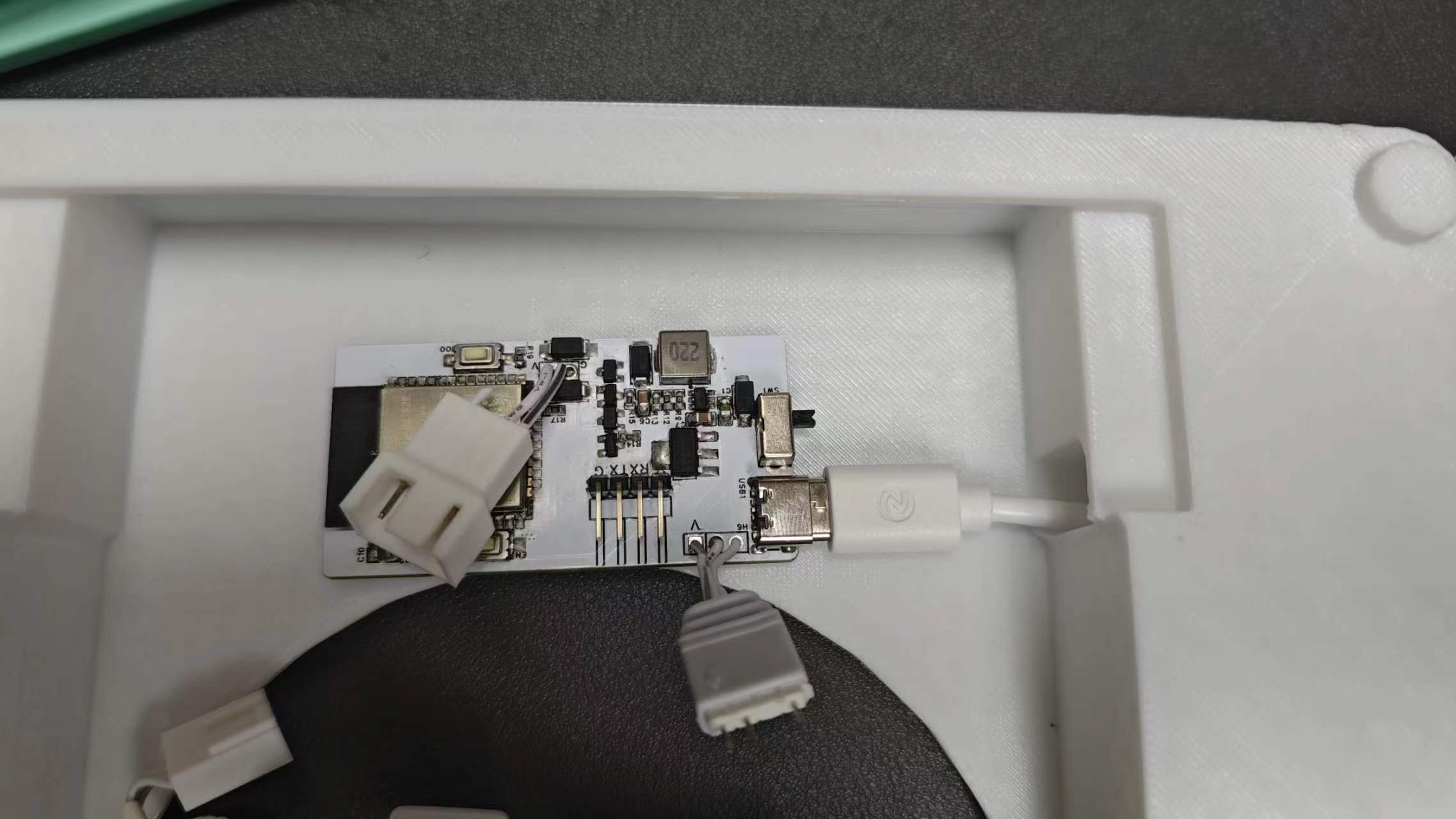
1. Fan Selection: A 3-pin RGB computer fan, 12cm*12cm*2.5cm. I used the Limin B12. An air purifier made with a 12cm computer fan won't have particularly strong purification performance. My goal isn't to drastically improve the air quality in my dorm, but rather to provide a small-scale purification (otherwise it wouldn't be called a desktop air purifier) while also offering a nice decorative effect (RGB lighting and filling empty space on the desktop). I also wanted to control noise; this air purifier is significantly quieter than my Zephyrus G14 when playing 3A games. In quiet mode, it's practically silent unless you get very close. If you want better performance, you can replace the fan with a larger, more powerful filter. The board I made is essentially a controller, so theoretically you can choose a larger computer fan, 14cm or 20cm, as long as it's 12V and supports ARGB. A 12cm fan is sufficient for my desktop; any larger and the casing will be too bulky. There's less space for components and cables (the casing size can't be changed, and the desktop space is limited). In short, I suggest watching the video above first. The 1x3P and 1x2P headers on the PCB don't need soldering; instead, solder the fan's ribbon cable (just cut it off). I'm not sure if the fan ribbon cable order is consistent across brands; the wiring order I used is shown in Figure
2. Filter selection: I ultimately used a Huawei C350 PDD version with a diameter of 20cm and a height of 273cm. The later improved model (in this open-source article) was also designed based on this size. You can also choose a cheaper Xiaomi PDD version filter (same diameter, around 293cm high) or any other filter, but you'll need to design your own casing. I've only provided casings for your own filter (see the attachment to this article). If you're struggling to decide between Xiaomi and Huawei PDD filters, I personally suggest spending a little more to buy the one compatible with the Huawei C350 air purifier (Xiaomi and Huawei only refer to the PDD filter model and brand).
3. Programming the code: Using the Arduino IDE, download the ESP32 development board files and the DianDeng Technology library (search on Baidu or Bilibili if you don't know how), copy and paste the code I've provided below (also in the attachment). You'll need to modify:
`char auth[] = "DianDeng Technology Key";
char ssid[] = "WiFi Name";
char pswd[] =` "WiFi password";
For obtaining the key for DianDeng Technology (and connecting to Mijia Xiao Ai), you can refer to this video (click to jump to Bilibili)
. 4. If the LEDs cannot light up completely, you can change the NUM value. I used 15. Keep searching until you find the number that matches your fan.
5. I encountered a situation where the main control power supply was insufficient and the device repeatedly restarted during the flashing process. The reason I found was that the 3.3V power supply of the USB to TTL adapter was not stable enough. I changed to using an expansion dock with a C-port cable for direct power supply and a USB to TTL adapter connected to the serial port and ground (the 3.3V cable cannot be plugged in). If you encounter a situation where the TTL power supply is insufficient, you can refer to this method
. 6. The original Xiao Ai control commands are not "air purifier" or "this". You need to add them yourself in the Xiao Ai training plan
. 7. For the shell printing, I used R3D's white economy model PETG and a Tuozhu P1SC printer. I changed the infill density to 8%, did not use BRIM, and used about 900g of consumables (priced at about 24 yuan, let's say 30 yuan for consumable costs). Other materials are also acceptable; I've provided the SW file directly.
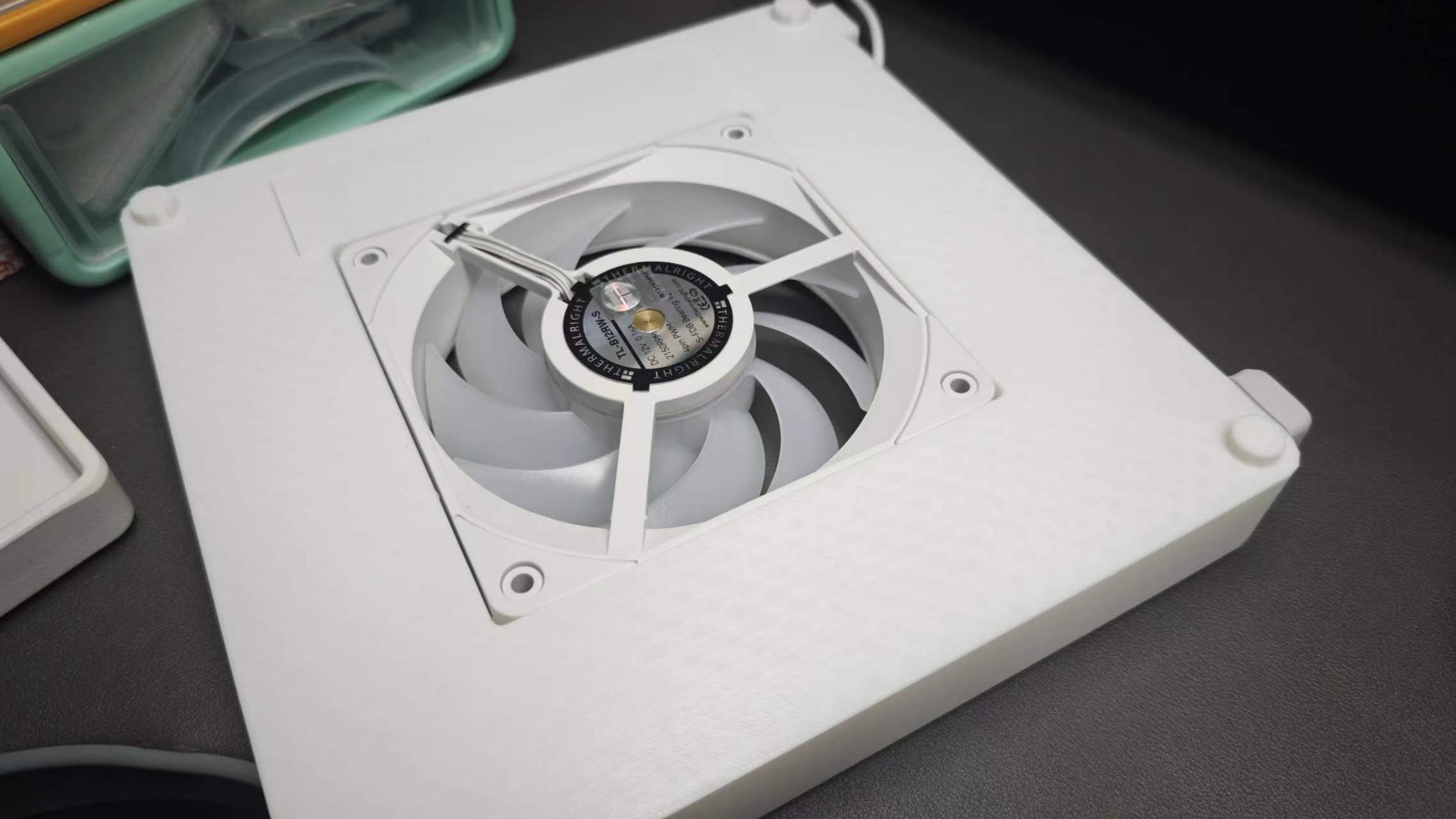
8. The last small board in the casing is the cover for the main control unit after all the components are connected. It looks like this when closed:
9. You can directly use a 5V 1A power adapter (this air purifier has very low power consumption, so a high-power charger isn't necessary). I added a USB extension cable with a switch and connected it to a USB-C cable; I suggest you do the same. The switch on the PCB is only for debugging.
10. I recommend choosing the ESP32 version of the PCB, not the ESP8266. See the video above for the specific reasons.
11. This air purifier actually has many functions that can be improved and added, but I only made what meets my own needs. Currently, this is perfectly fine for me. If you want to further improve it or make casings for other filters, please post in the comments section.
12. This is my first attempt at making a small product. As for the result, I think the finished product is very good, and I'm very satisfied. I think this product is very practical. Of course, if there are any design problems, I welcome any guidance from experts!
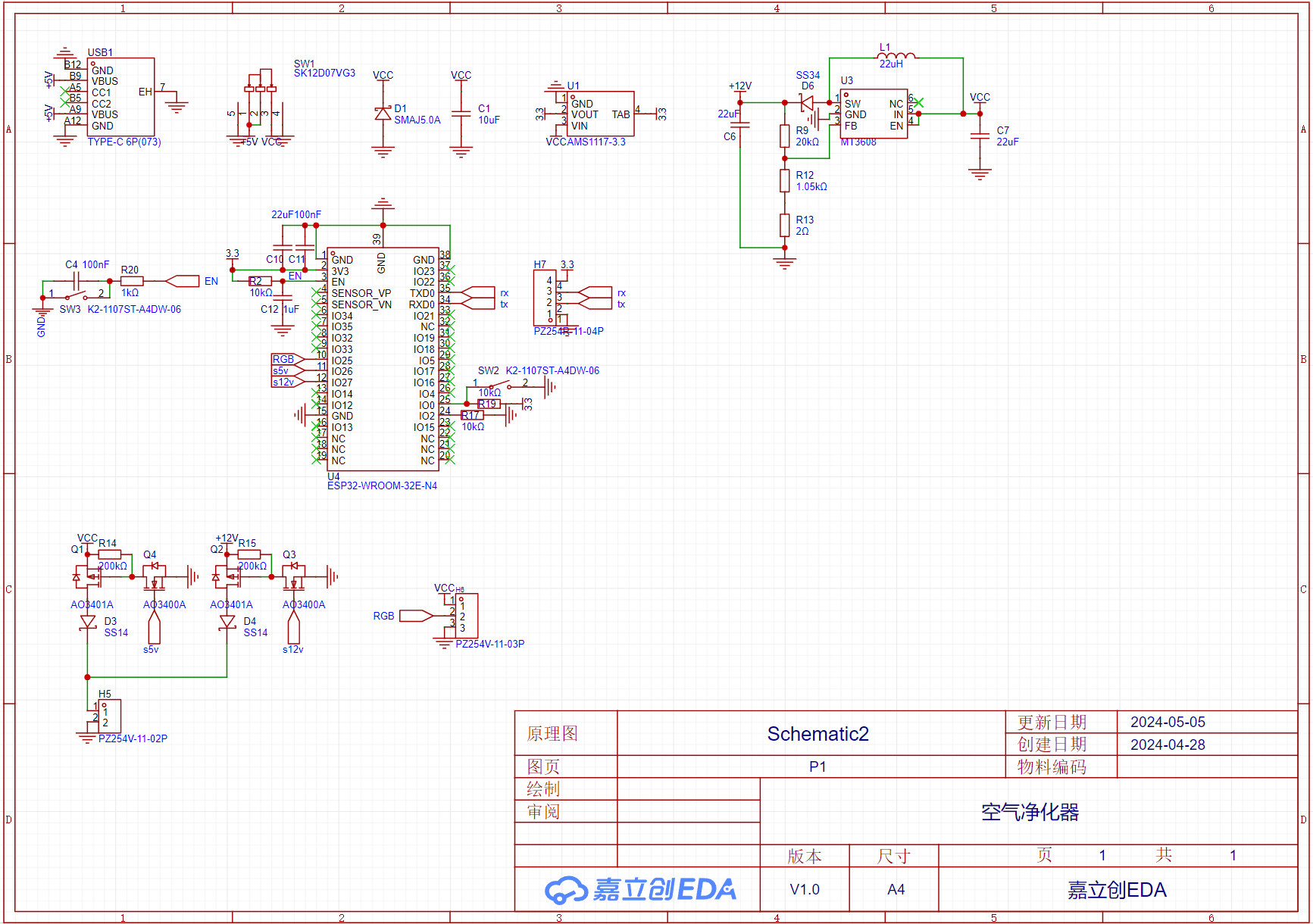
Schematic
(ESP32 version)
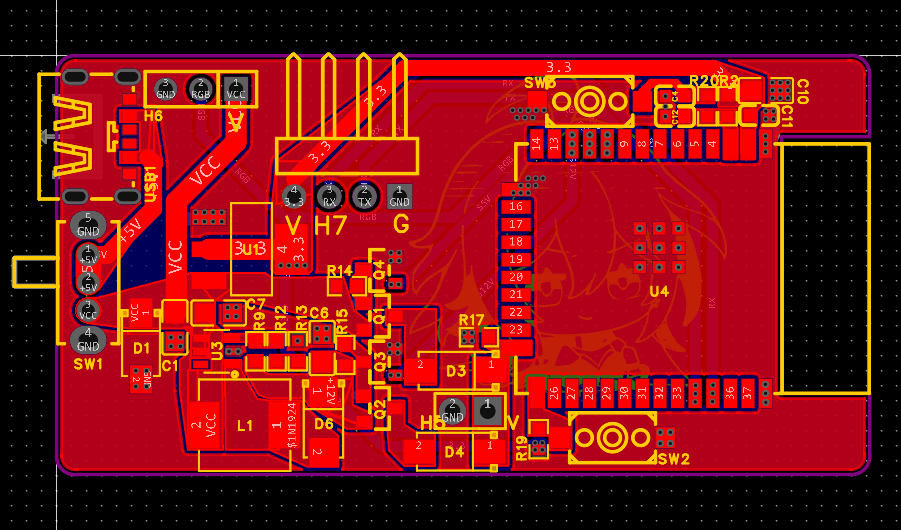
PCB
(ESP32 version)
code:
#define BLINKER_WIFI
#define BLINKER_MIOT_LIGHT
#include
#include
char auth[] = "Lighting Technology Key";
char ssid[] = "WiFi Name";
char pswd[] = "WiFi Password";
#define PINe 26
#define PINp 27
#define PINl 25
#define NUM 15
Adafruit_NeoPixel rgbled = Adafruit_NeoPixel(NUM, PINl, NEO_GRB + NEO_KHZ800);
uint8_t wsMode = BLINKER_CMD_MIOT_COLOR;
uint8_t ledmode=1;
uint8_t fanmode=1;
bool wsState = true;
short int red[384],green[384],blue[384];
short int gap = 384/NUM;
short int c = 0;
// This function will be executed when the button is pressed.
void miotPowerState(const String & state)
{
BLINKER_LOG("need set power state: ", state);
if (state == BLINKER_CMD_ON) {
ledmode=1;
fanmode=1;
fan();
wsState = true;
BlinkerMIOT.powerState("on");
BlinkerMIOT.print();
}
else if (state == BLINKER_CMD_OFF) {
ledmode=0;
fanmode=0;
fan();
wsState = false;
BlinkerMIOT.powerState("off");
BlinkerMIOT.print();
}
}
void miotMode(uint8_t mode)
{
BLINKER_LOG("need set mode: ", mode);
if (mode == BLINKER_CMD_MIOT_DAY) {
ledmode=0;
// Your mode function
}
else if (mode == BLINKER_CMD_MIOT_NIGHT) {
ledmode++;
if(ledmode>4){
ledmode=0;
}
// Your mode function
}
else if (mode == BLINKER_CMD_MIOT_COLOR) {
fanmode=0;
fan();
// Your mode function
}
else if (mode == BLINKER_CMD_MIOT_WARMTH) {
fanmode++;
if(fanmode>2){
fanmode=0;
}
fan();
// Your mode function
}
wsMode = mode;
BlinkerMIOT.mode(mode);
BlinkerMIOT.print();
}
void miotQuery(int32_t queryCode)
{
BLINKER_LOG("MIOT Query codes: ", queryCode);
switch (queryCode)
{
case BLINKER_CMD_QUERY_ALL_NUMBER :
BLINKER_LOG("MIOT Query All");
BlinkerMIOT.powerState(wsState ? "on" : "off");
BlinkerMIOT.mode(ledmode);
BlinkerMIOT.print();
break;
case BLINKER_CMD_QUERY_POWERSTATE_NUMBER :
BLINKER_LOG("MIOT Query Power State");
BlinkerMIOT.powerState(wsState ? "on" : "off");
BlinkerMIOT.print();
break;
case BLINKER_CMD_QUERY_MODE_NUMBER :
BLINKER_LOG("MIOT Query Mode");
BlinkerMIOT.mode(ledmode);
BlinkerMIOT.print();
break;
default :
BlinkerMIOT.powerState(wsState ? "on" : "off");
BlinkerMIOT.mode(ledmode);
BlinkerMIOT.print();
break;
}
}
void fan(){
if(fanmode==0){
digitalWrite(PINe,LOW);
digitalWrite(PINp,LOW);
}
else if(fanmode==1){
digitalWrite(PINp,LOW);
Blinker.delay(1);
digitalWrite(PINe,HIGH);
}
else if(fanmode==2){
digitalWrite(PINe,LOW);
Blinker.delay(1);
digitalWrite(PINp,HIGH);
}
}
void setup() {
for(uint8_t i = 0; i
red[i]=255-(i*2);
green[i]=i*2;
blue[i]=0;
}
for(uint8_t i = 0; i
red[i+128]=0;
green[i+128]=255-(i*2);
blue[i+128]=i*2;
}
for(uint8_t i = 0; i
red[i+256]=i*2;
green[i+256]=0;
blue[i+256]=255-(i*2);
}
Serial.begin(115200);
BLINKER_DEBUG.stream(Serial);
// Initialize IO
pinMode(PINl, OUTPUT);
pinMode(PINe, OUTPUT);
pinMode(PINp, OUTPUT);
// Initialize blinker
Blinker.begin(auth, ssid, pswd);
BlinkerMIOT.attachPowerState(miotPowerState);
BlinkerMIOT.attachMode(miotMode);
BlinkerMIOT.attachQuery(miotQuery);
rgbled.begin();
rgbled.show();
fan();
}
void loop() {
if(ledmode==0){
for (uint8_t i = 0; i
rgbled.setPixelColor(i, 0, 0, 0);
rgbled.show();
Blinker.run();
}
}
if(ledmode==1){
for(shortint j = 0; j
if(j%4==0){
Blinker.run();
if(ledmode!=1)
break;
}
for(uint8_t i = 0; i
c=i*gap+j;
if(c>=384){
c=c-384;
}
rgbled.setPixelColor(i, red[c], green[c], blue[c]);
rgbled.show();
}
}
}
else if(ledmode==2){
for(shortint j = 0; j
if(ledmode!=2)
break;
for(uint8_t i = 0; i
rgbled.setPixelColor(i, red[j], green[j], blue[j]);
rgbled.show();
Blinker.run();
}
}
}
else if(ledmode==3){
for(uint8_t i = 0; i
rgbled.setPixelColor(i, 6, 0, 154);
rgbled.show();
Blinker.run();
}
}
else if(ledmode==4){
for(shortint i = 0; i
rgbled.setPixelColor(i, 160, 0, 0);
rgbled.show();
Blinker.run();
}
}
}
Shell model








 京公网安备 11010802033920号


 M38062E6-FS



