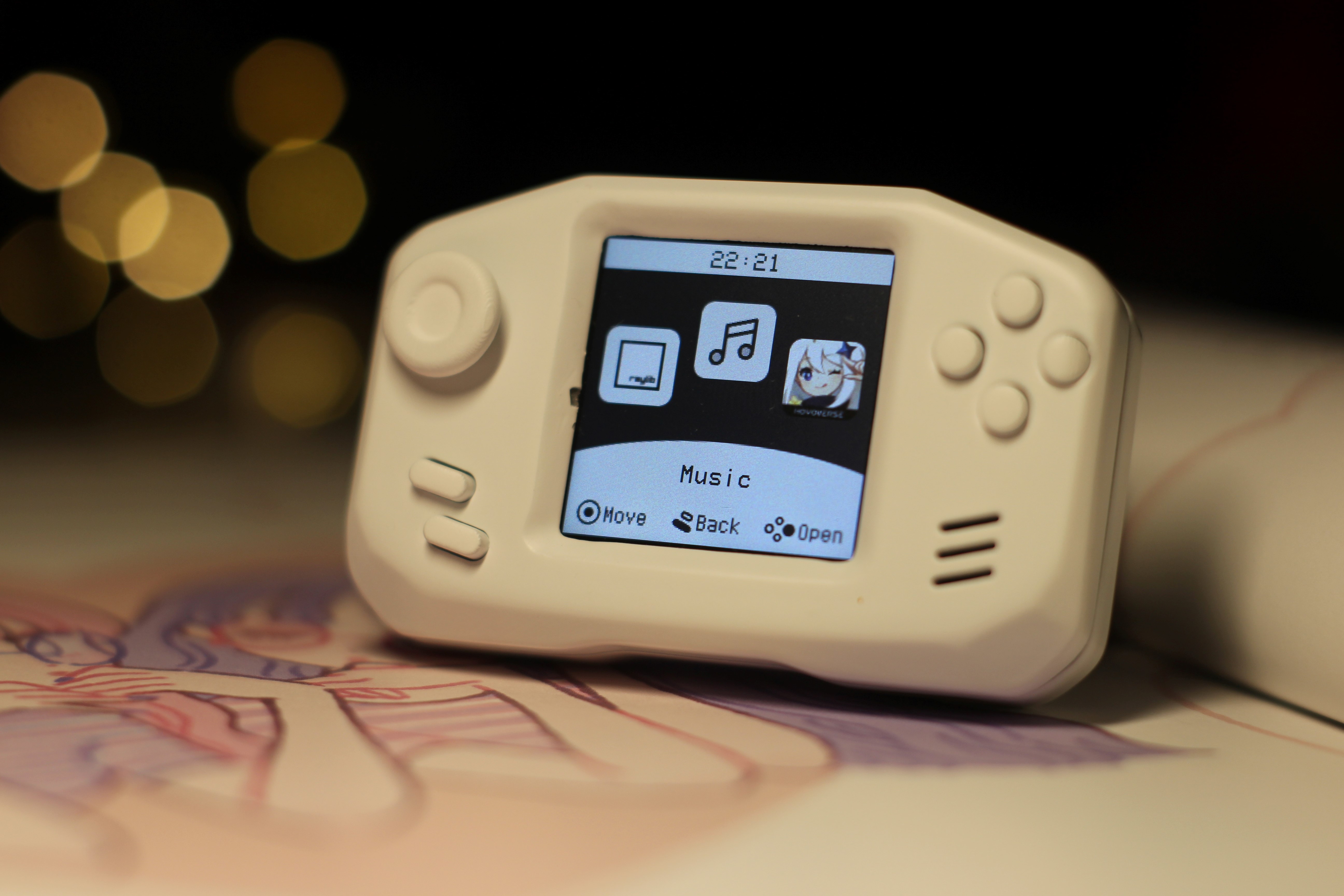
Rachel
ESP32 Mini Game Console, great feel
and retro vibe, but it can't do anything (sad).
Project purpose: Cute.
All components are 0603, so you can solder them on a teppanyaki grill.
Project link: https://github.com/Forairaaaaa/Rachel
Video introduction: https://www.bilibili.com/video/BV1Ga4y1f7d3/ To compile the Rachel
SDK into a PIO project, download the PlatformIO plugin for VS Code and open the folder in VS Code . SDK directory tree : ├── apps │ ├── app_ble_gamepad BLE controller │ ├── app_music music player │ ├── app_nofrendo NES emulator │ ├── app_raylib_games Raylib games │ ├── app_screencast WiFi casting │ ├── app_settings settings │ ├── app_genshin __,__! │ ├── `app_template` App Template │ ├── launcher Launcher │ ├── utils General Component Library │ ├── assets Public Resources │ ├── tools App Related Tools (Scripts) │ └── apps.h App Installation Callback ├── hal │ ├── hal.cpp HAL Base Class │ ├── hal.h HAL Base Class │ ├── hal_rachel HAL Rachel Derived Class │ ├── hal_simulator HAL PC Emulator Derived Class │ └── lgfx_fx lgfx Derived Class (Extended Graphics API) ├── rachel.cpp └── rachel.h RachelSDK Entry SD Card Directory Tree NES emulators, music players, etc. will attempt to load resource files from a specified directory on the SD card . ├── buzz_music Buzzer Music │ ├── harrypotter.json │ ├── nokia.json │ ... ├── fonts Fonts │ └── font_text_24.vlw └── nes_roms NES ROM files ├── Kirby's Adventure (E).nes ├── Snow Bros (U).nes ... The font_text_24.vlw font I used is Zpix, it's very nice and can be replaced with any NES ROM you like. Just put it in, it shouldn't be too big and should work. SDK Structure Creation App Automatic Creation I wrote a Python script to simplify App creation: python3 ./src/rachel/apps/tools/app_generator.py $ Rachel app generator > < $ app name: hello_world $ file names: $ - ../app_hello_world/app_hello_world.cpp $ - ../app_hello_world/app_hello_world.h $ app class name: `AppHello_world` `$ install app hello_world` `$ done` The app is now created. Recompile and upload: The basic template for the newly created app is as follows. For detailed lifecycle and API information, please refer to the Mooncake project . // Like setup()... void AppTemplate::onResume() { spdlog::info("{} Startup", getAppName()); } // Like loop()... void AppTemplate::onRunning() {
spdlog::info("咩啊");
HAL::Delay(1000);
_data.count++;
if (_data.count > 5)
destroyApp();
}
The Mooncake framework integrates the spdlog logging library. Of course, you can also continue to use cout, printf, Serial...
Manually create
and copy src/rachel/apps/app_template to the same directory and rename it: src/rachel/apps/app_hello_world
Rename app_template.cpp and app_template.h to app_hello_world.cpp and app_hello_world.h
Open app_hello_world.cpp and app_hello_world.h, and replace all AppTemplate with AppHello_world
Open src/rachel/apps/apps.h
and add #include "app_hello_world/app_hello_world.h"
Add mooncake->installApp(new MOONCAKE::APPS::AppHello_world_Packer);
Compile and upload
commonly used App APIs
: destroyApp()
closes the App. Calling this tells the framework you're done, and the framework will destroy and release your App. Therefore, it's ineffective if onRunning() is blocked.
// Valid
void AppTemplate::onRunning()
{
destroyApp();
}
// Invalid
void AppTemplate::onRunning()
{
destroyApp();
HAL::Delay(666666666666);
}
getAppName()
gets the App name and returns the name you set
. // In your App header file:
class AppHello_world_Packer : public APP_PACKER_BASE
{
// Modify your App name here:
std::string getAppName() override { return "Civilized and courteous outsider"; }
...
}
getAppIcon()
gets the App icon, which the launcher calls when rendering the screen.
// In your App header file:
class AppHello_world_Packer public APP_PACKER_BASE
{
...
// Modify your app icon here (there is a default icon)
void* getAppIcon() override { return (void*)image_data_icon_app_default; }
...
}
mcAppGetDatabase()
retrieves a database instance, a simple RAM-based key-value database, which can be used for saving data upon app exit and sharing data between multiple apps (of course, it will not work when power is off). For detailed usage, refer to here
void AppTemplate::onResume()
{
// Check if the key exists in the database
if (mcAppGetDatabase()->Exist("On?"))
{
// Retrieve it from the database and check how many times it has been opened
int how_many = mcAppGetDatabase()->Get("On?")->value();
spdlog::info("Opened {} times", how_many);
// Add this time and write it to the database
how_many++;
mcAppGetDatabase()->Put("On?", how_many);
}
// Create one if it doesn't exist
else
`mcAppGetDatabase()->Add("Open?", 1);
}`
`mcAppGetFramework()`
retrieves a Mooncake framework instance, typically used for writing launchers... for example, here.
// Check how many apps are installed
auto installed_app_num = mcAppGetFramework()->getAppRegister().getInstalledAppNum();
spdlog::info("{} apps are installed", installed_app_num);
// Check their names
for (const auto& app_packer : mcAppGetFramework()->getAppRegister().getInstalledAppList())
{
spdlog::`info("{}", app_packer->getAppName());
The HAL
(Hardware Abstraction Layer)
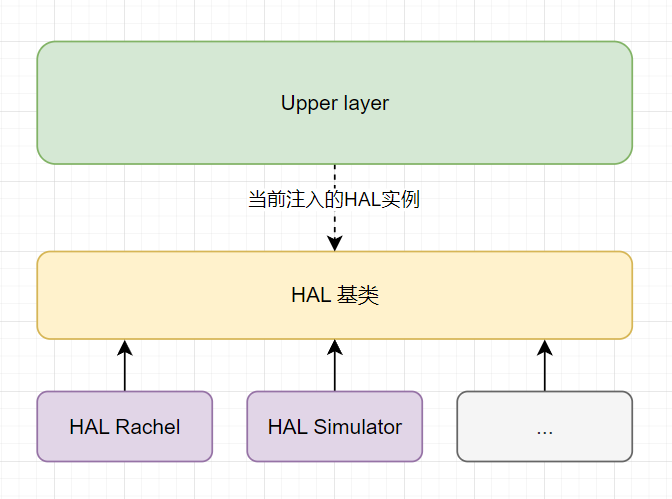
is a singleton; an instance of HAL is injected during SDK initialization.
For HAL Rachel, holding down button A to power on will pause the initialization screen, where you can view detailed HAL initialization logs.
If there are different underlying hardware requirements, simply derive a new HAL object, override the API methods, and inject them during initialization.
Include
#include "{path to}/hal/hal.h"
Display API
// Get screen driver instance
HAL::GetDisplay();
// Get full-screen buffer instance
HAL::GetCanvas();
// Push full-screen buffer to display
HAL::CanvasUpdate();
// Render FPS panel
HA::RenderFpsPanel();
The display driver uses LovyanGFX; detailed graphics APIs can be found in the original project example.
System API
// Delay (milliseconds)
HAL::Delay(unsigned long milliseconds);
// Get system running milliseconds
HAL::Millis();
// Power off
HAL::PowerOff();
// Reboot
HAL::Reboot();
// Set RTC time
HAL::SetSystemTime(tm dateTime);
// Get current time
HAL::GetLocalTime();
// Gracefully throw a blue screen
HAL::PopFatalError(std::string msg);
HAL Rachel adjusts the system time to RTC time during initialization, so time-related POSIX standard APIs can be used normally.
Peripheral APIs
// Refresh IMU data
HAL::UpdateImuData();
// Get IMU data
HAL::GetImuData();
// Start beeping
HAL::Beep(float frequency, uint32_t duration);
// Stop beeping
HAL::BeepStop();
// Check if SD card is available
HAL::CheckSdCard();
// Get button status
HAL::GetButton(GAMEPAD::GamePadButton_t button);
// Get any button status
HAL::GetAnyButton();
System configuration API
// Import system configuration from internal FS
: HAL::LoadSystemConfig();
// Save system configuration to internal FS
: HAL::SaveSystemConfig();
// Get system configuration:
HAL::GetSystemConfig();
// Set system configuration:
HAL::SetSystemConfig(CONFIG::SystemConfig_t cfg);
// Refresh device with system configuration:
HAL::UpdateSystemFromConfig(); Some useful general-purpose wrapper libraries are placed here: rachel/apps/utils/system
Select Menu Create a select menu: Include #include "{path to}/utils/system/ui/ui.h" Example using namespace SYSTEM::UI; // Create select menu : auto select_menu = SelectMenu(); // Create list of options : std::vector items = { "[WHAT 7 TO PLAY]", "Jenshin Import", "Light Soul", "Grand Cop Manual", "Super Maliao", "Quit" }; // Wait for selection: auto selected_index = select_menu.waitResult(items); spdlog::info("selected: {}", items[selected_index]); This code creates a progress bar window (to be honest, it should be considered a page now) with a progress bar . Include #include "{path to}/utils/system/ui/ui.h" Example using namespace SYSTEM::UI; for (int i = 0; i < 100; i++) { ProgressWindow("Testing IQ..", i); HAL::CanvasUpdate(); HAL::Delay(20);}
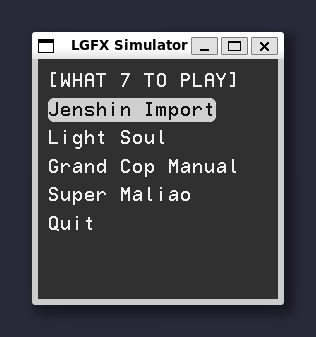
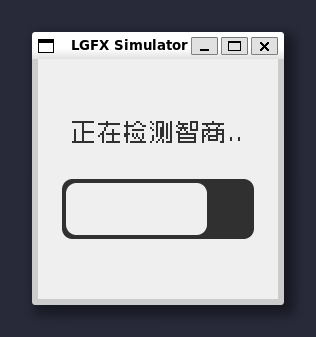
The buzzer music player
is based on the arduino-songs JSON format buzzer music player. Example JSON music playback: `
Include
#include "{path to}/utils/system/audio/audio.h"`
Example
using namespace SYSTEM::AUDIO;
// Play the JSON music file on the SD card path `
BuzzMusicPlayer::playFromSdCard("/buzz_music/nokia.json");
` The button
is based on the Button key library : `
Include
#include "{path to}/utils/system/inputs/inputs.h"`
Example
using namespace SYSTEM::INPUTS;
`auto button_a = Button(GAMEPAD::BTN_A);
while (1)
{
if (button_a.pressed())
spdlog::info("button a was pressed");
if (button_a.released())
spdlog::info("button a was released");
if (button_a.toggled()) }`
spdlog::info("button a was toggled");
HAL::Delay(20);
} For a deeper
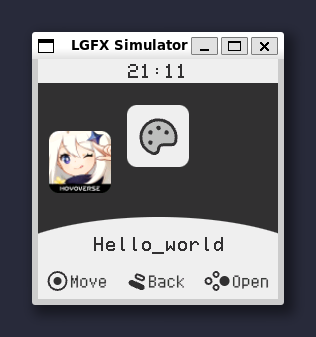
dive into the specific framework and implementation, you can check out HAL Rachel if you can't sleep. HAL Rachel is derived from HAL and provides a directory tree of the specific implementations of HAL's APIs on Arduino-ESP32 . ├── components Initialization and API implementation of each peripheral │ ├── hal_display.cpp │ ├── hal_fs.cpp │ ├── hal_gamepad.cpp │ ├── hal_i2c.cpp │ ├── hal_imu.cpp │ ├── hal_power.cpp │ ├── hal_rtc.cpp │ ├── hal_sdcard.cpp │ └── hal_speaker.cpp ├── hal_config.h Pin definitions, internal log definitions, etc. ├── hal_rachel.h Class declaration └── utils └── m5unified Some very useful ESP32 peripheral abstraction initialization process : HAL calls init() when injected. The init() overridden by HAL Rachel is the initialization process: inline void init() override { _power_init(); // Power management initialization _disp_init(); // Display initialization _gamepad_init(); // Gamepad button initialization _spk_init(); // Speaker (buzzer) initialization _i2c_init(); // I2C initialization _rtc_init(); // RTC initialization _imu_init(); // IMU initialization _fs_init(); // Internal Flash file system initialization _sdcard_init(); // SD card file system initialization _system_config_init(); // System configuration initialization _sum_up(); // Summary } The internal Flash file system uses LittleFS. Currently, it's only used for saving system settings, so the partition is only allocated to 256 kB. The `loadTextFont24()` API is designed for better-looking (supports Chinese) text display. It's implemented by reading the vlw font from the SD card, so using this font will increase rendering time. Of course, there are many ways to make this API also suitable for fast-refreshing screens, but for me, this built-in font is sufficient. The launcher and selection menu both use this. Both the RTC and IMU peripherals can find readily available drivers and abstractions in the M5Unified library; I simply extracted them and integrated them according to my needs. HAL Simulator: Because LovyanGFX supports SDL as the display backend, implementing a HAL implementation on a PC basically requires nothing (I'm sure), just one header file. The RachelSDK simulator project is here. RachelSDK initialization process.
With HAL abstracting the underlying layers, the rest is up to C++ developers (of course, some apps still directly use platform-specific APIs, such as the NES emulator using the ESP32 partition read/write API; abstracting all of these would be a waste of time—conditional compilation is sufficient and doesn't hinder the overall framework's versatility).
RachelSDK initialization is as follows:
...
// Inject the specific HAL based on the platform
#ifndef ESP_PLATFORM
HAL::Inject(new HAL_Simulator);
#else
HAL::Inject(new HAL_Rachel);
#endif
// Initialize the Mooncake scheduling framework
_mooncake = new Mooncake;
_mooncake->init();
// Install the launcher (yes, the launcher is also an app)
auto launcher = new APPS::Launcher_Packer;
_mooncake->installApp(launcher);
// Install other apps (settings, emulator...)
rachel_app_install_callback(_mooncake);
// Create the launcher:
`_mooncake->createApp(launcher);
` ...
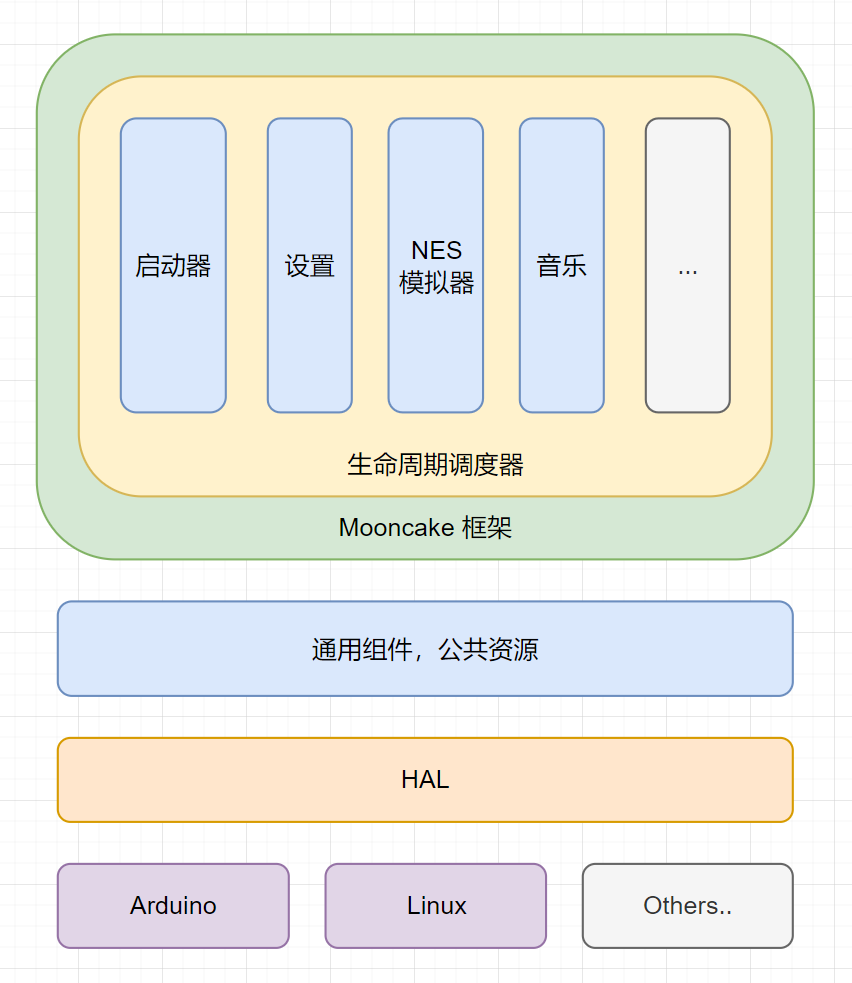
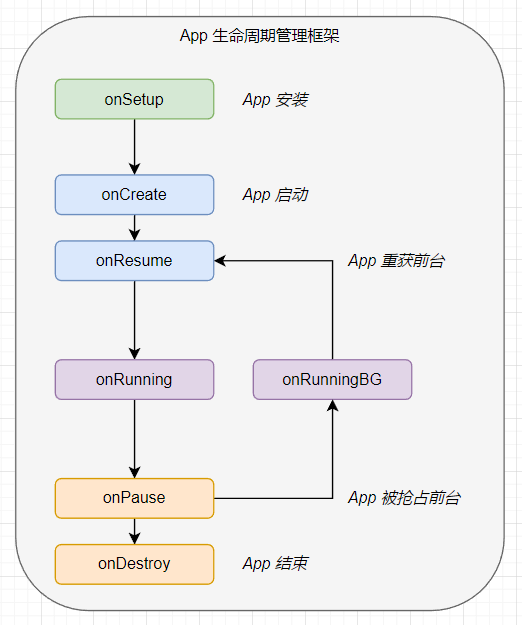
After initialization, the Mooncake framework takes over, handling the lifecycle scheduling of each app. Here's a simplified lifecycle diagram:
The App Launcher
is the first app launched by the SDK, used to launch the App (?)
directory tree
.
├── assets Static resources│
└── launcher_bottom_panel.hpp
├── launcher.cpp App Launcher implementation├──
launcher.h App Launcher declaration└──
view
├── app_anim.cpp App open/close animation├──
menu.cpp Launcher menu└──
menu_render_callback.hpp Launcher menu rendering callback
Open launcher.cpp:
`onCreate`, this is only called once when the launcher is created, so it's responsible for configuring its properties and allocating resources: `
void Launcher::onCreate()
{
...
// Allow background running
setAllowBgRunning(true);
//` Allow automatic startup after creation:
`startApp();
` // Create menu (this menu is an abstraction of the list of installed apps, which will be explained in detail in the rendering section later)
`_create_menu();
` `
onResume` is called when the launcher is first created or when it switches from the background to the foreground, so it contains some pre-rendering preparations, such as refreshing control information... `
void Launcher::onResume()
{
...
// Change font...
HAL::LoadLauncherFont24();
HAL::GetCanvas()->setTextScroll(false);
// Update the time text in the status bar
_update_clock(true);
` `
onRunning`, when no other apps are open, the launcher reads input... refreshes the menu, controls... renders the screen...
`void Launcher::onRunning()
{
_update_clock();
_update_menu();
}`
Let's sneak a peek into `_update_menu()` and see what happens when the launcher needs to open an app:
...
// Check which one is
auto selected_item = _data.menu->getSelector()->getTargetItem();
// Skip launcher
selected_item++;
// Get the selected App Packer
auto app_packer = mcAppGetFramework()->getInstalledAppList()[selected_item];
// Use it to create and open this App,
if (mcAppGetFramework()->createAndStartApp(app_packer))
{
...
// Push the launcher to the background
closeApp();
}
...
Looking back at onRunningBG, the launcher is actually running in the background...
void Launcher::onRunningBG()
{
// If only the launcher app is running (meaning the previously opened apps have exited and been destroyed)
if (mcAppGetFramework()->getAppManager().getCreatedAppNum() == 1)
{
...
// Push the launcher back to the foreground
mcAppGetFramework()->startApp(this);
...
}
}
This judgment method actually comes with some limitations. For example, I can't have other apps running in the background while the launcher is in the foreground. Because the condition for the launcher to return to the foreground is that there is only one app of it (how domineering!), but there is no need for that for now~ Before talking about the rendering of the launcher, let's briefly introduce SmoothMenu, a menu abstract library with simple path interpolation.
This is just a simple menu, so it can be divided into three parts: Menu: This is the menu, which stores what dishes are available. Selector: Your finger, used to select the menu items.








 京公网安备 11010802033920号


 19K101-270D3



