This is a small gadget for sharing a keyboard and mouse between two computers. Moving the mouse and keyboard allows for seamless switching between the two computers – it's incredibly smooth!
Original Git link: https://github.com/hrvach/deskhop.
I only redesigned the PCB; the open-source software is the same as the original author's.
Wired mice and 2.4G wireless mice have been tested and work without issue, but Bluetooth mice are not supported. For the keyboard, I tested a custom-made mechanical keyboard and a regular wired keyboard. The custom-made keyboard works fine in wired mode, but Bluetooth mode is not supported. Even my Dell wired keyboard doesn't work; it keeps pressing the spacebar, I don't know why!
Operating system tests included Win10, Win7, WinXP, and a domestic computer with a Loongson CPU and the NeoKylin operating system; all worked without problems. See the two attached videos for testing.
Usage:
1. Firmware flashing method: Switch to A, plug in the computer. A USB drive will appear on the computer. Copy the file board_A.uf2 to the newly created RP USB drive!
Switch to B, plug in the computer. A USB drive will appear on the computer. Copy the file board_B.uf2 to the newly created RP USB drive!
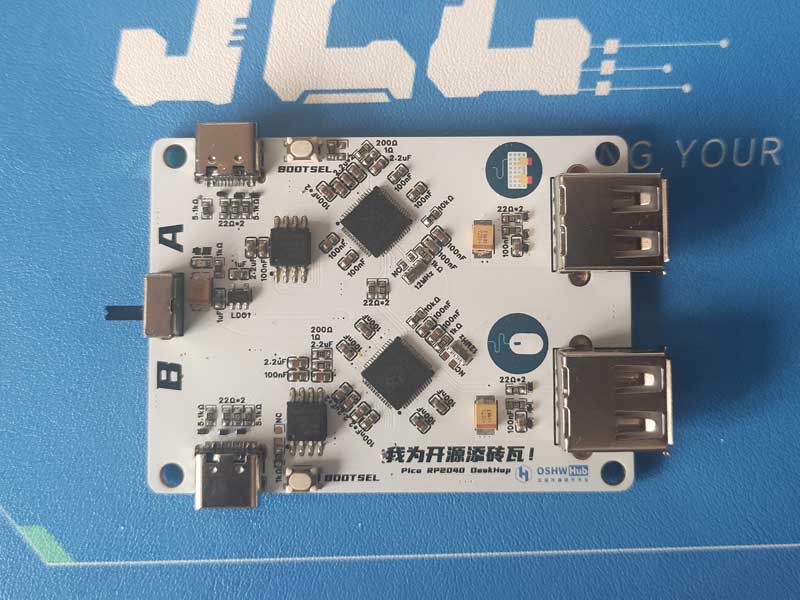
2. Usage: Connect the Type-C cable to port B on the computer on the left, and to port A on the computer on the right. The power switch can be set to either A or B; whichever computer it's on will power the entire device, keyboard, and mouse. Moving the mouse from right to right on computer B will display it on computer A's screen, and the keyboard and mouse will then work on computer A. Conversely, moving the mouse from left to left on computer A will display it on computer B's screen, and the keyboard and mouse will work on computer A.
Original PCB: Used two Pico development boards as the baseboard!
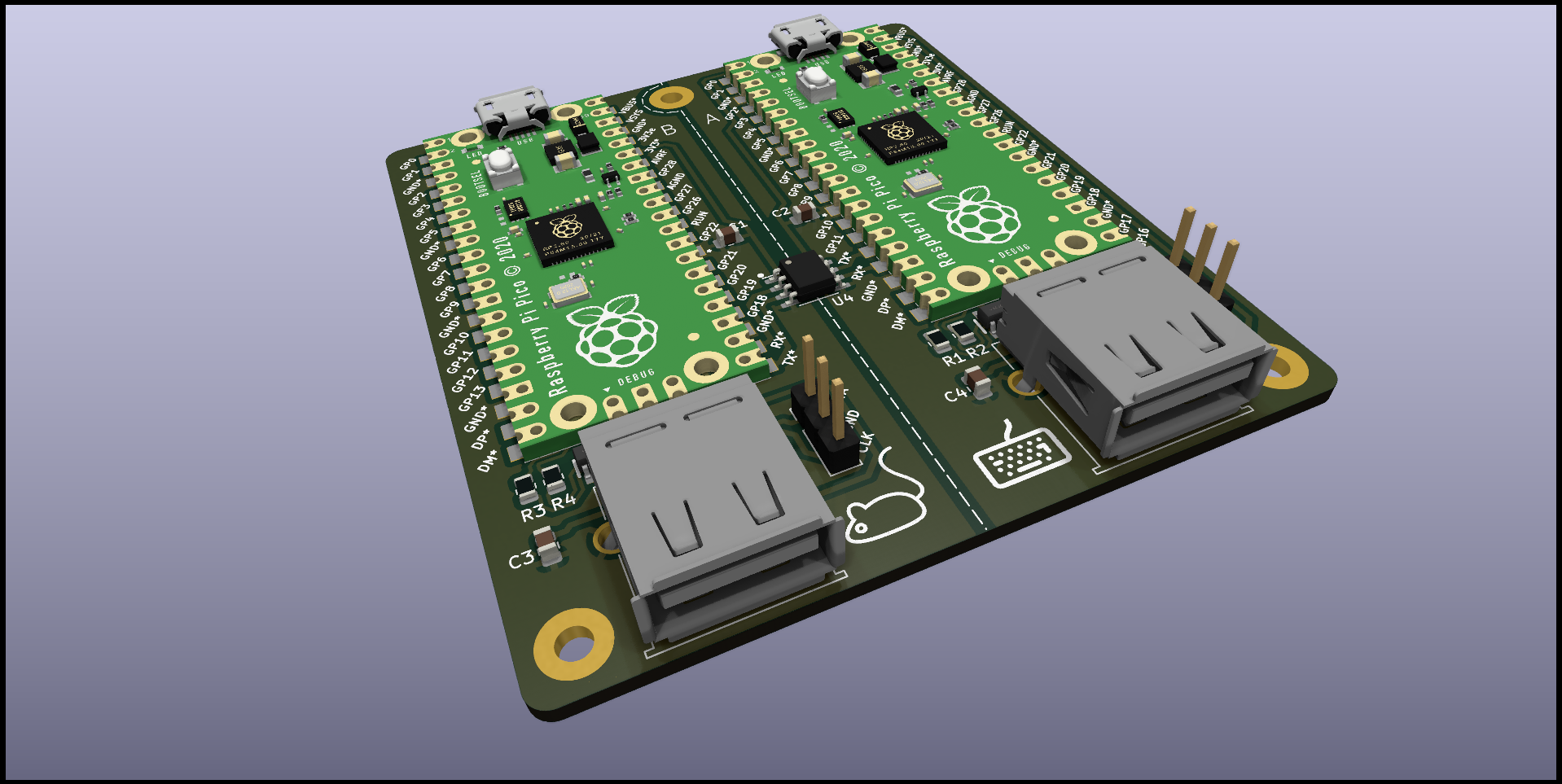
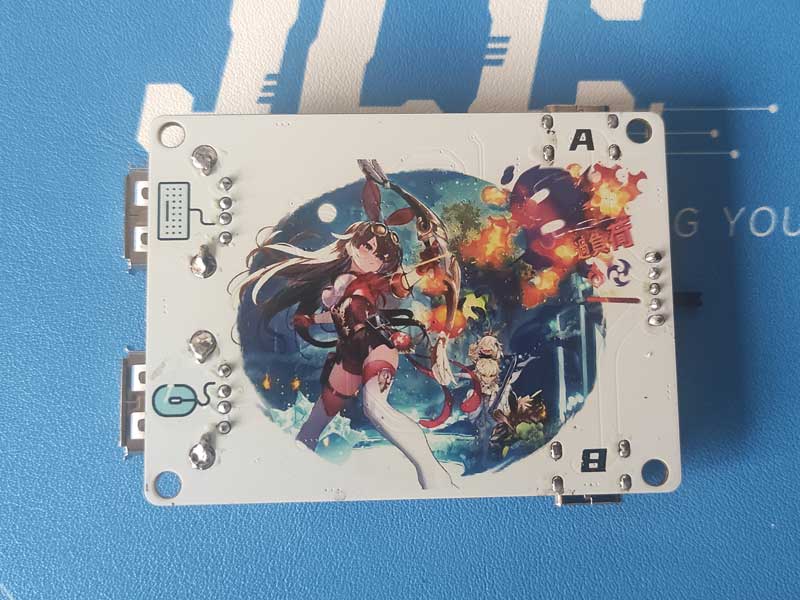
My PCB: Based on two RP2040 chips, much smaller and more elegant!
Introduction to the original work: (Copied from Github)
Mouse
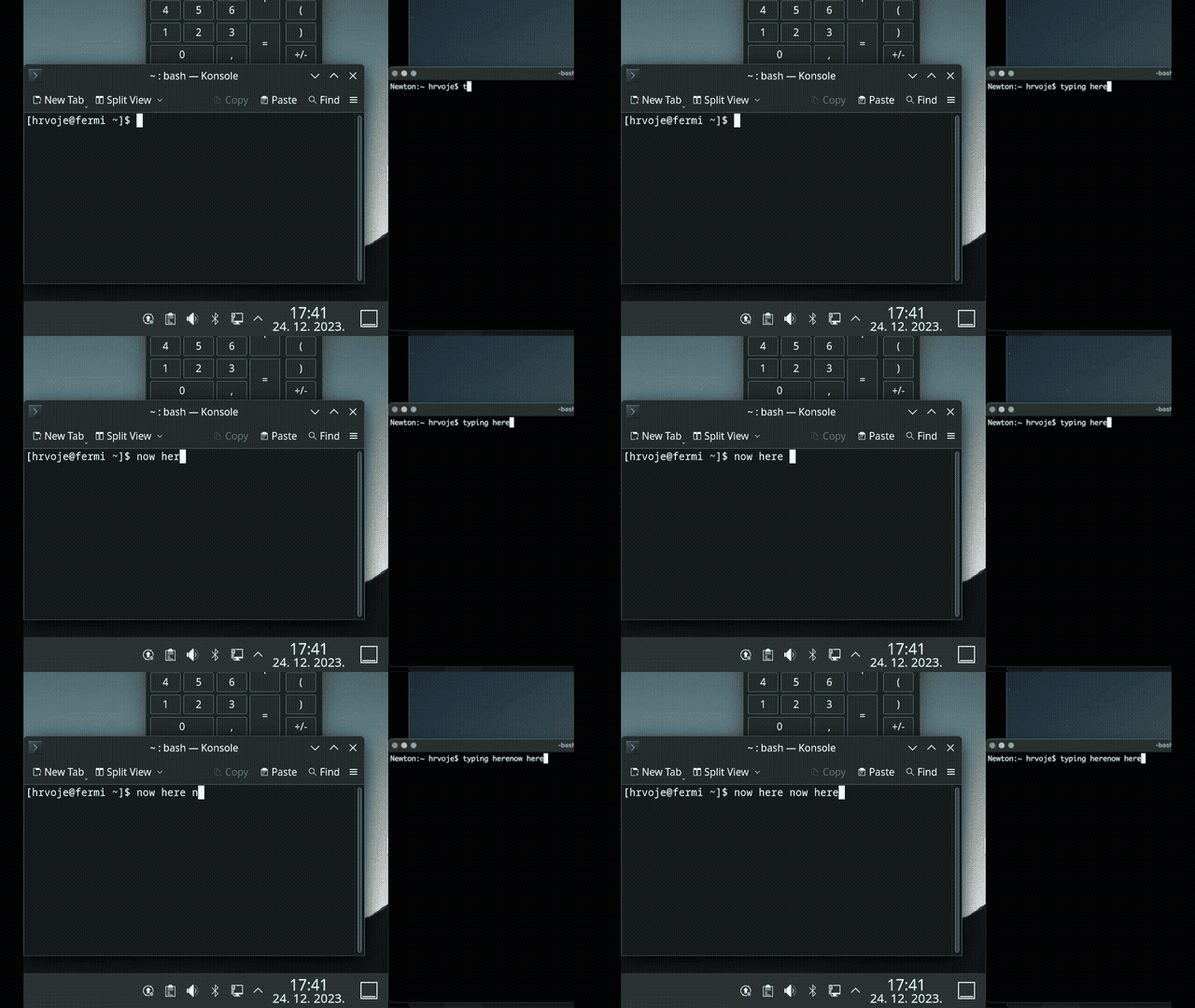
To get the mouse cursor to magically jump across, the mouse hid report descriptor was changed to use absolute coordinates and then the mouse reports (that still come in relative movements) accumulate internally, keeping the accurate tally on the position.
When you try to leave the monitor area in the direction of the other monitor, it keeps the Y coordinate and swaps the maximum X for a minimum X, then flips the outputs. This ensures that the cursor seamlessly appears at the same height on the other monitor, enhancing the perception of a smooth transition.
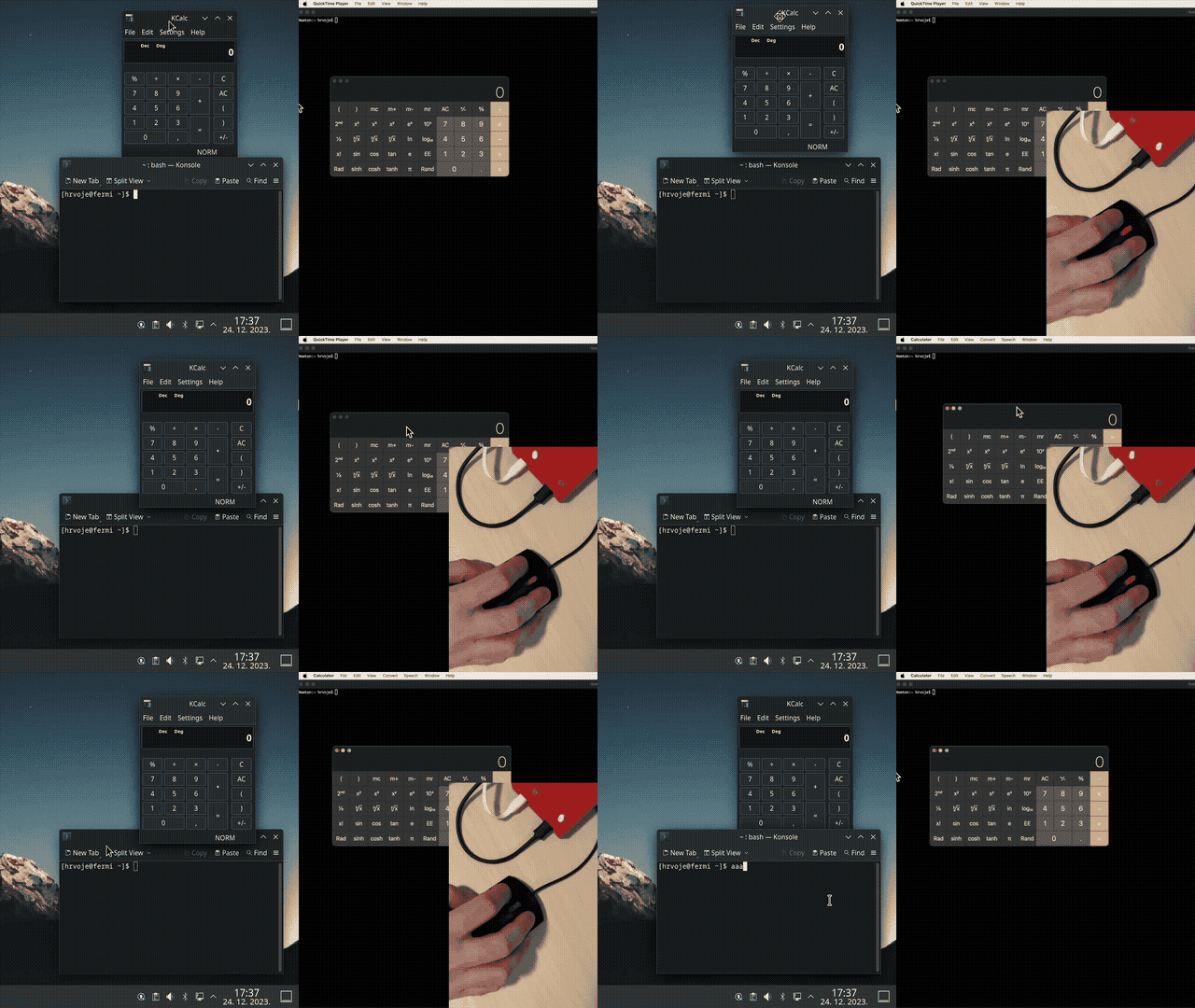
Dragging the mouse from Mac to Linux automatically switches outputs.
The actual switch happens at the very moment when one arrow stops moving and the other one starts.
Keyboard
Acting as a USB Host and querying your keyboard periodically, it looks for a preconfigured hotkey in the hid report (usually Caps Lock for me). When found, it will forward all subsequent characters to the other output.
To have a visual indication which output you are using at any given output moment, you can repurpose keyboard LEDs and have them provide the necessary feedback.
It also remembers the LED state for each computer, so you can pick up exactly how you left it.
Upgrading firmware
Option 1 - Open the case, hold the button while connecting each Pico and copy the right uf2 to it.
Option 2 - Switch a board to BOOTSEL mode by using a special key combination (listed below).
This will make the corresponding Pico board enter the bootloader upgrade mode and act as USB flash drive. Now you can drag-and-drop the .uf2 file to it (you might need to plug in your mouse directly).
Misc features
Mouse slowdown
Ever tried to move that YT video slider to a specific position but your mouse moves too jumpy and suddenly you are moving your hand super-carefully like you're 5 and playing "Operation" all over again?
Press right CTRL + right ALT to toggle a slow-mouse mode. The mouse pointer will slow down considerably, enabling you to get the finer precision work done and still have your moving mouse normally by quickly pressing the same keys again.
Switch Lock
If you want to lock yourself to one screen, use RIGHT CTRL + L. This will make sure you won't accidentally leave your current screen. To turn off, press the same key combo again.
Screensaver
Supposedly built in to prevent computer from entering standby, but truth be told - it is just fun to watch. Off by default, will make your mouse pointer bounce around the screen like a Pong ball. When enabled, it activates after a period of inactivity defined in user config header and automatically switches off as soon as you send any output towards that screen.
Potential usage example - I have a buggy USB dock that won't resume video from standby, so not allowing it to sleep can be a handy workaround.

Usage guide
Keyboard shortcuts
Firmware upgrade
Right Shift + F12 + Left Shift + A - put board A in FW upgrade mode
Right Shift + F12 + Left Shift + B - put board B in FW upgrade mode
Usage
Right CTRL + Right ALT - Toggle slower mouse mode
Right CTRL + L - Lock/Unlock mouse desktop switching
Right ALT + Right Shift + L - Lock both outputs at once (set output OS before, see shortcuts below)
Caps Lock - Switch between outputs
Config
Right Shift + F12 + D - remove flash config
Right Shift + F12 + Y - save screen switch offset
Right Shift + F12 + S - turn on/off screensaver option
Number of outputs
Right Shift + Backspace + 1 - set number of screens to 1 on current active output
Right Shift + Backspace + 2 - set number of screens to 2 on current active output
Set operating systems
Right Shift + Backspace + 7 - set os to Linux on current active output
Right Shift + Backspace + 8 - set os to Windows on current active output
Right Shift + Backspace + 9 - set os to MacOS on current active output
Switch cursor height calibration
This step is not required, but it can be handy if your screens are not perfectly aligned or differ in size. The objective is to have the mouse pointer come out at exactly the same height.
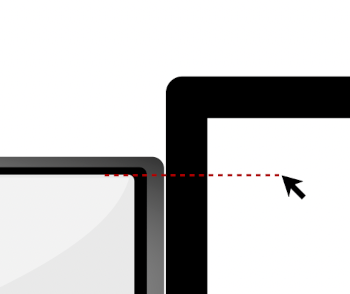
Just park your mouse on the LARGER screen at the height of the smaller/lower screen (illustrated) and press Right Shift + F12 + Y. Your LED (and caps lock) should flash in confirmation.
Repeat for the bottom border (if it's above the larger screen's border). This will get saved to flash and it should keep this calibration value from now on.
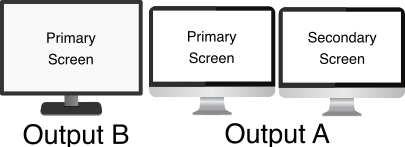
Multiple screens per output
Windows and Mac have issues with multiple screens and absolute positioning, so workarounds are needed (still experimental). Your main screens need to be in the middle, and secondary screen(s) on the edges. Move the mouse to the screen with multiple desktops and press right shift + backspace + 2 if you have 2 desktops and right shift + backspace + 7, 8 or 9 depending on your OS (Linux, Windows, Mac).
Other configuration
Mouse speed can now be configured per output screen and per axis. If you have multiple displays under Linux, your X speed might be too fast, so you need to configure it in user_config.h and rebuild. In the future, this will be configurable without having to do that.
Functional verification
When you connect a new USB peripheral, the board will flash the led twice, and instruct the other board to do the same
. flash quickly back and forth in both cases.
Security and Safety
Some features are missing on purpose, despite the fact it would make the device easier to use or simpler to configure. Here is a quick breakdown of these decisions:
There is no copy-paste or any information sharing between systems. This prevents information leakage.
No webhid device management or any inbound connectivity from the output computers, with the only exception of standard keyboard LED on/off messages, hard limited to 1 byte of data
.
plugged-in keyboard/mouse custom endpoints are exposed or information forwarded towards these devices. Their potential vulnerabilities are effectively firewalled from the computer.
No input history is allowed to be retained.
Outputs are physically separated and galvanically isolated with a minimal isolation voltage of 2kV.
All packets exchanged between devices are of fixed length, no code is transferred and no raw config exchange of any kind can take place.
There is no bluetooth or wifi, networking, Internet access, usb drives etc.
No connected computer is considered trusted under any circumstances.
Entirety of the code is open source, without any binary blobs and thoroughly commented to explain its purpose. I encourage you to never trust anyone and always make sure you know what you are running by doing a manual audit.
This still doesn't guarantee anything, but I believe it makes a reasonable set of ground rules to keep you safe and protected.








 京公网安备 11010802033920号


 5082-334Y-IK300



