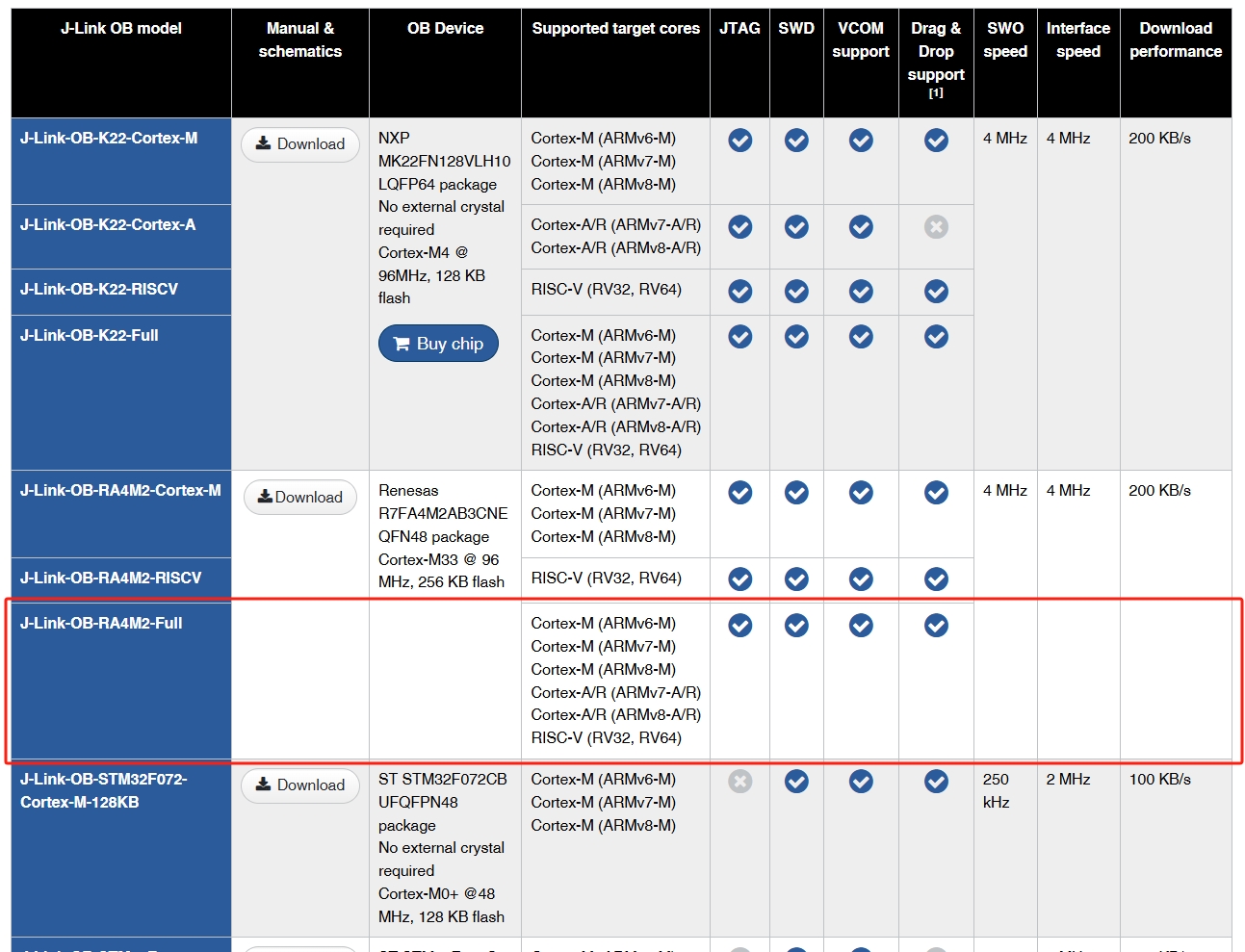
 2. Supports SWD and JTAG;
 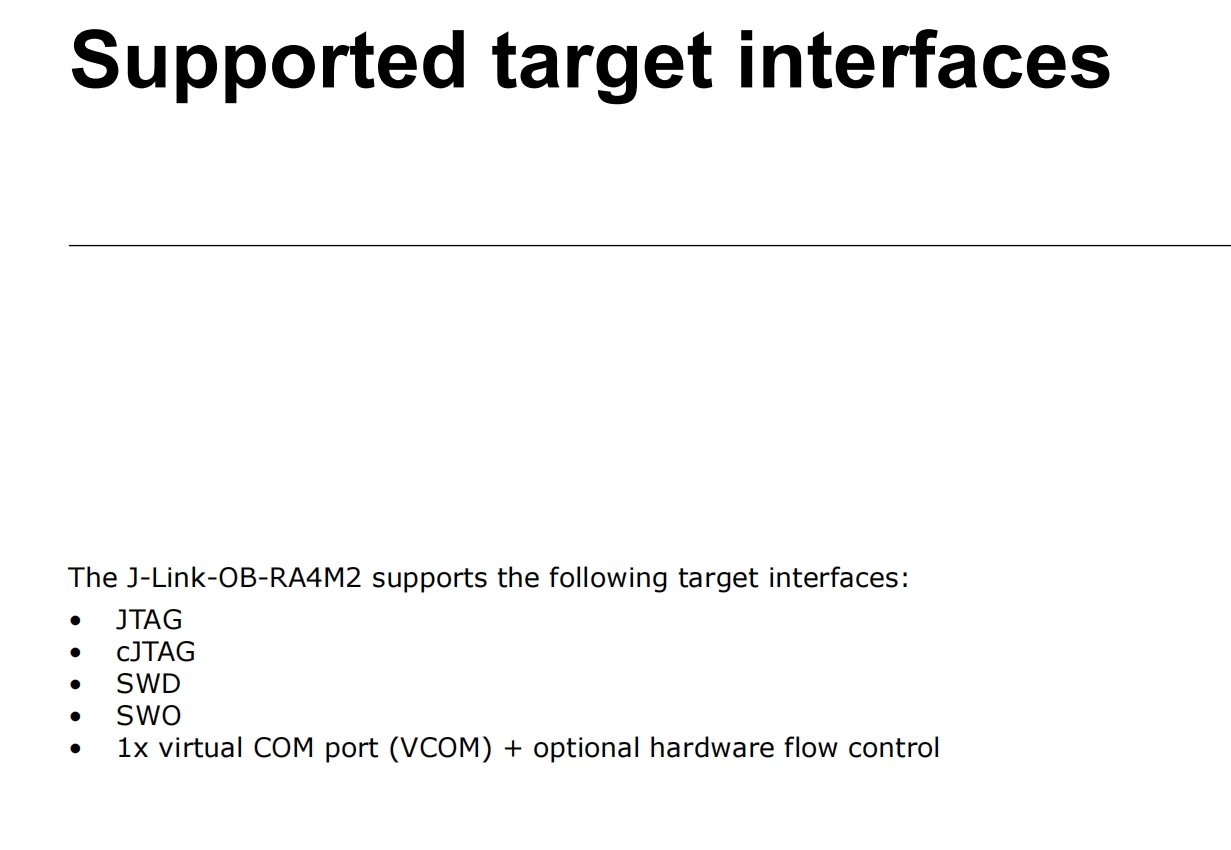 3. Supports VCOM serial port function;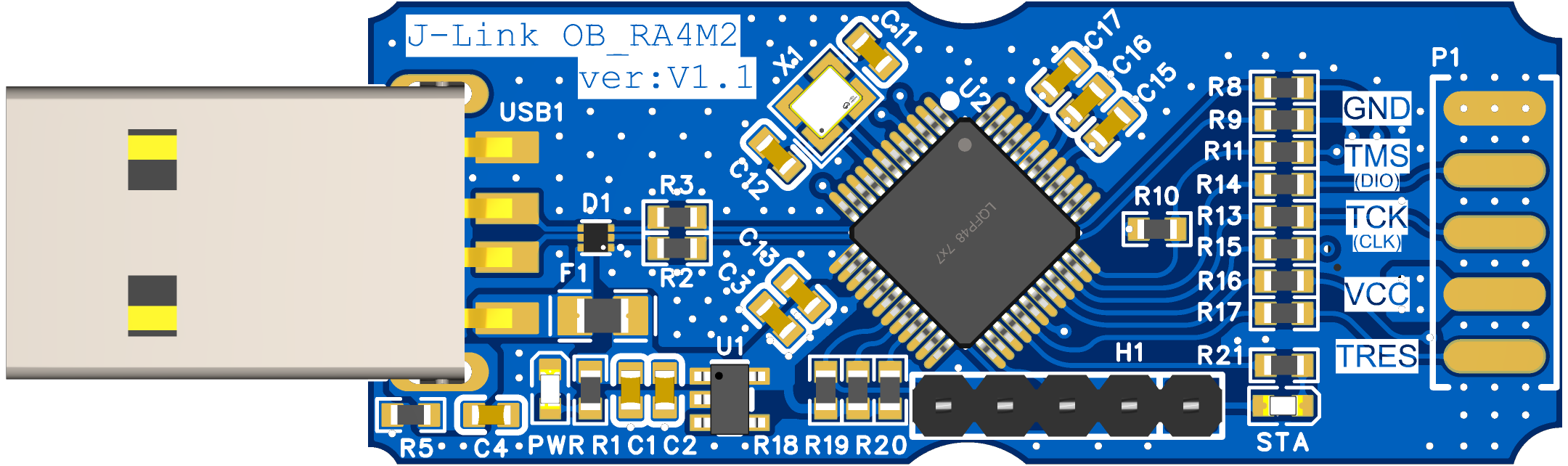
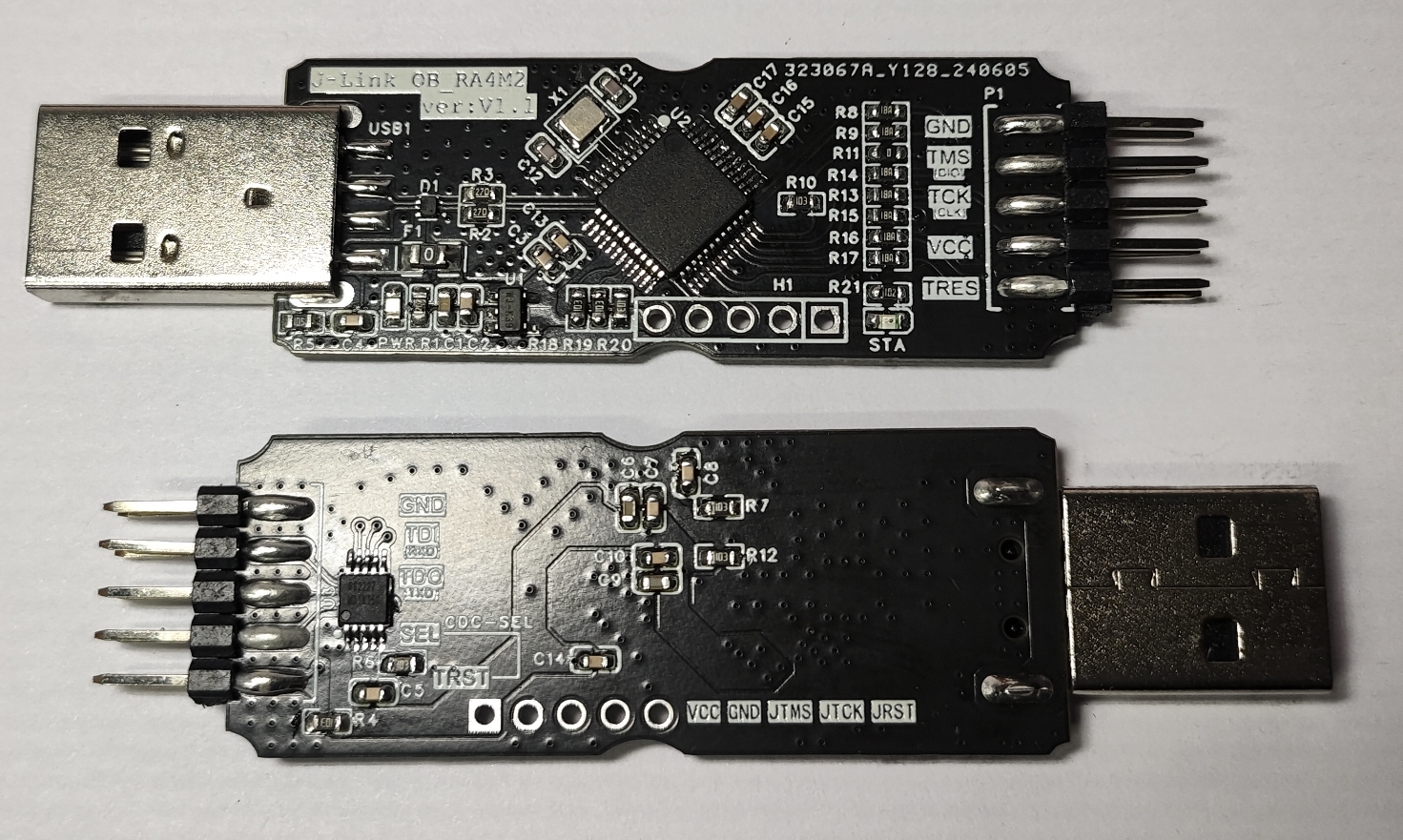
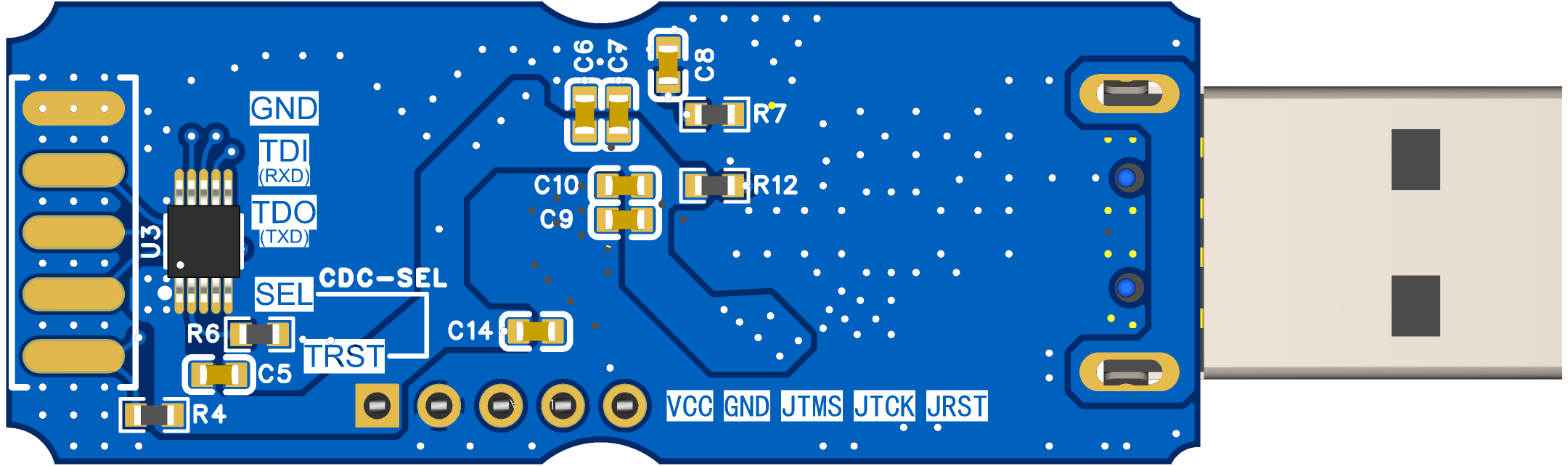 2. PCB Physical Image
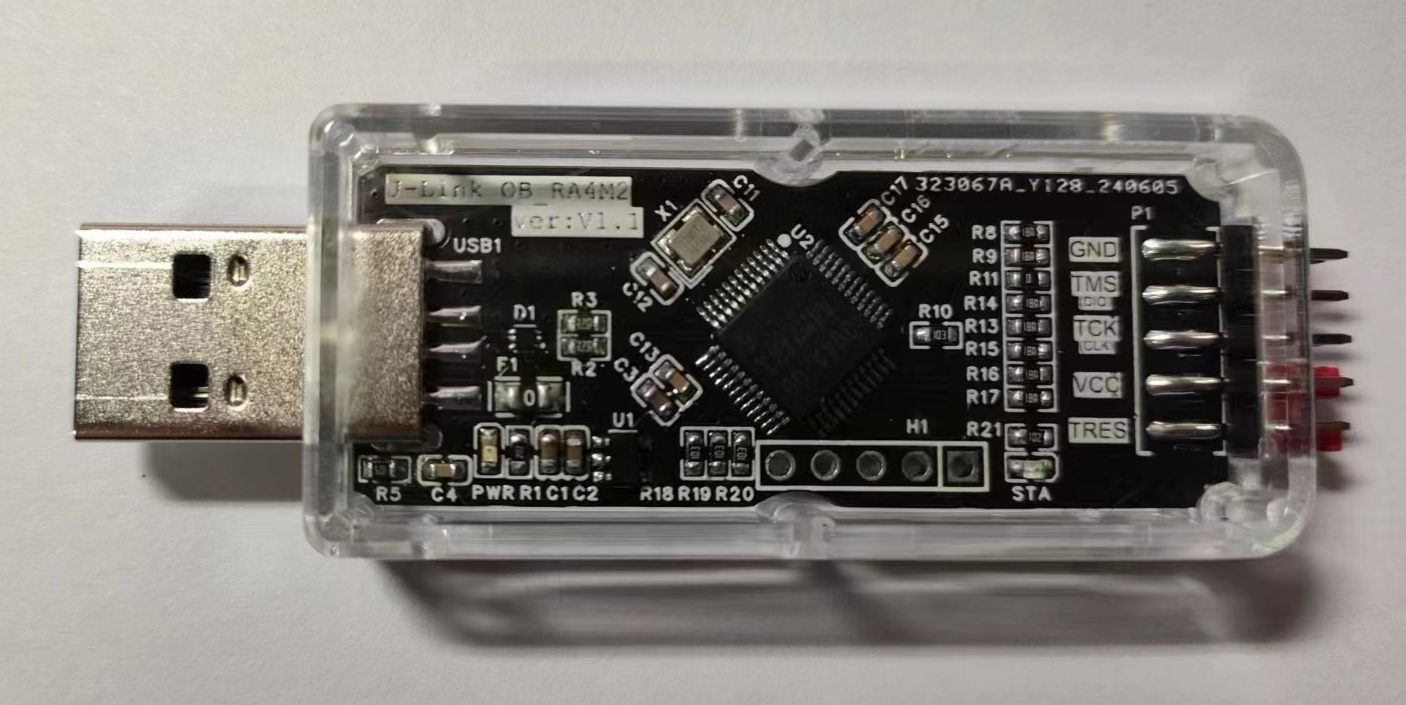
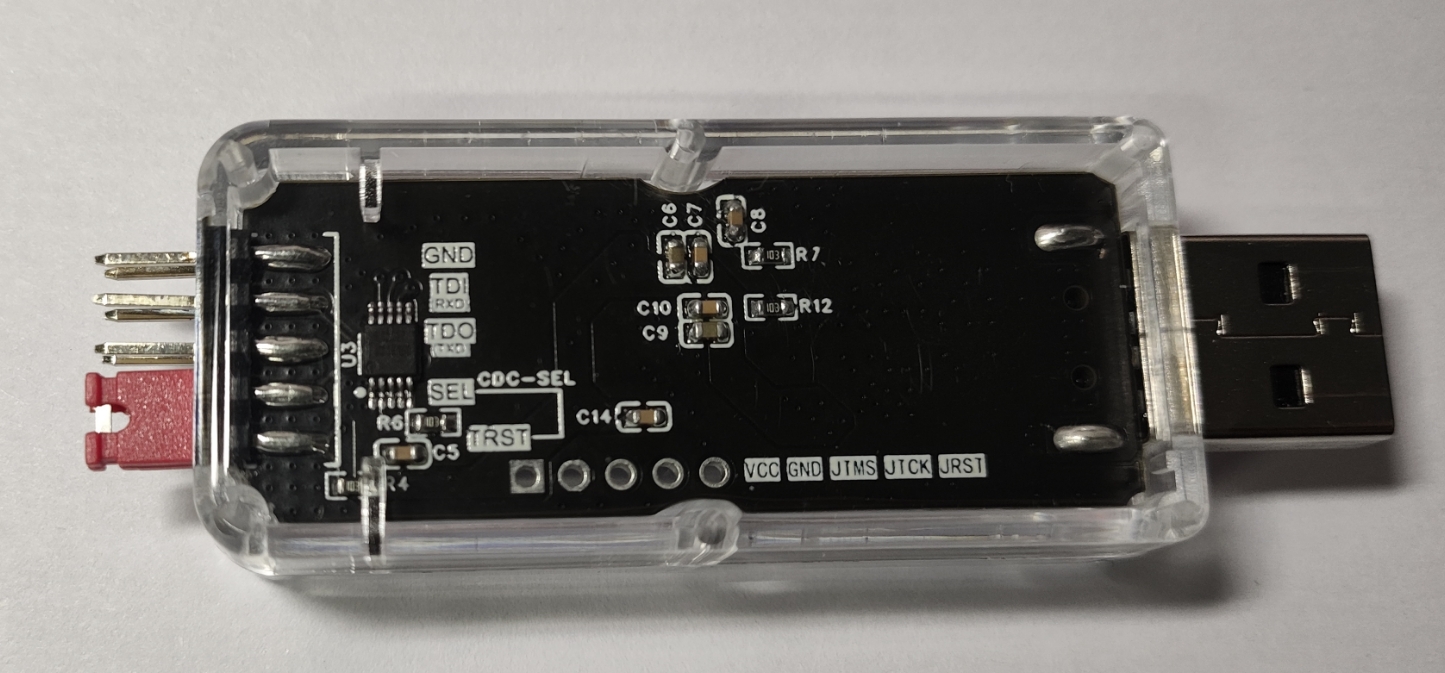
  3. Finished Product Image
  Software:
 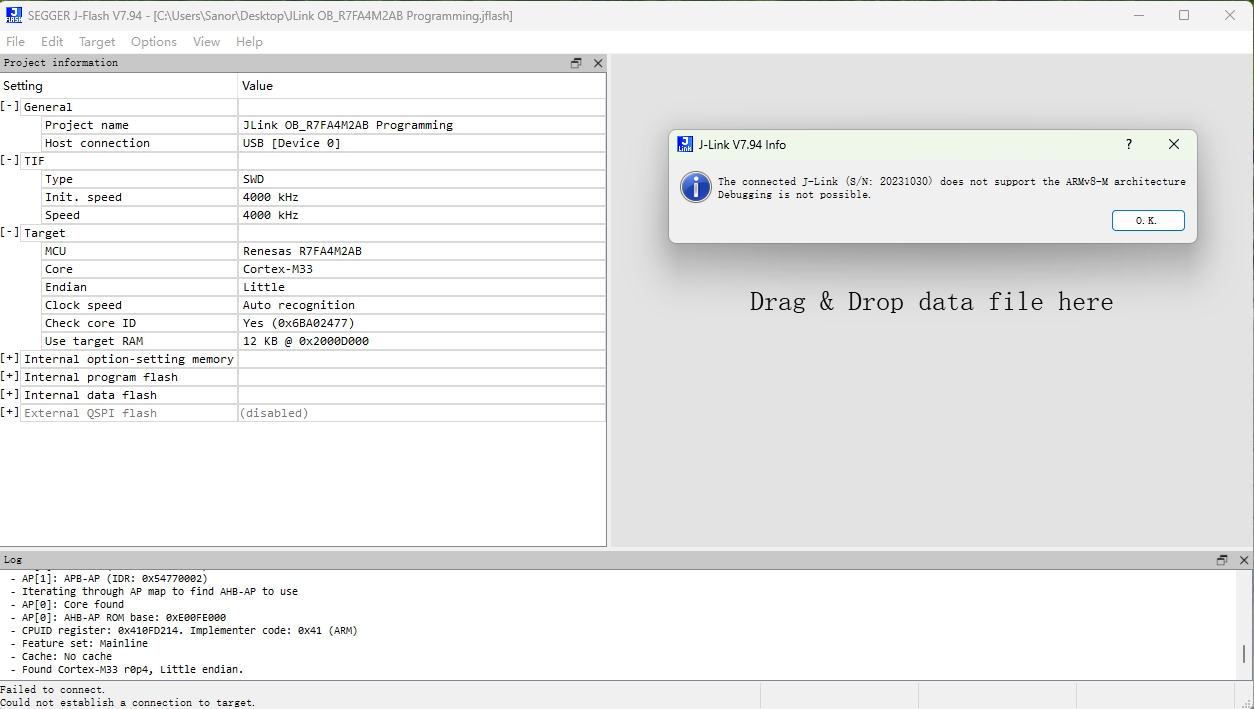 After replacing the DLL file, the firmware download is successful:
 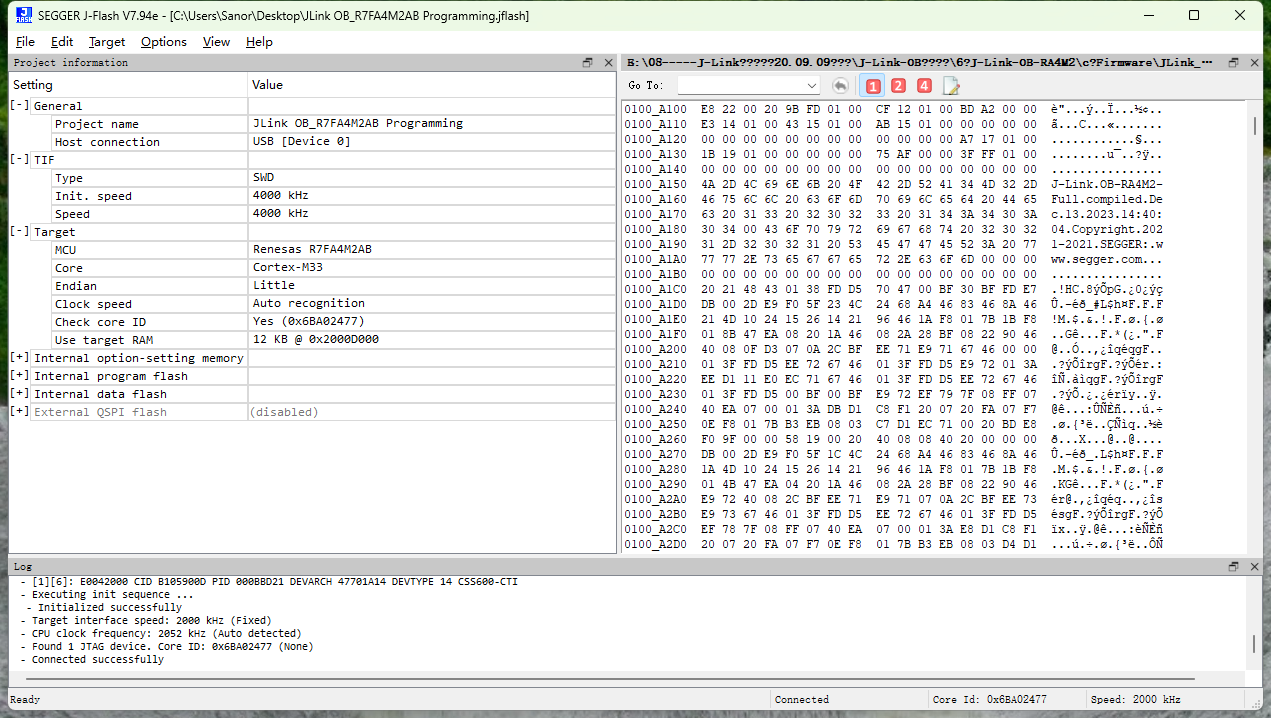 2. SN Modification:
 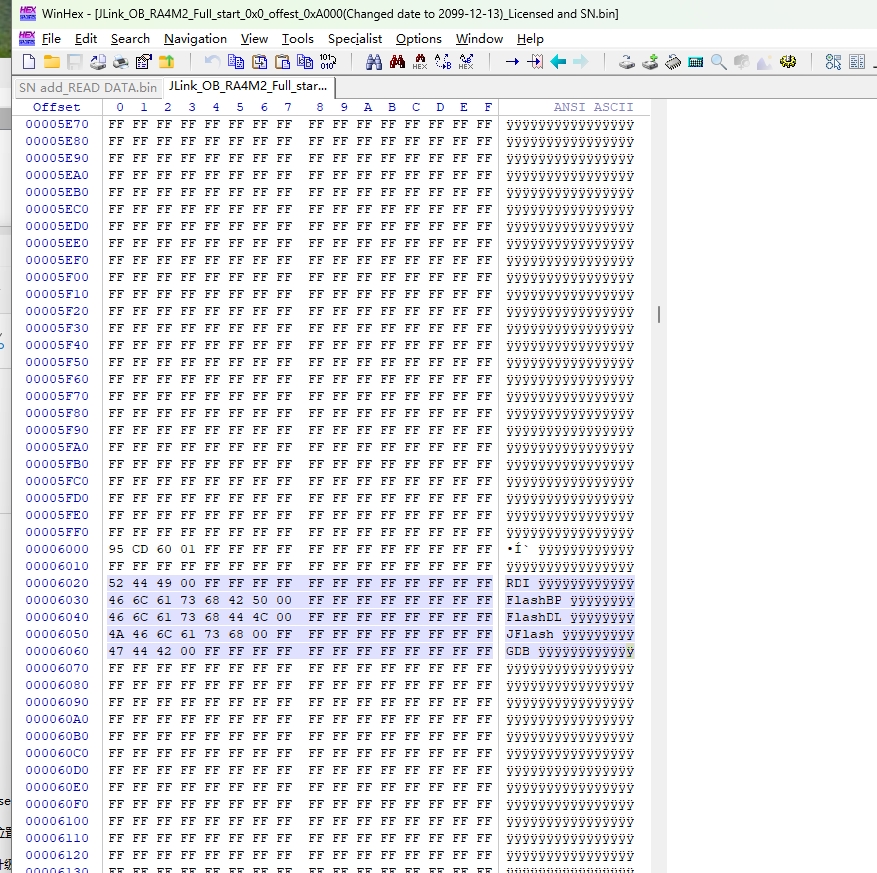 The SN encoding rule is the hexadecimal number corresponding to the decimal SN, taking the first 2 to 3 digits as the prefix. As shown in the image above, the SN is 23121301, corresponding to the hexadecimal number 160CD95. Each byte is stored in a group in the address, using little-endian mode, taking the first two digits 23 as the prefix. Therefore, the data represented in the address is: 95 CD 60 01 (the high-order byte is stored at the high address). (PS: This is my personal understanding; please forgive any inaccuracies or omissions). Understanding the SN encoding rules gives us a clue as to how to modify the SN and where to start.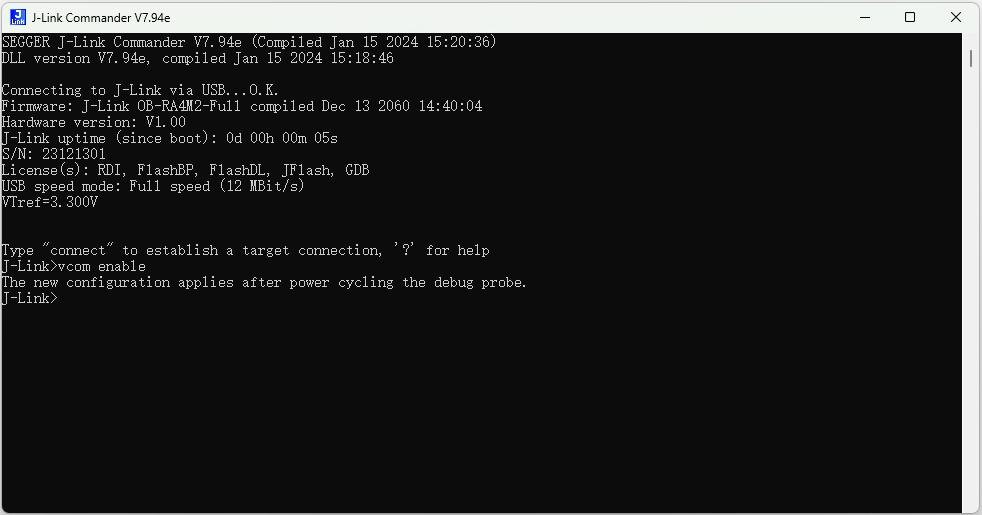
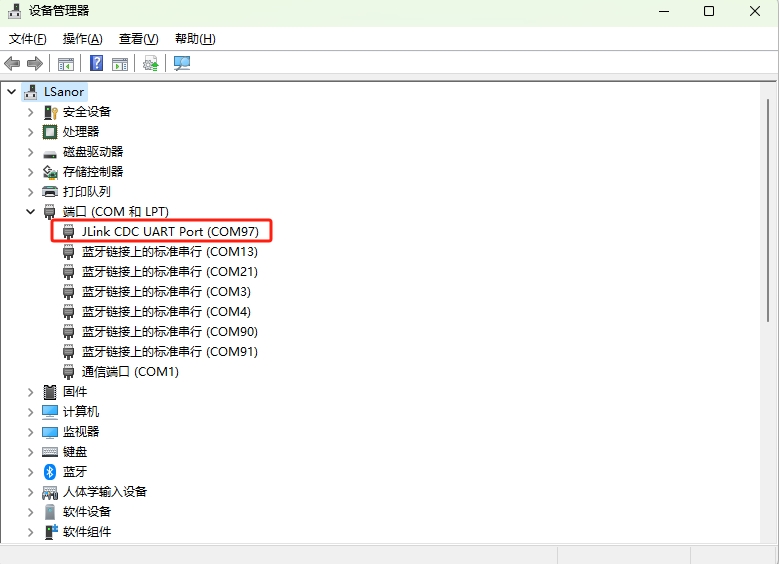 VCOM disable: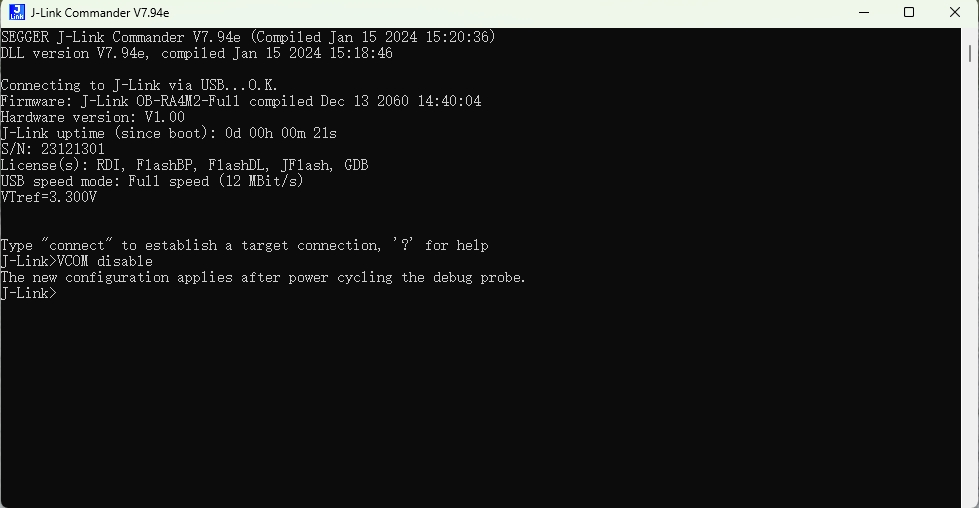
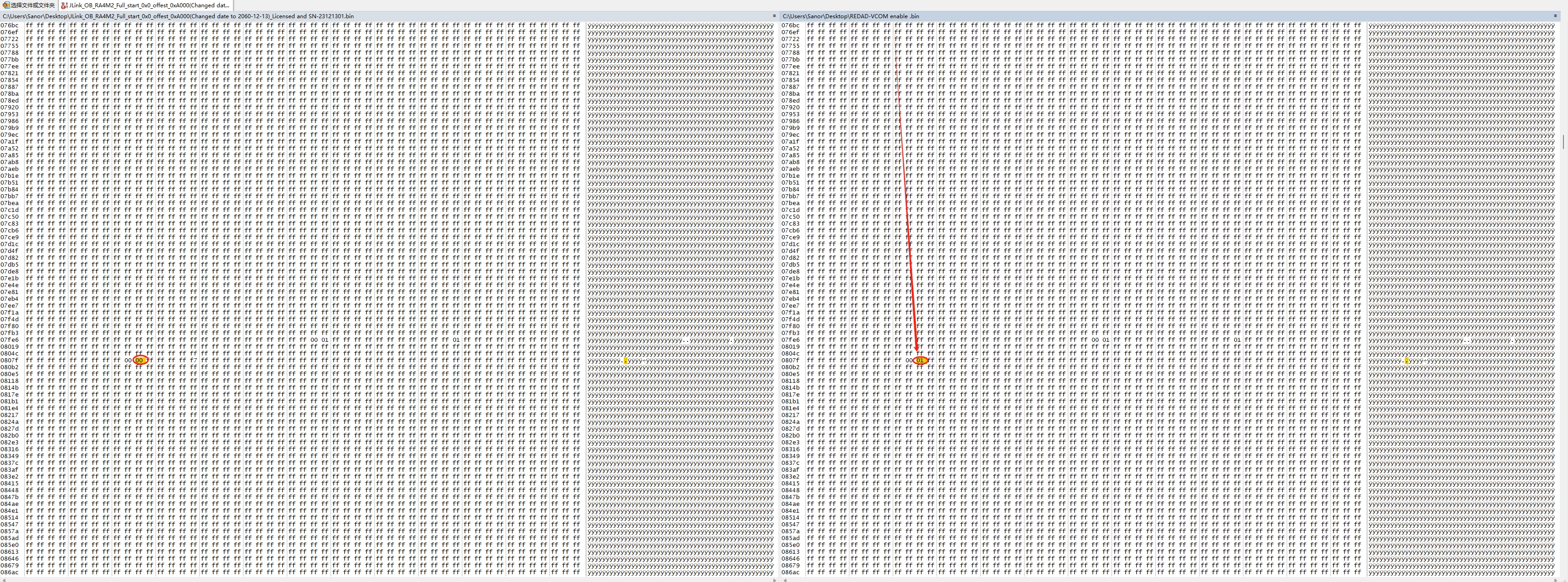
 VCOM is enabled at address 0x8089 in the firmware. Below is a comparison of firmware information with VCOM disabled and enabled:
  The firmware in the attachment has been modified to have VCOM enabled by default.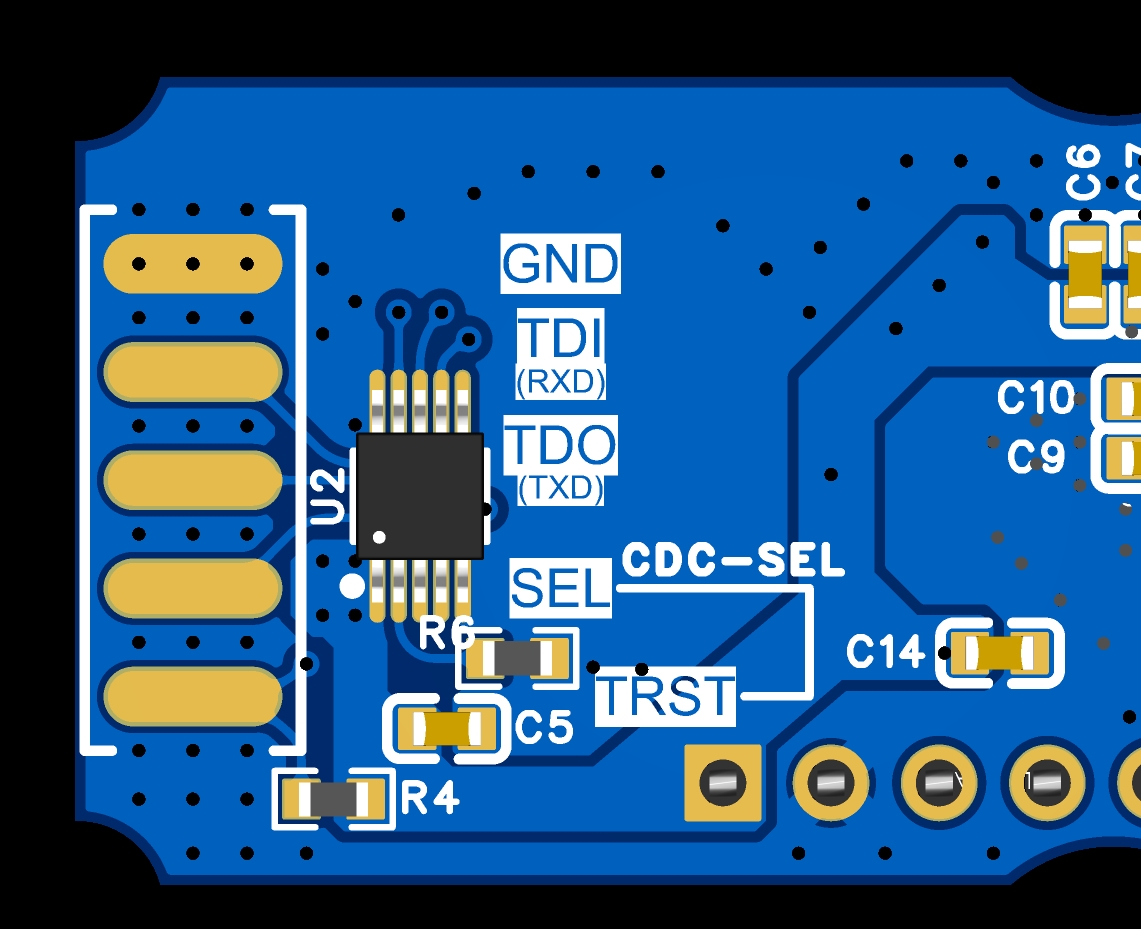
 2. Firmware Download Special Note:
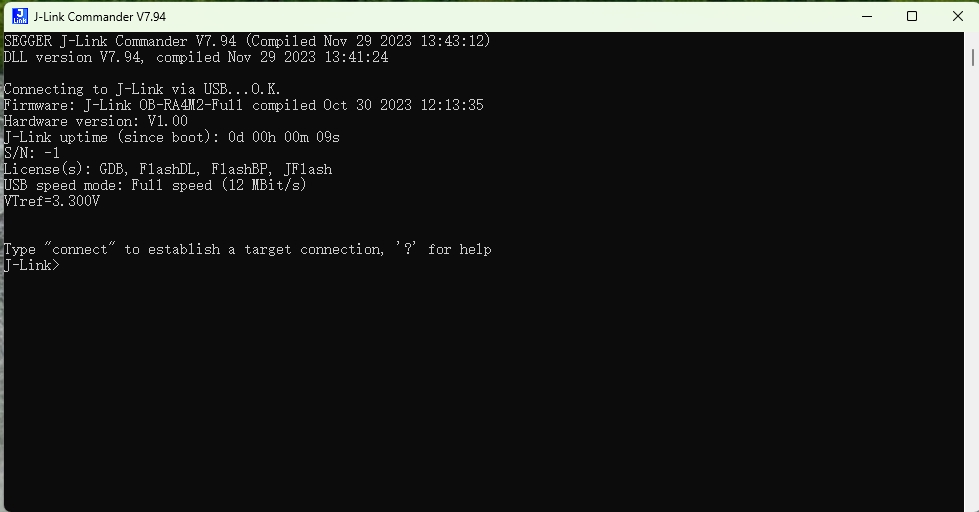
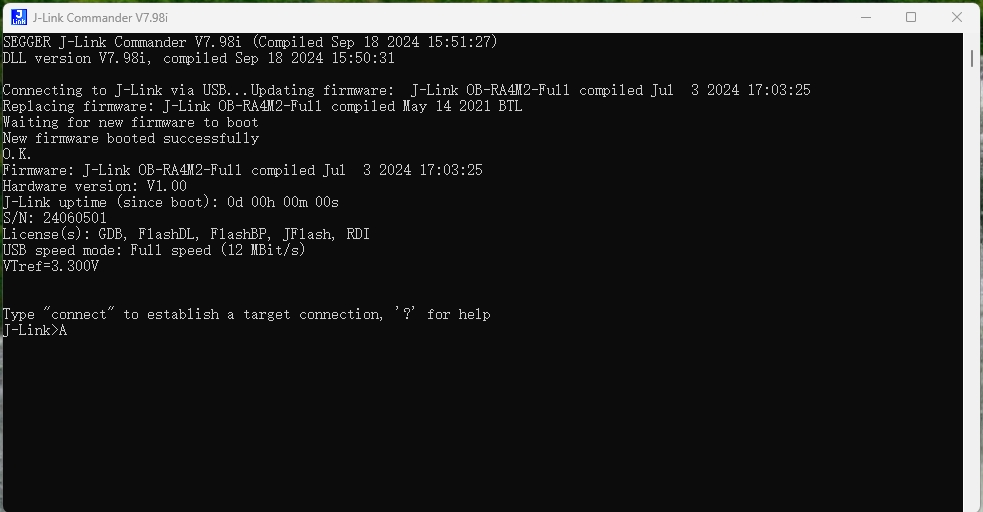
 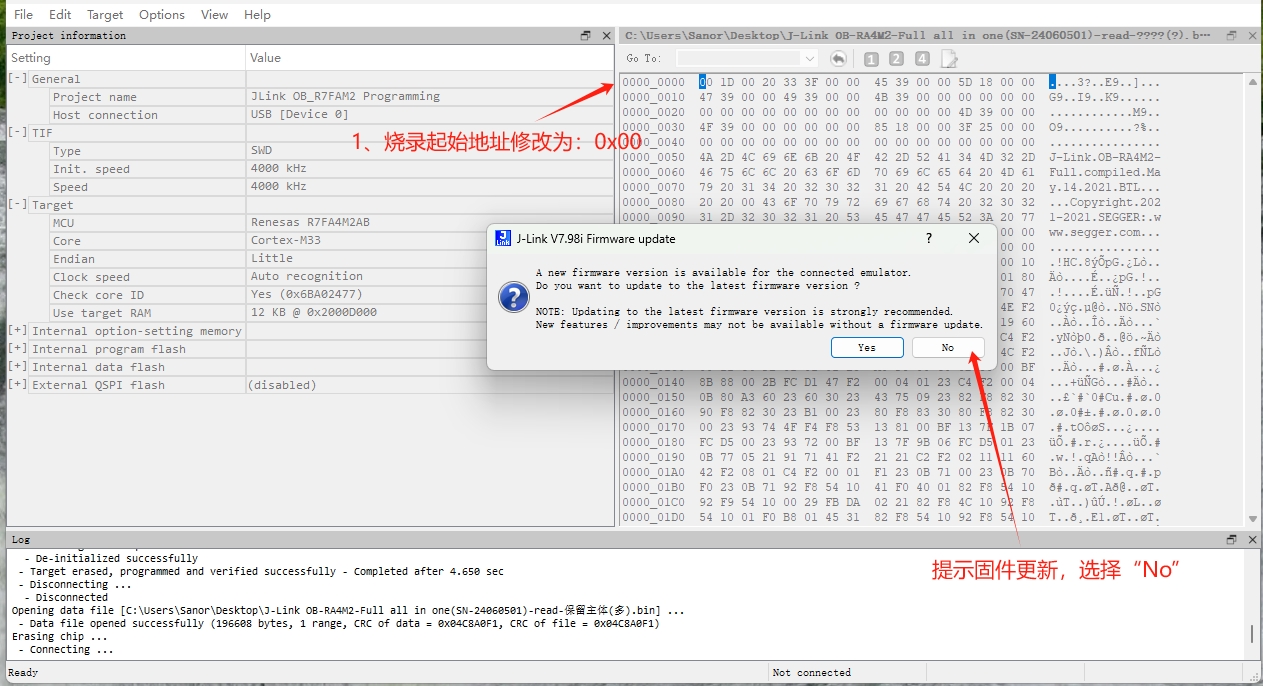 a) Firmware feasibility test. After the firmware download is complete, connect the debugger to the computer and open J-Link Commander. If a new firmware version (higher than J-Link OB-RA4M2-Full compiled Sep 13 2023 14:47:56) is available, it will indicate that the debugger is currently in bootloader mode. Confirm the update and enter bootloader mode; otherwise, enter bootloader mode directly, as shown below:
  New firmware prompts bootloader mode; confirm the update and enter bootloader mode: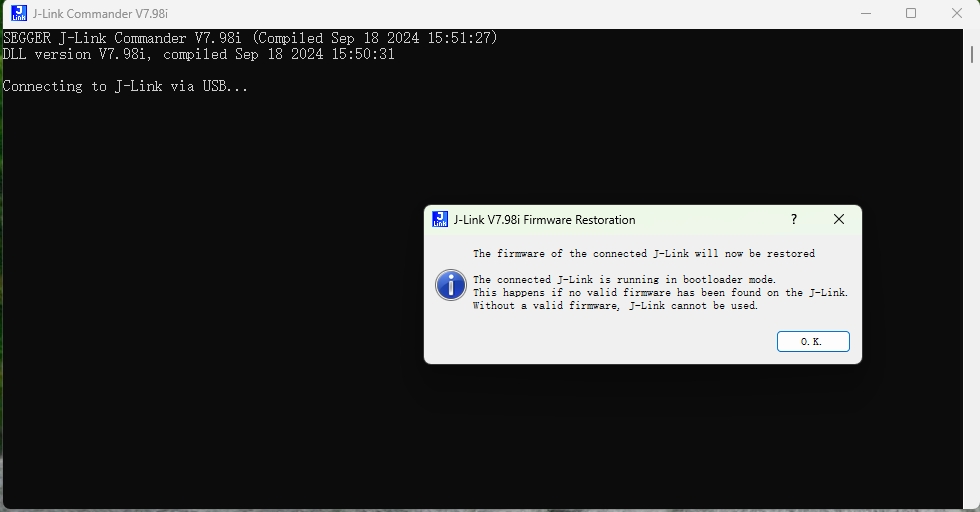
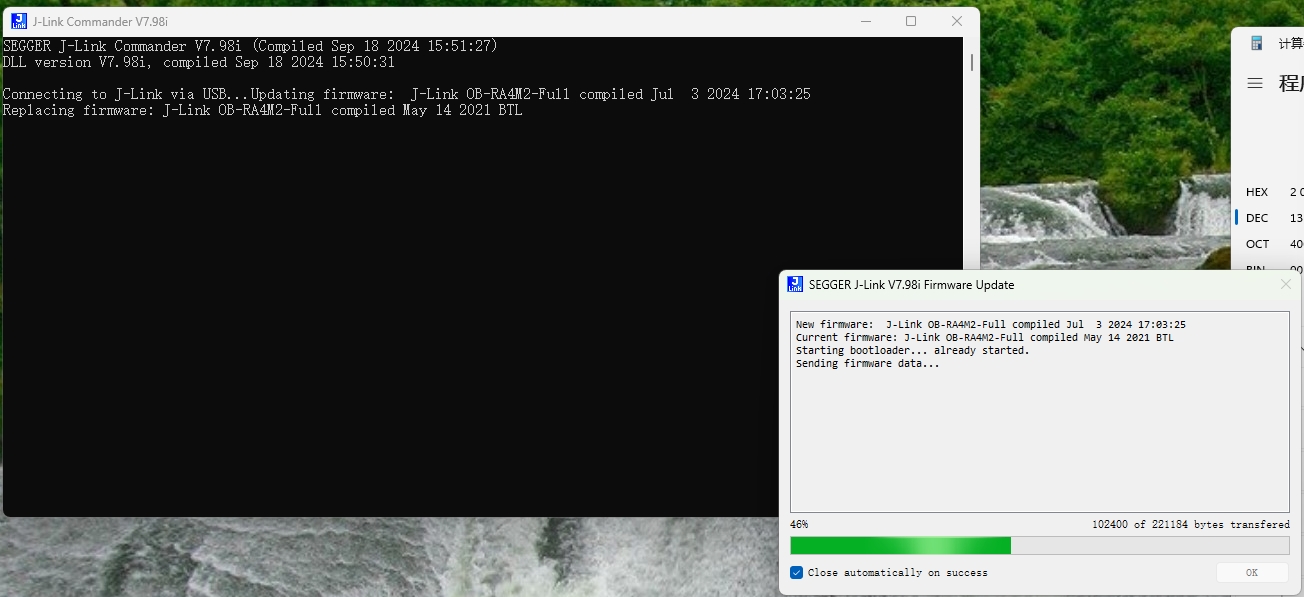
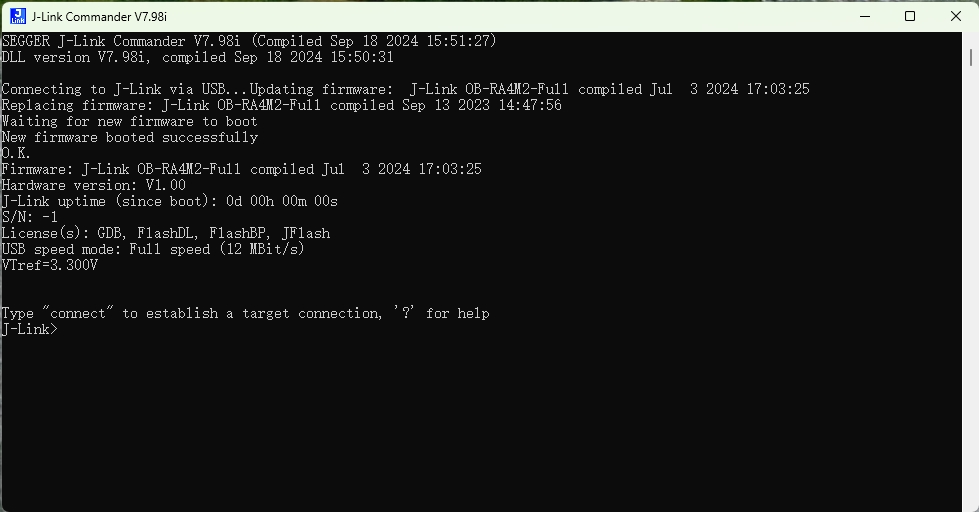 As you can see, the initial SN = -1, and a license has been added. Based on past experience, the old version of J-Link Commander could be used to add the SN via command, but this doesn't work. Therefore, the old method of manually adding the SN is necessary. The SN is stored in the chip's memory address in little-endian alignment, i.e., in hexadecimal format. Two numbers form one byte of data, stored in little-endian alignment. For example, the SN is 24060501, corresponding to the hexadecimal format 16F2255. According to the SN encoding rules, its storage method in memory is: 55 22 F6 01 (the low byte is stored at the low memory address, and the high byte at the high memory address), as shown below.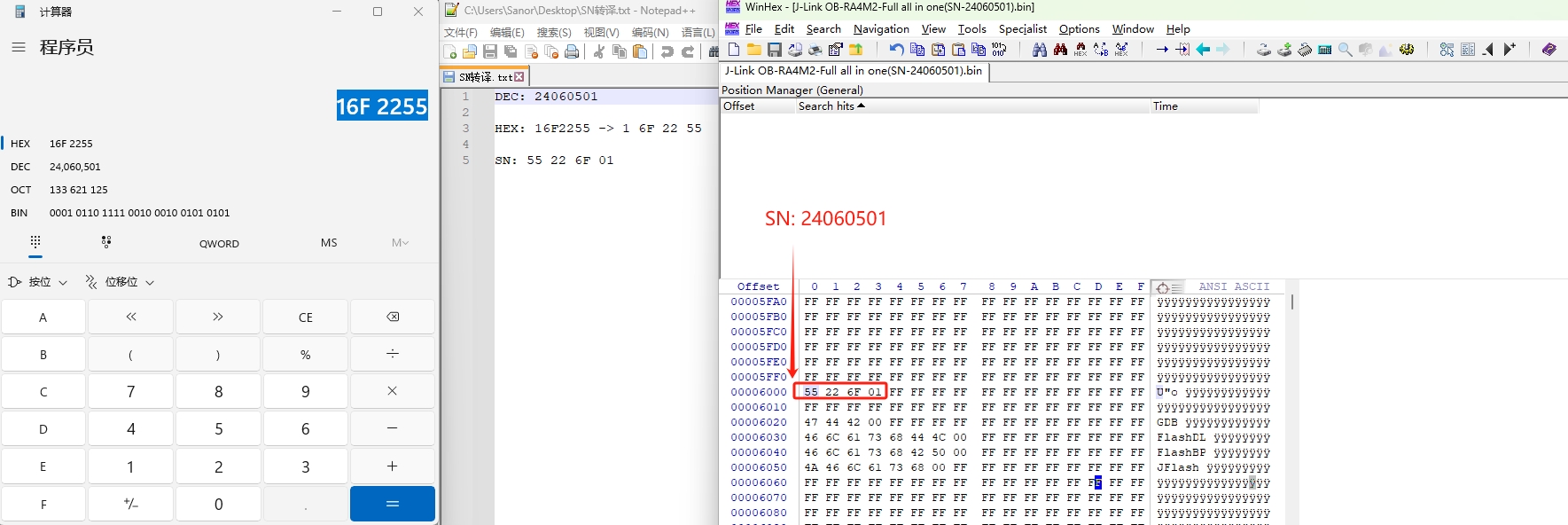
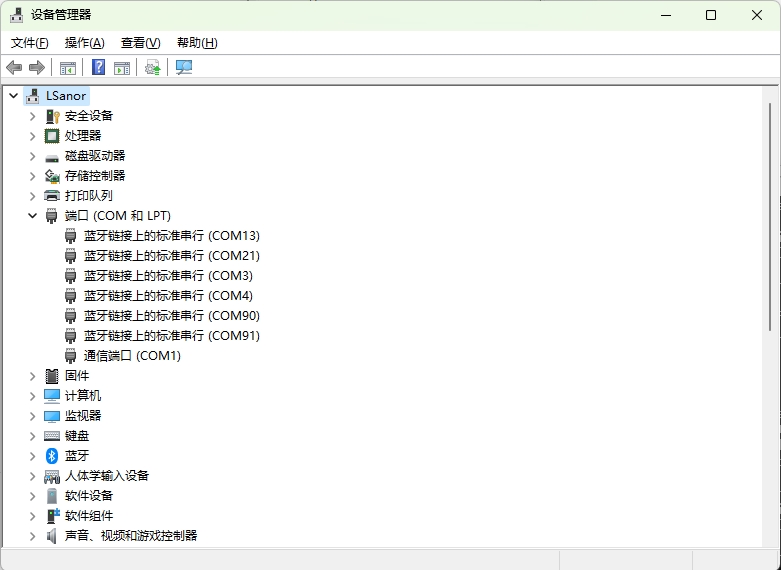
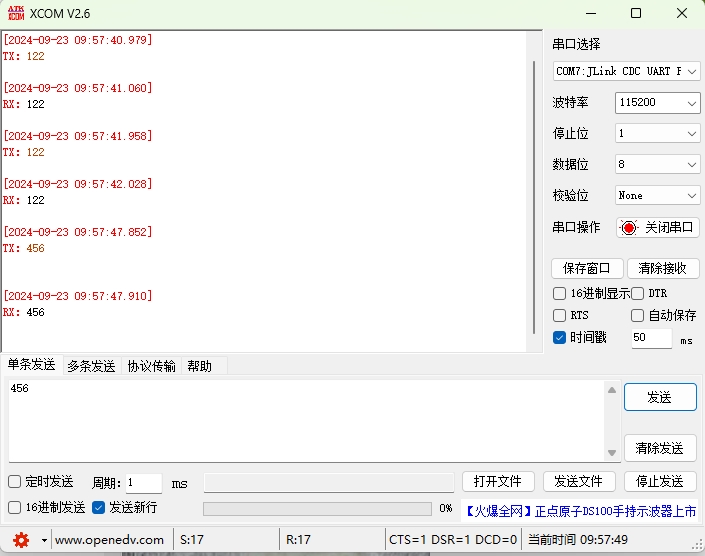
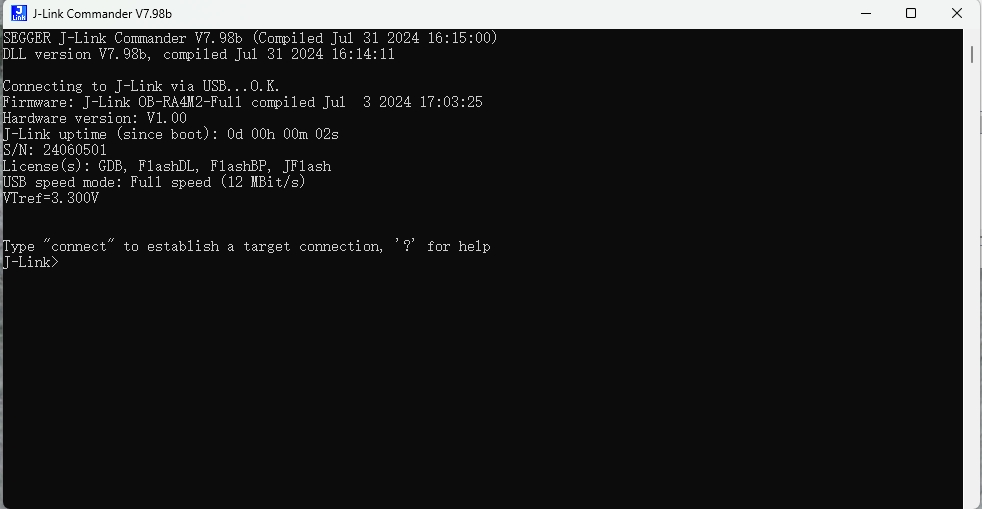 Next, let's test if the VCOM function is working properly. VCOM is enabled by default. If it is not enabled, you can use the command: VCOM enable in J-Link Commander. The VCOM test results are as follows: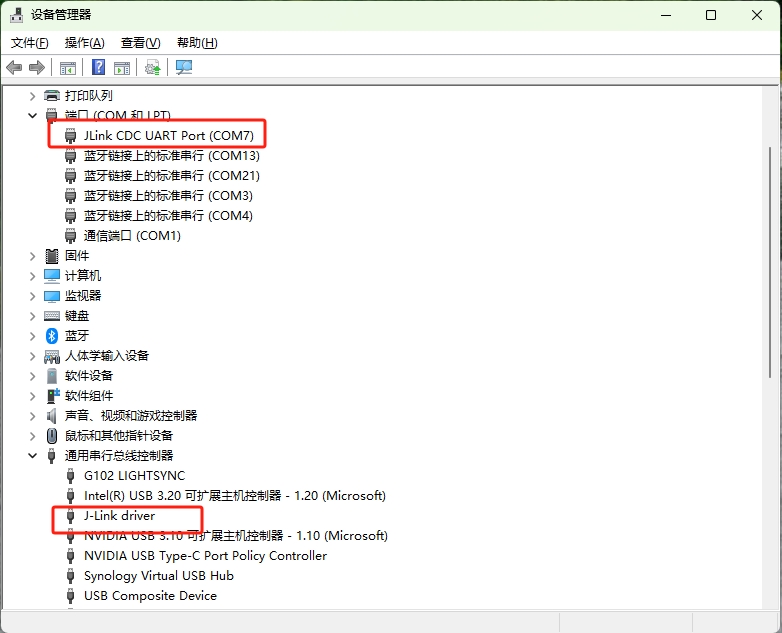
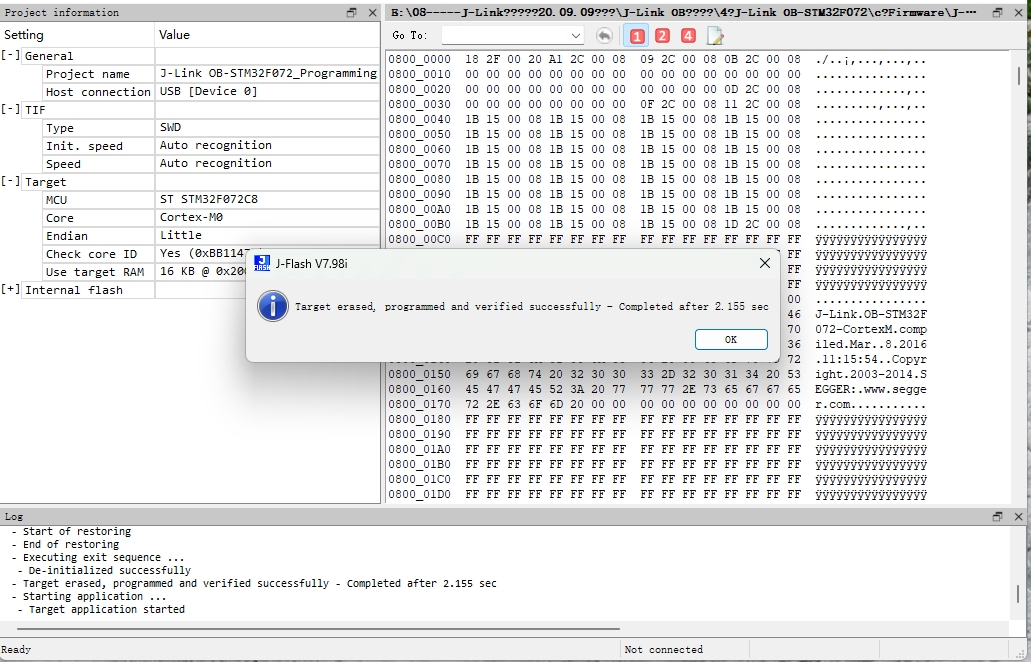
 Finally, let's test if the debugger's SWD download function is working properly. The test results are as follows:
  That's all for this update. No further testing was done; interested readers can test it themselves. By the way, a bug has been discovered: occasionally after reconnecting, it prompts that the debugger is in bootloader mode, which can be entered after confirmation; a solution has not yet been found, and the specific cause and impact require further research and testing. Regarding the firmware, I will attach one or two firmware files with the serial number added. For the original firmware and other related materials, you can download them from the original author.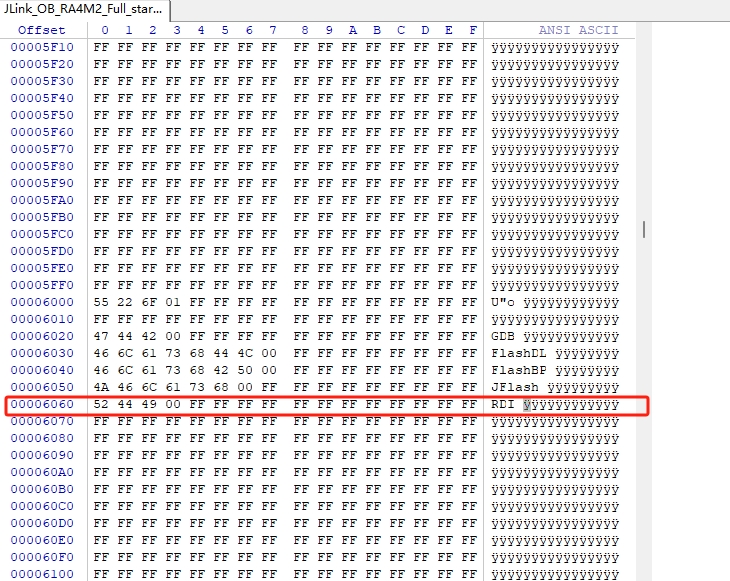
 [Disclaimer] To avoid copyright disputes, this OB debugger is for DIY enthusiasts or personal use only. Its creation and use must comply with relevant open-source licenses and may not be used for commercial purposes. Any violation will be the sole responsibility of the user. The final interpretation rights of the OB circuit and related source code firmware belong to Segger. I do not provide any form of technical support or service, nor do I assume any responsibility for any consequences arising from improper use. Please be aware of this disclaimer.

All reference designs on this site are sourced from major semiconductor manufacturers or collected online for learning and research. The copyright belongs to the semiconductor manufacturer or the original author. If you believe that the reference design of this site infringes upon your relevant rights and interests, please send us a rights notice. As a neutral platform service provider, we will take measures to delete the relevant content in accordance with relevant laws after receiving the relevant notice from the rights holder. Please send relevant notifications to email: bbs_service@eeworld.com.cn.
It is your responsibility to test the circuit yourself and determine its suitability for you. EEWorld will not be liable for direct, indirect, special, incidental, consequential or punitive damages arising from any cause or anything connected to any reference design used.
Supported by EEWorld Datasheet
EEWorld
subscription
account

EEWorld
service
account

Automotive
development
community

Robot
development
community

About Us Customer Service Contact Information Datasheet Sitemap LatestNews



Room 1530, 15th Floor, Building B,
No.18 Zhongguancun Street,
Haidian District,
Beijing, Postal Code: 100190
China
Telephone: 008610 8235 0740
 京公网安备 11010802033920号


 S3-AA22D-FREQ



